Okwu mmalite
This manual provides detailed instructions for the installation, operation, and maintenance of your PROZOR HDMI Audio Extractor. Please read this manual thoroughly before using the product to ensure proper function and to prevent damage.
The PROZOR HDMI Audio Extractor is designed to separate audio and video signals from an HDMI source. It allows you to output the video signal to an HD display while simultaneously extracting the audio to a separate audio system via SPDIF (optical) or a 3.5mm analog jack.
Njirimara ngwaahịa
- HDMI Audio Separation: Extracts audio from an HDMI signal, allowing video to be displayed on an HD screen and audio to be output through SPDIF (optical) or a 3.5mm audio jack.
- Njikwa olu: Features a dedicated volume adjustment knob for the 3.5mm audio output. Includes a 3.5mm to 2RCA cable for connecting to RCA-compatible speakers.
- HDMI 2.0 & HDCP 2.2 Support: Compatible with HDMI 2.0 and HDCP 2.2 standards. Supports input resolutions up to 4K@60Hz (YUV 4:4:4), and is backward compatible with 1080P and 720P resolutions.
Note: This product is not designed for use with HDR to DVI converters or displays equipped with DVI interfaces.
- High-Quality Visuals & Audio: Supports HDR functionality for enhanced dynamic images and accurate color reproduction. Audio output supports both 2.0ch and 5.1ch.
Note: 5.1ch audio output is available only via the optical (SPDIF) port.
- Ndakọrịta sara mbara: Suitable for various HDMI source devices such as Fire TV Stick 4K, Roku, Chromecast, Xbox One X, PS4 Pro, 4K Blu-ray/DVD players, Apple TV 4K, and 4K laptops.
- Mbufe mgbaàmà kwụsiri ike: For optimal performance and stable signal transmission, it is recommended to use a 5V1A power adapter with the product. For 4K@60Hz (YUV 4:4:4) and HDR effects, ensure all connected devices use HDMI 2.0 certified cables (HDMI 19+1, 26AWG).
Ihe ngwugwu
Biko lelee ihe dị n'ime ngwugwu ahụ mgbe ị natara ya iji hụ na ihe niile dị na ya ma ghara imebi.
- PROZOR HDMI Audio Extractor (Model: PST155)
- USB Power USB
- 3.5mm ruo 2RCA eriri igwe
- Akwụkwọ ntuziaka onye ọrụ
- HDMI Cable (may vary by package)

Image: The PROZOR HDMI Audio Extractor unit with various included cables, including HDMI, USB power, and 3.5mm to RCA audio cables.

Image: The PROZOR HDMI Audio Extractor unit shown alongside its user manual and included cables.
Eserese ngwaahịa

Image: A diagram illustrating the connection points of the PROZOR HDMI Audio Extractor. It shows HDMI IN, HDMI OUT, Power (Micro USB), Stereo (3.5mm), and Optical/Toslink ports. Connections are shown from a source device (e.g., PS4) to HDMI IN, HDMI OUT to an HD TV, Power to a USB cable, Stereo to 3.5mm headphones, and Optical/Toslink to a soundbar.
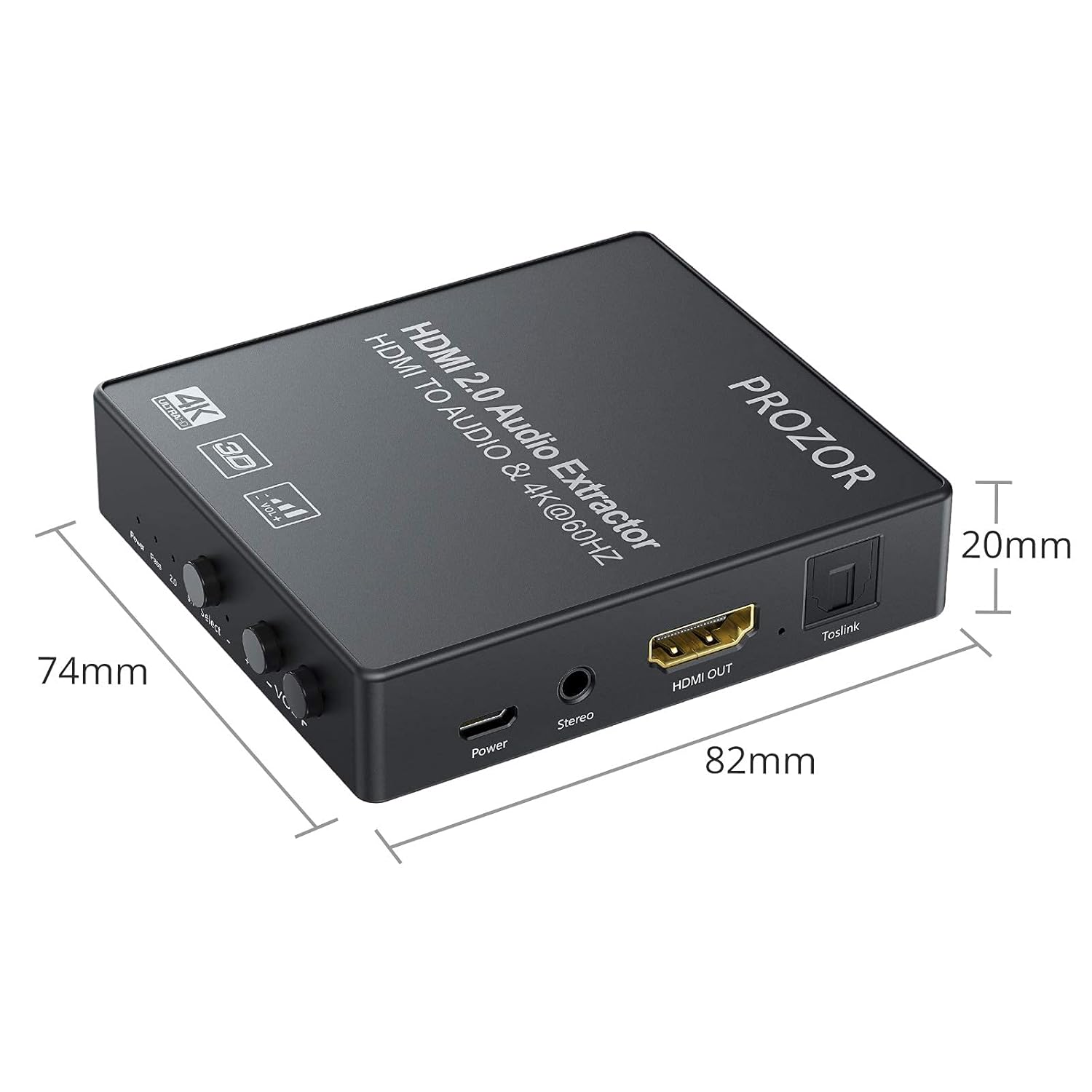
Image: A diagram showing the physical dimensions of the PROZOR HDMI Audio Extractor, measuring 82mm in length, 74mm in width, and 20mm in height.
Ntuziaka nhazi
- Njikọ ike: Connect the provided USB power cable to the "Power" port on the extractor and then to a 5V1A USB power adapter (not always included) or a USB port on your display/source device. Ensure the power indicator light illuminates.
- Ntinye HDMI: Connect an HDMI cable from your source device (e.g., Blu-ray player, game console, laptop) to the "HDMI IN" port on the extractor.
- Ihe mmepụta HDMI: Connect another HDMI cable from the "HDMI OUT" port on the extractor to the HDMI input of your display device (e.g., TV, monitor, projector).
- Audio Output (Analog): For analog audio, connect headphones or speakers to the "Stereo" (3.5mm) port. If using RCA speakers, utilize the included 3.5mm to 2RCA cable.
- Audio Output (Digital): For digital audio, connect an optical (Toslink) cable from the "Toslink" port on the extractor to your soundbar, AV receiver, or other optical audio input device.
- Họrọ Ụdị ọdịyo: Use the "Select" button on the extractor to choose your desired audio output mode:
- GAFE: HDMI audio passes through directly to the HDMI output.
- 2.0CH: Stereo audio output via 3.5mm and optical ports.
- 5.1CH: 5.1 channel audio output via the optical port only.
- Nyochaa njikọ: Gbaa mbọ hụ na ejikọrọ eriri niile na nchekwa.

Image: A visual representation of various input devices (Laptop, TV Box, DVD Player, PS3/PS4, Blu-ray DVD) connecting to the HDMI IN of the extractor, and output devices (HD TV, HD display, Projector) connecting from the HDMI OUT. This illustrates the signal flow.
Ntuziaka ọrụ
- Ike Na: Once all connections are made and the USB power is supplied, the extractor will power on automatically. The "Power" indicator light will be red.
- Audio Mode Selection: Press the "Select" button to cycle through the audio modes: PASS, 2.0CH, and 5.1CH. The corresponding indicator light (2.0 or 5.1) will illuminate.
- Ndozi olu: For the 3.5mm stereo output, use the "VOL+" and "VOL-" knobs to adjust the audio volume. There are 10 levels of volume adjustment.

Foto: A nso nso view of the volume control knobs and the 3.5mm stereo output port on the PROZOR HDMI Audio Extractor. The text indicates 10 levels of volume adjustment for the 3.5mm headphone output.
- Ndakọrịta mkpebi: The device automatically detects and supports resolutions up to 4K@60Hz (YUV 4:4:4) and 3D 1080P. Ensure your source and display devices also support these resolutions for optimal performance.

Image: A graphic demonstrating the resolution capabilities of the PROZOR HDMI Audio Extractor, supporting 4K@60Hz (YUV 4:4:4) and compatible with 3D 1080P.
Nlekọta
- Nhicha: Jiri akwa dị nro dị nro hichaa ngwaọrụ ahụ. Ejila ihe nhicha mmiri ma ọ bụ ikuku ikuku.
- Nchekwa: Chekwaa ngwaọrụ ahụ n'ebe dị jụụ, kpọrọ nkụ na-adịghị na ìhè anyanwụ kpọmkwem na oke okpomọkụ.
- Ijikwa: Avoid dropping or subjecting the device to strong impacts. Do not attempt to disassemble or modify the unit, as this will void the warranty and may cause damage.
- Nlekọta USB: Ensure HDMI and audio cables are not bent sharply or placed under heavy objects to prevent damage.
Nchọpụta nsogbu
| Nsogbu | Ihe nwere ike ime | Ngwọta |
|---|---|---|
| Enweghị mmepụta vidiyo. |
|
|
| Enweghị mmepụta ọdịyo. |
|
|
| Mgbaàmà ma ọ bụ mmetụ aka na-akwụsị akwụsị. |
|
|
| No image with PS5 (as reported by some users). |
|
|
| Device stopped working after a short period. |
|
|
Nkọwapụta
| Njirimara | Nkọwa |
|---|---|
| Nọmba nlereanya | PST155 |
| Ụdị | NZUKWU |
| Ụdị HDMI | HDMI 2.0 |
| Cdị HDCP | HDCP 2.2 |
| Mkpebi ntinye kacha | 4K@60Hz (YUV 4:4:4) |
| Mkpebi akwadoro | 4K@60Hz, 4K@50Hz, 4K@30Hz, 1080P, 720P |
| 3D Nkwado | Yes (1080P) |
| Nkwado HDR | Ee |
| ọdụ ụgbọ mmiri mmepụta ihe | 1 x SPDIF (Optical), 1 x 3.5mm Stereo Jack |
| Ụdị ọdịyo | PASS, 2.0CH, 5.1CH (Optical only for 5.1CH) |
| Njikwa olu | 10 levels for 3.5mm output |
| Ịnye ọkụ | DC 5V/1A (via Micro USB) |
| Ibu ngwaahịa | 210 g |
| Akụkụ (L x W x H) | 82mm x 74mm x 20mm (ihe dị ka) |
| Ngwa dakọtara | Game consoles, Blu-ray/DVD players, streaming devices, laptops |
| Ụdị njikọ | AUX, HDMI, RCA (via adapter) |
Ozi nchekwa
- Do not expose this device to water, moisture, or excessive humidity.
- Edokwala ngwaọrụ n'akụkụ ebe okpomọkụ ma ọ bụ na ìhè anyanwụ kpọmkwem.
- Use only the specified power adapter (5V1A) to avoid damage.
- Debe ebe ụmụaka na-apụghị iru.
- Disconnect power during lightning storms or when unused for long periods.
Akwụkwọ ikike na nkwado
PROZOR products are designed for reliability and performance. For warranty information or technical support, please refer to the contact details provided with your purchase or visit the official PROZOR websaịtị.
Biko dowe ihe akaebe nke ịzụrụ ihe maka akwụkwọ ikike.


