Okwu mmalite
Welcome to the user manual for your Rapoo EV310M Wireless Vertical Mouse. This ergonomic mouse is designed for comfort and efficiency, featuring multi-mode wireless connectivity and adjustable DPI settings. Please read this manual carefully to ensure proper setup and optimal performance.
Ihe ngwugwu
- Rapoo EV310M Wireless Vertical Mouse
- Ihe nnata USB (echekwara n'ime òké)
- AA Battery (pre-installed or included)
- Ntuziaka mmalite ngwa ngwa (akwụkwọ a)
Ngwaahịa gafereview
Familiarize yourself with the components of your Rapoo EV310M mouse.
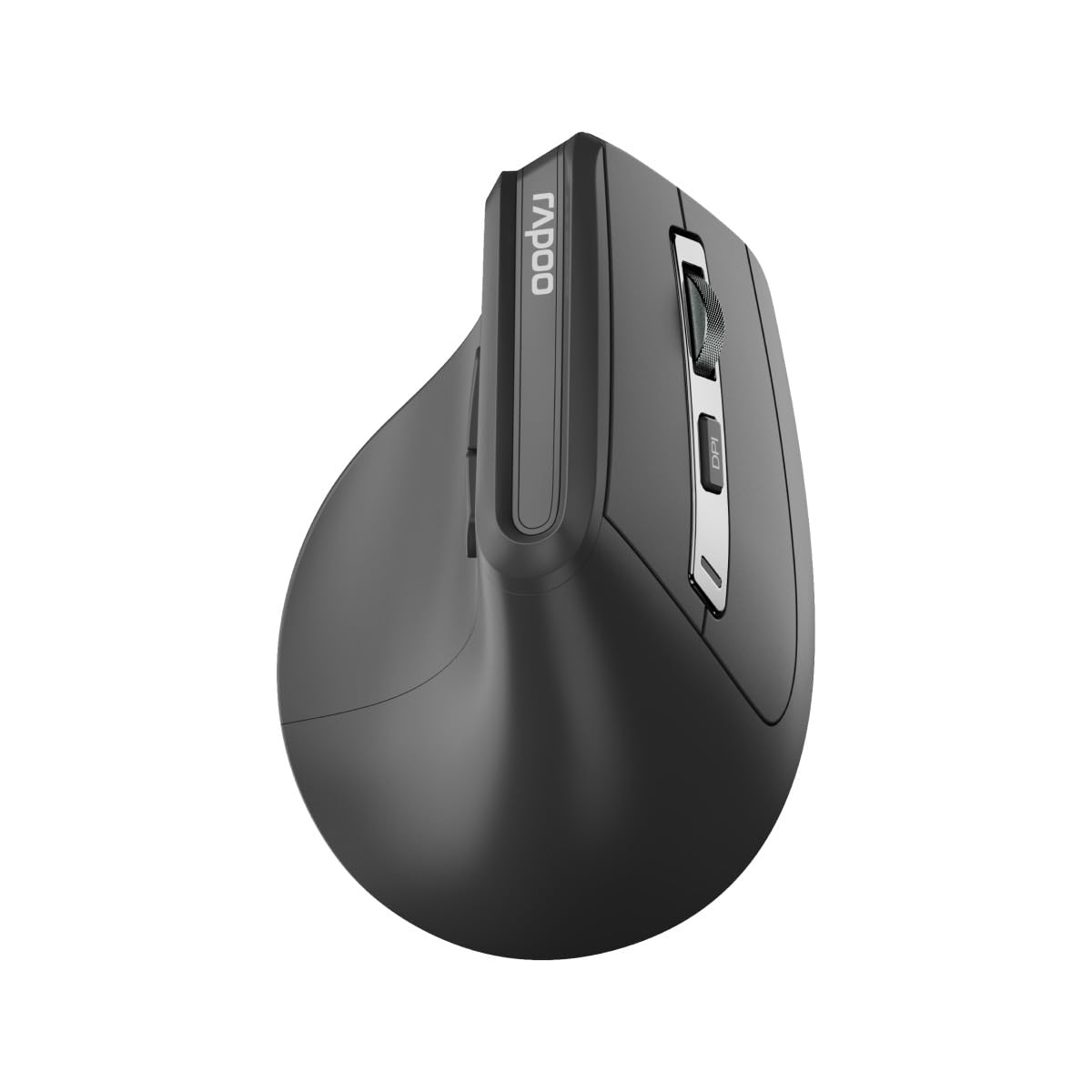
Foto: Top view of the Rapoo EV310M Wireless Vertical Mouse, highlighting the scroll wheel and DPI button.
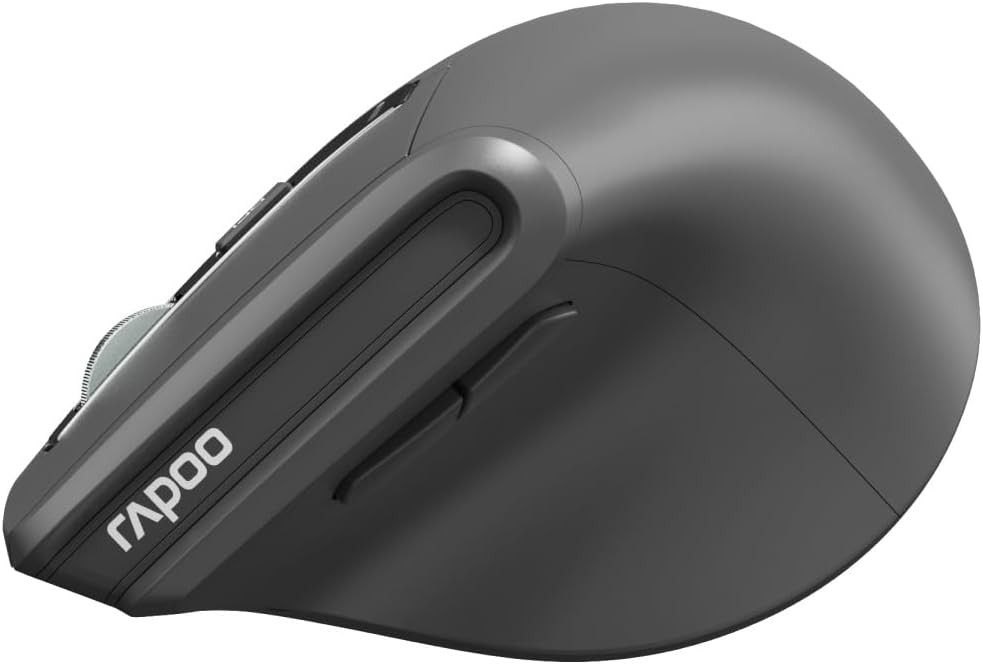
Foto: Akụkụ view of the Rapoo EV310M Wireless Vertical Mouse, showing the forward and backward navigation buttons.
Ọrụ bọtịnụ
- Bọtịnụ Pịa aka ekpe: Ọrụ aka ekpe ọkọlọtọ.
- Pịa aka nri bọtịnụ: Ọrụ pịa nri ọkọlọtọ.
- Mpempe akwụkwọ mpịakọta: Scroll up/down, middle-click.
- Bọtịnụ DPI: Na-edozi ihe nhụsianya (DPI).
- Bọtịnụ mbugharị: Na-aga n'ihu web ihe nchọgharị ma ọ bụ file ndị na-eme nchọpụta.
- Bọtịnụ azụ: Na-agagharị azụ n'ime web ihe nchọgharị ma ọ bụ file ndị na-eme nchọpụta.
- Mode Switch Button/Indicator: Switches between 2.4GHz and Bluetooth modes.
Melite
1. Ntinye batrị
- Chọta ebe batrị dị n'okpuru òké.
- Mepee mkpuchi nke batrị batrị.
- Fanye otu batrị AA, na-ahụ polarity ziri ezi (+/-).
- Mechie mkpuchi oghere batrị.
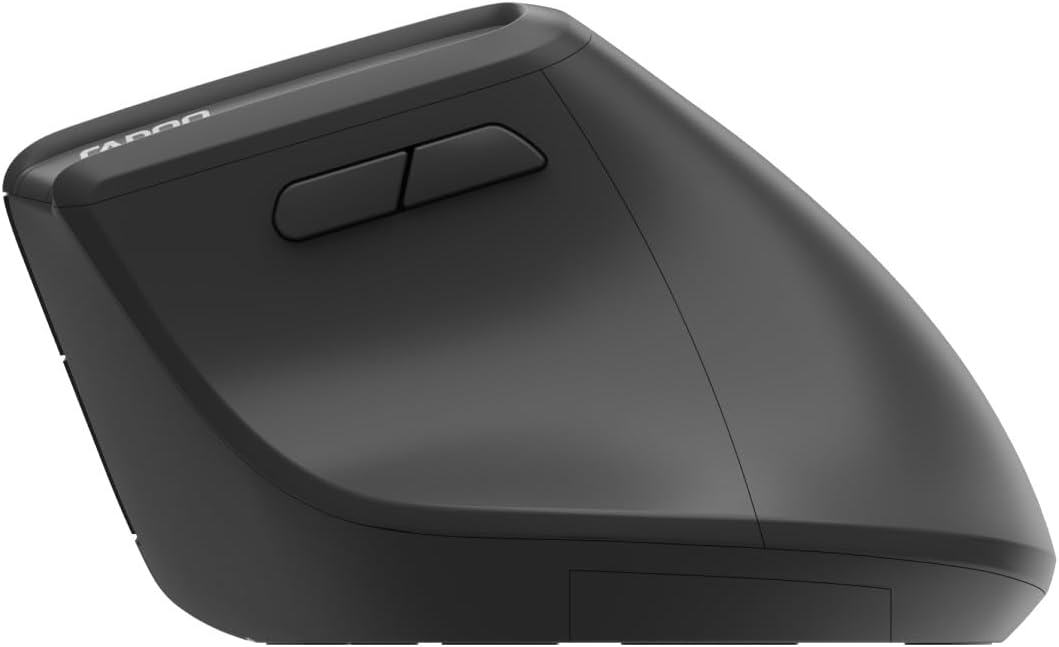
Image: Underside of the mouse, illustrating the battery compartment and the storage slot for the USB receiver.
2. Ijikọ gị òké
The Rapoo EV310M supports multi-mode wireless connection: 2.4 GHz via USB receiver and Bluetooth 3.0/5.0.
2.1. 2.4 GHz Njikọ ikuku
- Remove the USB receiver from its storage slot on the bottom of the mouse.
- Tinye eriri USB n'ọdụ ụgbọ mmiri dị na kọmputa gị.
- Turn on the mouse using the power switch (usually on the bottom).
- The mouse should connect automatically. If not, press the mode switch button until the 2.4GHz indicator lights up.
2.2. Njikọ Bluetooth
- Gbanwuo òké.
- Press the mode switch button to select a Bluetooth channel (e.g., Bluetooth 1 or Bluetooth 2). The indicator light for the selected Bluetooth channel will start blinking slowly.
- Press and hold the mode switch button for 3 seconds until the indicator light blinks rapidly. This indicates the mouse is in pairing mode.
- Na kọmputa ma ọ bụ ngwaọrụ gị, mepee ntọala Bluetooth wee chọọ ngwaọrụ ọhụrụ.
- Select "RAPOO EV310M" from the list of available devices to pair.
- Ozugbo ejikọtara ya, ọkụ ngosi ahụ ga-akwụsị ịcha ọkụ ma nọgide na-esi ike ruo sekọnd ole na ole tupu ọ gbanyụọ.
Ntuziaka ọrụ
1. DPI mmezi
The DPI (Dots Per Inch) button allows you to adjust the cursor speed and sensitivity.
- Pịa DPI bọtịnụ located on the top of the mouse to cycle through available DPI settings (e.g., 800, 1200, 1600, 2400 DPI).
- Each press will change the sensitivity, allowing you to find your preferred cursor speed.
2. Ịgbanwe n'etiti ngwaọrụ ejikọrọ
The EV310M mouse can be paired with up to three devices (one 2.4GHz and two Bluetooth devices).
- To switch between connected devices, simply press the bọtịnụ mgbanwe mode na òké.
- The indicator light will briefly show which channel (2.4G, BT1, BT2) is active.
Nlekọta
Nhicha
Iji hichaa òké gị, jiri ákwà dị nro ma kpọọ nkụ. Maka unyi siri ike, jiri obere d hichaa òké gị.ampen akwa na mmiri ma ọ bụ a nwayọọ ihicha ngwọta. Zere iji kemịkalụ siri ike ma ọ bụ ihe na-emebi emebi.
Ngbanwe batrị
When the mouse performance degrades or the indicator light signals low battery, replace the AA battery following the installation steps in the Setup section.
Nchọpụta nsogbu
Òké Anaghị aza
- Lelee batrị: Hụ na etinyere batrị ahụ nke ọma ma nwee ike ịchaji zuru oke. Dochie ya ma ọ bụrụ na ọ dị mkpa.
- Ike mgba ọkụ: Verify the mouse is turned on.
- Ihe nnata USB: For 2.4GHz mode, ensure the USB receiver is securely plugged into a working USB port. Try a different port.
- Njikọ Bluetooth: For Bluetooth mode, ensure Bluetooth is enabled on your device and the mouse is correctly paired. Re-pair if needed.
- Ogologo: Ensure the mouse is within the effective operating range of your computer (typically 10 meters).
Mgbanwe Cursor na-adịghị agbanwe agbanwe
- Elu: Use the mouse on a clean, non-reflective surface. A mouse pad is recommended.
- Ntọala DPI: Adjust the DPI setting to a lower value if the cursor is too fast or jumpy.
- Ịdị ọcha ihe mmetụta: Check the optical sensor on the bottom of the mouse for any obstructions or dirt. Clean gently with a soft cloth.
Nkọwapụta
| Njirimara | Nkọwa |
|---|---|
| Ụdị | RAPOO |
| Nọmba nlereanya | EV310M |
| Teknụzụ Njikọta | Bluetooth (3.0, 5.0), 2.4 GHz Wireless |
| Mmetụta DPI | Adjustable 800-2400 DPI |
| Ọnụọgụ bọtịnụ | 6 |
| Ntuzi aka | Aka nri |
| Isi Iyi Ike | Battery Powered (1x AA) |
| Ndụ batrị | Ruo ọnwa isii |
| Ndakọrịta sistemụ arụmọrụ | PC, Linux, Mac |
| Ibu Ibu | 100 grams |
| Agba | Nwa |
Akwụkwọ ikike na nkwado
For warranty information or technical support, please refer to the official RAPOO website or contact your local dealer. Keep your purchase receipt for warranty claims.


