Okwu mmalite
The FREEWOLF K100 is a versatile 99-key wireless membrane keyboard designed for various computing environments. It offers three connectivity modes: Bluetooth, 2.4GHz wireless, and USB-C wired, ensuring compatibility with a wide range of devices including PCs, Macs, laptops, tablets, and phones. Key features include customizable RGB backlighting, a convenient multimedia control knob, durable PBT keycaps with side-printed legends, and a long-lasting 4000mAh battery.
Njirimara ngwaahịa
Njikọta ụdị atọ
Connect via Bluetooth (up to 3 devices), 2.4GHz wireless (with included receiver), or USB-C wired mode. Seamlessly switch between devices for enhanced productivity and gaming.

This image illustrates the three available connection modes: Bluetooth, 2.4GHz wireless, and USB-C wired, highlighting the flexibility for various devices.
Ntughari RGB
Experience vibrant 16.8 million color RGB lighting with multiple dynamic effects. Customize your keyboard's appearance to match your setup or mood.

This image demonstrates the various RGB backlight effects and the key combinations used to control them, including switching modes, colors, brightness, and speed.
Multimedia Control Knob
An intuitive rotary knob allows for quick volume adjustments (rotate) and instant muting (press). Dedicated media keys for play/pause, previous, and next track are also included.

Ihe onyonyo a na-enye nkọwa zuru ezu view of the multimedia knob and its functions, including volume control and mute, alongside the dedicated media playback buttons.
Durable PBT Gradient Keycaps
Crafted from high-quality PBT material, these gradient keycaps resist shine, oil, and wear. Double-shot injection molding ensures legends never fade, with side-printed characters for a clean look and radiant backlighting.

This image highlights the gradient PBT keycaps, showcasing their side-printed legends and how they allow backlight to shine through for improved visibility.
4000mAh Battery & Smart Sleep Mode
A large 4000mAh rechargeable battery provides extended wireless usage. Intelligent sleep modes conserve power: backlight off after 2 minutes of inactivity, deep sleep after 30 minutes (2.4G/BT), and wired mode follows computer sleep.

This image details the keyboard's 4000mAh battery and its intelligent sleep features designed to maximize battery life during wireless operation.
Compact 99-Key Layout & Anti-Ghosting
The 99-key layout includes a crucial number pad while saving desk space. Full 26-key rollover (NKRO) ensures every keystroke is registered accurately, ideal for fast typing and gaming.
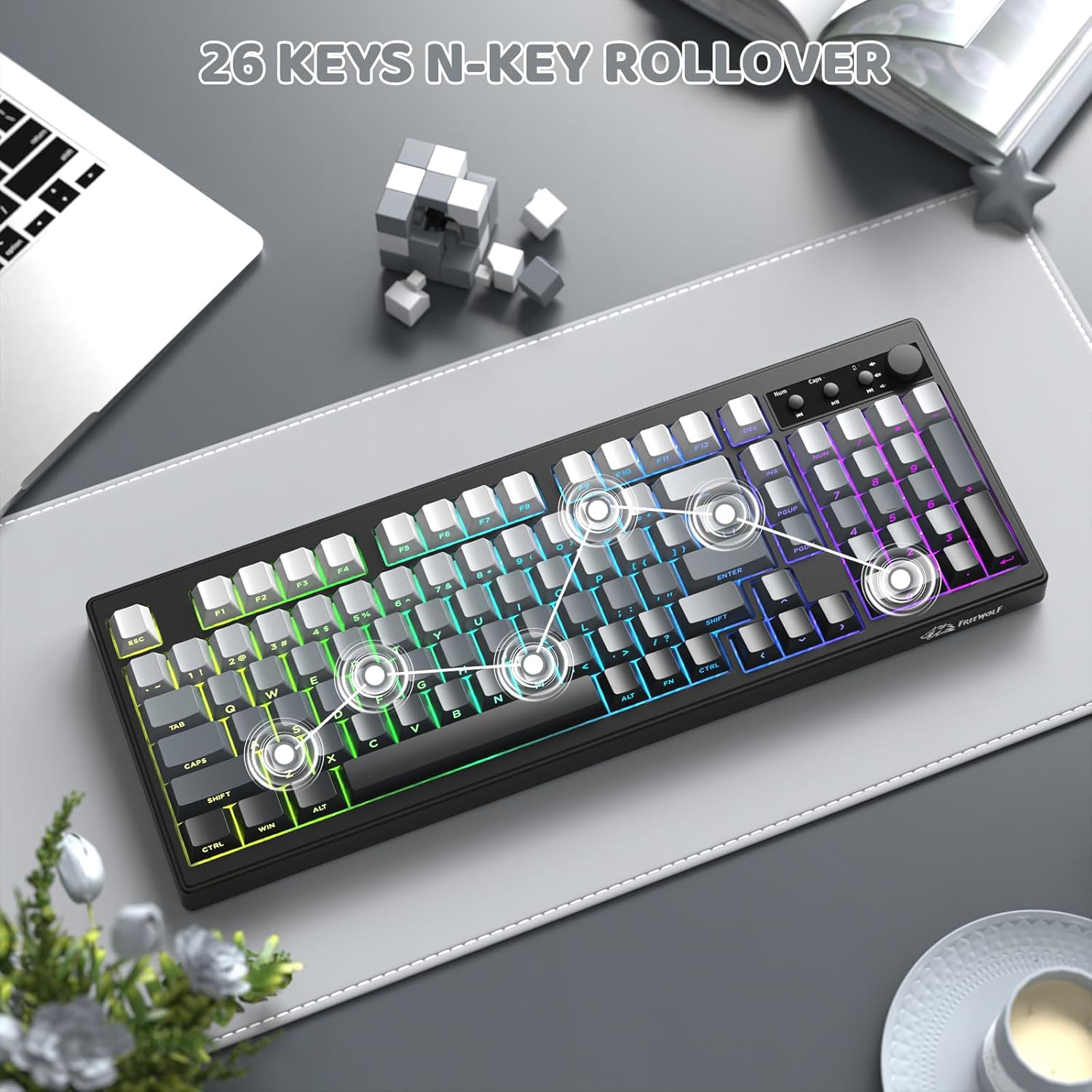
This image shows the compact 99-key layout of the keyboard, emphasizing its N-key rollover capability for precise input.
Ergonomic imewe
The keyboard features adjustable double leg braces, allowing you to set the typing angle for optimal comfort. A built-in slot securely stores the 2.4G USB receiver when not in use.

This image illustrates the adjustable feet for ergonomic positioning and the convenient storage slot for the 2.4G USB receiver.
Ntuziaka nhazi
- Mepee ahụigodo: Carefully remove the keyboard and all accessories from the packaging. Ensure all components are present: keyboard, USB-C cable, and 2.4GHz USB receiver.
- Nchaji mbụ: Connect the keyboard to a USB power source using the provided USB-C cable. The battery indicator light will show charging status. A full charge is recommended before first use.
- Select Connection Mode: Use the switch located on the back or side of the keyboard to select your desired connection mode:
- Ọnọdụ ikuku 2.4GHz:
- Locate the 2.4GHz USB receiver, typically stored in a slot on the keyboard's underside.
- Tinye ihe nnata n'ọdụ ụgbọ mmiri USB dị na kọmputa gị.
- Switch the keyboard to 2.4G mode. The keyboard should connect automatically.
- Ọnọdụ Bluetooth:
- Gbanwee ahụigodo ahụ ka ọ bụrụ ọnọdụ BT.
- Pịa ma jide FN + 2 (ma ọ bụ FN + 3, FN + 4) for 3-5 seconds until the indicator light flashes, indicating pairing mode.
- On your device (PC, Mac, tablet, phone), go to Bluetooth settings and search for "K100 Keyboard" (or similar).
- Select the keyboard to pair. Repeat for up to three different Bluetooth devices using FN+2, FN+3, and FN+4.
- Ụdị eriri USB-C:
- Connect the USB-C cable from the keyboard to your computer.
- Switch the keyboard to wired mode (if applicable, some keyboards automatically detect wired connection).
- Ndakọrịta sistemụ:
- Pịa FN + W to switch to Windows system layout.
- Pịa FN + M to switch to macOS system layout.
Ntuziaka ọrụ
Njikwa ọkụ RGB
- FN + INS: Switch between different RGB lighting effects.
- FN + DEL: Switch between solid RGB colors.
- FN + Oghere azụ: Gbanyụọ/ gbanyụọ ọkụ azụ.
- FN + PgUp: Mụbaa nchapụta azụ azụ.
- FN + PgDn: Belata nchapụta azụ.
- FN + - / =: Adjust lighting effect speed.
Multimedia Knob and Keys
- Gbanwee ntụ ọka: Gbanwee olu elu ma ọ bụ ala.
- Pịa Knob: Kpochapụ ma ọ bụ gbanyụọ ụda olu.
- Igodo Mgbasa Ozi raara onwe ya nye: Use the buttons next to the knob for Play/Pause, Previous Track, and Next Track.
Sleep Mode Behavior
- Ụdị ikuku: Backlight turns off after 2 minutes of inactivity. The keyboard enters deep sleep (disconnected) after 30 minutes of inactivity. Wake by pressing any key.
- Ọnọdụ Wired: The keyboard's sleep behavior follows your connected computer's sleep settings.
Nlekọta
- Na-ehicha ahụigodo: Jiri akwa dị nro na-enweghị ntụpọ dampened with water or a mild cleaning solution to wipe down the surface of the keyboard. Avoid excessive moisture.
- Isi igodo nhicha: For deeper cleaning, keycaps can be carefully removed (using a keycap puller if available) and washed with mild soap and water. Ensure they are completely dry before reattaching.
- Mwepụ uzuzu: Use compressed air to remove dust and debris from between the keycaps and under the keyboard.
- Nchekwa: Mgbe a naghị eji ya ruo ogologo oge, debe ahụigodo ahụ n'ebe kpọrọ nkụ ma dị jụụ, ebe anwụ na-anaghị apụta kpọmkwem.
Nchọpụta nsogbu
- Keyboard not connecting via 2.4GHz wireless:
- Ensure the 2.4GHz USB receiver is securely plugged into a working USB port. Check that the keyboard is switched to 2.4G mode. Try re-pairing by unplugging and re-plugging the receiver, then restarting the keyboard.
- Nsogbu njikọ Bluetooth:
- Make sure the keyboard is in BT mode and in pairing mode (indicator light flashing after holding FN+2/3/4). Ensure Bluetooth is enabled on your device and try removing and re-pairing the keyboard in your device's Bluetooth settings. Check the keyboard's battery level.
- RGB backlight not working or dim:
- Pịa FN + Backspace to ensure the backlight is turned on. Use FN + PgUp to increase brightness. Check the battery level; low battery can affect backlight performance. If in wired mode, ensure the USB-C cable is fully connected.
- Keys not responding or input lag:
- Ensure the keyboard is fully charged. If using wireless modes, try moving closer to the receiver/device or switching to wired mode to rule out interference. Clean any debris from under the affected keys. For multiple keys, check the connection mode.
- Multimedia knob not functioning:
- Ensure the keyboard is properly connected. Try restarting the keyboard. Verify that no software conflicts are present on your operating system that might override multimedia controls.
Nkọwapụta
| Nlereanya | K100 |
| Ụdị | FREEWOLF |
| Njikọta | Bluetooth, 2.4GHz Ikuku, USB-C Waya |
| Ngụ igodo | 99 igodo |
| Ụdị ahụigodo | Membrane |
| Ịkụ azụ azụ | RGB (agba nde 16.8) |
| Isi okwu | PBT Gradient, Side-Printed Legends |
| Ike batrị | 4000mAh |
| Mgbochi mmụọ | 26-Key Rollover (NKRO) |
| Akụkụ | 16.06 x 5.79 x 1.50 sentimita (408mm x 147mm x 38mm) |
| Ibu Ibu | 1.98 pound |
| Ndakọrịta | Windows, macOS |

This image provides a visual representation of the keyboard's dimensions, including length, width, and height.
Ngwaahịa gafereview Vidiyo
Vidiyo a na-enye nkọwa zuru okeview of the FREEWOLF K100 Wireless Membrane Keyboard, showcasing its design, RGB lighting, multimedia knob, and connectivity options.
Akwụkwọ ikike na nkwado
The FREEWOLF K100 keyboard comes with a standard manufacturer's warranty. For specific warranty details, return policies, or technical support, please refer to the documentation included with your purchase or contact FREEWOLF customer service directly through their official websaịtị ma ọ bụ onye na-ere ahịa ebe a zụrụ ngwaahịa ahụ.


