1. Okwu mmalite
Thank you for choosing the KTC H25T7-3 24.5 Inch 240Hz FHD Gaming Monitor. This manual provides essential information for setting up, operating, and maintaining your monitor. Please read it thoroughly before use to ensure optimal performance and safety.
Ozi nchekwa
- Do not expose the monitor to rain or moisture to prevent fire or electric shock.
- Emeghela ihe nlele ahụ casing. Enweghị akụkụ ndị ọrụ ga-arụ ọrụ n'ime. Kpọtụrụ ndị ọrụ ruru eru ọrụ niile.
- Debe ihe nlele ahụ n'elu ebe kwụsiri ike ma dị larịị iji gbochie ya ịda.
- Gbaa mbọ hụ na ikuku ikuku dị na gburugburu ihe nleba anya iji gbochie ikpo oke ọkụ.
- Use only the power adapter and cables provided by KTC.
2. Kedu ihe dị na Igbe ahụ
Verify that all the following items are present in your package:
- KTC H25T7-3 24.5" FHD 240Hz Monitor (x1)
- Monitor Stand (x1)
- Quick Start Guide (QSG) (x1)
- DisplayPort (DP) Cable (x1)
- Ihe nkwụnye ọkụ (x1)
- eriri ike (x1)
3. Ngwaahịa gafereview
The KTC H25T7-3 is a 24.5-inch Full HD (1920x1080) gaming monitor featuring a Fast IPS panel, 240Hz refresh rate, and 1ms MPRT response time for smooth visuals. It supports HDR400 and Adaptive-Sync technology to enhance your viewing na egwuregwu ahụmahụ.
Atụmatụ igodo
- 24.5" FHD Fast IPS Panel: Delivers crisp 1080p resolution with wide 178° viewakụkụ .
- Ọkwa Mmegharị 240Hz na 1ms MPRT: Ensures ultra-smooth motion and minimal ghosting.
- Teknụzụ mmekọ-mmekọrịta: Synchronizes the monitor's refresh rate with your GPU for tear-free gameplay.
- Nkwado HDR400: Provides enhanced contrast and color depth for a more immersive visual experience.
- Ergonomic Stand: Offers tilt, pivot, and height adjustments for personalized viewna -akasi obi.
- Atụmatụ Nlekọta Anya: Low blue light and flicker-free technology reduce eye strain during extended use.
- Nhọrọ njikọta ọtụtụ: Includes 2x HDMI 2.0, 1x DisplayPort 1.4, and 1x USB 2.0.

Nyocha 3.1: N'eluview of KTC H25T7-3 monitor features including Fast IPS, 240Hz, HDR400, and adjustable stand.
4. Nhazi
4.1 Ịchịkọta Stand
- Jiri nlezianya wepụ ihe nleba anya ma guzobe ihe ndị dị na nkwakọ ngwaahịa ahụ.
- Jiri skru ndị enyere tinye ntọala ihe nkwụnye ahụ n'olu ihe nkwụnye ahụ.
- Align the assembled stand with the mounting slot on the back of the monitor and secure it firmly.

Foto 4.1: N'ihu view of the KTC H25T7-3 monitor with its stand assembled.
4.2 VESA Wall Mounting (Optional)
The monitor supports a 100x100mm VESA mount. To wall mount the monitor:
- Remove the stand from the monitor if it is already attached.
- Attach your VESA-compatible wall mount bracket to the four screw holes on the back of the monitor. Ensure the screws are appropriate for the VESA standard and do not overtighten.
- Follow the instructions provided with your VESA mount for secure installation.

Ọgụgụ 4.2: N'azụ view of the KTC H25T7-3 monitor, highlighting the input ports and VESA mounting area.
4.3 Njikọ eriri
Connect the necessary cables to the corresponding ports on the monitor and your computer/device:
- Ike: Connect the power adapter to the monitor's DC input and then plug the power cord into a power outlet.
- DisplayPort (DP): For optimal performance (240Hz, Adaptive-Sync), connect the provided DisplayPort cable from your graphics card to the monitor's DP 1.4 port.
- HDMI: Alternatively, connect an HDMI cable from your device to one of the monitor's HDMI 2.0 ports.
- USB: The USB 2.0 port can be used for firmware upgrades or connecting peripherals.
5. Ntuziaka ọrụ
5.1 Gbanyụọ ma ọ bụ gbanyụọ
Press the power button (usually located on the back or bottom of the monitor) to turn the monitor on or off. The power indicator light will illuminate when the monitor is on.
5.2 OSD Ntugharị menu
The On-Screen Display (OSD) menu is controlled by a joystick button, typically located on the back of the monitor. Use the joystick to navigate through the menu options and adjust settings.
- Tinye: Enter/Confirm selection.
- Elu/ala: Gaa na nhọrọ menu.
- Aka ekpe/aka nri: Hazie ụkpụrụ ma ọ bụ bugharịa n'etiti obere menu.
5.3 Ịgbanwe Ntọala Ngosipụta
Access the OSD menu to configure various display settings:
- Icha ọkụ/ọdịiche: Gbanwee ọkwa ọkụ na ọdịiche dị n'ozuzu ya.
- Ntọala agba: Hazie okpomọkụ agba, gamma, na uru RGB nkeonwe.
- Ụdị foto: Select from preset modes (e.g., Standard, Game, Movie, sRGB) or customize your own.
- Ọnụego ume ọhụrụ: Ensure your graphics card output is set to 240Hz for optimal performance.
- Nkwado-mmekọrịta: Enable this feature in the OSD menu and your graphics card control panel to eliminate screen tearing.
- HDR: Activate HDR400 for compatible content to experience enhanced dynamic range.
- Ìhè na-acha anụnụ anụnụ dị ala: Adjust the blue light filter to reduce eye strain.

Figure 5.1: Visual representation of the 240Hz refresh rate for smooth motion.
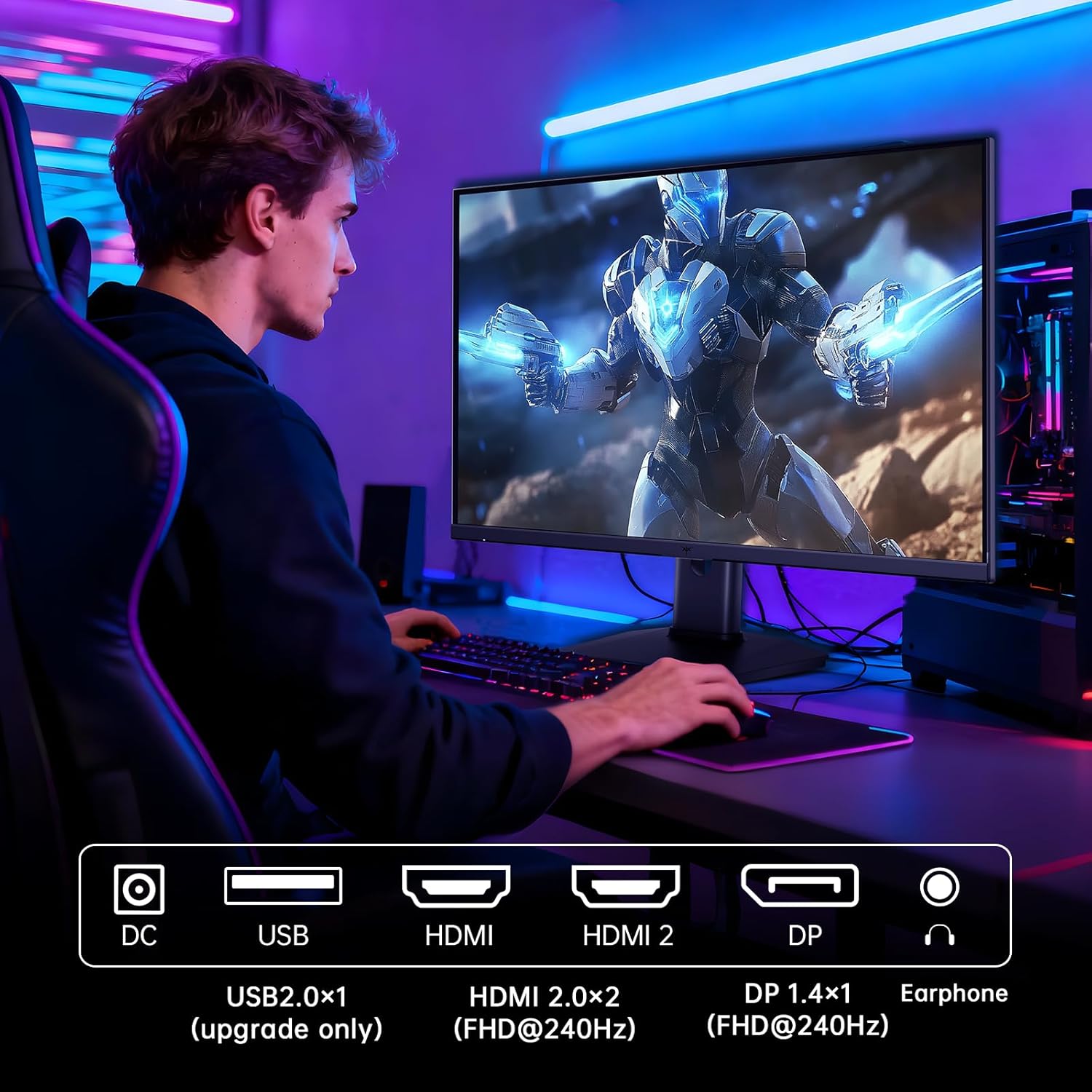
Figure 5.2: Comparison showing the effect of Adaptive-Sync on reducing stuttering and screen tearing.

Figure 5.3: Illustration of HDR400 technology delivering clear details in dark areas compared to HDR10.

Figure 5.4: Diagram illustrating hardware blue light reduction technology to filter harmful blue light bands.
5.4 Mgbanwe Ergonomic
Ihe nguzo ihuenyo na-enye ohere maka mgbanwe dị iche iche iji mee ka ọrụ gị ka mma. viewọnọdụ:
- Gbaa: Adjust the screen angle forward or backward (-5° to 20°).
- Pivot: Rotate the screen 90° for portrait mode.
- Ndozi elu: Raise or lower the screen by up to 110mm.
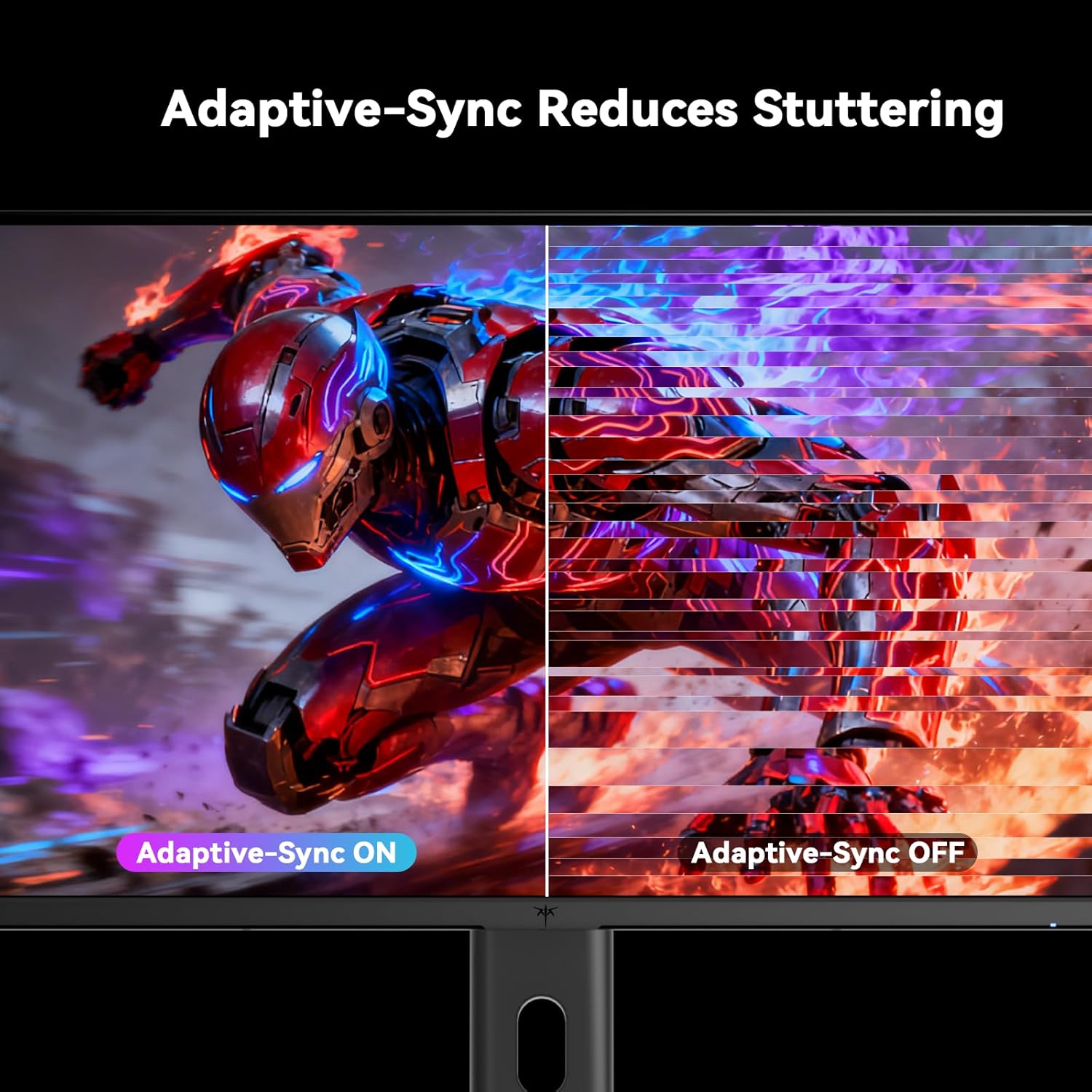
Figure 5.5: Diagram showing the tilt, pivot, and height adjustment capabilities of the monitor stand.
5.5 Official Ngwaahịa Video
Video 5.1: An official product video from KTC-Official showcasing the 24.5 Inch FHD 240Hz Gaming Monitor, demonstrating its features and performance.
6. Nlekọta
6.1 Na-ehicha ihe nleba anya
Iji hichaa ihuenyo monitor na casing:
- Wepụ ihe nleba anya mgbe niile na oghere ọkụ tupu ihicha ya.
- Jiri akwa dị nro na nke enweghị mmiri ọkụ dampejiri mmiri kpuchie ya ma ọ bụ ihe nchacha ihuenyo na-adịghị mma.
- Afesakwala ihe nhicha ozugbo na ihuenyo.
- Zere iji ihe nhicha dị ka benzene, thinner, ammonia, ma ọ bụ ihe ndị na-eme ka ọ dị nro.
6.2 Nlekọta n'ozuzu
- Keep the monitor away from direct sunlight, excessive heat, or cold.
- Zere itinye ihe ndị dị arọ na igwe nleba anya ma ọ bụ eriri ya.
- Akwụsịla oghere ikuku na ihe nleba anya.
7. Nchọpụta nsogbu
Ọ bụrụ na ịnwee nsogbu na ihe nleba anya gị, rụtụ aka na nsogbu na azịza ndị a na-ahụkarị:
| Nsogbu | Ihe nwere ike ime | Ngwọta |
|---|---|---|
| Enweghị ike | Ejikọghị eriri ọkụ; Igwe ọkụ anaghị arụ ọrụ | Hụ na eriri ọkụ eletrik ahụ jikọtara nke ọma. Nwalee ebe ọkụ eletrik ahụ site na iji ngwaọrụ ọzọ. |
| Enweghị mgbama | Video cable not connected; Incorrect input source selected; Computer/device not powered on | Check video cable connections. Select the correct input source via the OSD menu. Ensure your computer/device is on. |
| Ihuenyo na-egbukepụ egbukepụ | Incorrect refresh rate; Cable issue; Adaptive-Sync not enabled | Set refresh rate to 240Hz. Try a different video cable. Enable Adaptive-Sync in OSD and GPU settings. |
| Image distortion/poor quality | Incorrect resolution; Graphics driver issue; Monitor settings | Set resolution to 1920x1080. Update graphics drivers. Adjust OSD settings (brightness, contrast, color). |
7.1 nrụpụta nrụpụta
If problems persist, you may perform a factory reset through the OSD menu. This will revert all monitor settings to their default values.
8. Nkọwapụta
Detailed technical specifications for the KTC H25T7-3 monitor:
| Njirimara | Nkọwapụta |
|---|---|
| Nọmba nlereanya | H25T7-3 |
| Nha ihuenyo | 24.5 sentimita asatọ |
| Ụdị panel | Ngwa ngwa IPS |
| Mkpebi | FHD 1080p (1920 x 1080 pikselụ) |
| Akụkụ akụkụ | 16:9 |
| Ọnụego ume ọhụrụ | 240Hz |
| Oge nzaghachi | 1ms (MPRT) |
| Mmekọrịta na-agbanwe agbanwe | Ee |
| Nkwado HDR | HDR400 |
| Agba Gamut | 114% sRGB |
| Ọnụọgụ ọdịiche | 1000:1 |
| Agba ngosi | 16.7 nde |
| Icha ọkụ | 350 cd/m² |
| Viewna n'akuku | 178° (H/V) |
| Njikọta | 2x HDMI 2.0, 1x DisplayPort 1.4, 1x USB 2.0 |
| VESA Ugwu ndakọrịta | 100x100mm |
| Ndozi ergonomic | Tilt, Pivot, Height |
| Akụkụ ngwaahịa (ya na nkwụnye) | 7.6 x 21.97 x 18.23 sentimita asatọ |
| Ibu ihe (ya na nkwụnye) | 11.58 pound |
| Voltage | 12 volts (DC) |
9. Akwụkwọ ikike na nkwado
9.1 Ozi akwụkwọ ikike
KTC monitors are designed and manufactured to the highest quality standards. For specific warranty terms and conditions, please refer to the warranty card included with your product or visit the official KTC websaịtị. Debe nnata nzụta gị dị ka ihe akaebe nke ịzụrụ maka nkwupụta ikike.
9.2 Nkwado ndị ahịa
If you have any questions, require technical assistance, or experience issues not covered in this manual, please contact KTC customer support. Contact details can typically be found on the official KTC websaịtị ma ọ bụ na Ntuziaka mmalite ngwa ngwa.


