1. Ngwaahịa gafereview
The TECKNET TK-KB041 is a versatile, slim wireless keyboard designed for multi-device compatibility and comfortable typing. It offers both 2.4GHz USB-A and Bluetooth connectivity, allowing seamless switching between up to three devices. Its low-profile scissor-switch keys provide a quiet and fluid typing experience, while the integrated numeric keypad enhances productivity. The keyboard features a rechargeable battery with long standby time and power-saving auto-sleep functionality.

Figure 1: TECKNET TK-KB041 Slim Wireless Keyboard.
2. Kedu ihe dị na Igbe ahụ
- Wireless Keyboard (Model TK-KB041) x 1
- USB-C eriri USB x 1
- Akwụkwọ ntuziaka onye ọrụ x 1
- USB-A Receiver (stored in the keyboard's back slot) x 1
3. Nhazi ntuziaka
3.1 Powering On the Keyboard
- Locate the ON/OFF switch on the side of the keyboard.
- Malite ngbanwe ahụ gaa na ọnọdụ "ON".

Figure 2: The keyboard's ultra-slim profile, highlighting its compact design.
3.2 Connecting via 2.4GHz USB-A Receiver
- Locate the USB-A receiver stored in the magnetic slot on the back of the keyboard.
- Tinye eriri USB-A n'ọdụ ụgbọ mmiri dị na kọmputa gị ma ọ bụ ngwaọrụ gị.
- Igodo ahụ kwesịrị ijikọ na akpaghị aka.

Figure 3: Location of the USB-A receiver slot on the back of the keyboard.
3.3 Jikọọ site na Bluetooth
- Gbaa mbọ hụ na agbanyere ahụigodo.
- Pịa ma jide Fn key and one of the Bluetooth channel keys (Fn+1, Fn+2, ma ọ bụ Fn+3) for 3 seconds. The corresponding Bluetooth indicator light (B1, B2, or B3) on the keyboard will start blinking, indicating it's in pairing mode.
- Na ngwaọrụ gị (kọmputa, mbadamba, smartphone), gaa na ntọala Bluetooth.
- Chọọ maka available devices and select "TK-KB041" (or similar name) from the list.
- Follow any on-screen prompts to complete the pairing process. The indicator light on the keyboard will stop blinking and remain solid for a few seconds, then turn off, indicating a successful connection.
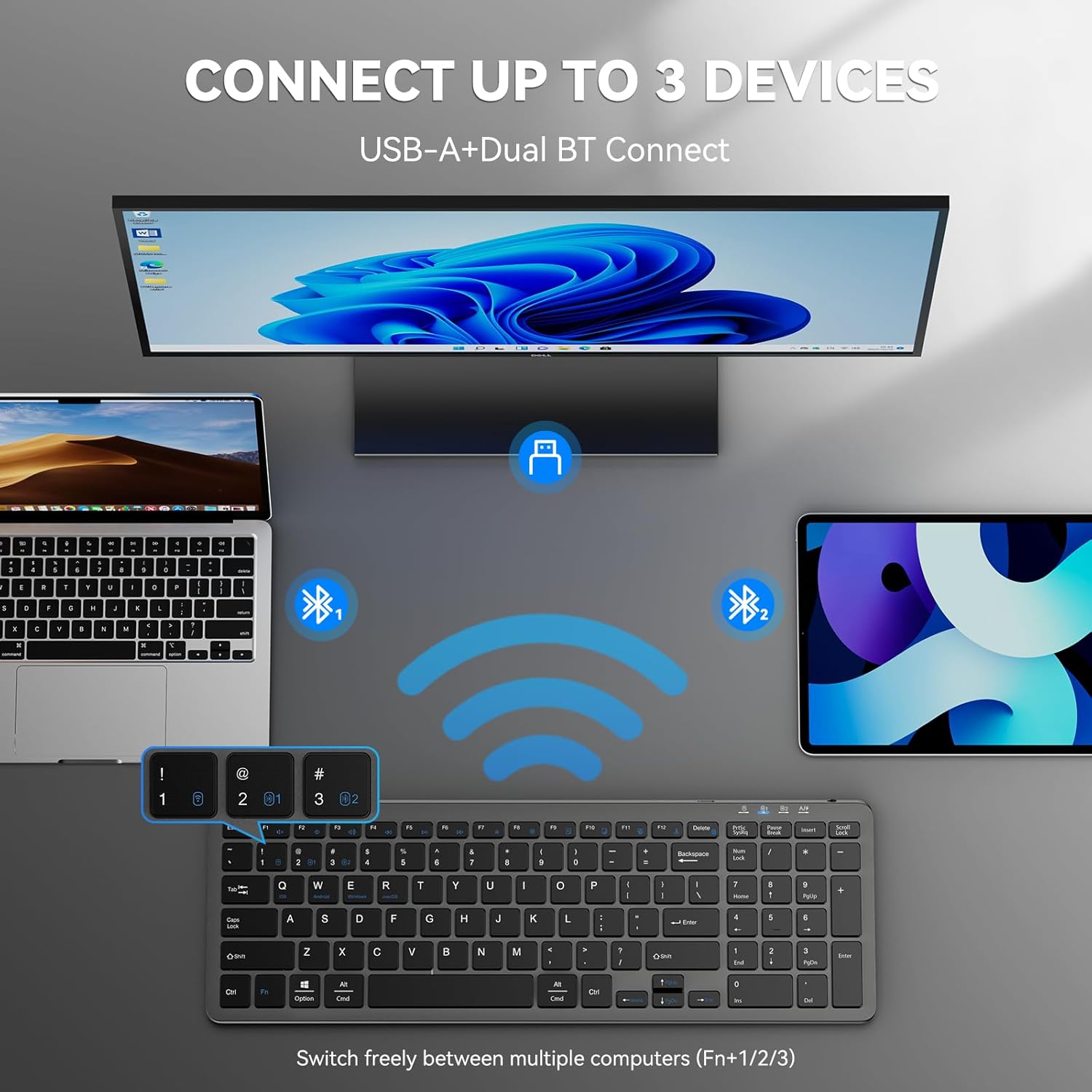
Figure 4: The keyboard connected to multiple devices via Bluetooth and USB-A.
4. Ntuziaka ọrụ
4.1 Ịgbanwe n'etiti ngwaọrụ ejikọrọ
The keyboard supports connecting to up to three devices via Bluetooth and one via 2.4GHz USB-A. To switch between devices:
- For Bluetooth devices: Press fn+1, fn+2, ma ọ bụ fn+3 to switch to the corresponding Bluetooth-paired device.
- For 2.4GHz USB-A device: Press fn+4 to switch to the device connected via the USB-A receiver.
4.2 Mgbanwe Sistemụ Ọrụ
The keyboard is compatible with Windows, macOS, iOS, and Android. To optimize key functions for your operating system:
- Maka Windows: Pịa Fn + W
- For macOS: Press Fn + E
- For iOS: Press Fn + Q
- For Android: Press Fn + R.

Figure 5: Keyboard layout highlighting function keys and OS switch keys.
4.3 Multimedia Function Keys (F1-F12)
The F1-F12 keys have secondary multimedia functions. To use these functions, press the Fn igodo n'otu oge yana igodo F achọrọ.
- F1: Home
- F2: Chọọ
- F3: Họrọ Ha niile
- f4: ndetu
- F5: tapawa
- F6: bee
- F7: Track gara aga
- F8: Kwuo/Kwụsịsịa
- F9: Track na-esote
- F10: daa
- F11: Mpịakọta ọnụ
- F12: Elu elu

Figure 6: Illustration of the multimedia function keys (F1-F12).
4.4 Ihe ngosi ọkụ
Keyboard nwere ọtụtụ ọkụ ngosi:
- B1/B2/B3: Bluetooth connection indicators. Blink during pairing, solid when connected, then turn off.
- Igodo nnukwu mkpụrụedemede: Illuminates when Caps Lock is active.
- Mkpọchi ọnụọgụ: Illuminates when Num Lock is active.
- Nchaji State: A red light indicates charging. A green light indicates fully charged.
- Batrị dị ala: The charging state indicator will blink blue when the battery is low, signaling that a recharge is needed.
5. Nlekọta
5.1 Ịchaji ahụigodo
The keyboard has a built-in 280mAh rechargeable battery. To charge:
- Connect the provided USB-C charging cable to the USB-C port on the keyboard.
- Jikọọ nsọtụ nke ọzọ nke eriri ahụ na isi iyi ike USB (dịka ọmụmaatụ, ọdụ ụgbọ USB kọmputa, ihe nkwụnye mgbidi USB).
- The charging indicator light will illuminate red during charging and turn green when fully charged.
- A full charge takes approximately 2 hours and provides up to 200 hours of use or 90 days of standby time. The keyboard can be used while charging.

Figure 7: USB-C charging port on the keyboard.
5.2 Nhicha
- Gbanyụọ ahụigodo ahụ tupu ị hichaa ya.
- Jiri nwayọọ, damp cloth to wipe the surface of the keyboard.
- Zere iji kemịkalụ siri ike ma ọ bụ ihe na-emebi emebi.
- For cleaning between keys, use compressed air or a soft brush.
5.3 Ụdị Nchekwa ike
The keyboard automatically enters sleep mode after 10 minutes of inactivity to conserve power. Press any key to wake it up.
6. Nchọpụta nsogbu
6.1 Ahụigodo Anaghị ejikọta
- Gbaa mbọ hụ na agbanyere ahụigodo.
- Lelee ọkwa batrị; fanye ma ọ bụrụ na ọ dị mkpa.
- For 2.4GHz connection: Ensure the USB-A receiver is securely plugged into your device. Try a different USB port.
- Maka njikọ Bluetooth:
- Gbaa mbọ hụ na agbanyere Bluetooth na ngwaọrụ gị.
- Put the keyboard into pairing mode (Fn + 1/2/3 for 3 seconds).
- Remove any previous "TK-KB041" pairings from your device's Bluetooth list and try pairing again.
- Ensure the keyboard is within the 33ft (10m) operating range.
6.2 Igodo anaghị aza
- Check the connection (USB-A or Bluetooth) as described above.
- Ensure the keyboard battery is charged.
- Restart your device and try reconnecting.
6.3 Incorrect Key Output
- Ensure the correct operating system mode is selected (Fn + Q/W/E/R).
- Lelee asụsụ na ntọala nhazi ahụigodo nke ngwaọrụ gị.
7. Nkọwapụta ngwaahịa
| Njirimara | Nkọwa |
|---|---|
| Nọmba nlereanya | TK-KB041 |
| Teknụzụ Njikọta | 2.4GHz USB-A, Bluetooth |
| Ngwa dakọtara | PC, Laptop, Mac, MacBook, Tablet, Smartphone, iPhone, iPad (Windows, macOS, iOS, Android) |
| Ike batrị | 280mAh (nwere ike ibugharị) |
| Oge Nchaji | Ihe ruru. awa 2 |
| Oge ọrụ | Ruo awa iri abụọ |
| Oge Njikere | Ruo ụbọchị 90 |
| Oke arụ ọrụ | Ruo 33 ụkwụ (mita 10) |
| Ụdị ahụigodo | Dị ala-profile Mgbanwe mkpa |
| Akụkụ ngwaahịa | 14.42 x 5 x 0.46 sentimita (36.63 x 12.7 x 1.17 cm) |
| Ibu Ibu | 14.1 ounce (400 grams) |
| Ihe onwunwe | Plastic |
| Agba | Nwa |
8. Akwụkwọ ikike na nkwado
TECKNET provides 36-Month Support for registered products. If you encounter any problems in using the product, please reach out to the TECKNET professional customer service team for assistance.
For further support and warranty registration, please visit the official TECKNET websaịtị ma ọ bụ kpọtụrụ ndị ahịa ha ozugbo.

Figure 8: TECKNET's commitment to technology and customer support.
9. Nduzi vidiyo
Video 1: Official product video demonstrating the features and usage of the Tecknet Slim Rechargeable Bluetooth Wireless Keyboard.


