1. Ngwaahịa gafereview
The iFFALCON 65F75 is a 65-inch Class QLED 4K Smart TV designed for an immersive viewing experience. It features an ultra-slim profile, advanced display technologies, and smart functionalities powered by Google TV.
Akụkụ ndị bụ isi:
- Ultra-Slim & Seamless Wall Mount Design: A sleek, bezel-less frame that sits flush against the wall.
- Ụdị nka: Transforms the TV into a digital canvas, displaying classic masterpieces, AI-generated art, or personal photos.
- 4K QLED Display with Ultra Wide Color Gamut: Delivers vibrant, true-to-life visuals with over a billion colors.
- 144Hz Refresh Rate & Game Master Mode: Ensures ultra-smooth motion for fast-paced content and responsive gaming.
- Dolby Vision IQ & Dolby Atmos: Provides an enhanced cinematic experience with adaptive picture settings and immersive surround sound.
- Teknụzụ Nlekọta anya: Features low blue light and flicker-free technology for comfortable extended viewing.
- Google TV: Offers personalized content recommendations, smart home device control, and hands-free voice commands.
2. Nhazi
2.1 Unboxing and Parts Check
Carefully open the TV packaging and ensure all components are present and undamaged. It is recommended that two people handle the TV during unboxing and installation to prevent damage.
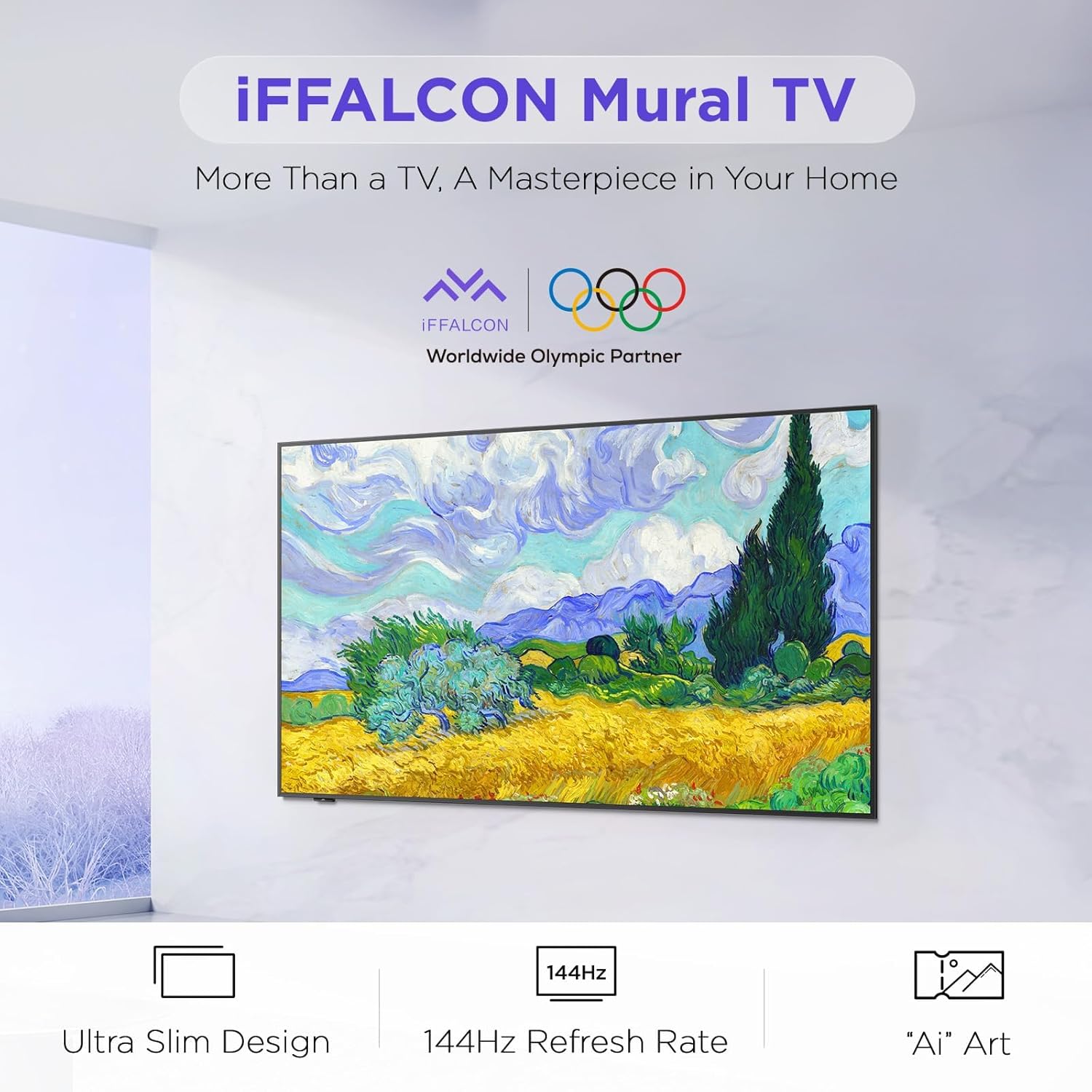
Image: The iFFALCON 65F75 TV securely packaged in its box, ready for unboxing.
Kedu ihe dị na igbe:
- iFFALCON TV
- Igwe ọkụ
- Batrị 2 x AAA maka ime ime
- 6 x Guzoro kposara
- Okpokoro eguzo
- 2 x Mkpuchi oghere
- 2 x Ihe nchekwa roba
- Ihe nkwado mgbidi ugwu
- Ntuziaka mmalite ngwa ngwa
- Igwepụ TV
2.2 Wall Mount or Table Stand Installation
The iFFALCON 65F75 TV offers both wall-mounting and table stand installation options. Choose the method that best suits your space and preferences. Always ensure the TV is placed on a soft, cushioned surface when installing stands or brackets to prevent screen damage.
Video: Official iFFALCON tutorial demonstrating the installation of the wall mount and table stand for the Mural TV. This video provides visual guidance for both setup options.
Nwụnye mgbidi:
- Place the provided wall mount marker on your desired wall position.
- Use a level to ensure the marker is horizontal and secure it with tape.
- Drill screw holes at the marked positions (A, B, C, D) on the marker.
- Insert drywall anchors into the drilled holes. (Note: If drilling into wood studs, anchors are not needed).
- Screw the two wall plates to the wall using the provided screws and drywall anchors.
- Screw the two VESA brackets tightly onto the VESA holes on the top of the TV with the provided screws. Ensure brackets are secured via the middle holes of the TV back cover.
- Insert the power cord into the TV's rear power port.
- Drop the hanger on the wall mount bracket. Gently push the TV against the wall until the brackets are flush.
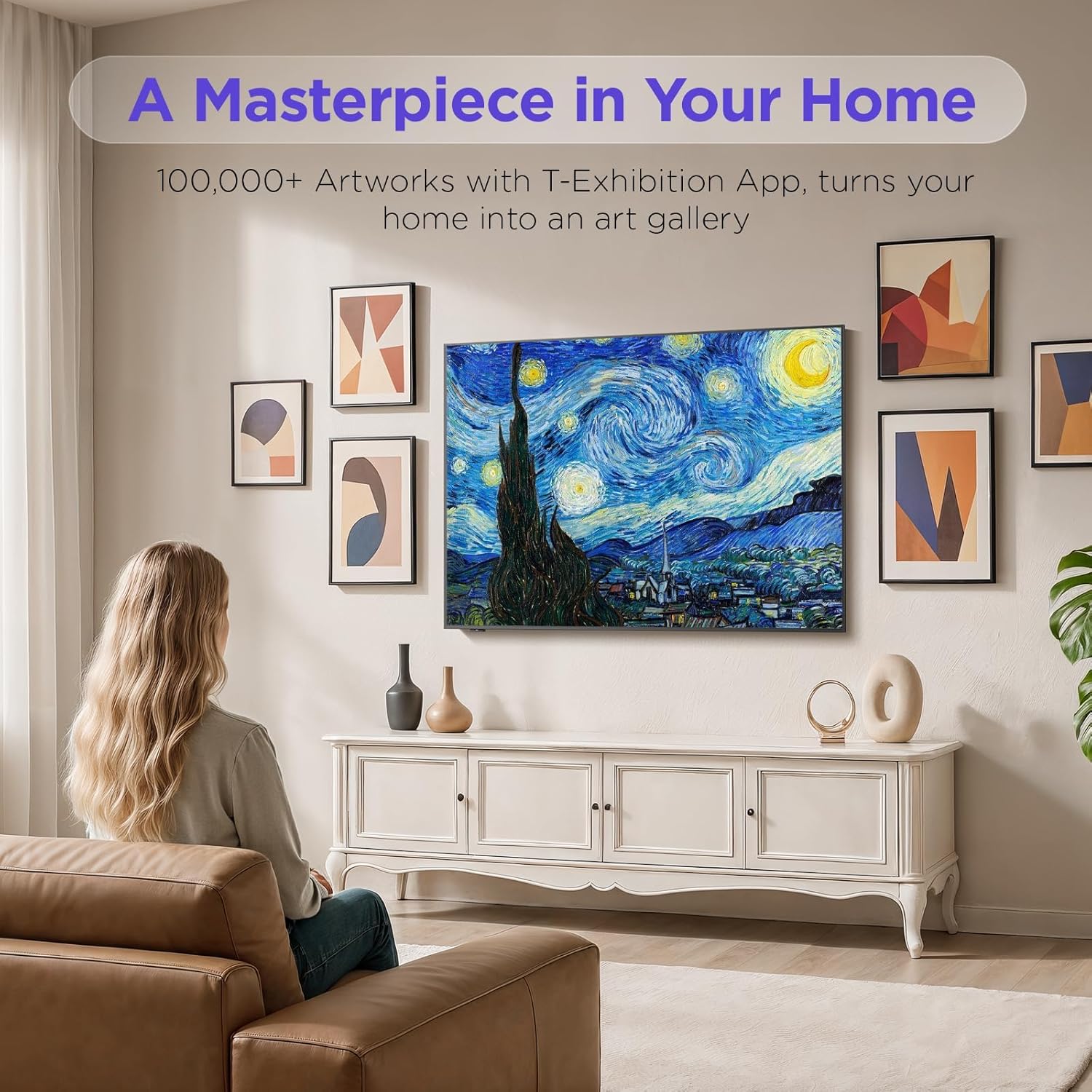
Image: The iFFALCON 65F75 TV seamlessly mounted on a wall, showcasing its ultra-slim design.
Table Stand Installation:
- Iji gbochie mmebi n'ihuenyo, jiri nlezianya tinye TV gị n'elu ala dị nro ma dị nro.
- Remove the magnetic decorative cover from the stand bracket.
- Place the stand bracket on the back of the TV at the screws location.
- Secure the stands to the TV with screws.
- Reinstall the magnetic cover by sliding it over the screw holes.
- Repeat the same operation for the other stand.
- Insert the power cord into the TV's rear power port.
- Once both stands are securely attached, carefully lift the TV and place it on a flat and level surface.

Image: The iFFALCON 65F75 TV displayed on its elegant table stand.
3. Ntuziaka ọrụ
3.1 Basic Arụmọrụ
- Gbanyụọ/ Gbanyụọ: Press the power button on the remote control to turn the TV on or off.
- Nhọrọ ntinye: Use the 'Input' button on the remote to switch between HDMI, USB, and other connected sources.
- Njikwa olu: Adjust volume using the '+' and '-' buttons on the remote.
3.2 Atụmatụ Google TV
Your iFFALCON TV comes with Google TV, offering a personalized and integrated entertainment experience.
- Ndụmọdụ ahaziri iche: Google TV learns your preferences and suggests content from across your streaming apps.
- Njikwa olu: Use the Google Assistant voice remote for hands-free commands, searching for content, controlling smart home devices, and more.
- Nweta ngwa: Easily access a wide range of streaming applications and games from the Google Play Store.

Image: The Google TV home screen displaying personalized content and app icons.
3.3 Ụdị Nka
Transform your TV into a piece of art when not actively watching content. Art Mode allows you to display various artworks or personal photos.
Video: Official iFFALCON tutorial demonstrating how to use Art Mode and Photo Frame features on the Mural TV.
Activating Art Mode:
- Open the Apps menu on your Google TV.
- Swipe right to locate and launch the 'T-Exhibition' app.
- Navigate to 'MOMENT' and tap 'Settings' (top-right).
- Navigate to 'Wallpaper Settings'.
- Under 'Wallpaper Content', select 'Classified'.
- Check your preferred categories (e.g., Photography, TCL Art, 'AI' ART).
- To activate an immersive gallery display, tap 'Preview' under 'GALLERY'.

Image: The iFFALCON 65F75 TV showcasing a vibrant artwork in Art Mode, blending into the room decor.
3.4 Game Master Mode
For an optimized gaming experience, the TV features a 144Hz refresh rate combined with Game Master Mode.
- 144Hz ume ọhụrụ ume: Provides ultra-smooth motion for fast-paced games.
- VRR (ọnụego ume ọhụrụ dị iche iche): Na-ebelata mgbawa ihuenyo na ịsụ ngọngọ maka egwuregwu mmiri mmiri.
- HDR Optimization: Enhances visual details and contrast in supported games.
- Mara: The TV is initially in Energy Saving Mode. Switch to HDR Mode in settings for optimal picture quality during gaming.
3.5 Dolby Vision IQ & Dolby Atmos
Experience superior audio-visual quality with Dolby Vision IQ and Dolby Atmos technologies.
- Dolby Vision IQ: Automatically adjusts picture settings based on ambient room lighting, ensuring optimal brightness, contrast, and color.
- Dolby Atmos: Delivers immersive, multi-dimensional sound that flows around you, enhancing movies, music, and games.
4. Nlekọta
4.1 Ihicha TV
- Kwupuo TV mgbe niile tupu ihicha ya.
- Jiri ákwà dị nro, kpọrọ nkụ, nke na-enweghị lint hichaa ihuenyo na fremu ahụ nke ọma.
- Maka akara ndị isi ike, dị obere dampen the cloth with water or a specialized screen cleaner (ensure it's safe for TV screens) and wipe carefully. Avoid harsh chemicals or abrasive materials.
4.2 Teknụzụ Nlekọta Anya
The iFFALCON 65F75 includes features designed to reduce eye strain during extended viewing.
- Ìhè na-acha anụnụ anụnụ dị ala: Na-ebelata mwepụta ọkụ na-acha anụnụ anụnụ na-emerụ ahụ.
- Teknụzụ na-enweghị Flicker: Minimizes screen flickering for a more comfortable viewahụmahụ.
- These features are active by default or can be adjusted in the TV's picture settings.
5. Nchọpụta nsogbu
If you encounter issues with your iFFALCON TV, refer to the following common troubleshooting steps:
| Nsogbu | Ngwọta enwere ike |
|---|---|
| Enweghị ike | Ensure the power cable is securely connected to both the TV and a working power outlet. Check if the power outlet is functional. |
| Enweghị foto/ụda | Verify the correct input source is selected. Check all cable connections (HDMI, AV, etc.). Try restarting the TV and connected devices. |
| Remote Anaghị aza | Dochie batrị ndị dị na njikwa anya. Gbaa mbọ hụ na onweghị ihe mgbochi n'etiti ime ime na ihe mmetụta IR nke TV. |
| Okwu Njikọ netwọkụ | Check your Wi-Fi router and internet connection. Reconnect the TV to the Wi-Fi network in the settings. For wired connections, ensure the Ethernet cable is properly connected. |
| Okwu Ogo Foto | Gbanwee ntọala foto (ọkụ, ọdịiche, agba) na menu TV. Gbaa mbọ hụ na ị bụ viewing high-quality content (4K, HDR). Disable Energy Saving Mode if applicable. |
If the issue persists after trying these steps, please contact iFFALCON customer support.
6. Nkọwapụta
| Njirimara | Nkọwa |
|---|---|
| Ụdị | iFFALCON |
| Nọmba nlereanya | 65F75 |
| Nha ihuenyo | 65 sentimita asatọ |
| Ngosipụta teknụzụ | QLED |
| Mkpebi | 4K |
| Ọnụego ume ọhụrụ | 144 Hz |
| Atụmatụ pụrụ iche | Art Mode, Game Mode |
| Teknụzụ Njikọta | Bluetooth, Ethernet, HDMI, USB, Wi-Fi |
| Ọrụ ịntanetị akwadoro | Google TV, various streaming services |
| Ibu Ibu | 71.8 pound |
| Akụkụ ngwaahịa | 1 x 1 x 1 sentimita asatọ |
7. Akwụkwọ ikike Ozi
Your iFFALCON 65F75 65-Inch QLED 4K Smart TV is covered by a manufacturer's warranty. Please refer to the warranty card included in your product packaging for specific terms, conditions, and duration of coverage. Keep your proof of purchase for warranty claims.
8. Nkwado
For further assistance, technical support, or service inquiries, please visit the official iFFALCON support website or contact their customer service. You can also find additional resources and FAQs on the iFFALCON Store on Amazon.


