Okwu mmalite
Thank you for choosing the Altec Lansing Comfort Pro Over Ear Bluetooth Headphones. These headphones are designed to provide a high-quality audio experience with advanced features such as Active Noise Cancellation (ANC), Environmental Noise Cancellation (ENC), Spatial Audio, and a long-lasting battery. This manual will guide you through the setup, operation, and maintenance of your new headphones.
Kedu ihe dị na Igbe ahụ
- Altec Lansing Comfort Pro Wireless Headphones
- USB-C Charging Cable (not explicitly listed but implied for charging)
- Audio Cable (not explicitly listed but common for wired use)
- Carrying Case (implied by images)
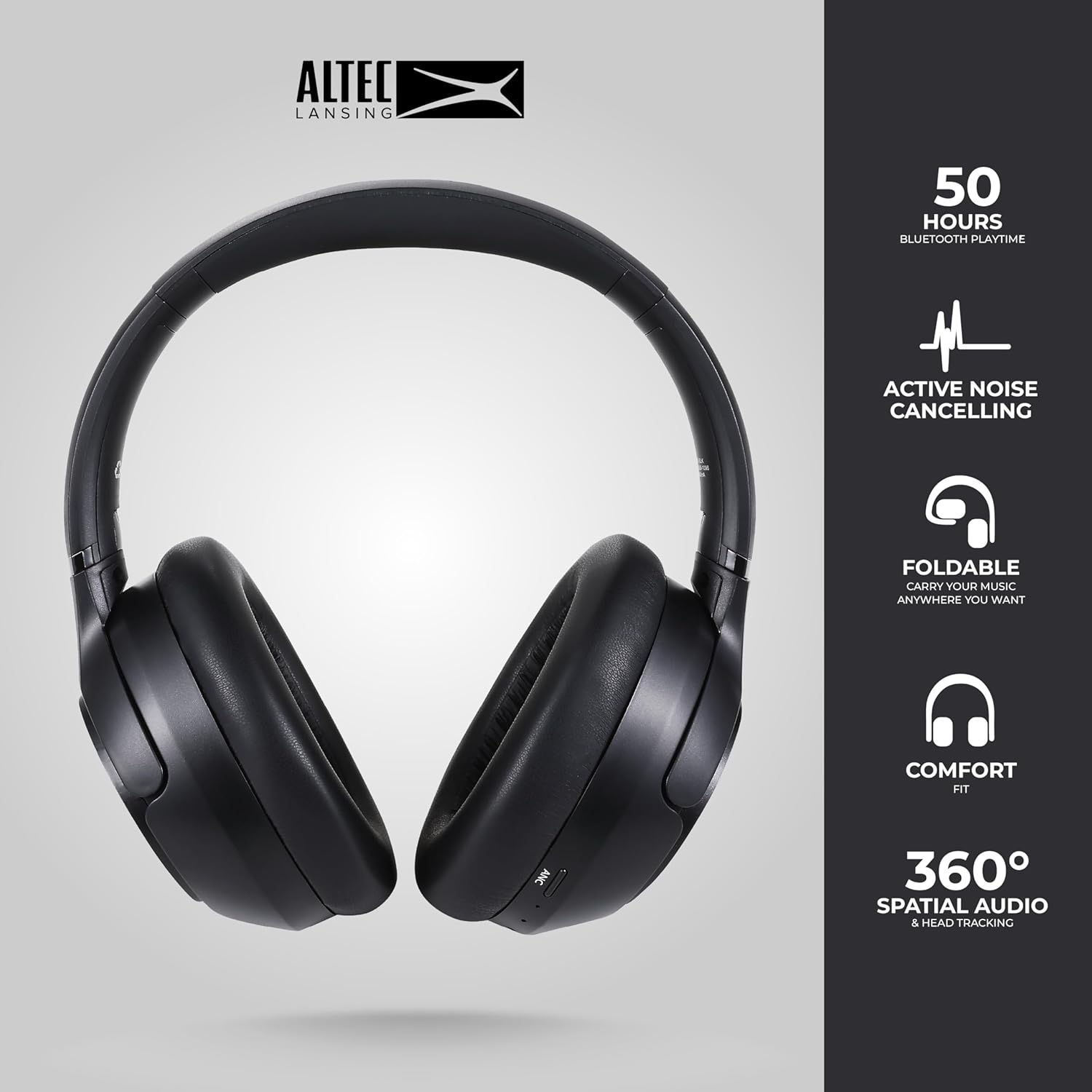
Image: The Altec Lansing Comfort Pro headphones, showcasing their sleek design and key features like 50 hours Bluetooth playtime, Active Noise Cancelling, foldable design, comfort fit, and 360° Spatial Audio & Head Tracking.
Melite
1. Ịchaji ekweisi
Before first use, fully charge your headphones. Connect the provided USB-C charging cable to the charging port on the headphones and the other end to a USB power source. The LED indicator will show charging status and turn off or change color when fully charged. A full charge typically takes approximately two hours.
2. Ịgbanye / gbanyụọ
- Iji gbanye: Pịa ma jide bọtịnụ ike maka ihe dịka sekọn 3 ruo mgbe ihe ngosi LED na-enwu.
- Iji gbanyụọ: Pịa ma jide bọtịnụ ike maka ihe dịka sekọnd 3 ruo mgbe ihe ngosi LED gbanyụrụ.
3. Njikọ Bluetooth
The headphones support Bluetooth 5.4 for stable connectivity and multipoint pairing for connecting to two devices simultaneously.
- Gbaa mbọ hụ na agbanyụrụ ekweisi.
- Pịa ma jide bọtịnụ Ike ruo ihe dị ka sekọnd 5-7 ruo mgbe ihe ngosi LED na-enwu ngwa ngwa (na-abụkarị acha anụnụ anụnụ na ọbara ọbara), na-egosi ụdị njikọ.
- On your device (smartphone, laptop, tablet), go to Bluetooth settings and enable Bluetooth.
- Chọọ maka available devices and select "Altec Lansing Comfort Pro" from the list.
- Ozugbo ejikọrọ, ihe ngosi LED ga-akwụsị ịcha ọkụ ma nọgide na-acha anụnụ anụnụ.
- For multipoint pairing, connect to the first device, then put the headphones back into pairing mode and connect to the second device. The headphones will intelligently switch between the two connected devices.

Foto: nkọwa zuru ezu view of the Altec Lansing Comfort Pro headphones highlighting the adjustable headband and the soft, lightweight ear cushions designed for comfort during extended use.
Na-arụ ọrụ
Njikwa ekweisi
The headphones feature intuitive controls located on the earcups. Refer to the image below for button identification.

Foto: A nso nso view of the right earcup of the Altec Lansing Comfort Pro headphones, showing the power button, volume controls, and other function buttons.
- Bọtịnụ ike: Press and hold to power on/off. Short press for play/pause, answer/end calls.
- Elu elu (+): Obere pịa ka iwelie olu. Pịa ogologo maka egwu ọzọ.
- Mpịakọta ọnụ (-): Obere pịa ka ibelata olu. Pịa ogologo maka egwu gara aga.
- Bọtịnụ ANC: Press to cycle through Active Noise Cancellation modes (ANC On, Ambient Mode, ANC Off).
- Bọtịnụ ọtụtụ ọrụ (MFB): Double press to activate Voice Assistant (Siri/Google Voice). Triple press to activate Low Latency Mode.
Active Noise Cancellation (ANC) & Environmental Noise Cancellation (ENC)
The Comfort Pro headphones feature powerful ANC to block out external noise and ENC for clear calls. Press the dedicated ANC button to toggle between ANC On, Ambient Mode (allowing some environmental sounds for awareness), and ANC Off. ENC is automatically active during calls to ensure your voice is clear.
Ọdịda oghere
Experience immersive sound with Spatial Audio. This feature creates a 3D soundstage, making audio feel more lifelike. Spatial Audio is automatically enabled when supported by your device and content.
Ọnọdụ Latency dị ala
For gaming or video playback where audio-visual synchronization is critical, activate Low Latency Mode by triple-pressing the MFB. This reduces audio delay for a more synchronized experience.
Onye enyemaka olu
Access your device's voice assistant (Siri or Google Voice) by double-pressing the MFB. You can then issue commands through the headphone's microphone.
Njikwa Oku
- Azịza/Kwụsị Oku: Obere pịa bọtịnụ Ike.
- Jụ oku: Pịa ma jide bọtịnụ ike maka sekọnd iri na ise.
Nlekọta
Nhicha
Iji nọgide na-arụ ọrụ na ọdịdị nke ekweisi gị:
- Jiri ákwà dị nro, kpọrọ nkụ, nke na-enweghị ihe e ji ehicha ákwà hichaa iko ntị na ihe e ji ekpuchi isi.
- Maka unyi isi ike, obere dampen akwa na mmiri. Zere iji kemịkalụ siri ike, ihe mgbaze, ma ọ bụ ihe nchacha.
- Do not allow moisture to enter any openings.
Nchekwa
When not in use, store your headphones in the provided carrying case to protect them from dust, scratches, and impacts. The foldable design allows for compact storage.

Image: The Altec Lansing Comfort Pro headphones neatly folded and stored inside their protective carrying case, emphasizing portability and protection.
Nlekọta batrị
- Zere ịchaji batrị ugboro ugboro.
- Store the headphones with a partial charge if not used for extended periods.
- Zere oke okpomọkụ, nke nwere ike imebi ndụ batrị.
Nchọpụta nsogbu
If you encounter any issues with your Altec Lansing Comfort Pro headphones, refer to the following common solutions:
- Headphones won't turn on: Ensure the headphones are fully charged. Connect them to a power source and try again after a few minutes.
- Enweghị ike ijikọ na ngwaọrụ:
- Hụ na ekweisi ndị ahụ nọ n'ọnọdụ njikọta (LED na-enwu ngwa ngwa).
- Gbanyụọ ma gbanye Bluetooth na ngwaọrụ gị.
- Delete "Altec Lansing Comfort Pro" from your device's Bluetooth list and attempt to pair again.
- Nwaa ijikọ ya na ngwaọrụ dị iche iji wepụ nsogbu ndị metụtara ngwaọrụ.
- Enweghị ụda ma ọ bụ obere olu:
- Lelee ọkwa olu na ma ekweisi yana ngwaọrụ ejikọrọ.
- Ensure the headphones are properly connected via Bluetooth.
- If using a wired connection, ensure the audio cable is fully inserted into both the headphones and the audio source.
- ANC anaghị arụ ọrụ nke ọma:
- Ensure ANC is activated by pressing the ANC button.
- Adjust the fit of the headphones to ensure a good seal around your ears.
- ANC is most effective against low-frequency, constant noise. It may not completely block out voices or sudden, high-frequency sounds.
- Onye enyemaka olu anaghị aza: Ensure your device's voice assistant is enabled and that the headphones are properly connected. Double-press the MFB firmly.
Nkọwapụta
| Aha Nlereanya | MX3050 (MZX3050-BLK-STK-6) |
| Teknụzụ Njikọta | Ikuku (Bluetooth) |
| Ụdị Bluetooth | 5.4 |
| Ndụ batrị | Up to 60 Hours (40 Hours with ANC activated) |
| Atụmatụ Njikwa Mkpọtụ | Active Noise Cancellation (ANC), Environmental Noise Cancellation (ENC) |
| Ụdị ntị | Ntị karịa |
| Usoro njikwa | App, Voice, On-headphone buttons |
| Ngwa dakọtara | Smartphones, Laptops, Tablets |
| Ihe onwunwe | Fabric/Silicone and Plastic/Metal (Combination) |
| Ibu Ibu | 1 paụnd |
| Ọkwa Nguzogide mmiri | Waterproof |
Akwụkwọ ikike na nkwado
For warranty information and customer support, please refer to the documentation included with your purchase or visit the official Altec Lansing website. You can typically find detailed warranty terms, FAQs, and contact information for technical assistance there.
Akụrụngwa dị n'ịntanetị: www.edemere.com


