1. Okwu mmalite
This manual provides essential information for the safe and efficient use of your artfone G6 Pro 4G LTE Flip Phone. Please read it thoroughly before operating the device to ensure proper functionality and to understand all features.
2. Ihe ngwugwu
Hụ na ihe niile edepụtara n'okpuru dị na ngwugwu ngwaahịa gị:
- 1x artfone G6 Pro Mobile Phone (Battery not installed)
- Batrị 1 x 1300mAh
- 1 x eriri USB chaja
- 1x Akwụkwọ ntuziaka onye ọrụ
- 1 x Isi Nchaji/Nkwụsị

Image: Package contents of the artfone G6 Pro, showing the phone, battery, USB cable, user manual, and charging dock.
3. Nhazi
3.1. Kaadị SIM na ntinye batrị
- Wepu mkpuchi azụ: Jiri nwayọ mepee mkpuchi azụ nke ekwentị ahụ.
- Fanye SIM kaadị: Locate the Nano SIM card slot. Insert your Nano SIM card with the gold contacts facing down, ensuring it clicks into place.
- Insert Micro SD Card (Optional): If desired, insert a Micro SD card (up to 64GB) into the designated slot for expanded storage.
- Wụnye Batrị: Place the 1300mAh battery into the battery compartment, aligning the gold contacts with the phone's terminals.
- Dochie mkpuchi azụ: Jikọtaghachi mkpuchi azụ ahụ n'enweghị nsogbu.
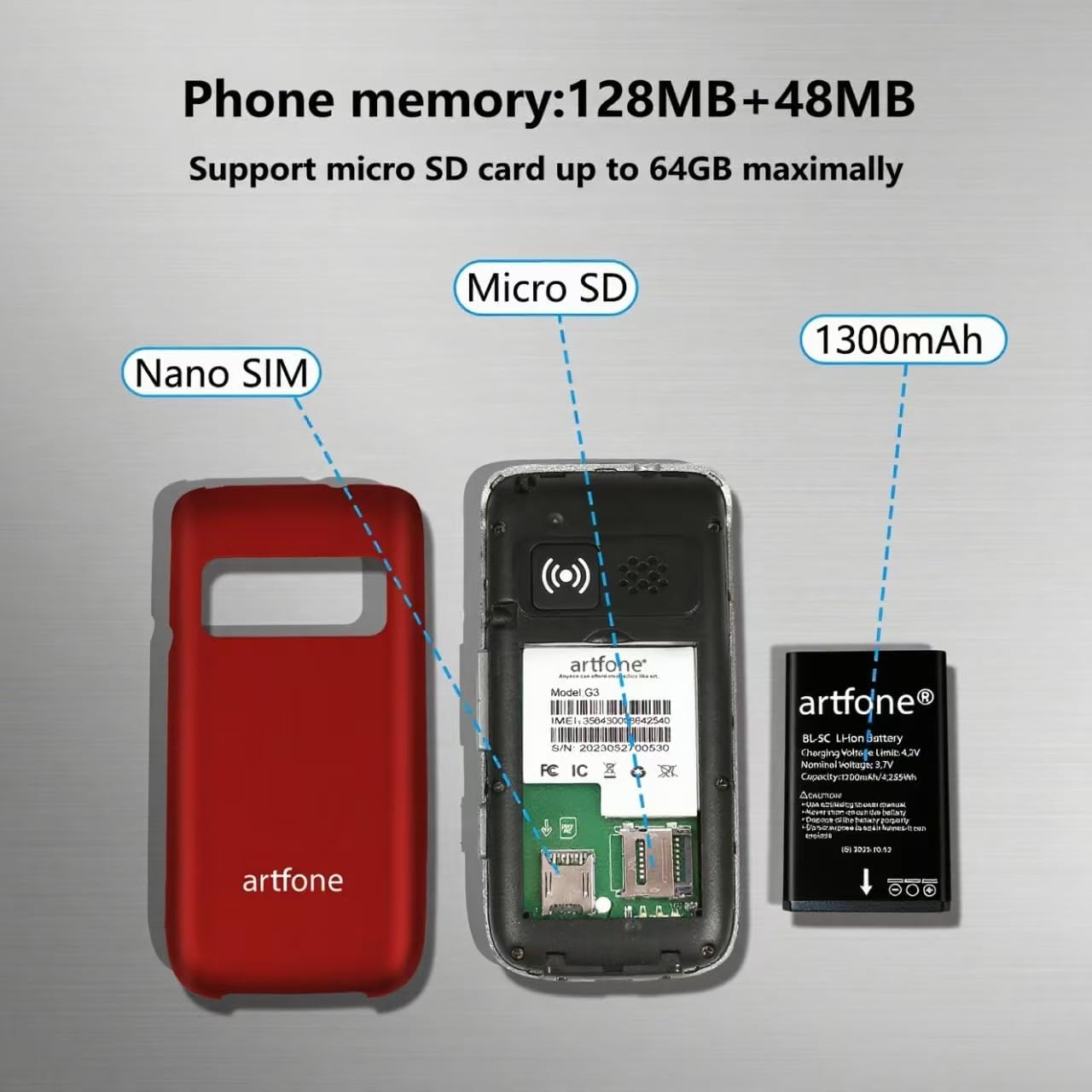
Foto: Ime view of the artfone G6 Pro, illustrating the Nano SIM slot, Micro SD card slot, and battery placement.
3.2. Ịchaji ekwentị
Your artfone G6 Pro can be charged using the included USB-C cable or the charging dock.
- Using the Charging Dock: Place the phone into the charging dock. Ensure the charging indicator appears on the screen.
- Iji eriri USB-C: Connect the USB-C cable directly to the phone's charging port and to a power adapter.

Image: Charging the artfone G6 Pro using either the USB-C cable or the charging dock.
3.3. Gbanyụọ / gbanyụọ
To power on or off, press and hold the red 'End Call' button until the phone vibrates or the screen lights up/shuts down.
4. Ntuziaka ọrụ
4.1. Ọrụ oku bụ isi
- Ịkpọ oku: Dial the number using the keypad and press the green 'Call' button.
- Na-aza oku: Open the flip to answer, or press the green 'Call' button.
- Ịkwụsị oku: Close the flip to hang up, or press the red 'End Call' button.
Video: Demonstrates basic call functions, including answering by flipping open the phone and ending calls by closing it.
4.2. Izipu ozi ederede
Navigate to the 'Message' menu, select 'New Message', enter the recipient's number or select from contacts, type your message using the keypad, and send.
4.3. Nsoro Ụzọ Onye Ọrụ
The phone features an intuitive UI with large icons and clear text. Use the navigation keys to scroll through menu options like Contacts, Tools, Message, SOS, Calendar, Settings, Internet, Multimedia, and Call logs.

Foto: Ofeview of the artfone G6 Pro's user-friendly menu interface.
5. Atụmatụ gafereview
5.1. Ihuenyo LCD abụọ
The phone features a 2.4-inch inner screen and a 1.8-inch outer display. The outer display shows time, caller ID, and notifications without needing to open the phone.

Image: artfone G6 Pro displaying its dual screens, one on the exterior when closed and one on the interior when open.
5.2. Ọrụ Mberede SOS
The dedicated SOS button on the back of the phone allows you to quickly contact up to five pre-set emergency contacts. Press and hold the button for 3 seconds to activate the SOS function, which will automatically dial and send distress messages until someone answers.

Foto: N'azụ view of the artfone G6 Pro highlighting the SOS emergency button.
5.3. Speed Dial and Photo Contacts
Assign frequently called numbers to dedicated A/B keys and numbers 2-9 for quick dialing. You can also assign photos to contacts for easier identification of callers.
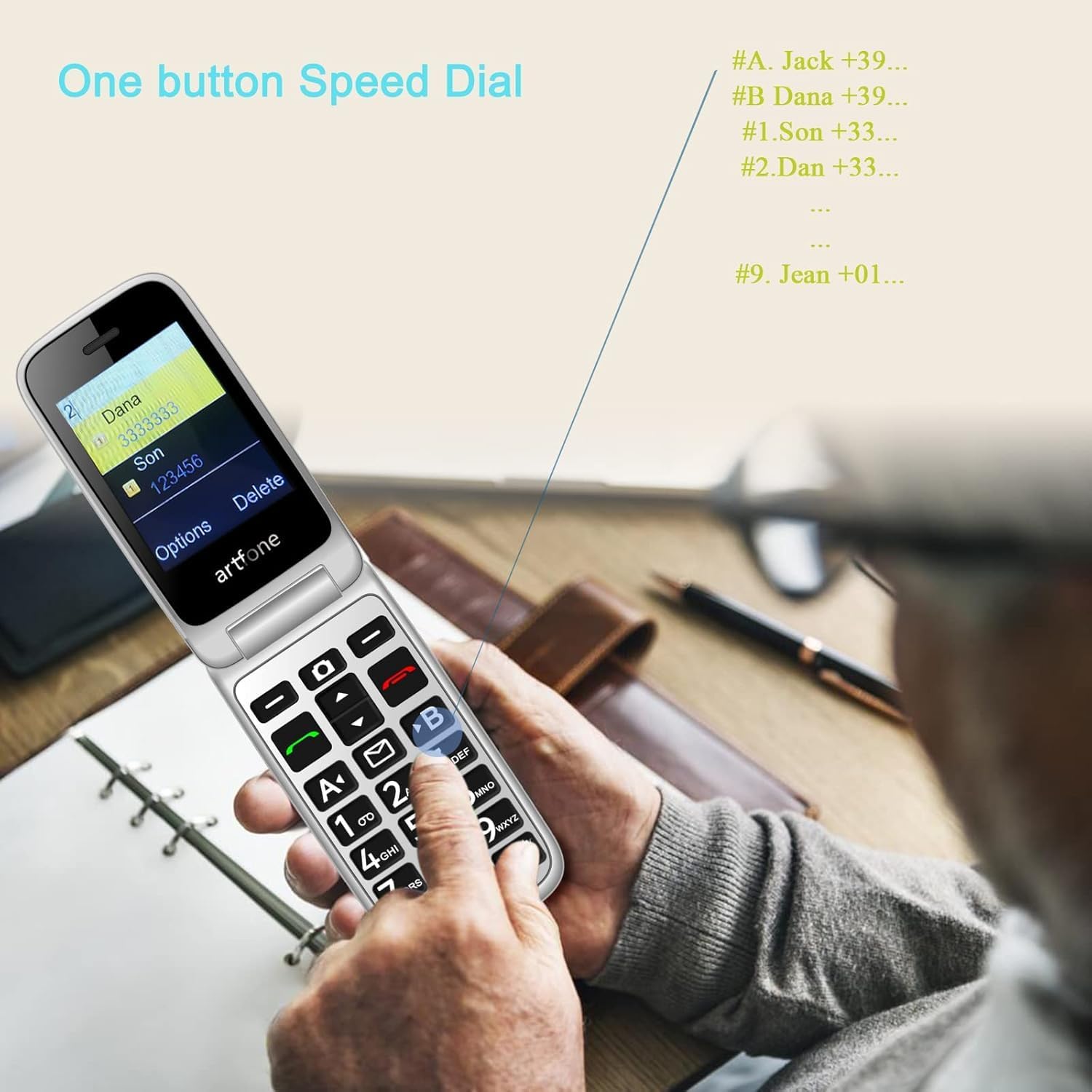
Image: Demonstrating the one-button speed dial feature on the artfone G6 Pro.
5.4. Talking Clock (Time Reporting)
Hold the volume + key for 3 seconds, and the phone will audibly announce the current time.
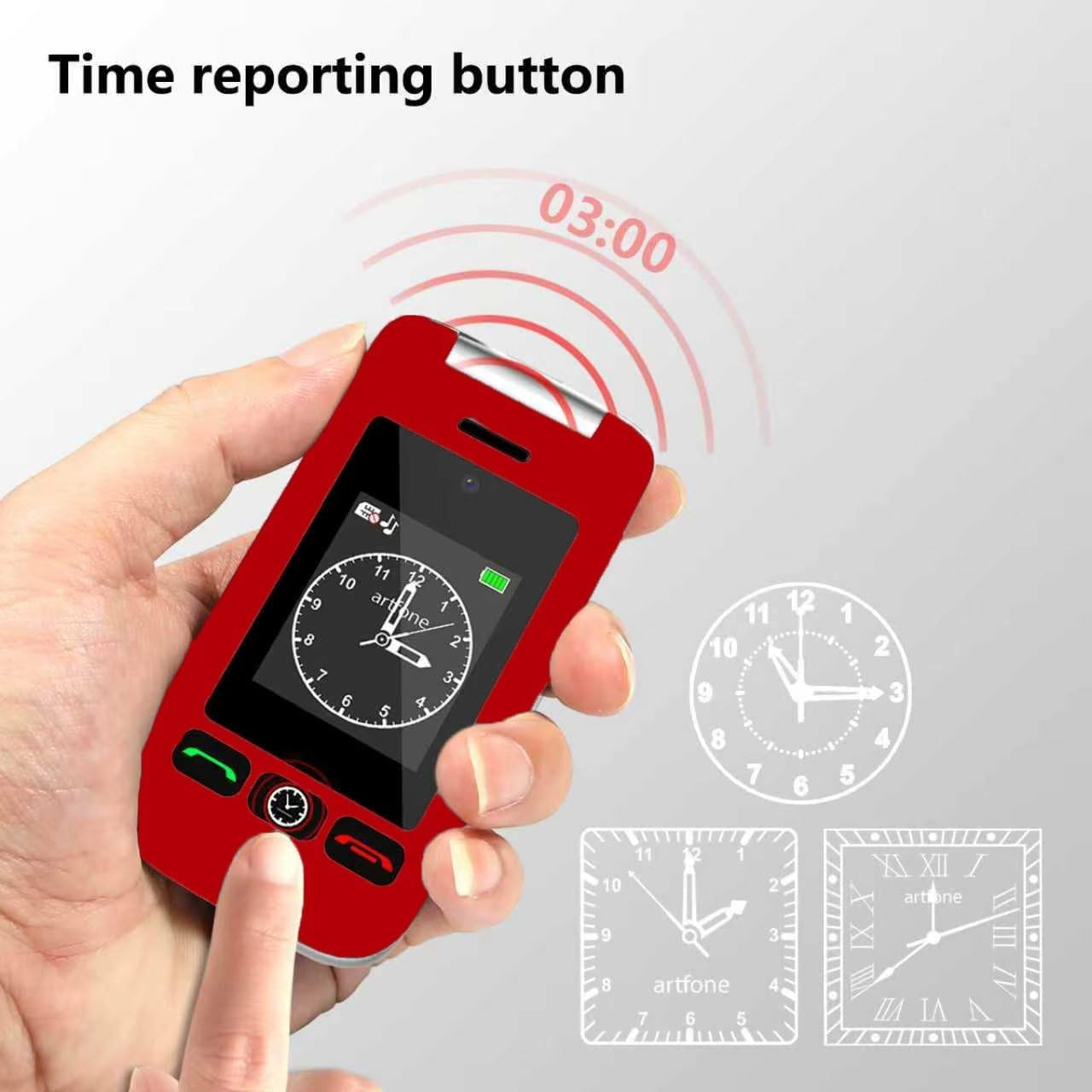
Image: The time reporting button on the artfone G6 Pro, which announces the current time audibly.
5.5. Igwe ọkụ
A dedicated flashlight button on the side of the phone allows for quick activation. Slide up/down to toggle the flashlight on or off.

Image: The artfone G6 Pro featuring a flashlight, FM radio, and a 3.5mm headphone jack.
5.6. Akụkụ ndị ọzọ
- Igwefoto: A basic 0.3MP camera is included for capturing simple moments.
- Igwe Redio: Enjoy FM radio on the go.
- Bluetooth: Connect to compatible Bluetooth devices.
- Ngwa: Includes a calculator, alarm clock, and calendar. Multiple alarm settings are available for reminders.
- Ọdịda dara ụda: AAC speakers and receivers provide clear and loud audio for calls.
6. Nlekọta
- Nhicha: Jiri ákwà dị nro ma kpọọ nkụ hichaa mpụta ekwentị gị. Zere iji ihe nhicha mmiri hichaa ya.
- Nlekọta batrị: To prolong battery life, avoid extreme temperatures and do not leave the phone fully discharged for extended periods.
- Nchekwa: Store the phone in a cool, dry place when not in use.
- Nguzogide mmiri: Ekwentị a anaghị anabata mmiri. Zere ka ọ ghara ịbanye n'ime mmiri.
7. Nchọpụta nsogbu
7.1. No Service / Network Issues
- Lelee kaadị SIM: Ensure the Nano SIM card is correctly inserted and activated with a compatible carrier (T-Mobile and its virtual operators ONLY; not compatible with AT&T or Verizon).
- Restart Phone: Power off and then power on the phone.
- Mkpuchi netwọk: Verify you are in an area with adequate 2G, 3G, or 4G LTE network coverage.
7.2. Phone Not Charging
- Lelee njikọ: Ensure the USB-C cable and/or charging dock are securely connected to the phone and power source.
- Nyochaa isi mmalite ike: Try a different power outlet or USB port.
- Inspect Cable/Dock: Check for any visible damage to the charging cable or dock.
7.3. Okwu Audio
- Ndozi olu: Adjust the call volume during a conversation.
- Speaker/Receiver Obstruction: Ensure the speaker and receiver are not blocked by debris.
- Silent/Vibration Mode: Long-press the # key to toggle silent/vibration modes. Ensure the phone is not in silent mode if you expect audible alerts.
7.4. MMS Not Downloading
- Ntọala netwọkụ: Ensure your carrier's MMS settings are correctly configured.
- Nchekwa: Check if there is sufficient storage space on the phone or Micro SD card.
- Secure Inbox: Some MMS messages may require access through a 'secure inbox'. The default PIN is often 1234, but it is recommended to change this for security.
8. Nkọwapụta
| Njirimara | Nkọwapụta |
|---|---|
| Aha Nlereanya | G6Pro |
| Ụdị | artfone |
| Teknụzụ ekwentị | 4G (Compatible with T-Mobile and virtual operators ONLY) |
| Onye na-ebu ikuku | Emechiri |
| Sistemụ nrụọrụ | artfone Mocor RTOS |
| Nha ihuenyo | 2.4 Inches (Inner), 1.8 Inches (Outer) |
| Mkpebi | 180 x 240, 240 x 180 |
| Ogo etinyere ebe nchekwa RAM | 48 MB |
| Ike Nchekwa ebe nchekwa | 0.3 GB (Expandable up to 64GB with Micro SD) |
| Ike batrị | 1300 ndeamp Oge awa |
| Oge Okwu Ekwentị | Awa 8 |
| Ibu Ibu | 8.1 ounces |
| Teknụzụ Njikọta | Bluetooth, USB |
| Atụmatụ pụrụ iche | Basic Phone, Expandable Memory, Time Reporting, SOS Button, Charging Dock, Loud Speaker, Camera, Talking Clock, Speed Dial, Hands-free, Caller-ID, Large Fonts |
| Ụdị Ihe | tụgharịa |
| Jack ọdịyo | 3.5 mm |
9. Akwụkwọ ikike na nkwado
For warranty information or technical support, please contact artfone customer service. Refer to the contact details provided in your product packaging or visit the official artfone website. Please have your product model (G6 Pro) and purchase details available when contacting support.


