Okwu mmalite
Welcome to the Ray-Ban Meta (Gen 2) Skyler Smart Glasses. This manual provides essential information for setting up, operating, maintaining, and troubleshooting your new smart eyewear. These glasses integrate advanced AI technology with iconic Ray-Ban style, allowing you to capture photos and videos, listen to audio, make hands-free calls, and interact with Meta AI.
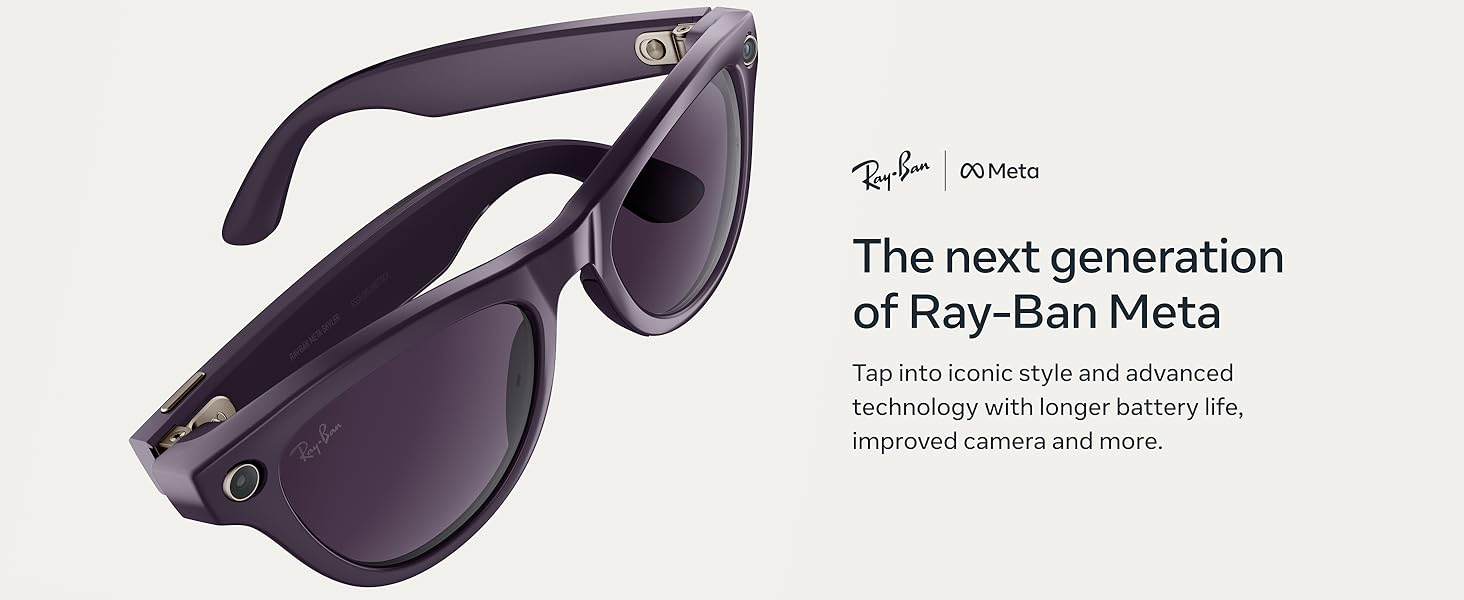
Image: The next generation of Ray-Ban Meta (Gen 2) Skyler Smart Glasses, showcasing their sleek design and advanced technology.
Melite
- Ịkwapụ igbe na ụgwọ mbụ: Remove your Ray-Ban Meta glasses from their charging case. The case provides up to 48 hours of additional charge. Ensure the case is charged using the provided USB-C cable.
- Nwụnye ngwa: Budata Meta ahụ View app on your smartphone. This app is essential for pairing your glasses, managing settings, and accessing captured media.
- Na-ejikọta: Follow the on-screen instructions in the Meta View app to pair your glasses via Bluetooth. Ensure your glasses are sufficiently charged during this process.
Video: A demonstration of the Ray-Ban Meta Glasses in use, highlighting various features and user experience.
Ntuziaka ọrụ
Gbanyụọ/ Gbanyụọ
To power on your glasses, simply remove them from the charging case. To power off, place them back in the case or use the power switch on the frame.
Na-ese foto na vidiyo
The glasses feature a 12 MP ultra-wide camera for 3K Ultra HD video resolution. A detailed text description accompanying each image for users who cannot view ya.
- Iwu olu: Say "Hey Meta, take a photo" or "Hey Meta, take a video."
- Bọtịnụ ijide: Press the physical button on the frame to take a photo. Hold it down to start recording a video.
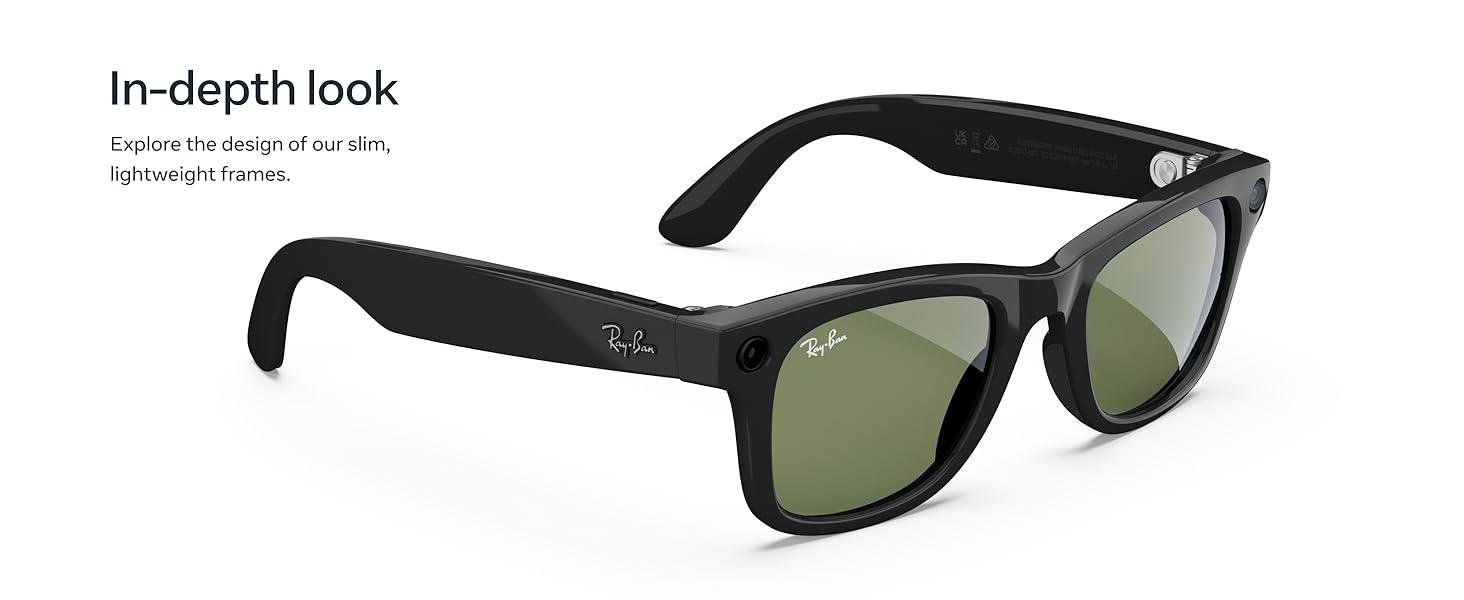
Image: A man wearing Ray-Ban Meta glasses, demonstrating the voice command feature to capture video with improved 3K Ultra HD resolution.
Nkpọghachi ọdịyo na oku
Listen to music and take calls using the discreet open-ear speakers. The integrated microphones ensure clear communication, blocking 90% of wind and street noise.
- Njikwa egwu: Use the touchpad on the side of the glasses to play, pause, or adjust volume.
- Ịza oku: Tap the touchpad or use voice command to answer incoming calls.
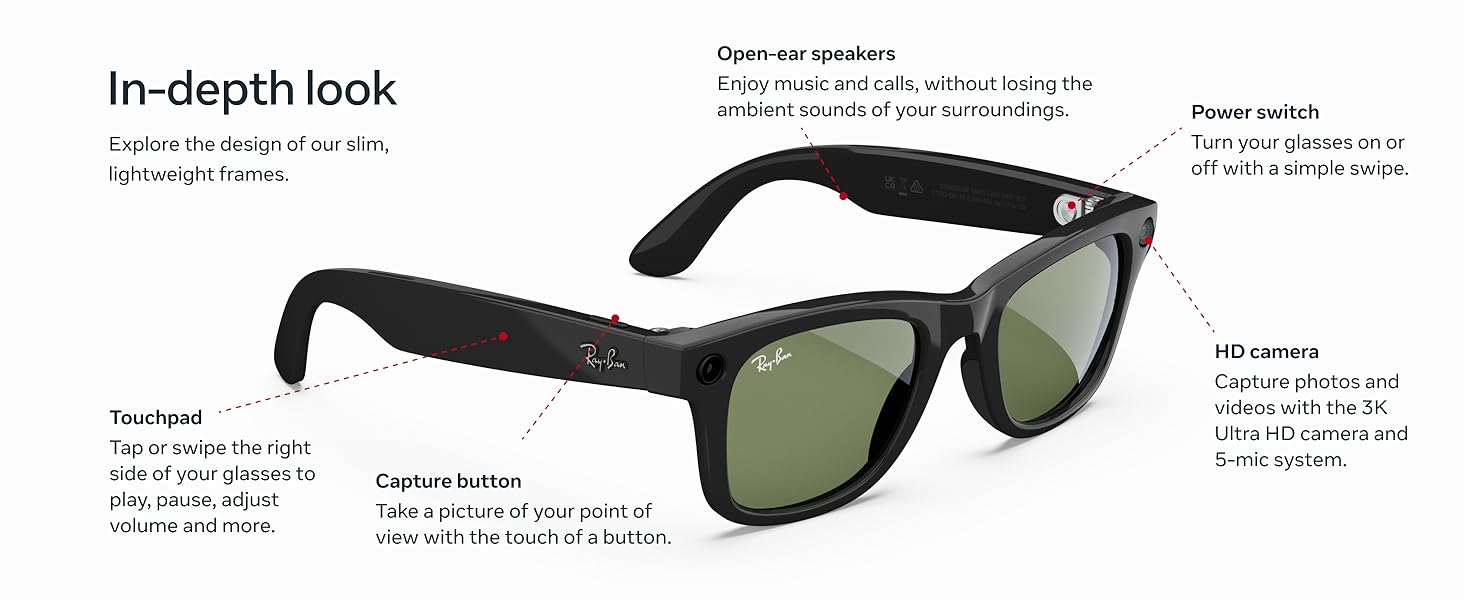
Image: A woman wearing Ray-Ban Meta glasses, enjoying music through the open-ear audio system without blocking ambient sounds.
Meta AI and Translation
Engage with Meta AI for suggestions, answers, and reminders. The live translation feature allows for real-time conversation translation.
- Activate Meta AI: Say "Hey Meta" followed by your question or command.
- Ntụgharị Asụsụ Dị Ndụ: Utilize the live translation feature for real-time communication in supported languages (French, Italian, Spanish, English, German, Portuguese).
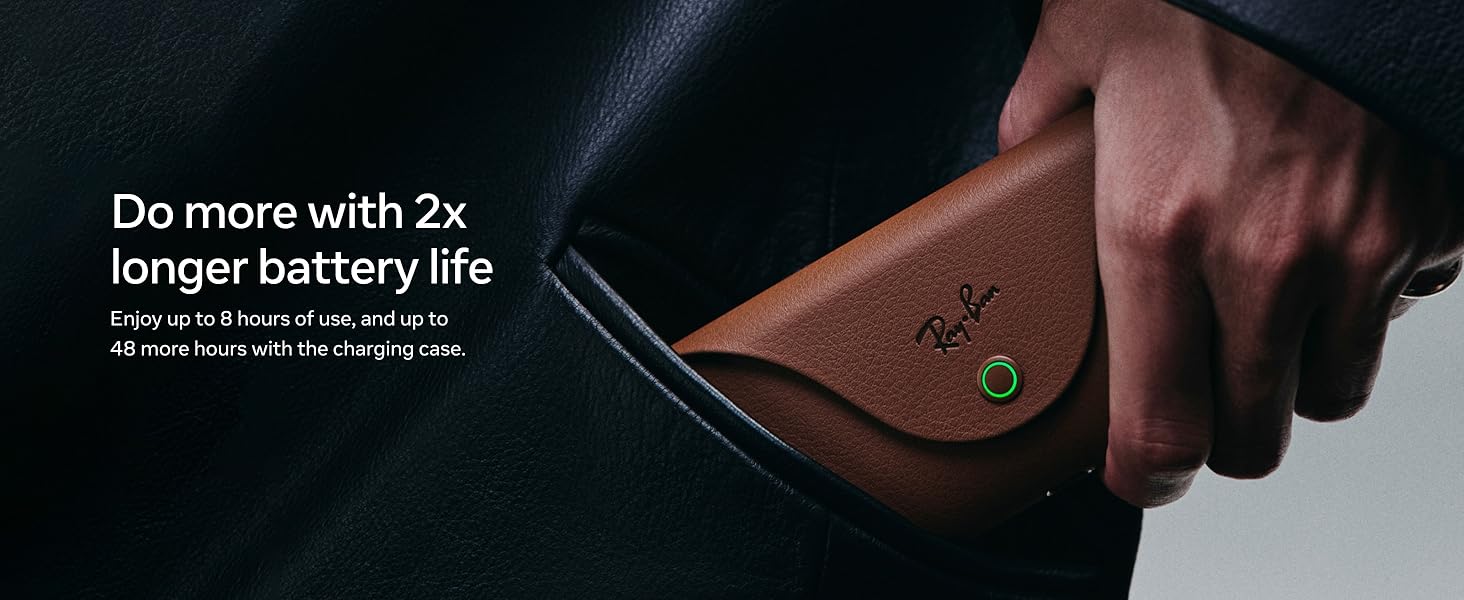
Image: A woman wearing Ray-Ban Meta glasses, demonstrating interaction with Meta AI for real-time suggestions, answers, and reminders.
Nlekọta
Nhicha
Regularly clean your glasses and lenses to maintain optimal performance and clarity. Use a soft, lint-free cloth, preferably the one provided with your glasses. For stubborn smudges, a specialized lens cleaning solution can be used.
Nlekọta batrị
The glasses offer up to 8 hours of battery life with moderate use, and the charging case provides up to 48 additional hours. To prolong battery life:
- Store glasses in the charging case when not in use.
- Zere oke okpomọkụ.
- Charge the case regularly.
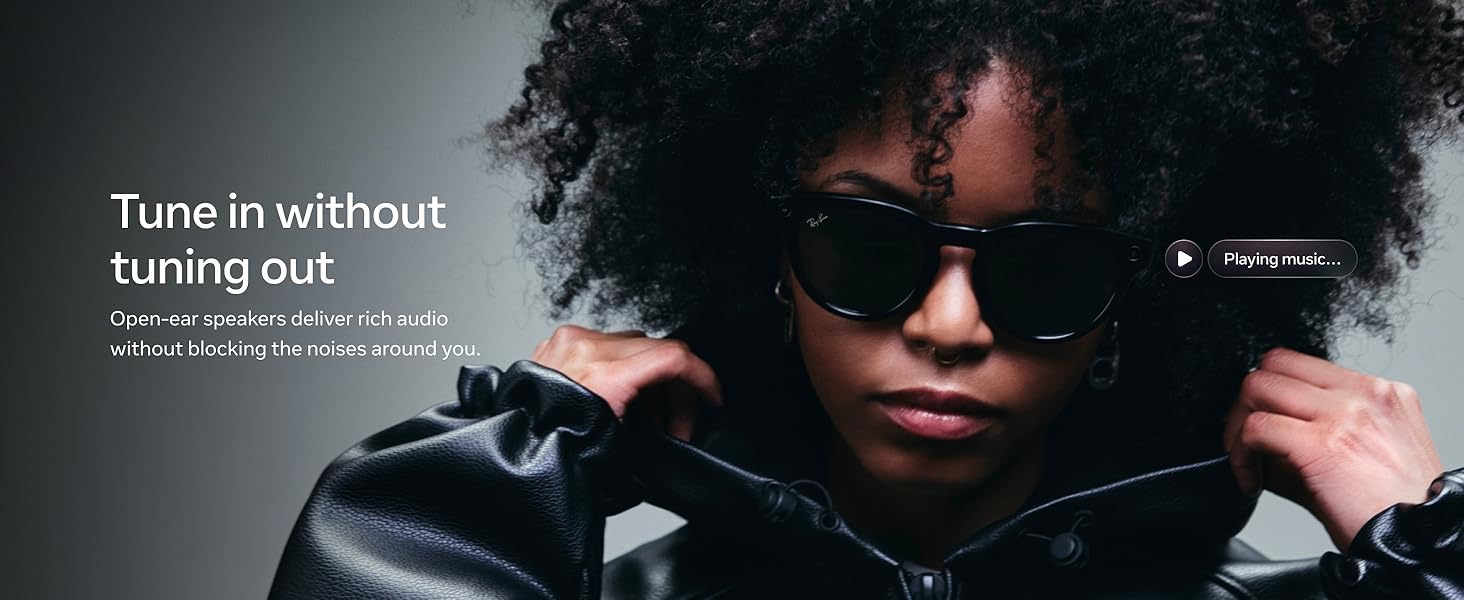
Image: Ray-Ban Meta glasses resting in their stylish brown charging case, highlighting the extended battery life of up to 8 hours of use and 48 additional hours from the case.
Nchọpụta nsogbu
- Ugogbe anya anaghị agba ọkụ: Ensure the glasses are properly seated in the charging case and the case itself is charged.
- Okwu njikọta: Restart your phone and glasses, then attempt pairing again through the Meta View app. Ensure Bluetooth is enabled on your phone.
- Nsogbu ọdịyo: Check the volume levels on both your glasses and your connected device. Ensure no other Bluetooth audio devices are connected.
- Camera not responding: Verify that the glasses are powered on and have sufficient battery. Try restarting the glasses.
Vidiyo: Onye ọrụ review discussing the functionality and features of the Ray-Ban Meta (Gen 2) Skyler glasses, including tips for optimal use.
Nkọwapụta
| Njirimara | Nkọwa |
|---|---|
| Nọmba nlereanya | 0RW4014 |
| Akụkụ ngwaahịa | 5.91 x 3.15 x 3.94 sentimita asatọ |
| Ibu Ibu | 1.87 ounces |
| Igwefoto | 12 MP Ultra-Wide, 3K Ultra HD Video |
| Battery Life (Glasses) | Up to 8 hours (moderate use) |
| Ndụ Batrị (Igbe Nchaji) | Up to 48 additional hours |
| Onye nrụpụta | EssilorLuxottica |
Ụdị oghere
The Ray-Ban Meta Skyler glasses are available with various lens options to suit different needs and preferences:
- Anya anyanwụ: Provide advanced eye protection in bright conditions with 100% UVA and UVB protection.
- Anya doro anya: Designed to improve visual comfort by filtering blue light from digital screens, indoor fluorescent lights, and even sun rays.
- Anya Mgbanwe®: Na-agbanwe agbanwe n'enweghị nsogbu, site n'ime ụlọ nke doro anya ma ọ bụ nke nwere ntakịrị agba ruo n'èzí nke gbara ọchịchịrị kpamkpam.
- Mgbapu ekewapụrụ Wepụ ntụgharị uche ma belata ìhè ọkụ iji mee ka ọdịiche dị mma ma mee ka ọ doo anya nke ọma, site na iji nchekwa 100% UVA na UVB.
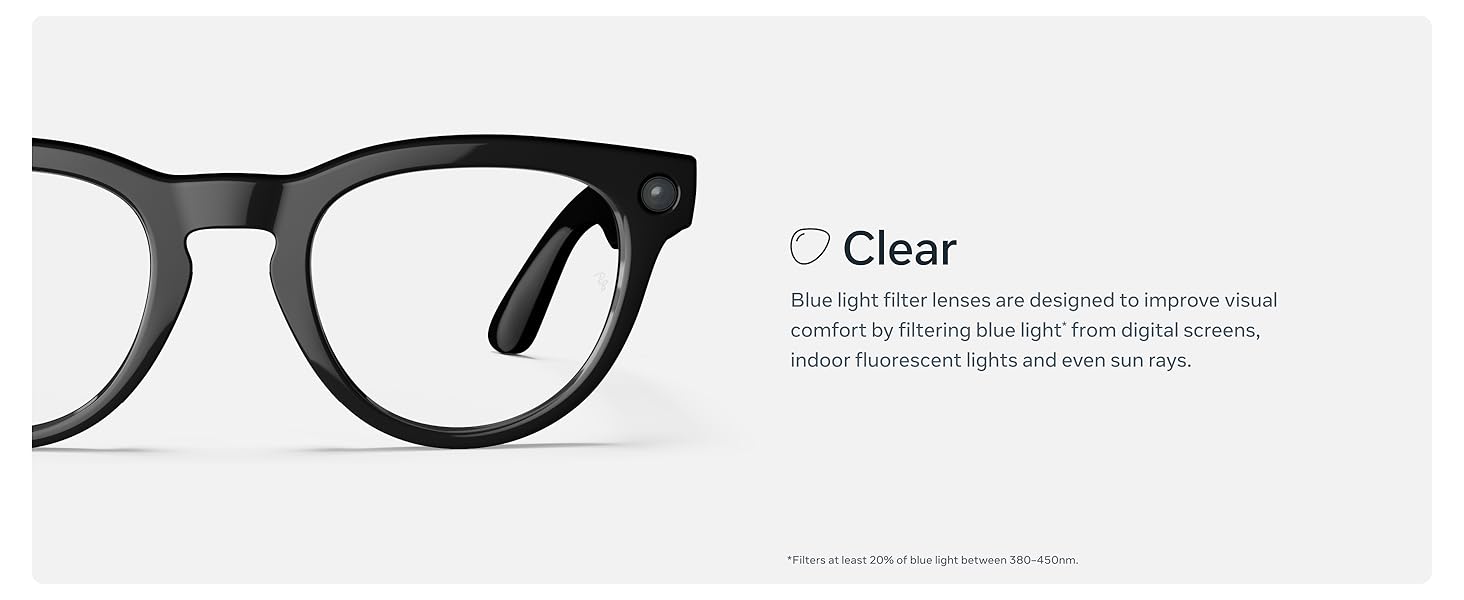
Foto: Ofeview of the different lens types available for Ray-Ban Meta glasses, including sun, clear, Transitions®, and polarized options.
Akwụkwọ ikike na nkwado
For warranty information and customer support, please refer to the official Meta websaịtị ma ọ bụ kpọtụrụ ndị ahịa ha ozugbo. Debe ihe akaebe nke ịzụrụ ihe maka akwụkwọ ikike ọ bụla.


