1. Okwu mmalite
Thank you for choosing the MCHOSE ACE 68 Mechanical Gaming Keyboard. This 60% compact keyboard is engineered for high-performance gaming, featuring Hall Effect magnetic switches, Rapid Trigger technology, adjustable actuation, and an 8000Hz polling rate for ultra-low latency. This manual will guide you through the setup, operation, and maintenance of your new keyboard to ensure optimal performance.
2. Kedu ihe dị na Igbe ahụ
- MCHOSE ACE 68 Mechanical Gaming Keyboard
- eriri USB (ụdị-C)
- Okpu isi & Mgbanwe Puller
- 2 x Replacement Switches
- Ihe mkpuchi uzuzu
- Akwụkwọ ntuziaka (akwụkwọ a)
3. Nhazi
3.1 Njikọ Hardware
- Connect the provided USB Type-C cable to the port on the MCHOSE ACE 68 keyboard.
- Plug the other end of the USB cable into an available USB port on your computer (PC, Laptop, Gaming Console, PS5, XBOX).
- Sistemu eji arụ ọrụ gị ga-amata ahụigodo na-akpaghị aka.
3.2 Software Installation (M HUB Web Onye ọkwọ ụgbọ ala)
For advanced customization and optimal performance, it is recommended to use the MCHOSE M HUB web ọkwọ ụgbọ ala.
- Mepee gị web browser and navigate to the MCHOSE official websaịtị: https://www.mchose.com.cn.
- Select your preferred language from the options provided on the websaịtị.
- Click on the 'Enter M HUB WEB'bọtịnụ.
- On the M HUB page, click on the image corresponding to the 'Ace 68' keyboard to enter its configuration interface.

Image: Step 1 - Webpage input for MCHOSE HUB web ọkwọ ụgbọ ala.

Image: Step 2 - Language selection and entering M HUB WEB.
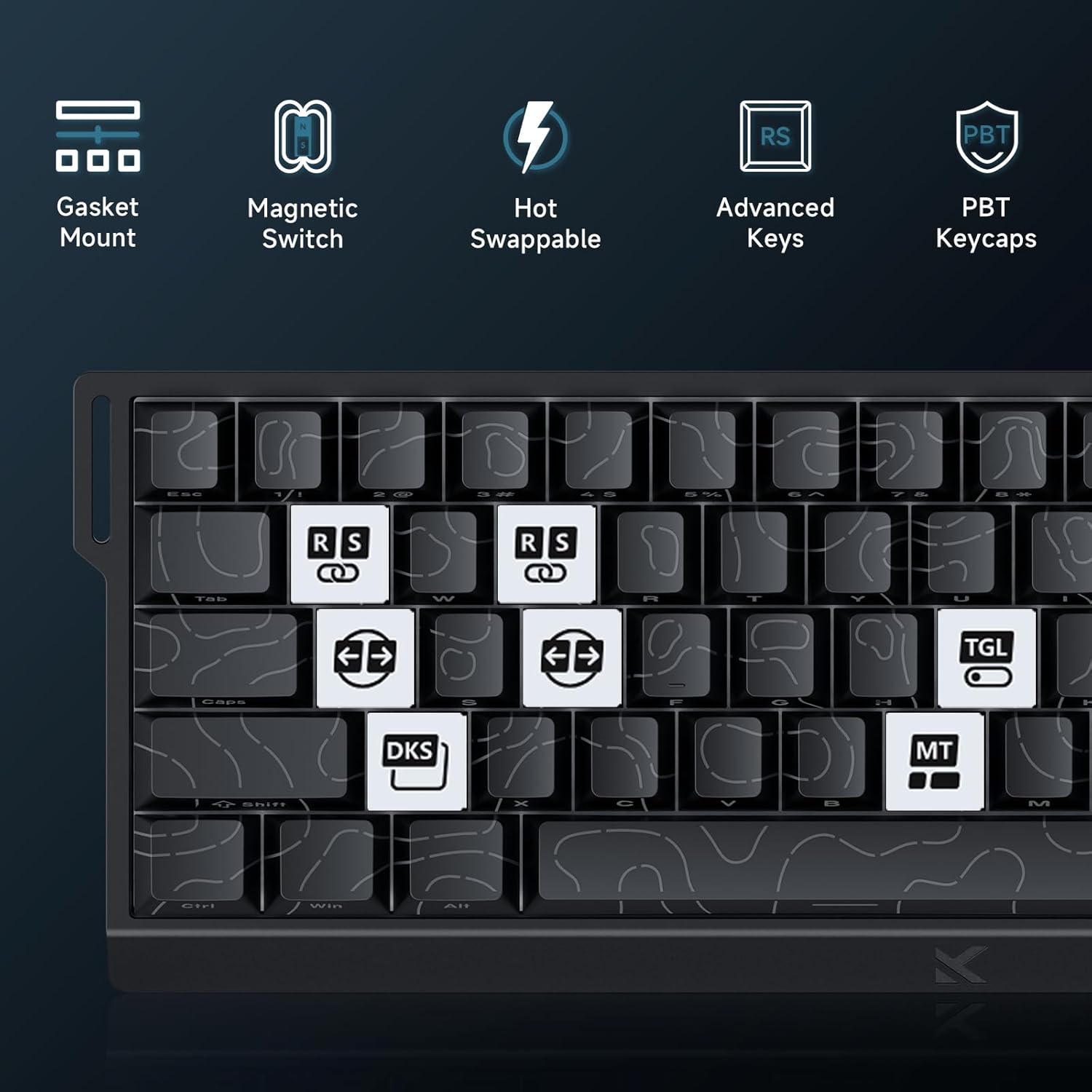
Image: Step 3 - Selecting the Ace 68 device within the M HUB web interface.
4. Ntuziaka ọrụ
4.1 Polling Rate and Latency
The MCHOSE ACE 68 features an 8000Hz polling rate and a 128K scan rate, resulting in an ultra-low 0.1ms latency. This ensures rapid and precise input registration.

Image: Visual representation of 8000Hz Polling Rate and 0.1ms Report Rate, highlighting fast actuation and response time.
4.2 Rapid Trigger and Adjustable Actuation
The keyboard's magnetic switches allow for dynamic actuation and deactivation points, eliminating traditional input latency.
- Mkpalite ngwa ngwa: Keys activate when pressed and deactivate when released, without a fixed reset point. This allows for faster repeated inputs.
- Mmegharị A Na-agbanwe agbanwe: Customize the actuation point of each key from 0.1mm to 4.0mm using the M HUB software. This provides precise control over key sensitivity.

Image: Comparison of Rapid Trigger (dynamic reset) versus traditional fixed actuation/reset points.
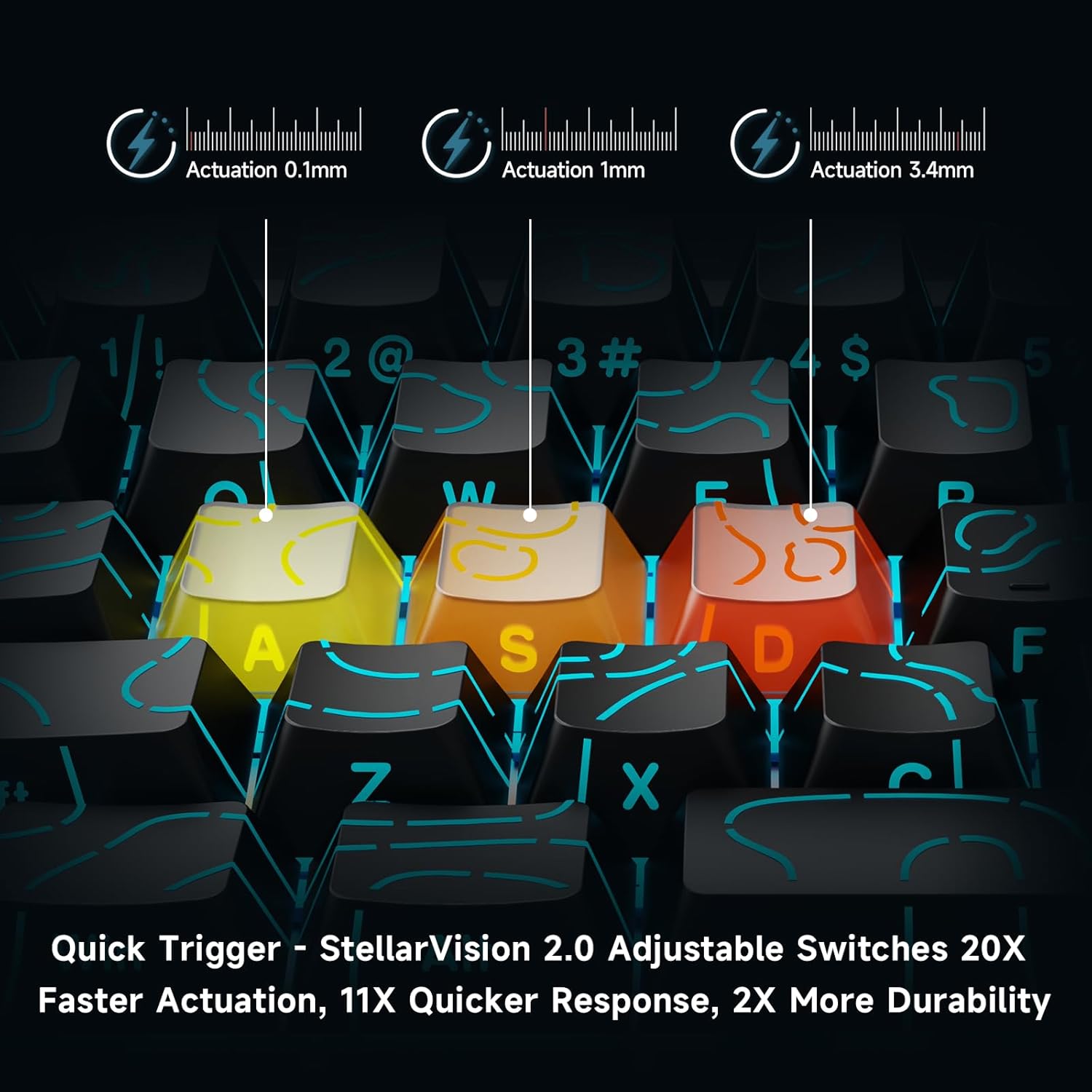
Image: Visual demonstration of adjustable actuation points (0.1mm, 1mm, 3.4mm) for StellarVision 2.0 switches.
4.3 Advanced Key Functionality (M HUB Software)
The M HUB software allows for advanced customization of key behavior:
- RS (Rappy Snappy): Monitors at least two selected keys and activates the key pressed the furthest. When both are at the same depth, it uses your selected SOCD resolution. This enhances movement in games.
- SOCD (Simultaneous Opposing Cardinal Directions): When opposing direction keys (e.g., Left + Right) are pressed together, you can set it to neutralize, prioritize the last-pressed, or hold the first-pressed direction.
- DKS (Dynamic Key Press): Map up to four separate actions along a single key's travel at actuation, bottom-out, first release, and full release for complex macros or multi-stage nyere iwu.
- MT (Mod-Tap): Assign a key to send one keycode on a quick tap and a different (usually modifier) code when held, blending typing and modifier layers seamlessly.
- TGL (ntụgharị): Turn any key into an on/off switch-press once to latch the output; press again to cancel. A hold still provides momentary behavior.

Foto: Ofeview of key features including Advanced Keys (RS, DKS, TGL, MT).

Image: Diagram explaining the concept of 4-in-1 Action Keys, allowing multiple actions per key based on press depth.
Nhazi ọkụ 4.4 RGB
The MCHOSE ACE 68 features customizable RGB backlighting with 16.8 million colors and 22+ dynamic lighting effects.
- Njikọta Igodo FN: Use the Function (FN) key in combination with other keys to adjust lighting effects directly on the keyboard.
- M HUB Software: For full customization, including per-key lighting and advanced effects, use the M HUB web ọkwọ ụgbọ ala.

Image: FN key combinations for adjusting RGB lighting effects, brightness, and speed.

Image: The MCHOSE ACE 68 keyboard displaying various preset RGB lighting effects.
5. Nlekọta
5.1 Nhicha
- Kwụpụ kiiboodu na kọmputa gị tupu ihicha.
- Use a soft, dry cloth to wipe down the keycaps and keyboard body.
- For deeper cleaning, use a can of compressed air to remove dust and debris from between the keycaps.
- Zere iji kemịkalụ siri ike ma ọ bụ ihe na-emebi emebi, n'ihi na ndị a nwere ike imebi njedebe nke ahụigodo ma ọ bụ akụkọ akụkọ okpu igodo.
5.2 Mgbanwe igodo na mgbanwe
The MCHOSE ACE 68 features hot-swappable magnetic switches, allowing for easy replacement without soldering.
- Jiri mkpịsị ugodi ahụ enyere ka ọ were nwayọ wepu okpu igodo achọrọ.
- Use the provided switch puller to carefully extract the magnetic switch from its socket.
- Dozie ntụtụ nke mgba ọkụ ọhụrụ ahụ na oghere dị na PCB wee pịasie ike ruo mgbe ọ batara.
- Tinye okpu igodo azụ na ngbanwe ọhụrụ.

Image: Diagram showing the hot-swappable PCB, pre-lubed magnetic switch, plate-mounted stabilizers, hot-swap socket, and north-facing per-key LEDs.
6. Nchọpụta nsogbu
- Ahụigodo Anaghị aza:
- Gbaa mbọ hụ na ejikọrọ eriri USB na nchekwa na ma ahụigodo ma kọmputa.
- Gbalịa ijikọ ahụigodo na ọdụ ụgbọ USB dị iche na kọmputa gị.
- Nwalee ahụigodo na kọmpụta ọzọ ka ewepụ nsogbu ndị metụtara sistemụ.
- Input Lag or Dropped Inputs:
- Ensure the M HUB web driver is installed and updated to the latest version.
- Check the polling rate setting in the M HUB software; ensure it is set correctly for your needs.
- If 'Berserk Mode' is enabled in the M HUB software, be aware that while it offers maximum accuracy, it may impact stability with mixed switch configurations. Try disabling it if issues persist.
- Ensure no other software or background processes are interfering with keyboard input.
- Ọkụ RGB anaghị arụ ọrụ / ezighi ezi:
- Check FN key combinations for lighting control (refer to section 4.4).
- Verify lighting settings within the M HUB software.
- Ensure the keyboard firmware is up to date.
- Keys Not Actuating Correctly:
- Check the adjustable actuation settings for the specific key in the M HUB software.
- If a switch feels faulty, consider replacing it using the provided spare switches and switch puller (refer to section 5.2).
7. Nkọwapụta
| Njirimara | Nkọwa |
|---|---|
| Nọmba nlereanya | MCHOSE ACE 68 |
| Nhazi ahụigodo | 60% Compact (61 Keys) |
| Ngbanwe Ụdị | TTC Dragon Lord Magnetic Switches (Hall Effect) |
| Oke mmegharị | 0.1mm - 4.0mm (Enwere ike ịgbanwe) |
| Ọnụego ntuli aka | 8000Hz |
| Ọnụego mkpesa | 0.1ms |
| Isi okwu | PBT Keycaps, Cherry Profile, Shine-through legends |
| Ịkụ azụ azụ | RGB (16.8 Million Colors, 22+ Effects) |
| Njikọta | Ejiri waya (USB-C) |
| Ngwa dakọtara | PC, Laptop, Gaming Console, PS5, XBOX |
| Akụkụ ngwaahịa | 12.6"L x 4.56"W x 1.54"H (32cm x 11.7cm x 3.9cm) |
| Ibu Ibu | 2.55 pound (1.16 n'arọ) |
| Atụmatụ pụrụ iche | Rapid Trigger, Adjustable Actuation, Hot-Swappable Switches, Programmable Keys, Gasket Mount |
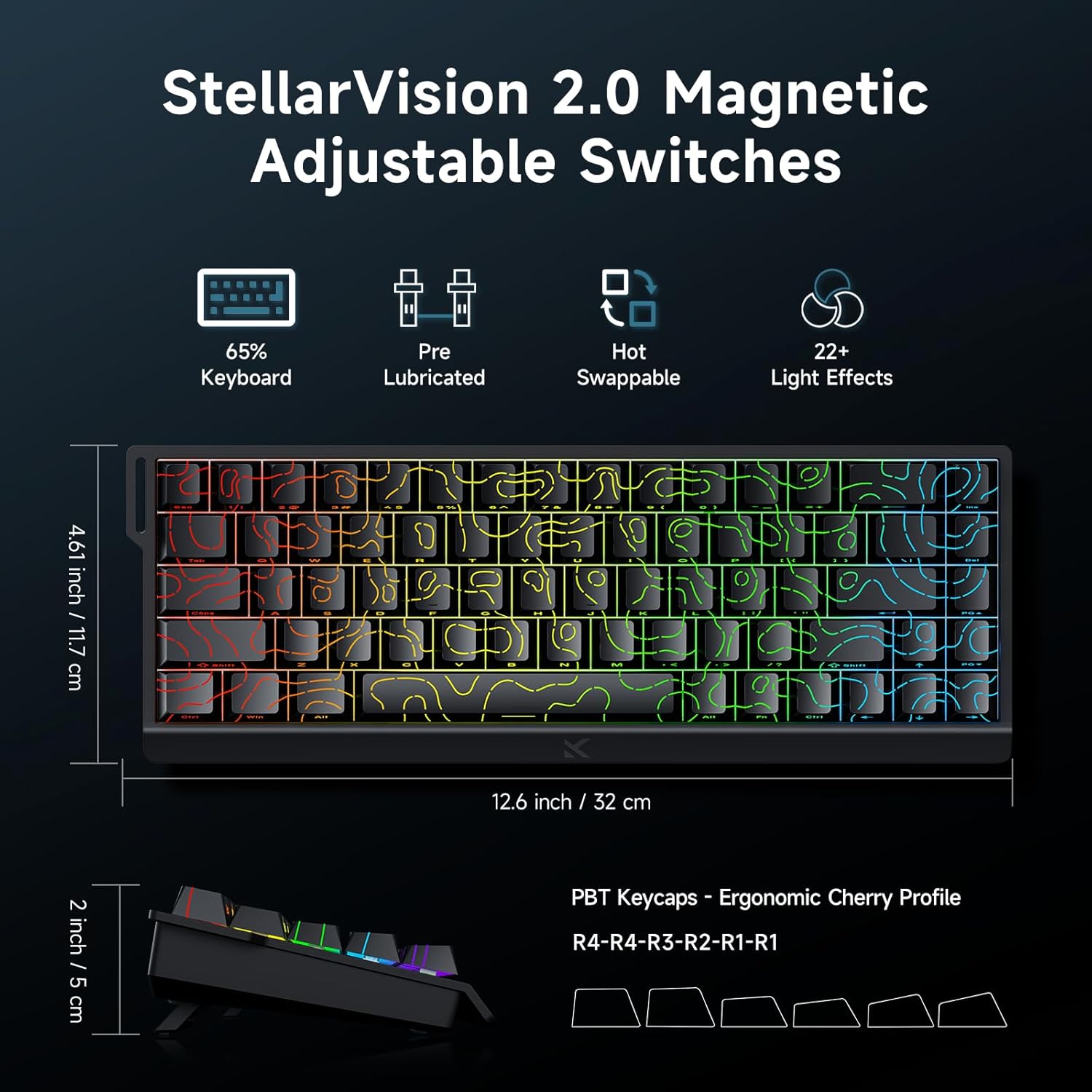
Image: MCHOSE ACE 68 keyboard with dimensions (12.6 inches / 32 cm length, 4.61 inches / 11.7 cm width, 2 inches / 5 cm height) and key features like StellarVision 2.0 Magnetic Adjustable Switches, pre-lubricated, hot-swappable, and 22+ light effects.

Image: Detailed specifications of the Uranus Magnetic Switch eSports, including switch type, actuation range (0.1-3.4mm), lifespan (100 Million Clicks), sensitivity (0.005mm), total travel (3.4mm), and trigger pressure (32 +/- 5 gf).
8. Akwụkwọ ikike na nkwado
MCHOSE products are designed for durability and performance. For warranty information, technical support, or further assistance, please visit the official MCHOSE websaịtị ma ọ bụ kpọtụrụ ndị ahịa ha ozugbo. Debe akwụkwọ nnata ịzụrụ maka akwụkwọ ikike.
Ndị ọchịchị Websaịtị: https://www.mchose.com.cn


