Okwu mmalite
This manual provides essential information for the setup, operation, maintenance, and troubleshooting of your suevery Gaming Desktop Computer. Please read this manual thoroughly before using your new computer to ensure proper function and longevity.
Ozi nchekwa
- Ensure the computer is placed on a stable, level surface with adequate ventilation. Do not block any ventilation openings.
- Connect the power cable to a grounded electrical outlet. Do not overload power strips.
- Keep the computer away from liquids, excessive heat, and direct sunlight.
- Do not open the computer case unless you are a qualified technician. High voltage components are present.
- Unplug the computer from the power outlet before cleaning or performing any maintenance.
Kedu ihe dị na Igbe ahụ
Chọpụta na ihe niile dị mgbe ị na-ebupụ:
- suevery Gaming Desktop Computer (16G-512G-Vega R5 5600GT)
- Igwe ọkụ ọkụ
Additional peripherals such as a monitor, keyboard, and mouse are sold separately.
Melite
1. Iwepu ngwongwo
Carefully remove the computer from its packaging. Retain all packaging materials for future transport or servicing.
2. Njikọ Peripherals
- Nyochaa: Connect your monitor to the computer using an HDMI or VGA cable. Ensure the monitor's input source is set correctly.
- Ahụigodo na òké: Connect your USB keyboard and mouse to any available USB ports on the rear or front of the computer.
- Ike: Connect the provided power cable to the power supply unit (PSU) at the rear of the computer, then plug the other end into a grounded electrical outlet.

Foto: N'azụ view of the suevery Gaming Desktop Computer, highlighting the available ports including USB, HDMI, and VGA connections, along with the power input.
3. Ike izizi
Press the power button located on the front of the computer. The system will boot up. Follow any on-screen instructions for initial operating system setup (if applicable).
4. Njikọ netwọkụ
This computer supports Wi-Fi connectivity. Once the operating system is loaded, navigate to the network settings to connect to your wireless network.
Na-arụ ọrụ kọmputa gị
Sistem Emecharaview
Your suevery Gaming Desktop Computer is equipped with an AMD Ryzen 5 5600GT processor, featuring integrated Radeon Vega Graphics, 16GB of DDR4 RAM, and a 512GB NVMe SSD for fast performance and storage.

Foto: Ime view of the suevery Gaming Desktop Computer, illustrating the 16GB DDR4-3200MHz high-frequency memory and the M.2 NVMe 512GB SSD hard disk.

Image: A visual representation of the AMD Radeon Vega Graphics 7, detailing its Zen 3 architecture, 1900MHz graphics card frequency, Vega 7 GPU core, and 7nm process technology, suitable for various applications including gaming and professional work.
RGB ọkụ
The computer features customizable RGB lighting effects for its chassis fans. A button on the top of the case (often the reset button) can be used to cycle through various lighting modes and colors.
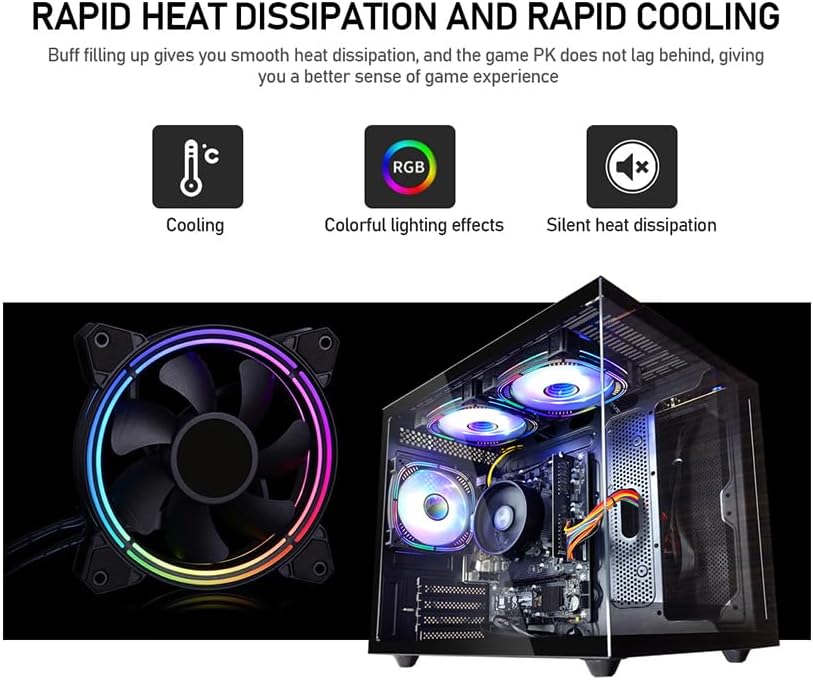
Image: Demonstrates the rapid heat dissipation and cooling capabilities of the system, featuring a close-up of an RGB fan and an internal view of the computer with multiple illuminated RGB fans, indicating colorful lighting effects and silent operation.
Nlekọta
Nhicha
- Regularly clean the exterior of the computer with a soft, dry cloth.
- Use compressed air to clear dust from ventilation grilles and fan blades to maintain optimal airflow. Perform this with the computer powered off and unplugged.
Mmelite ngwanrọ
Keep your operating system, drivers, and applications updated to ensure system stability, security, and performance. Check for updates regularly.
Igwe ikuku
Ensure the computer is placed in an area with good airflow. Avoid placing it in enclosed spaces or directly against walls that could obstruct vents. Proper ventilation is crucial for preventing overheating.
Ndabere data
Regularly back up important data to an external drive or cloud storage. This protects your files in case of hardware failure or other unforeseen issues.
Nchọpụta nsogbu
Enweghị ike
- Check if the power cable is securely connected to both the computer and the electrical outlet.
- Nyochaa na oghere ọkụ ahụ na-arụ ọrụ site na itinye na ngwaọrụ ọzọ.
- Ensure the power switch on the back of the power supply unit (if present) is in the 'ON' position.
Enweghị Ngosipụta na Nyocha
- Confirm that the monitor is powered on and its video cable (HDMI/VGA) is securely connected to both the computer and the monitor.
- Check the monitor's input source setting to ensure it matches the cable type you are using (e.g., HDMI 1, VGA).
System Performance Issues
- Mechie ngwa ndabere na-adịghị mkpa iji wepụta akụrụngwa sistemụ.
- Gbaa mbọ hụ na sistemụ arụmọrụ gị na ndị ọkwọ ụgbọ ala emelitere.
- Check for adequate ventilation to prevent thermal throttling.
Error Codes or Unexpected Shutdowns
If you encounter persistent error codes or unexpected shutdowns, note down the error message and contact customer support for assistance. This may indicate a hardware issue requiring professional diagnosis.
Nkọwapụta

Image: Specifications diagram for the suevery Gaming Desktop Computer, illustrating its physical dimensions (339mm x 276mm x 330mm), USB 3.0 and 2.0 port configurations, HDMI and VGA signal interfaces, and the presence of built-in 3 x 120cm chassis fans.
| Njirimara | Nkọwa |
|---|---|
| Ụdị | suevery |
| Nọmba nlereanya | SUV9W1-SUV9W9 |
| Nhazi | AMD Ryzen 5 5600GT (3.6 GHz) |
| RAM | 16 GB DDR4 SDRAM (3200 MHz) |
| Nchekwa | 512 GB NVMe SSD |
| Ihe eserese eserese | AMD Radeon Vega (Integrated) |
| Ihe eserese kaadị RAM nha | 2 GB |
| Sistemụ nrụọrụ | DOS (User may install preferred OS) |
| USB 2.0 ọdụ ụgbọ mmiri | 4 |
| USB 3.0 ọdụ ụgbọ mmiri | 2 |
| Mmepụta vidiyo | hdmi, vga |
| Ngwaike Platform | PC |
| Ibu Ibu | 19.8 pound |
| Akụkụ ngwugwu | 15.83 x 14.49 x 12.76 sentimita asatọ |
| Agba | Nwa |
| Wi-Fi | Ee |
Akwụkwọ ikike na nkwado
Ozi akwụkwọ ikike
This suevery Gaming Desktop Computer comes with a 1-afọ akwụkwọ ikike. This warranty covers manufacturing defects and hardware malfunctions under normal use conditions. Please retain your proof of purchase for warranty claims.
Nkwado ndị ahịa
For technical assistance, troubleshooting, or warranty inquiries, please contact suevery customer service. Refer to the product packaging or the seller's websaịtị maka nkọwa kọntaktị akọwapụtara.


