1. Okwu mmalite
This manual provides detailed instructions for the installation, operation, and maintenance of your CP PLUS EZ-P34Q 3MP Smart Wi-Fi CCTV Camera. Please read this manual thoroughly before using the product to ensure proper functionality and safety. Keep this manual for future reference.
2. Ngwaahịa gafereview
The CP PLUS EZ-P34Q is a 3MP Smart Wi-Fi CCTV Camera designed for indoor home surveillance. It features 360° pan and 60° tilt capabilities, providing comprehensive coverage. The camera supports 2K clarity video recording with H.265 compression, ensuring clear footage and efficient storage. Advanced features include motion detection, human body detection, motion tracking, sound alerts, dual-vision night mode, two-way communication, and cloud recording options. It is equipped with CTC Cyber Secure Tech for data privacy.

Figure 2.1: CP PLUS EZ-P34Q Camera with highlighted features.
3. Kedu ihe dị na Igbe ahụ
Nyochaa na agụnyere ihe niile ndị a na ngwugwu gị:
- CP PLUS EZ-P34Q Camera Unit
- Ihe nkwụnye ọkụ
- Ịchaji eriri (USB Ụdị-C)
- Akwụkwọ ntuziaka
- Ịkwanye kposara
4. Nhazi
4.1 Nwụnye anụ ahụ
The camera is designed for indoor use and tabletop mounting. Ensure the camera is placed on a stable, flat surface with a clear view of the area you wish to monitor. For wall or ceiling mounting, use the provided mounting screws and follow the instructions in the separate mounting guide (if applicable).
- Choose a suitable indoor location for the camera.
- Connect the charging cable to the camera's USB Type-C port and the power adapter.
- Plug the power adapter into a standard electrical outlet. The camera will power on and initiate its startup sequence.
4.2 Ngwa nwụnye na ijikọ
To operate the camera and access its features, you need to download and install the compatible mobile application on your smartphone.
- Download the official CP PLUS mobile application from your device's app store (e.g., Google Play Store or Apple App Store).
- Debanye aha maka akaụntụ ọhụrụ ma ọ bụ banye ma ọ bụrụ na ị nwere otu.
- Follow the in-app instructions to add your new EZ-P34Q camera. This typically involves scanning a QR code on the camera or manually entering its device ID.
- Connect the camera to your Wi-Fi network as prompted by the application. Ensure your Wi-Fi network is 2.4GHz for optimal compatibility.
- Once successfully paired, you can view the live feed and configure camera settings through the app.
5. Ọrụ
5.1 Njikwa Pan na Tilt
The camera offers a 360° horizontal pan and 60° vertical tilt range, allowing you to adjust the viewing angle remotely via the mobile application.
- Mepee ndụ view na ngwa mkpanaaka.
- Use the directional controls (usually an on-screen joystick or arrows) to move the camera lens horizontally (pan) and vertically (tilt).

Figure 5.1: Illustrates the 360° pan and tilt capability for comprehensive coverage.
5.2 Smart Detection Suite
The camera is equipped with advanced detection features to enhance security and reduce false alarms.
- Nchọpụta ngagharị: Igwefoto na-achọpụta mmegharị n'ime ubi ya view.
- Human Body Detection: Specifically identifies human shapes, minimizing alerts from pets or inanimate objects.
- Nchọgharị ngagharị: When motion is detected, the camera can automatically track the moving object.
- Mkpu ụda: The camera can detect unusual sounds and send notifications.
- Nkwụsị arụ ọrụ: Features a built-in siren and warm LED flash light that can be activated automatically upon detection of unexpected motion to deter intruders.
Configure these settings in the mobile application's detection settings menu to receive instant notifications on your smartphone.

Figure 5.2: Motion tracking feature in action, following movement.
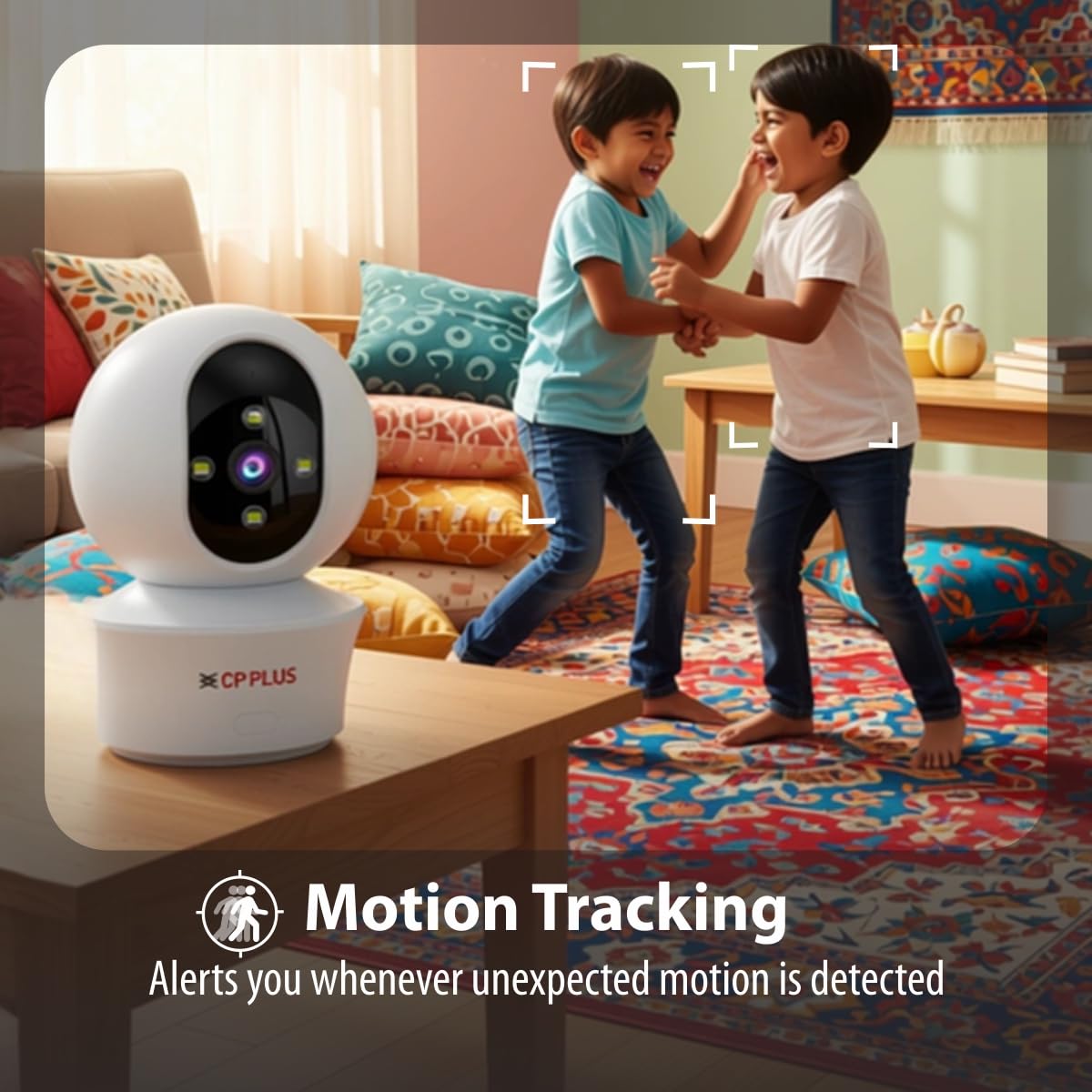
Figure 5.3: Human body detection providing real-time alerts.

Figure 5.4: Active deterrence using siren and LED flash light.
5.3 Ọhụụ abalị
The camera offers dual-vision night mode for clear surveillance in low-light conditions.
- Infrared (IR) Night Vision: Provides clear black and white footage up to 20-30 meters in complete darkness.
- White LED Color Night Vision: Utilizes built-in white LEDs to deliver full-color video up to 15-20 meters at night, also serving as a deterrent.
You can switch between these modes or set them to activate automatically based on ambient light conditions through the app.

Figure 5.5: Full-color night vision capturing details in low light.
5.4 Nkwurịta Okwu n'Ụzọ Abụọ
The built-in microphone and speaker allow for two-way audio communication.
- Site na ndụ view in the mobile app, tap the microphone icon to speak through the camera's speaker.
- The camera's microphone will pick up audio from the monitored area, which you can hear through your smartphone.
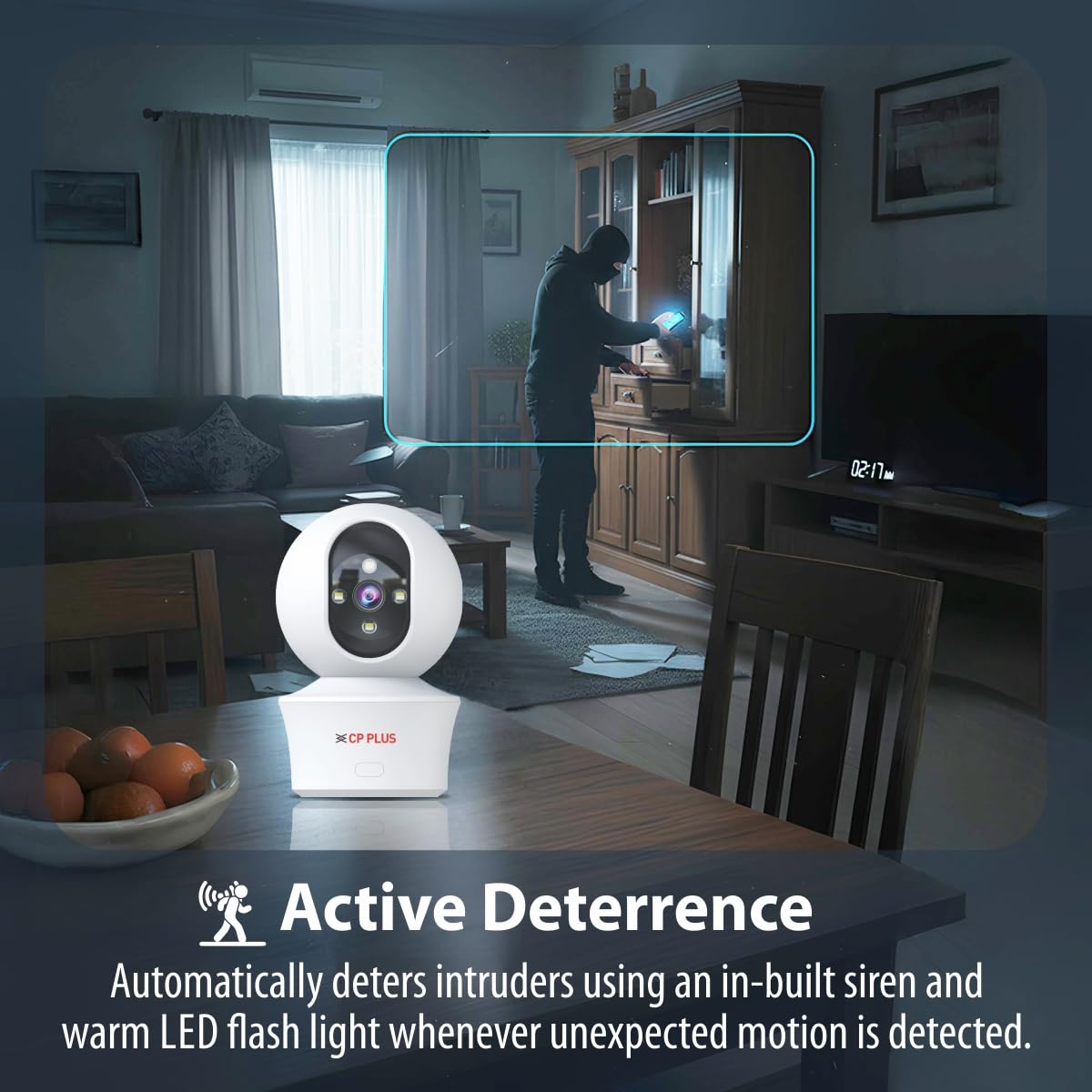
Figure 5.6: Two-way communication feature for interacting with the monitored area.
5.5 Ndekọ na Nchekwa Vidiyo
The camera supports both local and cloud storage options for your video recordings.
- Nchekwa Kaadị MicroSD: Insert a MicroSD card (up to 256GB, not included) into the designated slot on the camera for local storage. Recordings will be saved directly to the card.
- Ndekọ igwe ojii: The camera supports cloud recording services (subscription may be required). Refer to the mobile application for details on activating and managing cloud storage.
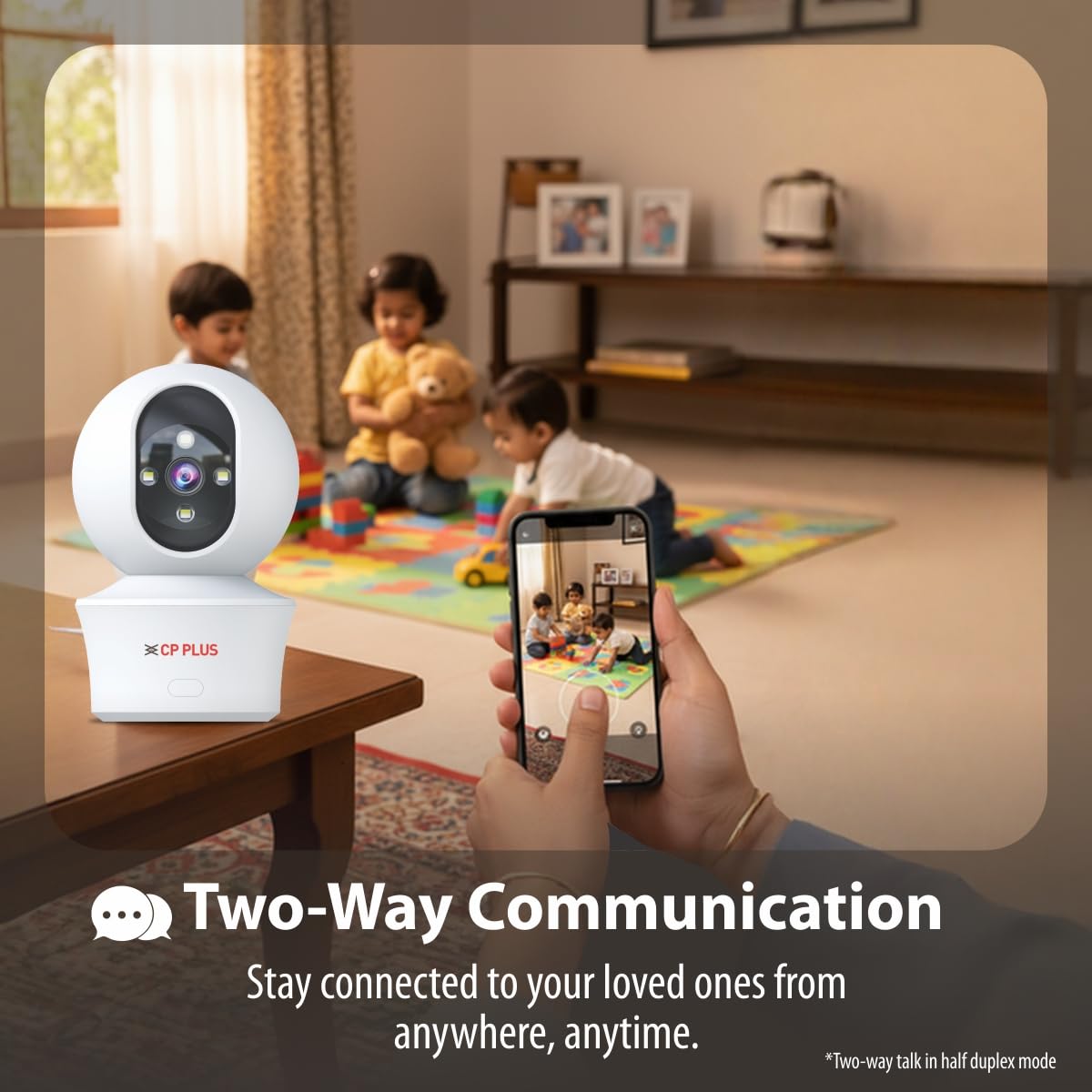
Figure 5.7: Cloud recording feature for remote access to footage.
5.6 CTC Cyber Secure Tech
Your CP PLUS camera incorporates CTC Cyber Secure Tech to ensure your video data remains encrypted, private, and protected from cyber threats.
6. Nkọwapụta
| Njirimara | Nkọwapụta |
|---|---|
| Nọmba nlereanya | EZ-P34Q |
| Mkpebi | 3MP (2304x1296) |
| Mkpakọ vidiyo | H.265 |
| Pan Range | 360° |
| Tit Range | 60° |
| Oke Ọhụụ abalị IR | 20-30 mita |
| White LED Night Vision Range | 15-20 meters (Full Color) |
| Ọnụego Frame | 20 okpokolo agba kwa nkeji |
| Nchekwa | MicroSD card (up to 256GB), Cloud Storage |
| Njikọta | Wi-Fi (2.4GHz) |
| Ntinye ike | 5V USB Ụdị-C |
| Akụkụ (LxWxH) | 7.7 x 7.7 x 10.9 cm |
| Ibu | 330 grams |
| Ojiji ime ime/n'èzí | Naanị ime ụlọ |
| Atụmatụ pụrụ iche | 2-Way Audio, Motion Sensor, Night Vision, Human Detection, Auto Tracking, Built-in Siren |
7. Nchọpụta nsogbu
Ọ bụrụ na ịnwee nsogbu na igwefoto gị, rụtụ aka na nsogbu na azịza ndị a na-ahụkarị:
- Igwefoto anaghị ejikọta na Wi-Fi:
- Jide n'aka na netwọk Wi-Fi gị dị 2.4GHz.
- Lelee ike mgbaama Wi-Fi na ebe igwefoto ahụ dị.
- Verify correct Wi-Fi password entry in the app.
- Malitegharịa rawụta Wi-Fi gị na igwefoto ahụ.
- Ogo vidiyo na-adịghị mma:
- Lelee ọsọ njikọ ịntanetị gị.
- Gbaa mbọ hụ na oghere igwefoto dị ọcha.
- Adjust video resolution settings in the app if your network bandwidth is limited.
- Enweghị ịdọ aka ná ntị nchọpụta mmegharị:
- Verify motion detection and notification settings are enabled in the app.
- Check the detection sensitivity settings.
- Gbaa mbọ hụ na ọ dị ka igwefoto ahụ view adịghị egbochi.
- Audio ụzọ abụọ anaghị arụ ọrụ:
- Check microphone and speaker permissions for the app on your phone.
- Ensure volume levels are adjusted correctly in the app and on your phone.
8. Ozi nchekwa
- This camera is designed for eji naanị ime ụlọ. Do not expose it to water, moisture, or extreme temperatures.
- Use only the provided power adapter and charging cable. Using unauthorized accessories may damage the product and void the warranty.
- Debe igwefoto na ihe ndị ọzọ dị na ya ka ụmụaka ghara iru ya aka.
- Anwala ịkwasa ma ọ bụ rụkwaa igwefoto n'onwe gị. Kpọtụrụ nkwado ndị ahịa maka enyemaka.
- Ensure proper ventilation around the camera to prevent overheating.
9. Product Video Overview
Watch this short video for a quick overview of the CP PLUS EZ-P34Q camera's features and capabilities.
Video 9.1: A brief introduction to the CP PLUS 3MP Camera features.
10. Akwụkwọ ikike na nkwado
For warranty information, technical support, or service inquiries, please refer to the official CP PLUS websaịtị ma ọ bụ kpọtụrụ ndị ahịa ha ọrụ. Debe nnata nzụta gị ka ihe akaebe nke ịzụrụ.


