Okwu mmalite
This manual provides comprehensive instructions for the installation, operation, and maintenance of your Imou Cell 3C AIO 5MP Solar Surveillance Camera. Please read this manual thoroughly before use and retain it for future reference.
The Imou Cell 3C AIO is a wireless, rechargeable surveillance camera featuring an integrated 2.2W solar panel for continuous power. It offers 5MP (3K) resolution, IP66 weather resistance, smart color night vision, and advanced human detection with smart tracking. Key features include a built-in siren and spotlight for deterrence, flexible storage options via microSD card or Imou Cloud, and a privacy mode for enhanced security.
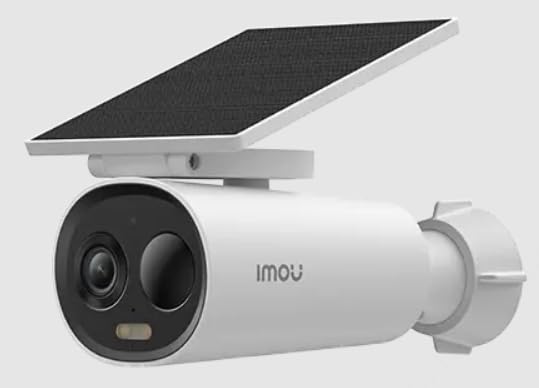
Image of the Imou Cell 3C AIO 5MP Solar Surveillance Camera, showcasing its compact design and integrated solar panel.
Melite
Follow these steps for initial setup of your Imou Cell 3C AIO camera:
- Bupụ ma nyochaa: Carefully remove all components from the packaging and ensure everything is present and undamaged.
- Ebube mbụ: Although solar-powered, it is recommended to fully charge the camera using a 5V USB adapter (not included) before the first use to ensure optimal performance.
- Download Imou Life App: Download and install the "Imou Life" app from your smartphone's app store (available on iOS and Android).
- Mepụta akaụntụ: Open the Imou Life app and create a new account or log in to an existing one.
- Tinye ngwaọrụ: Follow the in-app instructions to add your camera. This typically involves scanning a QR code on the camera or its packaging.
- Ebe Nkwanye: Select a suitable outdoor location for mounting. Ensure the solar panel receives direct sunlight for several hours daily to maintain battery charge. The camera is IP66 weather-resistant, suitable for various outdoor conditions.
- Nkwanye echekwabara: Use the provided mounting hardware to securely attach the camera to the chosen surface. Adjust the camera angle for optimal surveillance coverage.
Ntuziaka ọrụ
Utilize the Imou Life app to access and control your camera's features:
- Dị ndụ View: Open the Imou Life app and select your camera from the device list to view the real-time video feed.
- Nchọpụta ngagharị na nsochi: The camera features advanced human detection and smart tracking. Configure detection sensitivity, activity zones, and alert preferences within the app settings.
- Ọhụụ abalị: The camera supports smart color night vision, which automatically activates in low-light conditions to provide clear, full-color images.
- Siren and Spotlight: The integrated spotlight and siren can be configured to activate automatically upon detection of an intruder, or they can be manually triggered through the Imou Life app to deter potential threats.
- Nchekwa vidiyo:
- Kaadị MicroSD: Insert a microSD card (up to 256GB, not included) into the designated slot for local video storage.
- Imou Cloud: Subscribe to Imou Cloud for secure cloud storage of your video recordings. Refer to the app for subscription details and free trial availability.
- Ụdị nzuzo: Activate the privacy mode within the Imou Life app. This feature physically covers the camera lens, ensuring your privacy when desired.
Nlekọta
Mmezi kwesịrị ekwesị na-eme ka igwefoto gị dị ogologo ndụ na arụmọrụ kacha mma:
- Nhicha: Jiri ihe dị nro, d hichaa anya igwefoto na elu nke panel anyanwụ mgbe niile.amp cloth. Avoid using abrasive cleaners or harsh chemicals, as these can damage the components.
- Mmelite femụwe: Periodically check for and install firmware updates through the Imou Life app. Updates often include performance improvements, new features, and security enhancements.
- Nlekọta gburugburu: While IP66 rated, extreme environmental conditions (e.g., prolonged exposure to direct salt spray, very high humidity, or temperatures outside the specified operating range) should be minimized to prevent potential damage.
- Ahụike batrị: Ensure the solar panel receives adequate sunlight daily to maintain the internal battery's charge. If the camera is in a shaded area, occasional manual charging via USB may be required.
Nchọpụta nsogbu
Lee ngalaba a maka azịza maka nsogbu ndị a na-enwekarị:
- Igwefoto anaghị agbanwu:
- Check if the solar panel is obstructed or receiving insufficient sunlight.
- Ensure the internal battery has sufficient charge. If necessary, manually charge the camera via USB.
- Enweghị ike ijikọ na Wi-Fi:
- Verify that the camera is within range of your Wi-Fi router.
- Double-check the Wi-Fi password entered in the Imou Life app.
- Malitegharịa ekwentị ma igwefoto yana rawụta Wi-Fi gị.
- Ogo onyonyo adịghị mma:
- Hichaa oghere igwefoto iji wepụ unyi ma ọ bụ ihe ọ bụla mebiri emebi.
- Ensure there is adequate lighting in the surveillance area, especially for optimal color night vision.
- Check your network connection stability, as a weak signal can affect video streaming quality.
- Nchọpụta ngagharị anaghị arụ ọrụ:
- Verify that motion detection is enabled and configured correctly in the Imou Life app settings.
- Adjust the detection sensitivity and ensure activity zones are properly defined.
- Ensure there are no physical obstructions blocking the camera's view na mpaghara nchọpụta.
Nkọwapụta
| Njirimara | Nkọwa |
|---|---|
| Nọmba nlereanya | IPC-K9DC-5M0WEH-V2 |
| Ụdị | Imou |
| Mkpebi | 5 Megapixels (3K) |
| Ogwe igwe ejikọtara ọnụ | 2.2 Watt |
| Nguzogide ihu igwe | IP66 kwere nkwa |
| Akụkụ (L x W x H) | 16.8 x 7.2 x 6 cm |
| Ibu | 650 grams |
| Oriri ike | 3.5 Watt |
| Voltage | 5 volts |
| Nhọrọ nchekwa | MicroSD card (up to 256GB), Imou Cloud |
| Atụmatụ | Human Detection, Smart Tracking, Smart Color Night Vision, Siren, Spotlight, Privacy Mode |
Akwụkwọ ikike na nkwado
For detailed warranty information, technical assistance, or customer support, please visit the official Imou website or contact their authorized service centers. Retain your proof of purchase for any warranty claims.


