1. Okwu mmalite
The XIXIMENG G6 Wireless Gaming Controller is designed for an enhanced gaming experience across multiple platforms, including PC and Android devices. It features electromagnetic joysticks, high-precision triggers, six-axis motion sensing, and macro-programmable buttons. This manual provides essential information for setup, operation, and maintenance of your controller.

Image 1.1: The XIXIMENG G6 Wireless Gaming Controller in transparent yellow, shown with its USB receiver.
2. Ihe ngwugwu
Biko chọpụta na ihe niile dị na ngwugwu gị:
- 1 x G6 Game Controller
- 1 x USB erite
- 1 x Igbe nkwakọ ngwaahịa
- 1 x Akwụkwọ ntuziaka (akwụkwọ a)
3. Nkọwapụta ngwaahịa
| Njirimara | Nkọwapụta |
|---|---|
| Nrụ ọrụ Voltage | DC 3.7V |
| Na-arụ ọrụ ugbu a | Ihe ruru. 10mA |
| Oge ojiji na-aga n'ihu | > 20 awa |
| Currentra Ugbu a | <5µA |
| Nchaji Voltage/Ugbu a | DC 5V/500mA |
| Oke nnyefe Bluetooth | ≤8 mita |
| Ike batrị | 400mAh |
| Oge Njikere | Ụbọchị 60 (mgbe a na-akwụ ụgwọ zuru ezu) |
| Akụkụ | 6.3 x 2.76 x 4.33 sentimita asatọ |
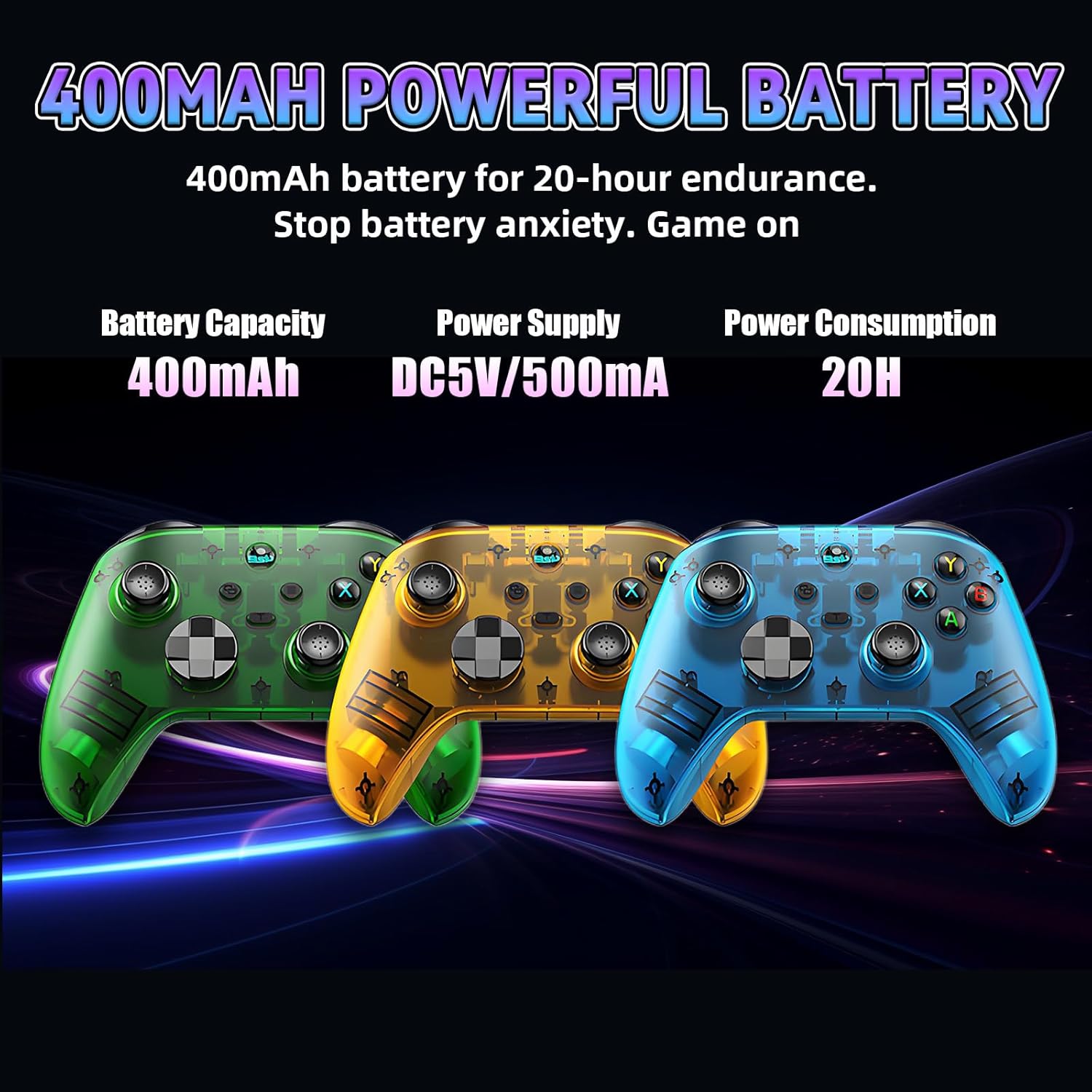
Image 3.1: Visual representation of the controller's 400mAh battery capacity and power specifications.
4. Controller Overview
The G6 controller features a standard layout with several advanced components:
- Electromagnetic Joysticks: Designed for precision and durability, eliminating drift.
- High-Precision Triggers: Sensitive triggers for accurate input.
- Bọtịnụ ABXY: Ergonomically placed for comfortable and responsive feedback.
- D-Pad: For precise directional control.
- Macro-Programmable Back Button (M2): Customizable for complex command sequences.
- Texture mgbochi-slip: Ensures a secure grip during extended use.

Foto 4.1: Zuru ezu views highlighting the ergonomic design, precise controls, and anti-slip features of the G6 controller.
5. Nhazi
5.1 Ntuziaka Nchaji
- Batrị dị ala: Ìhè egosi na-enwu ngwa ngwa.
- Ịchaji: Ìhè ihe ngosi na-enwu nwayọọ nwayọọ.
- Ebubo zuru oke: The controller powers off, and the indicator light turns off.
- Use a DC 5V/500mA adapter for charging. Avoid high-voltage chargers to prevent battery damage.
5.2 Power On/Off/Sleep/Wake Functions
- Ụra: The controller automatically powers off and enters sleep mode after 5 minutes of inactivity.
- Teta: Press and hold the HOME button to wake the controller and reconnect.
- Gbanyụọ: While powered on, press and hold the HOME button for 8 seconds. All LED indicators will turn off.
5.3 Ụdị njikọ
The G6 controller supports five connection modes: 2.4G, V, M, X, and S. You can switch between these modes using the mode selector switch on the back of the controller.

Image 5.1: The mode selector switch on the back of the controller, indicating the five available connection modes.
5.3.1 2.4G Mode Connection
Note: A compatible USB receiver must be purchased separately for 2.4G mode.
- Slide the controller's mode selector switch to the "2.4G" position.
- Press and hold the HOME button for 3 seconds to enter 2.4G pairing mode. The wireless controller indicator will flash rapidly in blue.
- Plug the USB receiver into your device (PC, console, etc.).
- Upon successful connection, the controller's indicator will remain steadily lit in blue.
If the controller was previously connected, simply press the HOME button directly. The indicator will flash slowly and automatically reconnect.
5.3.2 Bluetooth Mode Connection
The controller utilizes Bluetooth 5.3 EDR/BLE for wireless connectivity. Ensure your device's system meets requirements (Android 6.0+). Keep the controller within 8 meters of the device for optimal signal.

Image 5.2: The controller supports Bluetooth 5.3 for stable, low-latency wireless connections across multiple platforms.
5.3.3 Other Connection Modes (V, M, X, S)
For detailed instructions on transitioning between the V, M, X, and S modes, please contact customer support for assistance.
6. Ntuziaka ọrụ
6.1 Six-Axis Motion Sensing Technology
The built-in six-axis gyroscope provides precise motion control. This allows for high-precision haptic adjustments and sensitive capture of hand movements, assisting with aiming and enhancing immersion in games.

Image 6.1: The G6 controller's 6-axis motion sensing provides precise control for immersive gameplay.
6.2 Asymmetric Dual Vibration Motors
The controller features asymmetric dual vibration motors on both sides, offering multi-level intensity adjustment. This allows for realistic impact and collision sensations, customizable based on game genres or personal preferences.
6.3 One-Button Combos
The controller supports one-button combo functionality, allowing you to execute complex operations effortlessly without repeated presses. It includes multi-level combo frequency adjustments for flexible adaptation to game requirements.
6.4 Macro-Programmable Back Button
The M2 back button is macro-programmable, enabling customizable combos and button mappings (e.g., setting it to Down+Y+B+A). This feature allows players to define custom button sequences to enhance competitive performance.
7. Nlekọta
7.1 Nlekọta batrị
- The controller has a 400mAh battery. Charge it with a DC 5V/500mA adapter. Strictly avoid high-voltage chargers to extend battery life.
- If not used for an extended period, charge the controller every 3 months to prevent battery damage from deep discharge.
7.2 Power Saving Tip
The controller has a low sleep current (<5µA) to conserve power. For prolonged periods of non-use, it is recommended to manually power off the controller to further protect the battery.
Nlekọta 7.3 kwa ụbọchị
- Wipe the controller's anti-slip texture with a soft, dry cloth regularly.
- Do not use water or corrosive cleaners, as they may damage the surface or internal components.
- Avoid dropping or squeezing the controller to protect the joysticks and internal circuits.
8. Nchọpụta nsogbu
If you encounter any issues with your XIXIMENG G6 Wireless Gaming Controller, please consider the following:
- Okwu njikọ: Ensure your device's system meets the requirements (Android 6.0+ for Bluetooth) and that the controller is within the 8-meter transmission range. Re-attempt the pairing process.
- Unresponsive Buttons/Joysticks: Ensure the controller is adequately charged. Try resetting the controller by powering it off and on again.
- Ịchaji nsogbu: Verify that you are using a DC 5V/500mA adapter and that the charging cable is securely connected.
For persistent problems or issues not covered here, please contact XIXIMENG customer support for further assistance.
9. Akwụkwọ ikike na nkwado
For information regarding warranty coverage, technical support, or to inquire about specific connection modes (V, M, X, S), please refer to the contact information provided with your product packaging or visit the official XIXIMENG websaịtị.
XIXIMENG Customer Support: Visit the XIXIMENG Store on Amazon