1. Okwu mmalite
Thank you for choosing the WiiM Sound Smart Speaker. This manual provides essential information for setting up, operating, and maintaining your device to ensure optimal performance and longevity. The WiiM Sound offers high-resolution audio, intelligent room correction, and flexible control options for an enhanced listening experience.
2. Kedu ihe dị na Igbe ahụ

Image: All items included in the WiiM Sound Smart Speaker packaging.
- WiiM Sound Smart Speaker
- WiiM Voice Remote 2 Lite (with USB‑C charging cable)
- Igwe ọkụ ọkụ
- 3.5 mm RCA cable
- Ntuziaka mmalite ngwa ngwa
3. Ntuziaka Nhazi
3.1 Agbanye ike mbụ
Connect the WiiM Sound to a power outlet using the provided power cable. The device will automatically power on and enter setup mode. The 1.8-inch display will show the WiiM logo and then a QR code, prompting you to download the WiiM Home App.
Video: An unboxing and initial power-on demonstration of the WiiM Sound Smart Speaker, showing the device booting up and displaying the WiiM logo and QR code for app download.
3.2 Ngwa nbudata na njikọ
- Scan the QR code displayed on the speaker or search for 'WiiM Home' in your device's app store.
- Download and install the WiiM Home App.
- Open the app and follow the on-screen instructions to connect your WiiM Sound to your Wi-Fi network. Ensure your phone is close to the speaker during this process.
Image: A hand holding a smartphone displaying the WiiM Home App's interface, with a prompt to set up the WiiM Sound speaker.
3.3 AI RoomFit Calibration
After connecting to Wi-Fi, the app will guide you through the AI RoomFit calibration process. This feature optimizes the sound output based on your room's acoustics and speaker placement for a balanced and clear audio experience.

Image: A smartphone displaying the WiiM Home App's AI RoomFit auto calibration interface, illustrating how the feature optimizes sound for the listening environment.
3.4 Njikọ Remote Control
The WiiM Sound comes with a WiiM Voice Remote 2 Lite. To pair it:
- Ensure the remote has batteries (not included for 1st-gen, but included for 2 Lite).
- In the WiiM Home App, navigate to the device settings and select 'Pair Remote'.
- Follow the app's instructions to put the remote into pairing mode (usually by holding specific buttons).
- The app will confirm successful pairing.

Image: A visual guide demonstrating the pairing process between the WiiM Sound speaker and its remote control.
4. Ntuziaka ọrụ
4.1 Touch Display Controls
The 1.8-inch touch display on the front of the WiiM Sound provides instant control without needing your phone. You can:
- Gwuo/kwụsịtụ: Tap the center of the display.
- Ikwu egwu: Sụgharịa aka ekpe ma ọ bụ aka nri.
- Gbanwee olu: Rotate your finger around the edge of the display.
- Change Sources: Access input options like Wi-Fi, Bluetooth, or Aux-In.
- Quick EQ: Select preset equalizer settings.
- Atọrọ atọ: Access your saved favorite playlists or radio stations.

Image: The 1.8-inch touch display of the WiiM Sound, illustrating its various functions including album art display, time, EQ settings, and input source selection.
Video: A demonstration of the WiiM Sound's touch display, showing how to interact with it for playback control and settings adjustments.
4.2 Ojiji njikwa anya
The included WiiM Voice Remote 2 Lite provides convenient control from a distance. Use it for power, volume adjustment, track skipping, and accessing voice commands (push-to-talk functionality).
4.3 WiiM Home App Functionality
The WiiM Home App is your central hub for advanced control and customization:
- Ọrụ egwu: Access and stream from over 20 integrated music services (e.g., Spotify, TIDAL, Qobuz, Amazon Music).
- Ọdịnụ Multi-room: Group multiple WiiM devices to play synchronized audio across different rooms.
- Mmakọ stereo: Pair two WiiM Sound speakers for a dedicated left/right stereo experience.
- Home Theater Setup: Combine with compatible WiiM components (e.g., WiiM Sub Pro, WiiM Ultra/Amp) for a surround sound experience.
- EQ & Sound Customization: Utilize 24 preset EQs, 10-Band Graphic and Parametric EQ, and Per-Input EQ for fine-tuning your audio.

Image: A visual representation of the multi-room audio capabilities of the WiiM Sound, showing speakers in different rooms controlled by a single app.

Image: Two WiiM Sound speakers configured for true stereo sound, enhancing the audio experience in a living room setting.
5. Atụmatụ igodo
- 1.8-inch Touch Display: Shows album art, time, track info, and provides instant control for playback, sources, Quick EQ, and presets.
- Hi-Res Audio: Supports up to 24-bit/192 kHz audio for superior sound quality.
- Powerful Acoustics: Features a 100W peak amplifier, 4-inch paper-cone woofer, and dual 1-inch silk-dome tweeters for rich, clear sound.
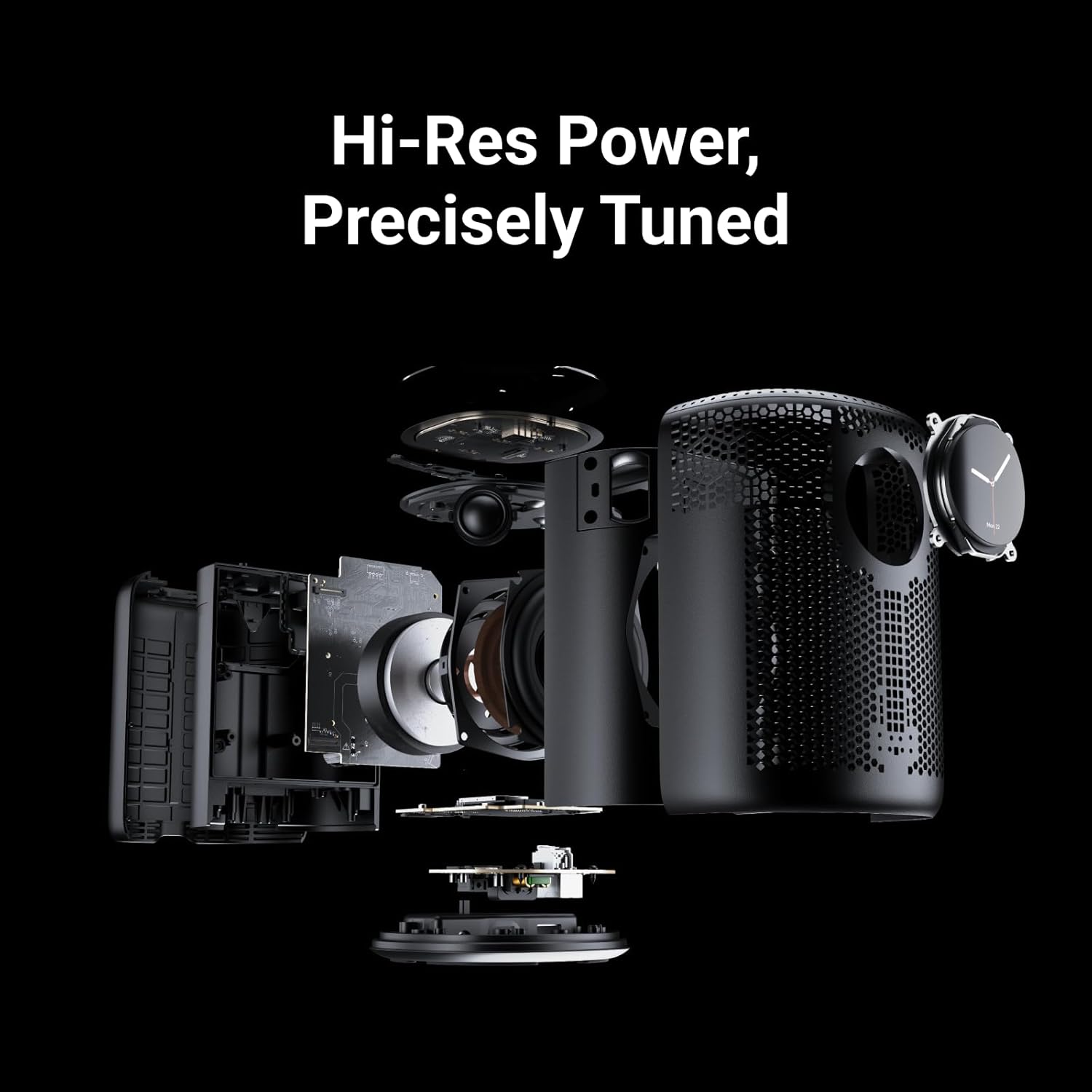
Image: An exploded diagram of the WiiM Sound, showcasing its internal components including the 4-inch woofer and dual 1-inch silk-dome tweeters.
- AI RoomFit Calibration: Automatically optimizes sound for your specific room and speaker placement.
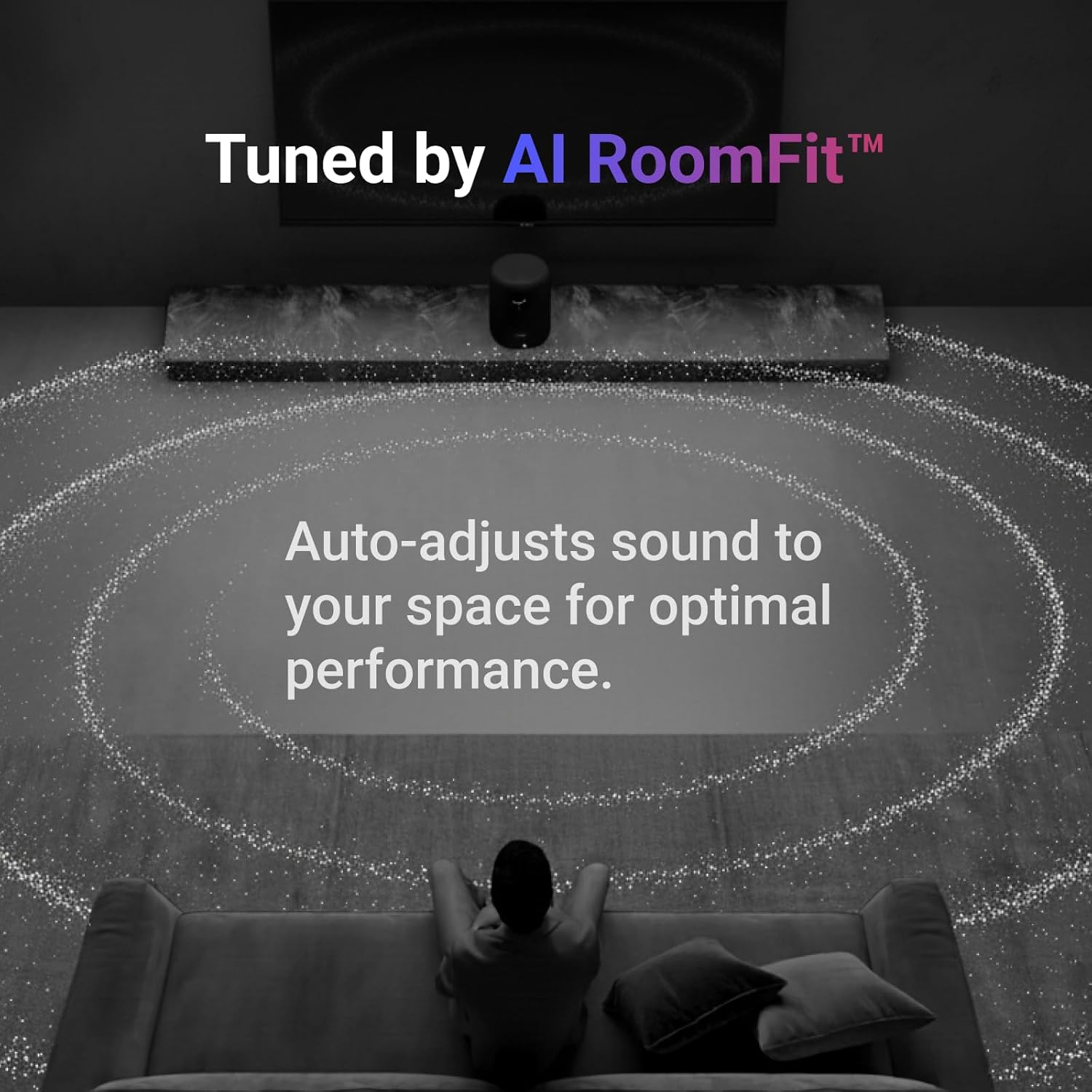
Image: A visual representation of the AI RoomFit feature in action, showing sound waves adapting to a living room environment for personalized audio.
- Open Connectivity: Stream directly via Google Cast, Spotify/TIDAL/Qobuz Connect, Alexa Cast, DLNA, Roon/LMS.
- Teknụzụ ikuku: Equipped with Wi-Fi 6E and Bluetooth 5.3 for robust and high-quality wireless streaming.

Image: A collection of logos for popular music streaming and casting services, highlighting the WiiM Sound's broad compatibility.
6. Nkọwapụta
| Njirimara | Nkọwa |
|---|---|
| Aha Nlereanya | SPK001 |
| Akụkụ ngwaahịa | 5.8"D x 5.8"W x 7.6"H |
| Ibu Ibu | 4.12 Kilogram (9.06 pound) |
| Ihe onwunwe | Polycarbonate + Fiber Glass |
| Ụdị Ọkà Okwu | Ọkà okwu Smart |
| Ike Nwepu kacha elu | 100 Watt |
| Dayameta Woofer | 4 sentimita asatọ |
| Ụdị ọkwọ ụgbọ ala ọdịyo | Planar Magnetik ọkwọ ụgbọ ala |
| Nzaghachi ugboro ugboro | 20 kHz |
| Signgbaàmà-na-Noise ruru | 80 dB |
| Teknụzụ Njikọta | Enyemaka, Bluetooth, Ethernet, Wi-Fi |
| Teknụzụ nzikọrịta ozi ikuku | Bluetooth, WiFi |
| Ụdị Bluetooth | 5.3 |
| Oke Bluetooth | 10 mita |
| Maximum Range (Wi-Fi) | 100 mita |
| Usoro njikwa | Ngwa, Ime Ime Obodo, Mmetụ aka, Olu |
| Isi Iyi Ike | Igwe ọkụ eletrik (120Vt) |
| Ojiji ime ime/n'èzí | Ime ụlọ |
| Agba | Nwa |
7. Nlekọta
To ensure the longevity and optimal performance of your WiiM Sound Smart Speaker, follow these maintenance guidelines:
- Nhicha: Use a soft, dry cloth to wipe the exterior of the speaker. Avoid using liquid cleaners, aerosols, or solvents, as these may damage the finish or internal components.
- Nkwanye: Place the speaker on a stable, flat surface away from direct sunlight, heat sources, and moisture. Ensure adequate ventilation around the device.
- Ike: Kwụpụ eriri ọkụ eletrik n'oge oké ifufe eletrik ma ọ bụ mgbe ejiri ya ruo ogologo oge.
8. Nchọpụta nsogbu
If you encounter issues with your WiiM Sound Smart Speaker, try the following steps:
- Enweghị ike: Ensure the power cable is securely connected to both the speaker and a working power outlet.
- Enweghị ụda: Check the volume levels on the speaker, your connected device, and within the WiiM Home App. Verify the correct input source is selected.
- Okwu Njikọta: Ensure your Wi-Fi network is active and the speaker is within range. Restart your router, the speaker, and your controlling device. For Bluetooth, ensure the speaker is in pairing mode and your device's Bluetooth is enabled.
- App Not Detecting Speaker: Ensure the speaker is powered on and in setup mode. Close and reopen the WiiM Home App, or reinstall it if necessary.
- Remote anaghị aza: Check the remote's batteries. Re-pair the remote with the speaker via the WiiM Home App.
For further assistance, please refer to the official WiiM support resources.
9. Akwụkwọ ikike na nkwado
The WiiM Sound Smart Speaker comes with a limited warranty. For detailed warranty terms, product registration, and technical support, please visit the official WiiM websaịtị ma ọ bụ kpọtụrụ ndị ahịa ha ọrụ. Debe akwụkwọ nnata ịzụrụ maka akwụkwọ ikike.
Nkwado n'ịntanetị: Gaa leta WiiM Store on Amazon maka ozi ngwaahịa na njikọ nkwado.


