1. Okwu mmalite
Welcome to the user manual for your NIMO N152S 15.6-inch Laptop. This guide provides essential information on setting up, operating, maintaining, and troubleshooting your new device. Please read this manual thoroughly to ensure optimal performance and longevity of your laptop.
2. Ngwaahịa gafereview
2.1 Atụmatụ
- Arụmọrụ siri ike: Equipped with an AMD Ryzen 5 3500U processor and integrated Radeon graphics for smooth multitasking and efficient performance.
- Ngosipụta HD zuru oke: A 15.6-inch Full HD (1920x1080) IPS display with a 180° wide hinge for vibrant visuals and wide viewakụkụ .
- Nhazi dị obere na nke dị fechaa: Crafted with a sleek metal top cover, weighing under 3.7 lbs and measuring just 19.2 mm thin.
- Njikọta emelitere: Features 2 USB-A, 2 USB-C (full function PD/DP/Data), HDMI, MicroSD, and a 3.5mm audio jack.
- Expandable Memory & Storage: Supports up to 32GB DDR4 RAM and M.2 PCIe 3.0 x4 SSD for future-proof upgrades.
- Smart Security & Comfort: Includes a fingerprint reader on the touchpad, a backlit keyboard for low-light use, and dual microphones.
2.2 njirimara akụrụngwa
Familiarize yourself with the various components of your NIMO N152S laptop as illustrated below.

Foto 2.1: N'ihu view of the NIMO N152S laptop, showcasing its sleek design and key features like Windows 11, 32GB RAM, 1TB SSD, Full HD display, AMD Ryzen 5, Type-C PD Charger, Backlit Keyboard, and Fingerprint Reader.

Figure 2.2: Illustration of the AMD Ryzen 5 processor, detailing its specifications including 4 Cores, 8 Threads, 15W Power Consumption, and 3.7 GHz Turbo Boost, indicating its capability for daily tasks and light gaming.

Figure 2.3: The NIMO laptop screen showcasing a vivid Full HD (1920x1080) IPS display, highlighting features like bright view and eye protection, with an 85% screen-to-body ratio.

Ọgụgụ 2.4: Zuru ezu view of the NIMO laptop's expanded connectivity options, labeling ports such as Type-C (Charge Only), USB 3.0, HDMI, Type-C (Full Function), Charge LED, Micro SD Reader, USB 2.0, USB 3.0, Headphone Combo, and Kensington Lock.
3. Mbido Mbido
3.1 Charging the Laptop
Before first use, fully charge your NIMO laptop. Connect the provided 65W Type-C PD charger to the USB-C charging port on the laptop and then to a power outlet. The charge LED indicator will illuminate to confirm charging.

Figure 3.1: The 65W Type-C PD Charger, designed for universal compatibility with laptops, tablets, and smartphones, simplifying your charging needs compared to multiple chargers.
3.2 Ịgbanye ọkụ maka oge mbụ
- Mepee mkpuchi laptọọpụ.
- Press the power button located on the keyboard.
- Soro ntuziaka dị na ihuenyo iji mezue ntọala mbụ nke Windows 11, gụnyere nhọrọ asụsụ, njikọ netwọk, na ịmepụta akaụntụ onye ọrụ.
4. Operating Your NIMO Laptop
4.1 Ọnọdụ Ịgbanye/Mgbanyụ na Ụra Ike
- Ike Na: Pịa bọtịnụ ike.
- Mechie: Pịa bọtịnụ Malite, wee pịa Power > Mechie.
- Modera Modera: Mechie mkpuchi ahụ ma ọ bụ pịa bọtịnụ Malite, wee pịa Power > Sleep.
4.2 Iji ahụigodo na Touchpad
Your NIMO laptop features a full-sized keyboard with a numeric keypad and a responsive touchpad.
- Ahụigodo azụ azụ: Pịa Fn + F10 (ma ọ bụ igodo nwere akara ngosi ọkụ azụ) iji gbanwee/gbanyụọ ọkụ azụ ahụigodo ma ọ bụ gbanwee ọkwa ìhè.
- Mpempe aka: Supports multi-touch gestures for navigation. Refer to Windows settings for customization.
- Ahụigodo ọnụọgụ: Use the dedicated numeric keypad for efficient data entry.

Figure 4.1: The NIMO laptop keyboard, emphasizing its backlit keys, integrated touchpad, fingerprint reader, and numeric keypad, designed for comfortable typing in various lighting conditions.
4.3 Ọgụgụ mkpịsị aka
The integrated fingerprint reader on the touchpad provides quick and secure access to your laptop.
- Gaa na Ntọala Windows > Akaụntụ > Nhọrọ nbanye.
- Set up Windows Hello Fingerprint.
- Follow the on-screen prompts to register your fingerprints.
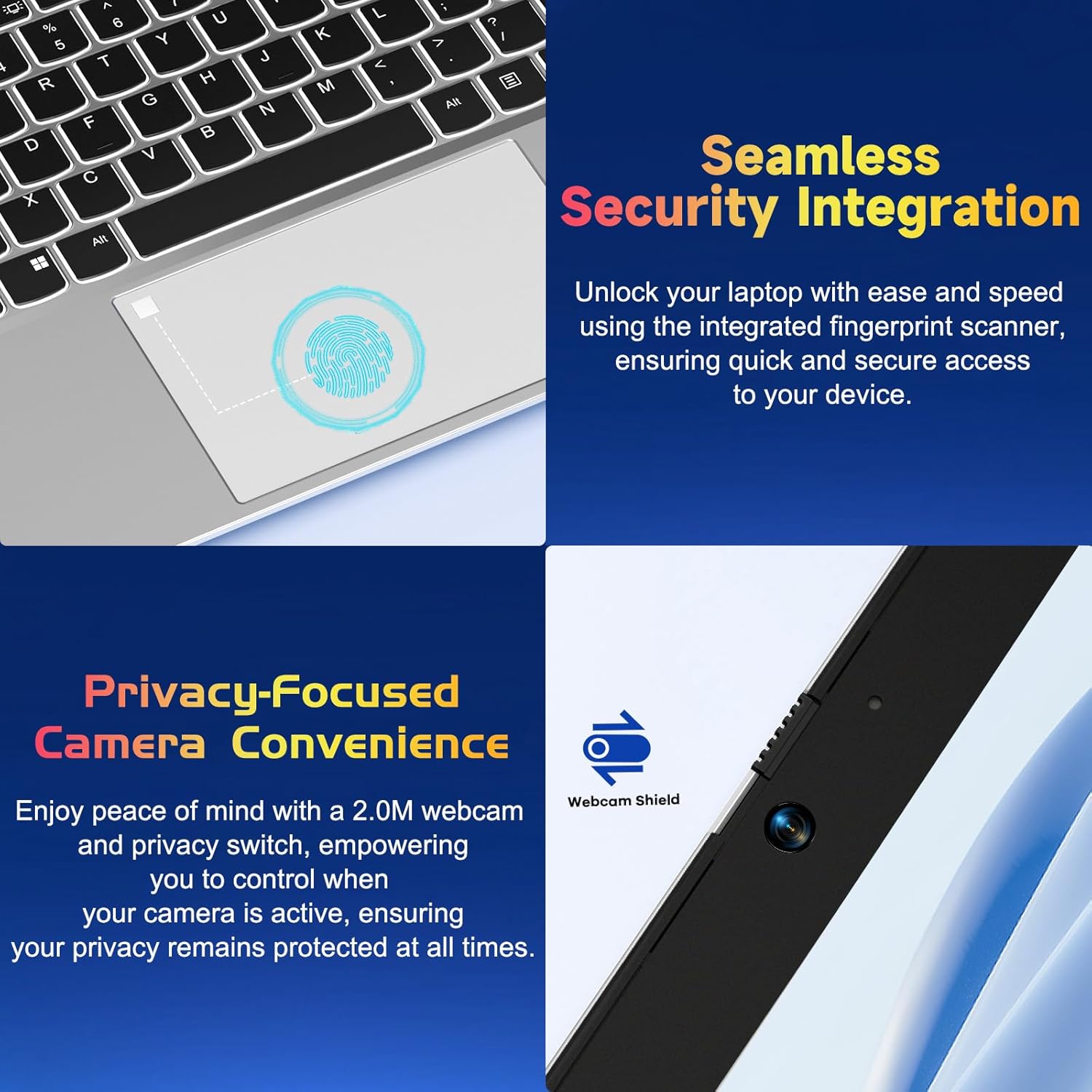
Ọgụgụ 4.2: nso nso view of the NIMO laptop's touchpad, highlighting the integrated fingerprint scanner for seamless security integration, alongside the privacy-focused webcam with a physical shield.
4.4 Njikọta Peripherals
Your laptop offers various ports for connecting external devices:
- Ọdụ ụgbọ mmiri USB-A: Maka ijikọ ngwaọrụ USB ọkọlọtọ dịka òké, ahụigodo, ma ọ bụ draịva mpụga.
- Ọdụ ụgbọ mmiri USB-C: Two full-function USB-C ports support Power Delivery (PD), DisplayPort (DP), and data transfer. One is dedicated for charging.
- Ọdụ ụgbọ mmiri HDMI: Jikọọ na ihe nlele mpụga ma ọ bụ ihe ngosi.
- Ihe na-agụ kaadị MicroSD: Insert a MicroSD card for additional storage or data transfer.
- Jack Audio: 3.5mm Maka ekweisi ma ọ bụ ọkà okwu mpụga.
4.5 Webcam Privacy
The laptop includes a 2.0MP webcam with a physical privacy shield. Slide the shield to cover the camera lens when not in use to ensure your privacy.
5. Nlekọta na nlekọta
- Nhicha: Jiri akwa dị nro na-enweghị ntụpọ dampened with water or a screen cleaner to clean the display and exterior. Avoid harsh chemicals.
- Mmelite ngwanrọ: Na-emelite sistemụ arụmọrụ Windows gị na draịva gị mgbe niile iji hụ na arụmọrụ na nchekwa kacha mma.
- Nlekọta batrị: To prolong battery life, avoid extreme temperatures and try to keep the battery charge between 20% and 80% when possible.
- Nchekwa: Chekwaa laptọọpụ ahụ n'ebe dị jụụ, kpọrọ nkụ na-adịghị na ìhè anyanwụ kpọmkwem na oke okpomọkụ.
6. Nchọpụta nsogbu
This section addresses common issues you might encounter with your NIMO laptop.
| Okwu | Ngwọta enwere ike |
|---|---|
| Laptọọpụ anaghị agba ọkụ. | Ensure the laptop is charged. Connect the charger and wait a few minutes before attempting to power on again. If unresponsive, perform a hard reset by holding the power button for 15 seconds. |
| Ihuenyo ahụ tọgbọ chakoo ma ọ bụ na-enwu enwu. | Try adjusting the screen brightness (Fn + F5/F6). If connected to an external monitor, ensure the cable is secure. Restart the laptop. |
| Keyboard backlight is not working. | Press Fn + F10 (or the key with the backlight icon) to cycle through backlight settings. Ensure the function keys are enabled. |
| Fingerprint reader not recognized. | Ensure your finger is clean and dry. Re-register your fingerprint in Windows Hello settings if the issue persists. |
| Nsogbu njikọ Wi-Fi. | Check if Wi-Fi is enabled (Fn + F12 or Windows settings). Restart your router and laptop. Update Wi-Fi drivers if necessary. |
| Laptọọpụ na-agba ọsọ nwayọ. | Mechie ngwa ndị na-adịghị mkpa. Lelee Task Manager maka usoro ndị na-ewe oge dị ukwuu. Hụ na Windows na draịva emelitere. Chee echiche ịme nhicha diski. |
7. Nka na ụzụ nkọwa
| Njirimara | Nkọwapụta |
|---|---|
| Ụdị | NIMO |
| Aha Nlereanya | NIMO N152S |
| Nọmba Nlereanya ihe | NIMO N152 |
| Nha ihuenyo | 15.6 sentimita asatọ |
| Mkpebi ihuenyo kacha | 1920 x 1080 pikselụ (HD zuru ezu) |
| Nhazi | AMD Ryzen 5 3500U (3.7 GHz) |
| RAM | 32 GB DDR4 (3200 MHz) |
| Draịvụ ike | 1024 GB SSD (Ọnọdụ siri ike) |
| Ihe eserese eserese | AMD Integrated graphics |
| Sistemụ nrụọrụ | Windows 11 |
| Ụdị ikuku | 802.11abg |
| Ọnụọgụ nke ọdụ ụgbọ mmiri USB 2.0 | 1 |
| Nkezi Ndụ batrị | Awa 5 |
| Ibu Ibu | 3.8 pound |
| Akụkụ ngwaahịa | 14.07 x 8.98 x 0.76 sentimita asatọ |
| Agba | Ọla ọcha kpochapụwo |
| N'azụ Webcam mkpebi | 2 MP |
| Isi Iyi Ike | Akwanyere batrị |
| Batrị | 1 batrị lithium polymer chọrọ (gụnyere) |
8. Akwụkwọ ikike na nkwado ndị ahịa
8.1 Ozi akwụkwọ ikike
Your NIMO N152S laptop comes with a comprehensive warranty:
- 90-Day Free Return Policy: You may return your NIMO laptop for any reason within 90 days of purchase.
- Akwụkwọ ikike nke afọ 2: All NIMO products are covered by a 2-year warranty for after-sales support.

Figure 8.1: NIMO's commitment to customer satisfaction, featuring a 90-day free return policy and a 2-year warranty for reliable support.
8.2 Nkwado ndị ahịa
For any product-related questions, technical assistance, or warranty claims, please contact our U.S.-based support team:
- Visit the official NIMO website for support resources and contact options.
- Lee akwụkwọ ịzụrụ ihe gị maka nkọwa kọntaktị kpọmkwem.
Our team is dedicated to providing professional and high-quality customer service to resolve any issues you may encounter.


