1. Ngwaahịa gafereview
The JOMAA 78 Keys Dual Mode Wireless Trackball Keyboard offers versatile connectivity and ergonomic design for enhanced productivity across multiple devices. Featuring both 2.4GHz wireless and Bluetooth 5.0, it allows seamless switching between up to three connected devices. The integrated 19mm optical trackball provides precise cursor control, eliminating the need for a separate mouse and saving valuable desk space. Its compact, lightweight, and energy-efficient design makes it ideal for various computing environments.

Image 1: JOMAA 78 Keys Dual Mode Wireless Trackball Keyboard
This image displays the sleek, silver-colored JOMAA 78 Keys Dual Mode Wireless Trackball Keyboard, highlighting its compact layout and integrated trackball. The image also shows icons indicating system-wide compatibility (Windows, Mac, iOS, Android), multi-device association (three devices), and dual wireless connectivity (Bluetooth/2.4G).
2. Ihe ngwugwu
- JOMAA 78 Keys Dual Mode Wireless Trackball Keyboard
- 2.4GHz USB Receiver (stored inside the keyboard's battery compartment)
- Igwe nchaji USB
- Ntuziaka mmalite ngwa ngwa
- 2 x AA Batteries (included, pre-installed in some models)
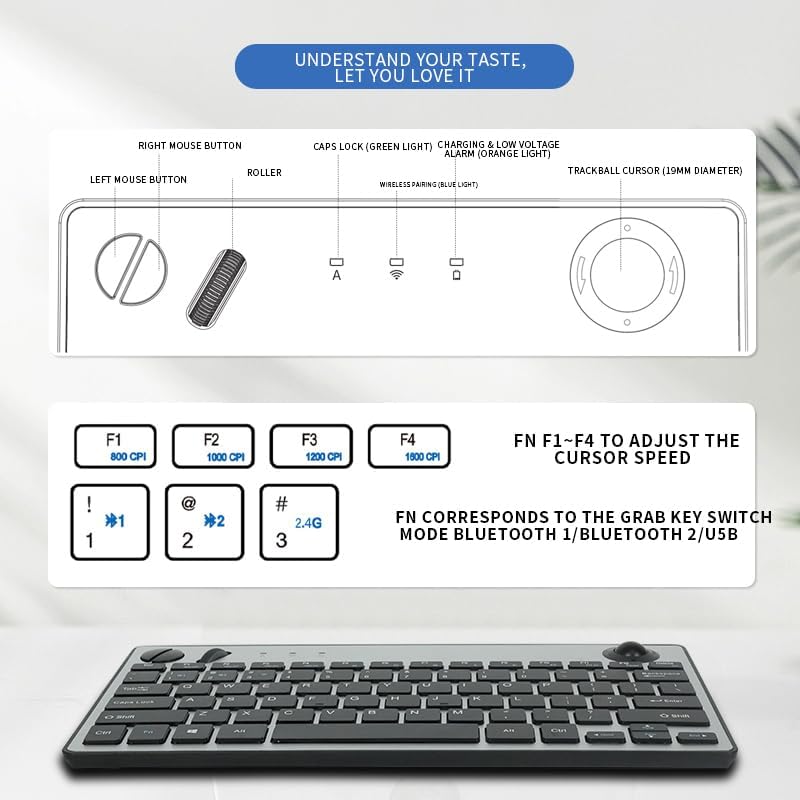
Image 2: JOMAA Keyboard Package Contents Diagram
This diagram illustrates the various components of the JOMAA keyboard, including the keyboard itself, the left and right mouse buttons, the roller, Caps Lock indicator, charging and low voltage alarm lights, and the 19mm trackball. It also details the DPI adjustment keys (F1-F4) and the function keys for switching between Bluetooth 1, Bluetooth 2, and USB modes.
3. Akụrụngwa Ngwaahịa
- Dual-Mode Wireless Connectivity: Supports stable 2.4GHz wireless (nano receiver included) and advanced Bluetooth 5.0 connection.
- Njikọ ọtụtụ ngwaọrụ: Easily pair with and switch between up to 3 devices (PC, tablet, phone) simultaneously.
- Ndakọrịta sara mbara: Broadly compatible with Windows, macOS, iOS, and Android operating systems.
- Integrated Trackball Design: Features a built-in 19mm precision optical trackball for accurate and smooth cursor control, eliminating the need for a separate mouse.
- Ike dị mma: Low power consumption (≤10mA working current) for long-lasting battery life with 2 AA batteries.
- Enwere ike ibugharị: Compact 78-key layout and lightweight (403g) for travel or clutter-free workspaces.
- Nkwụnye na-egwu: No drivers needed for 2.4G connection; quick Bluetooth pairing.
- Ergonomics-Enyi na Enyi: Thoughtful key layout and thumb-operated trackball designed to reduce arm movement and wrist strain.

Image 3: JOMAA Keyboard Multi-Device Compatibility
This image illustrates the keyboard's ability to connect to multiple devices, including a smartphone, tablet, and desktop computer, via Bluetooth (BT1, BT2) and a 2.4G USB receiver, allowing for seamless switching between them.
4. Nhazi ntuziaka
4.1. Ntinye batrị
- Chọta ebe batrị dị n'okpuru ala ahụigodo.
- slide mepee mkpuchi batrị.
- Fanye batrị AA 2, na-ahụ polarity ziri ezi (+/-).
- Mechie mkpuchi batrị nke ọma.
4.2. 2.4GHz Njikọ ikuku
- Locate the 2.4GHz USB receiver, usually stored in the keyboard's battery compartment.
- Tinye eriri USB n'ọdụ ụgbọ mmiri dị na kọmputa gị ma ọ bụ ngwaọrụ gị.
- Slide the power switch on the keyboard to the 'ON' position.
- Press the 'FN' key + '3' key (labeled 2.4G) to select 2.4G mode. The indicator light will illuminate.
- Your device should automatically detect and connect to the keyboard.
4.3. Njikọ Bluetooth
Igodo ahụ na-akwado ọwa Bluetooth abụọ (BT1 na BT2).
- Slide the power switch on the keyboard to the 'ON' position.
- Press and hold the 'FN' key + '1' key (for BT1) or 'FN' key + '2' key (for BT2) for 3-5 seconds until the corresponding Bluetooth indicator light starts blinking rapidly. This indicates the keyboard is in pairing mode.
- Na ngwaọrụ gị (kọmputa, mbadamba, smartphone), gaa na ntọala Bluetooth.
- Chọọ maka new devices and select "JOMAA Keyboard" (or similar name) from the list.
- Follow any on-screen prompts to complete the pairing process. The indicator light on the keyboard will stop blinking and remain solid once connected.
- To pair another device, repeat steps 2-5 using the other available Bluetooth channel.
Video 1: JOMAA Keyboard Unboxing and Setup
This video demonstrates the unboxing of the JOMAA keyboard, showing its sleek design and how to install the batteries and connect via the 2.4GHz USB receiver. It highlights the ease of setup and the keyboard's sturdy construction.
5. Ntuziaka ọrụ
5.1. Ịgbanwe n'etiti Ngwaọrụ
Once paired, you can switch between connected devices by pressing the 'FN' key along with the corresponding channel key:
- FN + 1: Banye na ngwaọrụ Bluetooth 1
- FN + 2: Banye na ngwaọrụ Bluetooth 2
- FN + 3: Switch to 2.4GHz USB Receiver Device
5.2. Trackball Usage
The integrated 19mm optical trackball is located on the right side of the keyboard. Use your thumb to control the cursor movement. The left and right mouse click buttons are positioned conveniently next to the trackball.

Image 4: JOMAA Keyboard Trackball and X-Structure
This image highlights the smooth trackball for accurate and precise cursor positioning. It also features a diagram illustrating the X-Structure of the keys, which provides a steady and great rebound feeling for comfortable typing.
5.3. Adjusting Trackball DPI (Cursor Speed)
You can adjust the trackball's DPI (dots per inch) to change cursor sensitivity:
- FN + F1: 800 CPI
- FN + F2: 1000 CPI
- FN + F3: 1200 CPI
- FN + F4: 1600 CPI
5.4. Igodo Mgbasa Ozi na Ọrụ
The F1-F12 keys have secondary media functions. To activate these, press the 'FN' key simultaneously with the desired F-key.
- FN + F5: Egwu gara aga
- FN + F6: Gwuo/kwụsịtụ
- FN + F7: Track na-esote
- FN + F8: Ogbi
- FN + F9: Mpịakọta ọnụ
- FN + F10: Elu elu
6. Ozi batrị na Nchaji
The keyboard operates on 2 AA batteries. For optimal performance and battery life, use high-quality alkaline batteries. The low power consumption design ensures extended usage.
- Vol dị alatagmkpu: An orange indicator light will illuminate when the battery level is low, signaling that batteries need replacement.
- Ịchaji: If your model supports rechargeable batteries, use the provided USB charging cable to connect the keyboard to a power source. The charging indicator light will show charging status.
7. Nlekọta
- Nhicha: Jiri akwa dị nro dị nro hichaa elu ahụigodo. Maka unyi isi ike, ntakịrị dampen akwa na mmiri ma ọ bụ a nwayọọ ihicha ngwọta. Zere oke mmiri mmiri.
- Trackball Cleaning: Periodically remove the trackball (if removable) and clean its housing and the ball itself to ensure smooth operation.
- Nchekwa: When not in use for extended periods, turn off the keyboard to conserve battery life. Store in a cool, dry place.
8. Nchọpụta nsogbu
8.1. Njikọta Okwu
- Enweghị njikọ: Ensure the keyboard is powered on and the correct channel (BT1, BT2, or 2.4G) is selected.
- 2.4GHz: Hụ na e tinyere ihe nnata USB n'ime ngwaọrụ gị nke ọma. Nwaa ọdụ USB ọzọ.
- Bluetooth: Ensure Bluetooth is enabled on your device and the keyboard is in pairing mode (blinking indicator). Remove previous pairings on your device and try re-pairing.
- Ntinye aka: Bugharịa ahụigodo ahụ nso na ngwaọrụ gị ma pụọ na ngwaọrụ ikuku ndị ọzọ nwere ike ibute nsogbu.
8.2. Ahụigodo Anaghị azaghachi
- Lelee batrị: Replace batteries if the low voltage indicator is on or if the keyboard is unresponsive.
- okirikiri ike: Turn the keyboard off, wait a few seconds, then turn it back on.
- Tinyegharịa ụzọ: If issues persist, try re-pairing the keyboard with your device.
8.3. Trackball Not Working
- Bọọlụ Track dị ọcha: Dust or debris can affect trackball performance. Clean the trackball and its housing as described in the Maintenance section.
- Ntọala DPI: Ensure the DPI setting is not too low (FN + F1). Adjust to a higher setting if needed.
9. Nkọwapụta
| Nlereanya | 78 Keys Dual Mode Wireless Trackball Keyboard |
| Teknụzụ Njikọta | Bluetooth 5.0, 2.4GHz USB |
| Ọnụọgụ igodo | 78 |
| Nha bọọlụ trackball | 19mm Optical |
| Ndakọrịta sistemụ arụmọrụ | Windows, macOS, iOS, gam akporo |
| Nrụ ọrụ Voltage | 3V |
| Na-arụ ọrụ ugbu a | ≤10mA |
| Ogologo nnyefe | 7-10 meters (33 feet) |
| Isi Iyi Ike | 2 x AA batrị |
| Ibu Ibu | 1.14 pounds (403g without battery) |
| Akụkụ | 12.6 x 10.63 x 1.57 sentimita asatọ |

Image 5: JOMAA Keyboard Dimensions and Specifications
Ihe onyonyo a na-enye nkọwa zuru ezu view of the keyboard's dimensions (28.6cm length, 14.9cm width, 3.1cm height) and lists key specifications such as transmission distance (7-10m), number of keys (78), compatible OS (Windows 7/10/11, Mac 10.6-15.2), operating current (≤10mA), trackball size (19mm), weight (403g without battery), and operating voltagE (3V).
10. Akwụkwọ ikike na nkwado
For warranty information, technical support, or customer service inquiries, please refer to the official JOMAA websaịtị ma ọ bụ kpọtụrụ nkwado ndị ahịa ha ozugbo. Debe akwụkwọ nnata ịzụrụ maka akwụkwọ ikike.


