Okwu mmalite
The THOMSON C850I is a versatile alarm clock and 3-in-1 charging station designed for convenience. It integrates wireless charging for smartphones (15W) and smartwatches (2.5W), alongside a USB-C port (5W) for additional device charging. The compact design and adjustable display brightness make it suitable for various environments, providing both timekeeping and power solutions.
Melite
1. Mwepu na ntinye
Carefully remove the THOMSON C850I from its packaging. Place the device on a stable, flat surface, such as a bedside table or desk, ensuring adequate ventilation around the unit.
2. Njikọ ike
Connect the included 1.5-meter USB-C cable to the 12V-2.5A IN port on the back of the device. Plug the other end of the cable into a compatible Power Delivery (PD) wall adapter (not included). The device requires a PD compatible adapter for optimal performance. Once connected, the digital display will illuminate.

Image: Close-up of the back of the THOMSON C850I, showing the 5V-1A OUT USB-C port and the 12V-2.5A IN power input. This port is used to power the device.
Ntuziaka ọrụ
1. Isetịpụ Oge
Chọta ebe ahụ OGE button on the device. Press and hold the OGE button until the hour digits begin to flash. Use the + na - Pịa bọtịnụ iji hazie awa ahụ. OGE again to confirm the hour and move to minute adjustment. Use + na - ịtọ nkeji nkeji. Pịa OGE once more to save the setting. The display operates in a 24-hour format.
2. Ịtọlite mkpu
Chọta ebe ahụ Mkpu bọtịnụ. Pịa ma jide Mkpu button until the alarm hour digits begin to flash. Use the + na - buttons to adjust the alarm hour. Press Mkpu again to confirm the hour and move to minute adjustment. Use + na - to set the alarm minutes. Press Mkpu once more to save the alarm setting. To activate or deactivate the alarm, briefly press the Mkpu button. An alarm icon will appear on the display when active.
3. Adjusting Display Brightness
The display brightness can be adjusted to four levels: 100%, 50%, 20%, and 0% (off). Briefly press the URUA button (often indicated by a sun icon) to cycle through the brightness levels. Select the desired brightness for your environment.
4. Wireless Charging for Smartphones (15W)
Place your compatible smartphone (Android or Apple) on the main charging pad. Ensure the phone is centered on the pad for optimal charging. The device supports up to 15W wireless charging for smartphones. A charging indicator may appear on your phone's screen.

Image: The THOMSON C850I with a smartphone actively charging wirelessly, indicated by the charging icon on the phone's display.
5. Wireless Charging for Smartwatches (2.5W)
Place your compatible smartwatch (Android or Apple) on the dedicated smartwatch charging area. Ensure it is correctly positioned to initiate charging. The device provides up to 2.5W wireless charging for smartwatches.
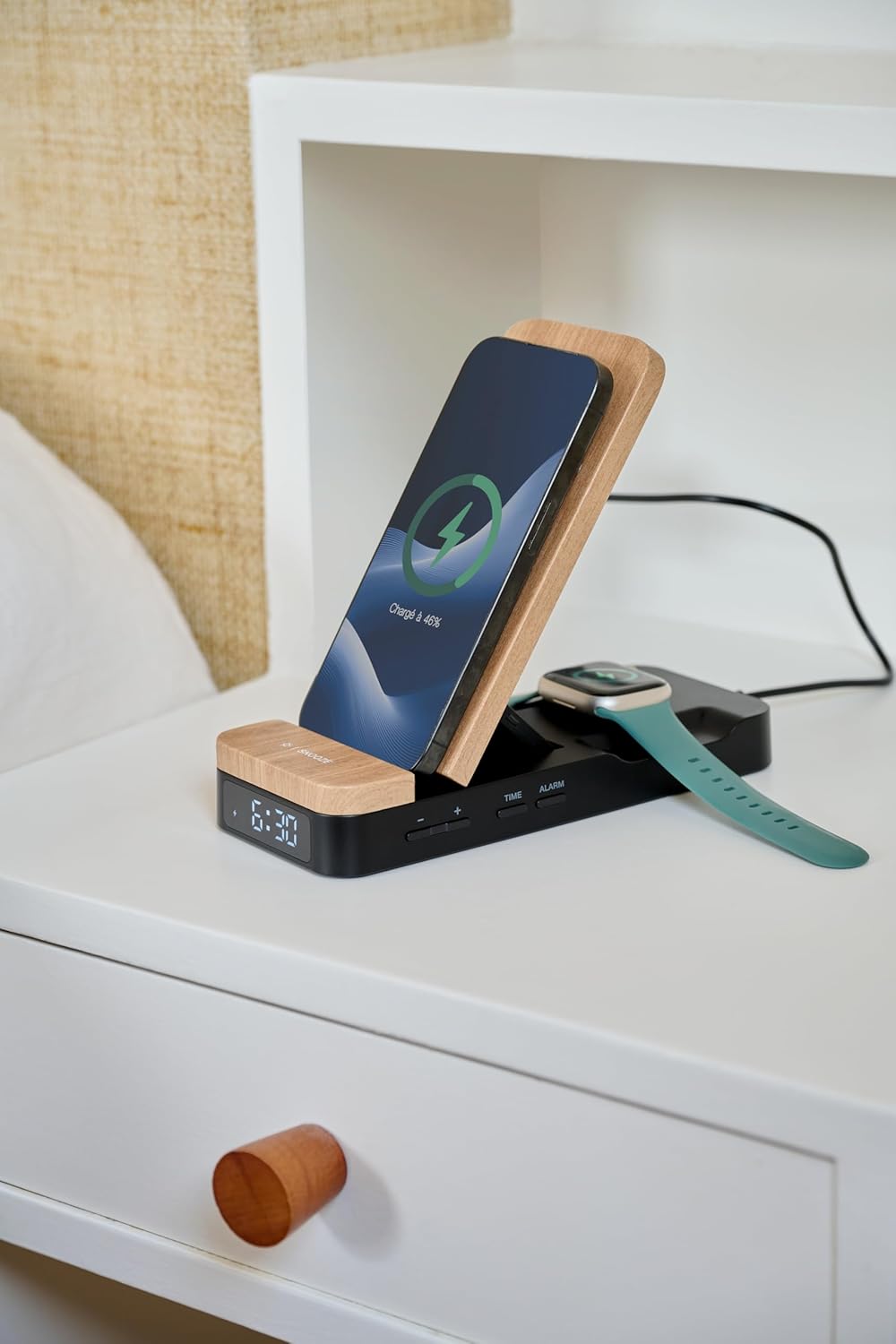
Image: The THOMSON C850I positioned on a bedside table, simultaneously charging a smartphone and a smartwatch, with the digital time visible.
6. USB-C Charging (5W)
For other devices requiring wired charging, connect them to the 5V-1A OUT USB-C port on the back of the unit using an appropriate USB-C cable (not included). This port provides up to 5W of power.

Image: The THOMSON C850I in an upright configuration, charging a smartphone and a pair of wireless earbuds, demonstrating its multi-device charging capability.
Nlekọta
Nhicha
To clean the device, ensure it is unplugged from the power source. Use a soft, dry, lint-free cloth to wipe the surfaces. Do not use abrasive cleaners, solvents, or chemical sprays, as these can damage the finish and internal components. Avoid getting moisture into any openings.
Nchekwa
Mgbe a naghị eji ya ruo ogologo oge, debe ngwaọrụ ahụ n'ebe dị jụụ ma kpọọ nkụ, ebe anwụ na-anaghị apụta kpọmkwem ma ọ bụ oke okpomọkụ.
Nchọpụta nsogbu
- Ngwaọrụ anaghị agbanye: Ensure the USB-C power cable is securely connected to both the device and a functional Power Delivery (PD) compatible wall adapter. Verify the power outlet is active.
- Nchaji ikuku anaghị arụ ọrụ:
- Ensure your smartphone or smartwatch is compatible with wireless charging (Qi standard).
- Verify the device is centered correctly on the charging pad.
- Remove any thick phone cases or metallic objects that may interfere with wireless charging.
- Confirm the device is receiving power from a PD compatible adapter.
- USB-C charging not working: Check that the USB-C cable is properly connected to both the device's 5V-1A OUT port and your external device. Ensure the external device is compatible with 5W charging.
- Display brightness is too high/low: Jiri ihe URUA button to cycle through the four available brightness levels (100%, 50%, 20%, 0%) to find a comfortable setting.
- Oti mkpu na-adịghị ada: Ensure the alarm has been set and activated (check for the alarm icon on the display). Verify the volume settings on your connected devices if the alarm is linked to them.
Nkọwapụta
| Njirimara | Nkọwa |
|---|---|
| Ụdị | Thomson |
| Nlereanya | C850I |
| Akụkụ (L x W x H) | 18.4 x 7.6 x 2.8 cm |
| Ibu | 234 g |
| Smartphone Wireless Charging Output | 15W |
| Smartwatch Wireless Charging Output | 2.5W |
| Ogwe mmepụta USB-C | 5V-1A (5W) |
| Ntinye ike | 12V-2.5A (USB-C, PD compatible adapter required) |
| Ụdị ngosi | Digital, 24-hour format |
| Gosipụta ọkwa ihie | 100%, 50%, 20%, 0% |
| Ngwa dakọtara | Android and Apple smartphones and smartwatches |
Ozi akwụkwọ ikike
For specific warranty details, please refer to the warranty card included with your product or contact your retailer. Warranty terms and conditions may vary by region and retailer. Keep your proof of purchase for any warranty claims.
Nkwado ndị ahịa
If you encounter any issues not covered in this manual or require further assistance, please contact the retailer where you purchased the THOMSON C850I or visit the official Thomson support websaịtị maka ihe ndị ọzọ.


