Okwu mmalite
This manual provides detailed instructions for the installation, operation, and maintenance of your avedio links HDMI Splitter with Audio Extractor. Please read this manual thoroughly before use to ensure proper functionality and to maximize the product's performance. Keep this manual for future reference.
Njirimara ngwaahịa
- 4K@60Hz High Resolution & 2-Screen Simultaneous Output: This HDMI splitter allows simultaneous output of video from one HDMI source device to two TVs or monitors. It supports 4K@60Hz, HDR, Dolby Vision, and HLG, accurately reproducing color depth and contrast. Ideal for sharing the same video content in different locations, such as a living room and bedroom, or a TV and projector.
- Integrated Audio Separation Function & Diverse Output Methods: Extracts audio from HDMI signals, enabling simultaneous output from optical digital (SPDIF), coaxial, and 3.5mm stereo terminals. Supports high-quality audio up to 192kHz and is compatible with audio formats such as Dolby Atmos, DTS, and PCM. Convert audio from TVs or game consoles into powerful sound through a soundbar, amplifier, or external speakers.
- EDID Management & DownScaler Function: Equipped with an EDID switch for manual selection of the output format, matching the specifications of connected monitors or audio devices. The DownScaler function automatically converts 4K video to 1080P, ensuring comfortable use in environments with mixed 4K and 1080P displays.
- Stable Type-C Power Supply & Durable Metal Casing: This product supports 5V/1A Type-C power supply, offering higher stability than standard USB port power. The design minimizes signal interruption, even with long HDMI cables. A robust metal casing ensures excellent heat dissipation and durability. Note: A power adapter is not included. Please use a separate 5V/1A adapter.
- Wide Compatibility & Easy Plug & Play Connection: Compliant with HDMI 2.0b and HDCP2.2/1.4 standards. Compatible with a wide range of HDMI devices including PlayStation consoles, Blu-ray players, Fire TV, Nintendo Switch, PCs, laptops, TVs, soundbars, and projectors. Features a driver-free plug & play design for immediate use upon connection. Note: This product is designed for mirror output only and does not support extended display mode.
Ihe ngwugwu
Please check the package contents upon receipt. If any items are missing or damaged, please contact customer support.
- HDMI Splitter with Audio Extractor Unit
- USB Type-A to Type-C Power Cable
- Akwụkwọ ntuziaka onye ọrụ
Eserese ngwaahịa
Familiarize yourself with the ports and controls on your HDMI splitter.

Foto 1: N'ihu view of the HDMI Splitter, highlighting the input and output ports.
Ọgụgụ 2: N'azụ view of the HDMI Splitter, detailing the power input, audio output ports (SPDIF, Coaxial, 3.5mm), EDID DIP switches, and Scaler DIP switches.

Figure 3: Detailed diagram of the EDID and Downscaler DIP switch settings and their corresponding output results.
Melite
- Njikọ ike: Connect the provided USB Type-A to Type-C power cable to the Type-C power input port on the splitter. Connect the other end of the USB cable to a 5V/1A USB power adapter (not included). Ensure a stable power supply for optimal performance.
- Ntinye HDMI: Connect your HDMI source device (e.g., PlayStation, Blu-ray player, PC) to the HDMI IN port on the splitter using a high-quality HDMI cable.
- Ihe mmepụta HDMI: Connect up to two display devices (e.g., TVs, monitors, projectors) to the HDMI OUT 1 and HDMI OUT 2 ports on the splitter using high-quality HDMI cables.
- Mbupụ ọdịyo (Nhọrọ): If you wish to extract audio, connect your audio receiver, soundbar, or headphones to the desired audio output port (Optical SPDIF, Coaxial, or 3.5mm stereo jack) on the splitter.
- EDID and Scaler Settings: Before powering on, adjust the EDID and Scaler DIP switches according to your display and audio device requirements. Refer to the 'Operating Instructions' section for detailed guidance on these settings.
Ntuziaka ọrụ
1. HDMI Splitter Mode
This mode allows you to duplicate a single HDMI input signal to two separate HDMI displays.

Figure 4: HDMI Splitter Mode - Mirroring a PS5 display to two televisions.
- Ensure all connections are secure as described in the Setup section.
- Power on the HDMI splitter, your HDMI source device, and both display devices.
- The source content will be mirrored on both connected displays.
- This product supports mirror output only; extended display mode is not supported.
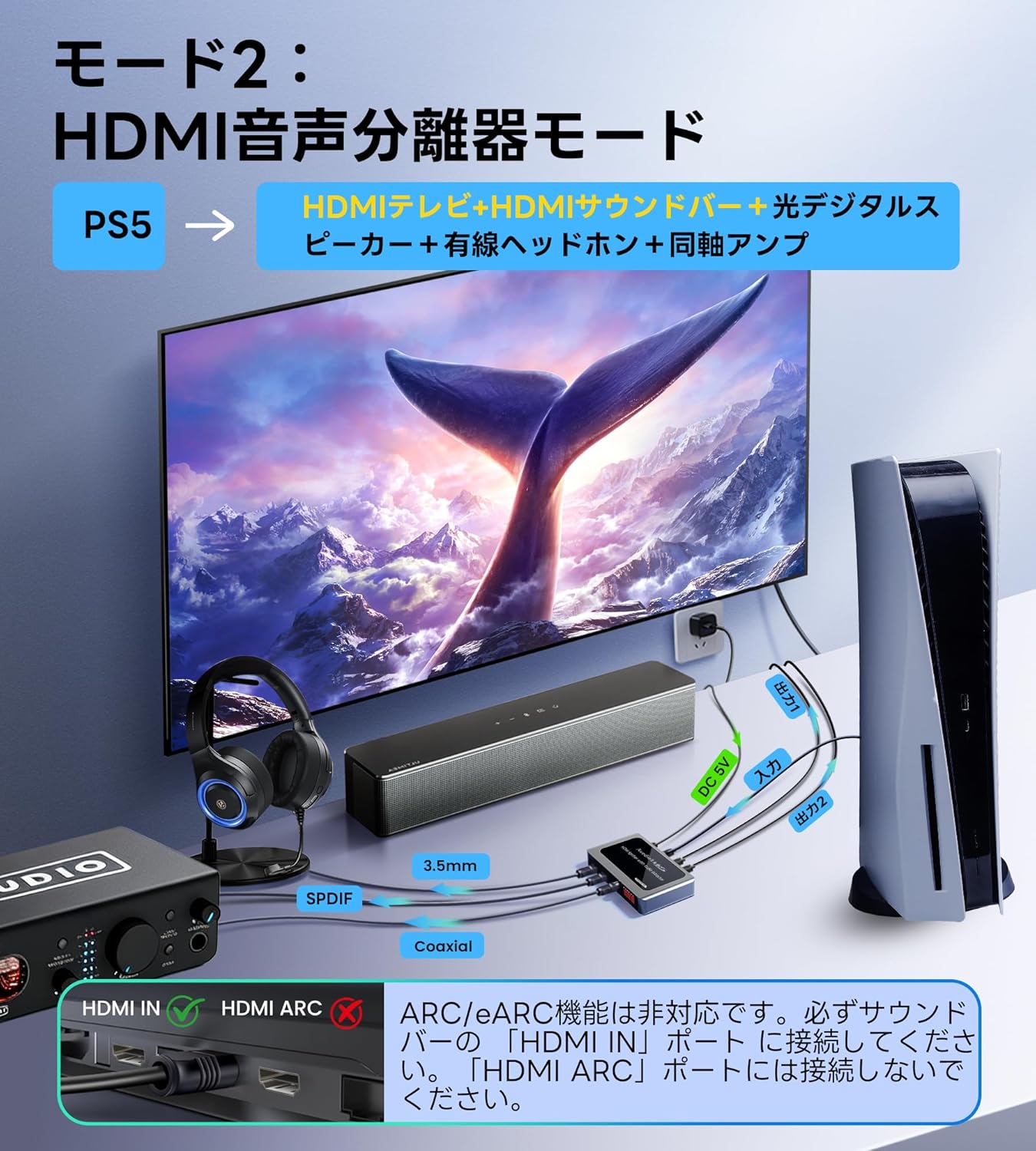
2. Audio Extractor Mode
This mode allows you to extract audio from the HDMI signal and output it to external audio systems while simultaneously sending video to a display.

Figure 5: Audio Extractor Mode - Separating audio from HDMI for external sound systems.
- Connect your HDMI source and display(s) as usual.
- Connect your audio device (soundbar, amplifier, headphones) to the appropriate audio output port (Optical SPDIF, Coaxial, or 3.5mm stereo jack) on the splitter.
- Ensure your audio device is powered on and set to the correct input source.
- The splitter will automatically extract and output the audio signal.
- Supports high-quality audio up to 192kHz and formats like Dolby Atmos, DTS, and PCM.
3. Njikwa EDID
The EDID (Extended Display Identification Data) DIP switches allow you to manually configure the output format to ensure compatibility with your connected displays and audio devices.
- Refer to the EDID setting table (Figure 3) for specific switch combinations and their corresponding output formats (e.g., 4K@30Hz, 2CH Audio, Dolby 5.1, etc.).
- Adjust the EDID DIP switches (1-4) on the splitter to match the desired resolution and audio format supported by your display and audio system.
- It is recommended to adjust EDID settings before powering on the devices or after disconnecting and reconnecting.
4. DownScaler Function
The DownScaler function allows you to automatically convert a 4K input signal to 1080P for compatibility with 1080P displays, even when a 4K display is also connected.

Figure 6: DownScaler Function - 4K to 1080P conversion for mixed display environments.
- The Scaler DIP switches (1-2) control the downscaling for each output.
- Refer to the Downscaler switch setting table (Figure 3) for specific configurations.
- Maka example, if you have one 4K display and one 1080P display, you can set the scaler for the 1080P output to ON to automatically convert the 4K signal to 1080P, while the 4K display receives the native 4K signal.
Connections and Compatibility
The avedio links HDMI Splitter offers broad compatibility with various devices and connection types.

Figure 7: Wide Compatibility - Illustrating various input and output devices.
- Ntinye HDMI: Connects to devices such as PCs, laptops, PlayStation, Xbox, Nintendo Switch, Blu-ray players, Fire TV, and other HDMI source devices.
- HDMI Output (x2): Connects to displays like TVs, monitors, and projectors.
- Mmepụta ọdịyo: Connects to headphones, speakers, and amplifiers via SPDIF, Coaxial, or 3.5mm audio jacks.
For optimal performance, use high-quality HDMI 2.0 (AWG26) cables. The maximum recommended total cable length for 4K resolution is 10m (32.8ft) and for 1080P resolution is 20m (65.6ft).
Nkọwapụta
| Njirimara | Nkọwapụta |
|---|---|
| Ụdị | njikọ avedio |
| Nọmba nlereanya | 6273 |
| Nkwado HDMI | HDMI 2.0b |
| Nkwado HDCP | Ihe ngosi HDCP 2.2 / 1.4 |
| Mkpebi vidiyo | Ruo 4K@60Hz |
| Nkwado HDR | HDR, Dolby Vision, HLG |
| ọdụ ụgbọ mmiri mmepụta ihe | Optical Digital (SPDIF), Coaxial, 3.5mm Stereo Jack |
| Ụdị ọdịyo | Dolby Atmos, DTS, PCM (up to 192kHz) |
| DownScaler | 4K to 1080P automatic conversion |
| Njikwa EDID | Mgbanwe DIP nwere ike ịhọrọ |
| Ịnye ọkụ | 5V/1A Type-C (adapter not included) |
| Ihe eji eme ụlọ | Ọla |
| Akụkụ | Ihe ruru. 14 x 13.4 x 2.4 cm |
| Ibu | Ihe ruru. 180 g |
Nchọpụta nsogbu
Ọ bụrụ na ị na-enwe nsogbu, biko lelee nsogbu na ngwọta ndị a na-ahụkarị:
- Enweghị mmepụta vidiyo:
- Gbaa mbọ hụ na ejikọrọ eriri HDMI niile nke ọma.
- Verify the power adapter is connected and providing 5V/1A power.
- Check if the input source and display devices are powered on and set to the correct HDMI input.
- Adjust the EDID DIP switches to a compatible resolution and audio format for your display.
- Try connecting the HDMI source directly to the display to rule out cable or source issues.
- Enweghị mmepụta ọdịyo:
- Ensure your audio device is correctly connected to the splitter's audio output port (Optical, Coaxial, or 3.5mm).
- Verify your audio device is powered on and set to the correct input source.
- Check the EDID settings to ensure an audio format compatible with your audio system is selected.
- Some audio formats (e.g., DTS-HD Master Audio, Dolby TrueHD) may not be supported by all audio output ports; try a different audio format or port.
- Image Flickering or Instability:
- Ensure you are using high-quality HDMI 2.0 cables, especially for 4K resolutions.
- Check the total length of your HDMI cables; excessive length can cause signal degradation.
- Verify the power supply is stable and sufficient (5V/1A).
- Adjust EDID settings to a lower resolution or refresh rate if your display struggles with the current settings.
- 4K Content Not Displaying on 1080P Monitor:
- Ensure the DownScaler DIP switch for the respective 1080P output is set to ON.
Nlekọta
To ensure the longevity and optimal performance of your HDMI splitter, follow these maintenance guidelines:
- Nhicha: Use a soft, dry cloth to clean the device. Do not use liquid cleaners or aerosols, as they may damage the unit.
- Nchekwa: Chekwaa ngwaọrụ ahụ n'ebe dị jụụ, kpọrọ nkụ na-adịghị na ìhè anyanwụ kpọmkwem na oke okpomọkụ.
- Ijikwa: Zere idobe ma ọ bụ idobe ngwaọrụ ahụ na mmetụta siri ike.
- Igwe ikuku: Ensure the device has adequate ventilation to prevent overheating. Do not block the ventilation holes.
Akwụkwọ ikike na nkwado
This avedio links product is covered by a standard manufacturer's warranty. For specific warranty terms and conditions, please refer to the documentation provided with your purchase or contact your retailer.
For technical support, troubleshooting assistance, or any questions regarding your product, please contact avedio links customer service through the retailer's platform or the official avedio links websaịtị.


