Okwu mmalite
The MUSE M-285 CTV is a versatile wireless headphone system designed for an enhanced audio experience with your television and other audio devices. It features 2.4 GHz wireless transmission for stable, low-latency audio, Bluetooth 5.3 for broader compatibility, and multiple input options including optical and 3.5mm AUX. The integrated charging station also functions as the transmitter, providing convenience and organization. This manual provides detailed instructions for setting up, operating, and maintaining your M-285 CTV headphones.

Image: The MUSE M-285 CTV wireless headphones resting on their dedicated charging and transmitter stand. The headphones are black with comfortable earcups.
Ihe ngwugwu
Biko lelee ngwungwu maka ihe ndị a:
- MUSE M-285 CTV Wireless Headphones
- Transmitter / Charging Station
- Power Adapter (AC Adaptor)
- Ngwa anya Audio USB
- Igwe okwu ọdịyo 3.5mm AUX
- USB-C eriri USB
- Akwụkwọ ntuziaka (akwụkwọ a)
Njirimara ngwaahịa
- 2.4 GHz Wireless Transmission: Enjoy stable, low-latency audio with a range of up to 30 meters, even through walls.
- Njikọ Bluetooth 5.3: Connect wirelessly to a wide range of Bluetooth-enabled devices.
- Ntinye ọnụnụ ọtụtụ: Optical, 3.5mm AUX, and USB-C for broad compatibility with TVs and audio sources.
- Ụda enwere ike ịhazi ya: Three EQ modes (Normal, Clear Voice, Full Mode) and adjustable Left/Right balance for personalized listening.
- Ogologo ndụ batrị: Up to 30 hours of continuous playback on a single charge (800 mAh Li-ion battery).
- Ebe nchaji agbakwunyere: Conveniently charges the headphones and acts as the wireless transmitter.
- Hands-Free Function & Amplifying Microphone: Allows for clearer perception of ambient conversations or phone calls.
- Ihe mkpuchi isi nwere ike idozi: Designed for maximum comfort during extended use.

Image: The MUSE M-285 CTV headphones on their stand, accompanied by icons illustrating key features such as Bluetooth-Out, EQ Effect, Aux-Input, and 30 hours operating time with 3-4 hours charging time.
Melite
1. Ịchaji ekweisi
- Jikọọ ihe nkwụnye ọkụ eletrik na ọdụ chaja wee tinye ya na ebe a na-enye ọkụ eletrik.
- Place the headphones onto the charging station. Ensure the charging contacts on the headphones align with those on the station.
- The charging indicator light on the headphones (or station) will illuminate, indicating charging is in progress. A full charge takes approximately 3.5 hours.
- Once fully charged, the indicator light may change color or turn off.
2. Connecting the Transmitter to an Audio Source
The transmitter/charging station can connect to your TV or audio device using several methods:
2.1. 2.4 GHz Wireless Connection (Recommended for TV)
- Optical (TOSLINK) Connection:
- Connect one end of the optical audio cable to the OPTICAL OUT port on your TV.
- Connect the other end to the OPTICAL IN port on the MUSE M-285 CTV transmitter.
- Ensure your TV's audio output settings are configured to "Optical" or "PCM" (Pulse Code Modulation). Some TVs may require disabling Dolby Digital or DTS.
- Njikọ AUX 3.5mm:
- Connect one end of the 3.5mm AUX cable to the HEADPHONE OUT or AUDIO OUT port on your TV or audio device.
- Connect the other end to the AUX IN port on the MUSE M-285 CTV transmitter.
Once connected via 2.4 GHz, the headphones will automatically pair with the transmitter when powered on.
2.2. Bluetooth Connection (for other devices)
- Ensure the headphones are powered on and not connected to the 2.4 GHz transmitter.
- Activate Bluetooth pairing mode on the headphones (refer to the operating section for specific button presses). The indicator light will flash, indicating pairing mode.
- On your Bluetooth-enabled device (e.g., smartphone, tablet), go to Bluetooth settings and search for available devices.
- Select "MUSE M-285 CTV" from the list.
- Once paired, the indicator light on the headphones will stop flashing and remain solid.

Image: A person wearing the MUSE M-285 CTV headphones while watching television, demonstrating the product in use for TV audio.
Ntuziaka ọrụ
1. Gbanyụọ / gbanyụọ
- To power on, press and hold the Power button on the headphones for approximately 3 seconds.
- To power off, press and hold the Power button for approximately 3 seconds.
2. Njikwa olu
Use the Volume Up (+) and Volume Down (-) buttons located on the headphones to adjust the listening volume.
3. Ụdị EQ
The M-285 CTV offers three Equalizer (EQ) modes to optimize your listening experience:
- Nkịtị: Ọkachamara ọdịyo ọkọlọtọfile.
- Olu doro anya: Enhances vocal clarity, ideal for dialogue in TV shows or movies.
- Ụkpụrụ zuru ezu: Provides a richer, fuller sound profile.
Press the EQ button on the headphones to cycle through these modes.
4. Left/Right Balance Control
Adjust the audio balance between the left and right earcups to suit individual hearing preferences. This feature is particularly useful for users with hearing differences.
- Use the Balance Left (L) and Balance Right (R) buttons on the headphones to fine-tune the audio output for each ear.
5. Hands-Free Function and Amplifying Microphone
The integrated microphone allows you to hear ambient sounds more clearly or engage in phone calls when connected via Bluetooth.
- To activate the ambient sound amplification, press the dedicated microphone button.
- When a call comes in via Bluetooth, press the Multi-function button (often the Power button) to answer/end the call.

Image: A user wearing the MUSE M-285 CTV headphones, with various feature icons displayed, including Hands-free, 2.4 GHz, 30H Working time, Charging Transmitter Base, 3 EQ Modes, Adjustable, Foldable Design, L/R Balance Control, Optical Cable, RCA Cable, and AC Adaptor.
Nlekọta
- Nhicha: Jiri akwa dị nro dị nro hichaa ekweisi na ọdụ chaja. Ejila ihe nchacha abrasive ma ọ bụ ihe mgbaze.
- Nchekwa: When not in use, store the headphones on the charging station to keep them charged and organized. Store in a cool, dry place away from direct sunlight and extreme temperatures.
- Nlekọta batrị: Iji mee ka batrị dị ogologo, zere iwepụ ekweisi gị kpamkpam mgbe niile. Chaji ha mgbe niile, ọbụlagodi na ejibeghị ha ruo ogologo oge.
- Nguzogide mmiri: The MUSE M-285 CTV headphones are ọ bụghị waterproofZere ka mmiri ghara iru gị ala ma ọ bụ oke mmiri ozuzo.
Nchọpụta nsogbu
Enweghị ụda
- Hụ na ekweisi ndị ahụ na-agba ọkụ ma na-achaji ha.
- Verify the transmitter is properly connected to the audio source (TV) and powered on.
- Check the volume levels on both the headphones and the audio source.
- If using optical connection, ensure the TV's audio output is set to PCM and not Dolby Digital/DTS.
- If using Bluetooth, ensure the headphones are correctly paired and connected to your device.
Poor Sound Quality / Intermittent Audio
- Ensure the headphones are within the 30-meter range of the transmitter (for 2.4 GHz).
- Reduce interference by moving away from other wireless devices (Wi-Fi routers, cordless phones).
- Lelee njikọ eriri niile maka ikesa ma ọ bụ mmebi.
- Recharge the headphones if the battery is low.
Ekweisi Anaghị Achaji
- Ensure the charging station is properly connected to power.
- Verify the headphones are correctly seated on the charging station, with contacts aligned.
- Lelee eriri chaja na ihe nkwụnye ike maka mmebi ọ bụla.
Nkọwapụta
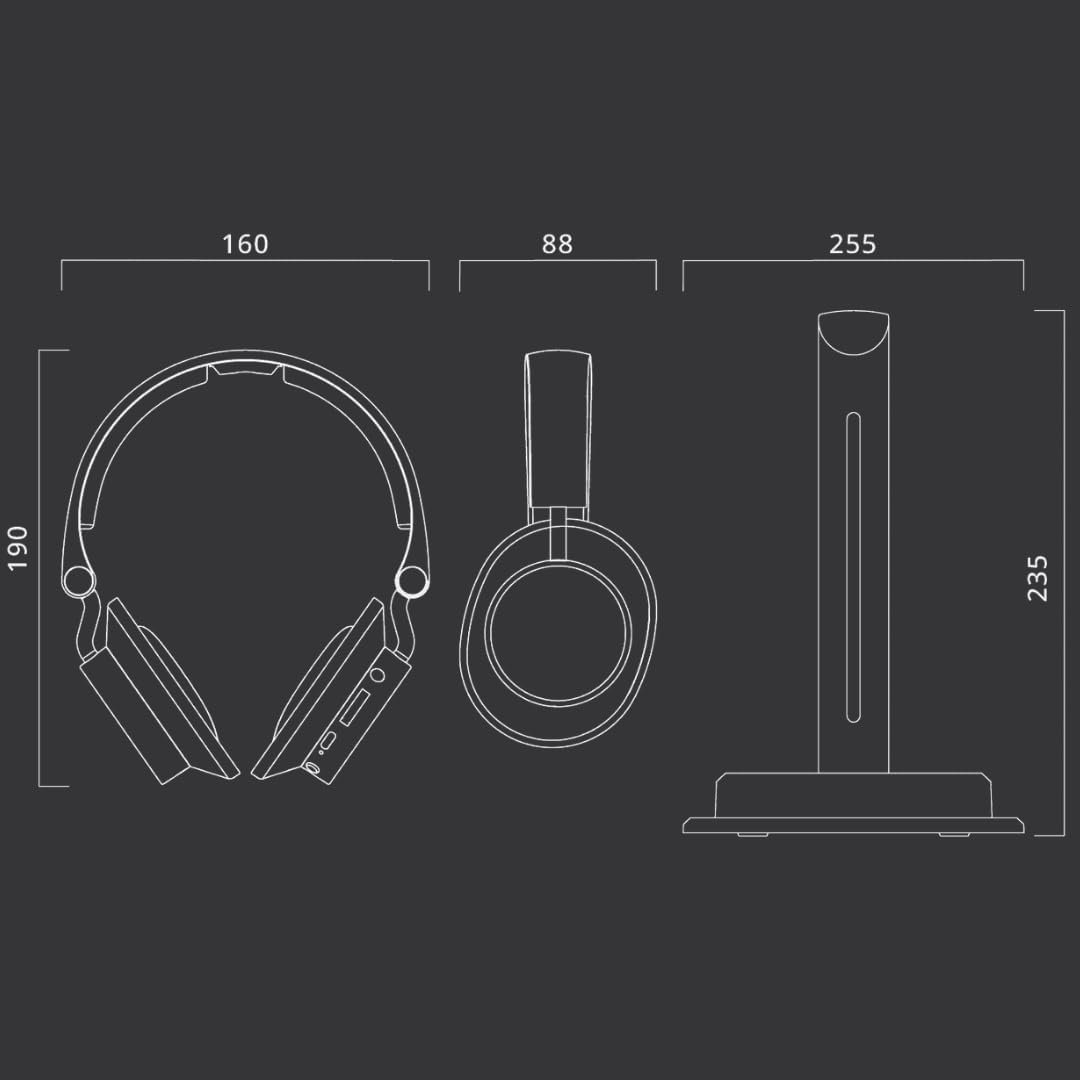
Image: Technical diagram illustrating the dimensions of the MUSE M-285 CTV headphones and their charging stand in millimeters.
| Njirimara | Nkọwapụta |
|---|---|
| Aha Nlereanya | M-285 CTV |
| Ụdị | MUSE |
| Teknụzụ Njikọta | Wireless (2.4 GHz, Bluetooth 5.3) |
| Teknụzụ nzikọrịta ozi ikuku | Bluetooth |
| Ntinye ọdịyo | Optical, 3.5mm AUX, USB-C |
| Ndụ batrị | Ruo awa iri abụọ |
| Oge Nchaji | Ihe ruru. awa 3.5 |
| Nzaghachi ugboro ugboro | 20 Hz - 20000 Hz |
| Mmetụta | 116 dB |
| Usoro njikwa | bọtịnụ emetụ aka |
| Ibu | 1 Kilogram (approximate, including packaging/accessories) |
| Ọkwa Nguzogide mmiri | Ọ bụghị ihe mgbochi mmiri |
| Ntinye ntị | Ntị n'elu |
Akwụkwọ ikike na nkwado
Information regarding specific warranty terms and support contact details is not available in the provided product data. Please refer to the warranty card included with your product or contact MUSE customer support directly for assistance.
For further support, visit the official MUSE websaịtị ma ọ bụ kpọtụrụ onye na-ere ahịa gị.


