1. Okwu mmalite
Thank you for choosing the ATTACK SHARK R11 Ultra 8K Carbon Fiber Wireless Gaming Mouse. This manual provides detailed instructions for setting up, operating, maintaining, and troubleshooting your new gaming mouse. Please read this manual thoroughly before use to ensure optimal performance and longevity of your device.
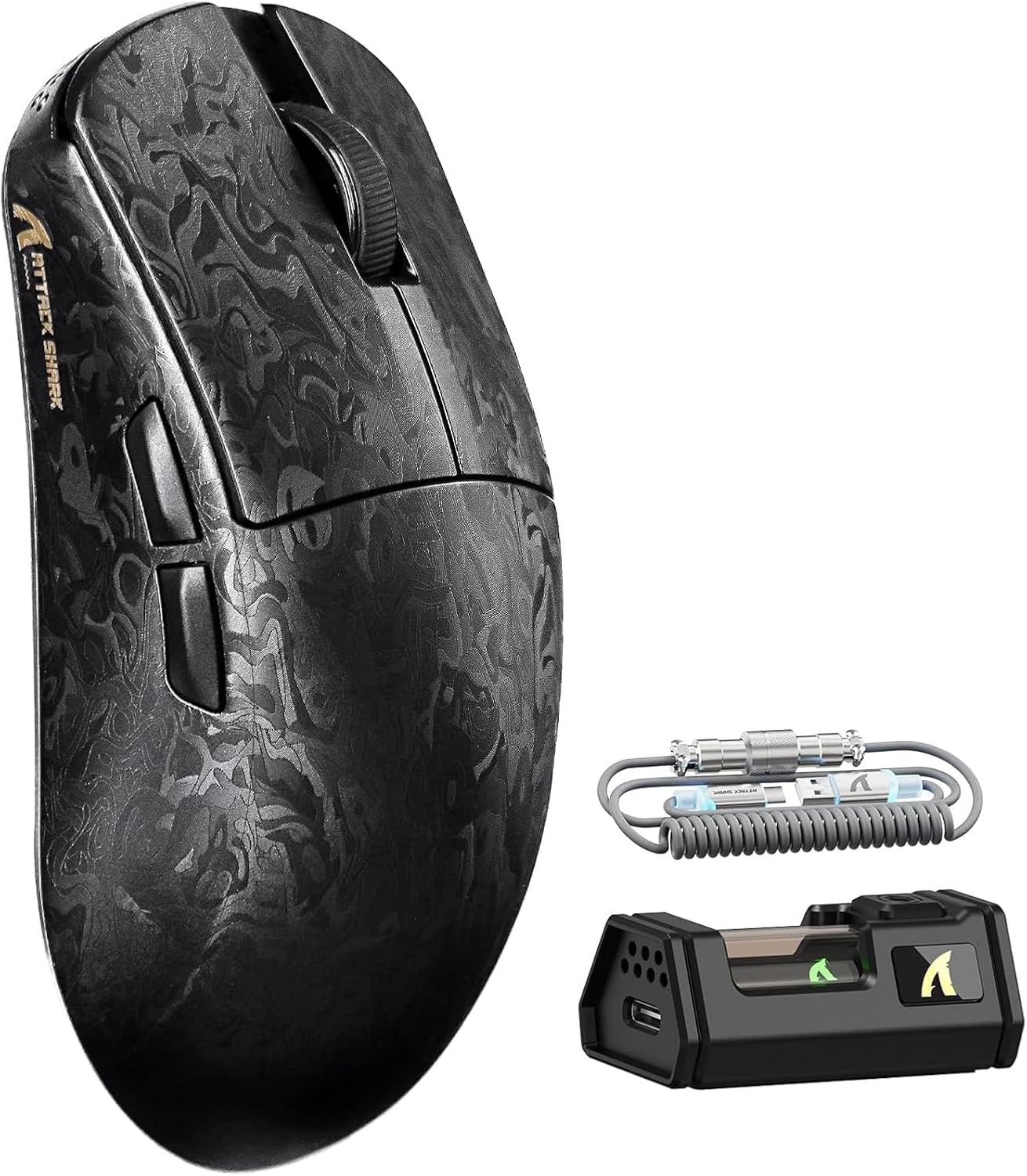
Image 1.1: The ATTACK SHARK R11 Ultra mouse with its 8K receiver and coiled cable.
2. Ihe ngwugwu
Chọpụta na ihe niile dị na ngwugwu gị:
- ATTACK SHARK R11 Ultra Wireless Gaming Mouse
- Onye nnata ikuku 8K
- USB-C to USB-A Coiled Cable
- Akwụkwọ ntuziaka (akwụkwọ a)
- Additional PTFE Mouse Feet (optional)
- Grip Tape (optional)
3. Ngwaahịa gafereview
The ATTACK SHARK R11 Ultra is a high-performance gaming mouse designed for precision and speed. It features a lightweight carbon fiber composite shell, a PixArt PAW3950MAX sensor, and a Nordic 52840 MCU for stable, low-latency connectivity across multiple modes.

Image 3.1: Front, top, and side views of the R11 Ultra mouse, highlighting its unique carbon fiber pattern.
Akụkụ ndị bụ isi:
- Nhazi dị fechaa: Weighs approximately 49g ± 3g, constructed from injection-molded carbon fiber composite material.
- Ihe mmetụta dị elu nke ọma: Equipped with PixArt PAW3950MAX sensor, offering up to 42,000 DPI, 50G acceleration, and 750 IPS tracking speed.
- Njikọ dị elu: Triple-mode connectivity (2.4GHz wireless with 8K polling rate, Bluetooth, and wired mode with 1K polling rate).
- Mgbanwe Ndị Na-adịgide Adịgide: Features premium F-switch encoder for scroll wheel (rated 2 million rotations) and Omron optical microswitches for buttons (rated 70 million clicks).
- Batrị na-adịte aka: Integrated 300mAh battery with low power consumption management.
- Nhazi: Supports AI-enhanced cloud driver and downloadable software for DPI, polling rate, button mapping, and macro customization.

Foto 3.2: Ofeview of the R11 Ultra's core technologies and design elements.
4. Nhazi ntuziaka
4.1 Ịchaji òké
Before first use, it is recommended to fully charge the mouse. Connect the USB-C end of the coiled cable to the mouse and the USB-A end to a powered USB port on your computer or a USB charger. The transparent 8K receiver has an LED indicator that shows the battery status.

Foto 4.1: Ime view of the R11 Ultra's 300mAh battery, illustrating its power management system.
4.2 Ụdị Njikọta
The R11 Ultra supports three connection modes: 2.4GHz Wireless, Bluetooth, and Wired. A switch on the bottom of the mouse allows you to select the desired mode.

Image 4.2: The bottom of the mouse, indicating the mode selection switch and DPI button.
Ọnọdụ ikuku 2.4GHz:
- Insert the 8K wireless receiver into an available USB-A port on your computer.
- Slide the mode switch on the bottom of the mouse to the '2.4G' position.
- The mouse should automatically connect. The receiver's LED will indicate connection status.
Ọnọdụ Bluetooth:
- Slide the mode switch on the bottom of the mouse to the 'BT' position.
- Na kọmputa ma ọ bụ ngwaọrụ gị, gaa na ntọala Bluetooth wee chọọ ngwaọrụ ọhụrụ.
- Select 'ATTACK SHARK R11 Ultra' from the list of available devices to pair.
Ọnọdụ Wired:
- Connect the USB-C end of the coiled cable to the mouse and the USB-A end to your computer.
- Òké ga-agbanwe na-akpaghị aka na wired mode wee malite chajị.
5. Ntuziaka ọrụ
5.1 DPI mmezi
The mouse features a dedicated DPI button on its underside (refer to Image 4.2). Press this button to cycle through preset DPI levels. For fine-tuning and a wider range of DPI settings (up to 42,000 DPI), use the official software.
5.2 Ọnụego ntuli aka
The 2.4GHz wireless mode supports an 8KHz polling rate for ultra-low latency. Wired mode operates at 1KHz. Polling rate can be adjusted via the software.

Image 5.1: Visual representation of the 8000Hz polling rate capability.
5.3 Button Customization and Macros
The R11 Ultra's buttons are programmable. Utilize the dedicated software to remap buttons, assign macros, and configure other advanced settings to suit your preferences.
6. Software na ndị ọkwọ ụgbọala
The ATTACK SHARK R11 Ultra mouse utilizes an AI-enhanced cloud driver or downloadable software for comprehensive customization. This intuitive interface allows you to:
- Adjust DPI settings in increments of 50.
- Modify polling rates.
- Customize button assignments.
- Create and manage macros.
- Configure other sensor and performance settings.
The software automatically detects your device and provides access to these settings. Refer to the official ATTACK SHARK website for the latest software downloads and cloud driver access.
Video 6.1: An official product video demonstrating the features and performance of the ATTACK SHARK R11 Ultra 8K Wireless Gaming Mouse, including its high DPI capabilities and responsiveness.
7. Nlekọta
7.1 Nhicha
Iji nọgide na-arụ ọrụ na ọdịdị nke òké gị:
- Jiri akwa dị nro, kpọrọ nkụ hichapụ elu òké ahụ.
- Maka unyi isi ike, ntakịrị dampen akwa na mmiri ma ọ bụ a nwayọọ ihicha ngwọta. Zere kemịkalụ siri ike.
- Clean the optical sensor regularly with a cotton swab to ensure accurate tracking.
7.2 Nchekwa
When not in use, store the mouse in a cool, dry place away from direct sunlight and extreme temperatures. Avoid placing heavy objects on the mouse.
8. Nchọpụta nsogbu
If you encounter issues with your ATTACK SHARK R11 Ultra mouse, refer to the following common problems and solutions:
| Nsogbu | Ihe nwere ike ime | Ngwọta |
|---|---|---|
| Òké anaghị aza | Low battery, incorrect mode, connection issue | Charge the mouse. Ensure the mode switch is set correctly (2.4G, BT, or Wired). Re-pair Bluetooth or re-insert 8K receiver. |
| Lag or stuttering | Ndakpọchi anya, obere batrị, firmware ochie | Ensure receiver is close to mouse. Charge mouse. Update mouse firmware via software. Avoid other 2.4GHz devices nearby. |
| DPI anaghị agbanwe agbanwe | DPI button malfunction, software conflict | Try adjusting DPI via software. Reinstall software if necessary. |
| Bọtịnụ anaghị arụ ọrụ | Software configuration, physical damage | Check button assignments in software. If issue persists, contact customer support. |
If the problem persists after attempting these solutions, please contact ATTACK SHARK customer support for further assistance.
9. Nkọwapụta
| Njirimara | Nkọwapụta |
|---|---|
| Nlereanya | R11 Ultra |
| Sensọ | PixArt PAW3950MAX Optical Sensor |
| Ọnụ ego DPI | Up to 42,000 DPI (adjustable in 50 DPI increments) |
| Ọnụego ntuli aka | 8000Hz (2.4GHz Wireless), 1000Hz (Wired) |
| Osooso | 50G |
| Ọsọ nsochi | 750 IPS |
| Ọnụego Frame | 20,000 FPS |
| Njikọta | Waya (USB-C), Ikuku 2.4GHz, Bluetooth |
| MCU | Nordic 52840 Chipset |
| Mgbanwe | Omron Optical Microswitches (70 million clicks) |
| Encoder | F-switch encoder (2 million rotations) |
| Ike batrị | 300mAh |
| Ibu | Ihe dị ka 49g ± 3g |
| Akụkụ | 6.81 x 4.17 x 2.91 inch (akụkụ ngwugwu) |
| Mkpuchi | Nano-metallic ice-cool coating |
10. Akwụkwọ ikike na nkwado
ATTACK SHARK products are designed for quality and performance. For warranty information, technical support, or service inquiries, please refer to the warranty card included with your product or visit the official ATTACK SHARK websaịtị. Debe ihe akaebe nke ịzụrụ maka akwụkwọ ikike.
Vidiyo 10.1: Ihe ngosi vidiyo ngwaahịa gọọmentịasing the ATTACK SHARK R11 Ultra 8K Carbon Fiber Wireless Gaming Mouse in action, highlighting its design and responsiveness.


