1. Okwu mmalite
This user manual provides essential information for the setup, operation, and maintenance of your HP 24-inch FHD IPS Monitor. Designed for clarity and user comfort, this monitor features a 1920x1080 resolution, 5ms response time, anti-glare coating, flicker-free technology, and a low blue light mode to reduce eye strain. It includes HDMI and VGA connectivity options and integrated 2W speakers.
2. Ozi nchekwa
- Gbaa mbọ hụ na edobere ihe nleba anya n'elu kwụsiri ike, dịkwa larịị iji gbochie ọdịda mberede.
- Akwụsịla oghere ikuku. Ikuku ikuku kwesịrị ekwesị dị mkpa iji gbochie ikpo oke ọkụ.
- Use only the power adapter and cables provided or approved by HP.
- Zere ikpughe ihe nlele ahụ na mmiri, mmiri ozuzo, ma ọ bụ oke okpomọkụ.
- Gbanyụọ eriri ọkụ eletrik ahụ na ebe a na-esi ekpocha ihe tupu ị hichaa ya ma ọ bụ ọ bụrụ na a gaghị eji ihe nlele ahụ ruo ogologo oge.
- Anwala ịrụzi ihe nlele ahụ n'onwe gị. Nye ndị ọrụ ọrụ ruru eru ọrụ niile.
3. Ihe ngwugwu
Chọpụta na ihe niile dị na ngwugwu:
- HP 24-inch FHD IPS Monitor
- Nyochaa Stand (Base and Olu)
- Igwe ọkụ ọkụ
- HDMI USB
- USB VGA
- Docztorm USB Port Expander (Special Edition Portable Docztorm Data Hub)
- Documentation (Quick Setup Guide, Warranty Information)
4. Ngwaahịa gafereview
4.1 N'ihu View
The front of the monitor features the 24-inch IPS display with a sleek, thin-and-light profile and a 3-sided borderless design.

Foto 1: N'ihu view of the HP 24-inch FHD IPS Monitor, showcasing ihe ngosi ya na bezels dị gịrịgịrị.
4.2 Akụkụ View
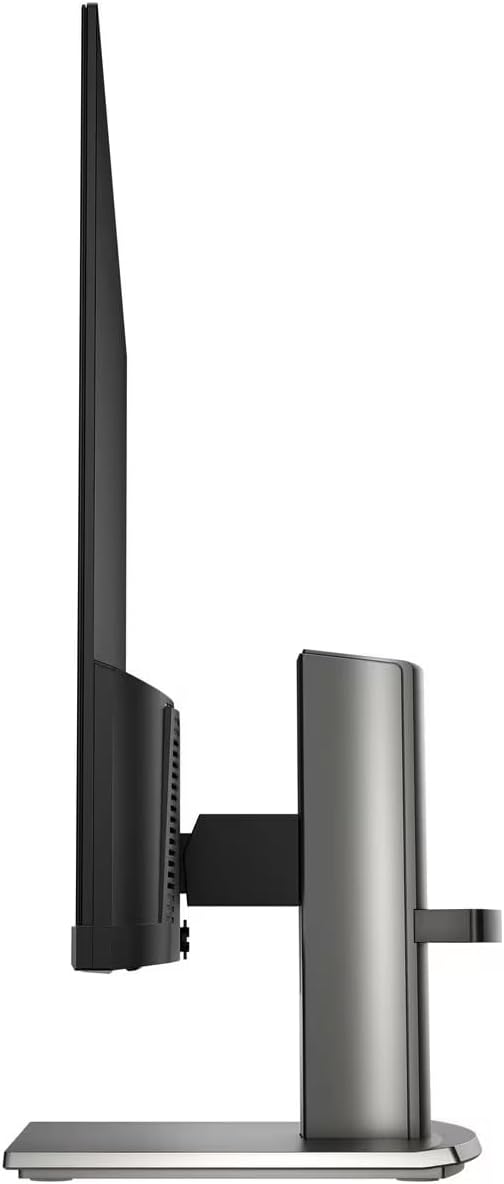
Akụkụ view highlights the monitor's slim design and the adjustable stand.

Foto 2: Akụkụ view of the HP 24-inch FHD IPS Monitor, illustrating its thin profile guzokwa.
4.3 N'azụ View na Ọdụ ụgbọ mmiri
The rear of the monitor provides access to various input and output ports for connectivity.
Ọgụgụ 3: N'azụ view of the HP 24-inch FHD IPS Monitor, displaying the HDMI, VGA, and audio ports.
Available ports include:
- 1 x HDMI Port
- 1 x Ọdụ ụgbọ mmiri VGA
- Input/Output Audio Jack ports
- Ntinye ike
5. Nhazi ntuziaka
5.1 Ịchịkọta Stand
- Jiri nlezianya wepụ ihe nleba anya ma guzobe ihe ndị dị na nkwakọ ngwaahịa ahụ.
- Tinye olu kwụ ọtọ na panel nlekota site na ịhazi taabụ na ịkwanye ruo mgbe ọ batara n'ime ya.
- Attach the stand base to the stand neck, securing it with the captive screw at the bottom of the base.
- Place the assembled monitor on a stable, level surface.

Figure 4: The HP 24-inch monitor fully assembled on its stand.
5.2 Njikọ eriri
- Njikọ ike: Jikọọ eriri ọkụ eletrik ahụ na ntinye ike nke ihe nlele ahụ wee jikọọ na oghere mgbidi.
- Njikọ vidiyo:
- Maka HDMI: Jikọọ otu nsọtụ nke eriri HDMI na ọdụ ụgbọ mmiri HDMI nke ihe nlele ahụ, jikọọkwa nsọtụ nke ọzọ na mmepụta HDMI nke kọmputa gị.
- Maka VGA: Jikọọ otu nsọtụ nke eriri VGA na ọdụ ụgbọ mmiri VGA nke ihe nlele ahụ, jikọọkwa nsọtụ nke ọzọ na mmepụta VGA nke kọmputa gị.
- Njikọ Audio: If using external speakers or headphones, connect them to the monitor's audio output jack.
- Docztorm USB Port Expander: Connect the Docztorm USB Port Expander to an available USB port on your computer for additional connectivity.
6. Ntuziaka ọrụ
6.1 Gbanyụọ/ gbanyụọ
Press the power button located on the bottom right bezel of the monitor to turn it on or off. The power indicator light will illuminate when the monitor is active.
6.2 Na-edozi Ntọala Nyochaa
Use the OSD (On-Screen Display) menu buttons, typically located on the bottom bezel, to navigate and adjust settings such as:
- Icha ọkụ na ọdịiche: Gbanwee ihe ndị a ka ọ dabara gị viewgburugburu ebe obibi.
- Ntọala agba: Select from various viewing modes or customize color temperature and saturation.
- Nhọrọ ntinye: Manually switch between HDMI and VGA inputs if auto-switch is off.
- HP Eye Ease (Low Blue Light): This monitor features an always-on low blue light filter that reduces blue light emission without impacting color accuracy, promoting eye comfort.
- Teknụzụ na-enweghị Flicker: The monitor is designed to eliminate screen flickering, further reducing eye strain during prolonged use.

Figure 5: Illustration of the HP Eye Ease feature, demonstrating reduced blue light for eye comfort.
6.3 Adjusting Monitor Position
The monitor stand allows for ergonomic adjustments:
- Ndozi Tilt: The screen can be tilted from -5 to +25 degrees to find your optimal viewakụkụ n'akuku.
- Ndozi elu: The stand offers 3.9 inches of height adjustment for personalized comfort.
7. Nlekọta
7.1 Na-ehicha ihe nleba anya
- Gbanyụọ ihe nleba anya mgbe niile wee wepụ eriri ọkụ tupu ihicha ya.
- Jiri akwa dị nro na nke enweghị mmiri ọkụ dampejiri mmiri kpuchie ya ma ọ bụ ihe nchacha ihuenyo na-adịghị mma.
- Afesakwala ihe nhicha ozugbo na ihuenyo.
- Zere iji kemịkalụ siri ike, ihe mgbaze, ma ọ bụ ihe abrasive, n'ihi na ndị a nwere ike imebi ihuenyo ma ọ bụ casing.
7.2 Nlekọta n'ozuzu
- Debe ihe nlele ahụ ka ọ ghara ịpụta ìhè kpọmkwem n'anwụ na ebe okpomọkụ na-esi apụta.
- Hụ na ikuku na-ekupụ nke ọma gburugburu ihe nlele ahụ.
- Manage cables to prevent tangles and damage.
8. Nchọpụta nsogbu
| Nsogbu | Ihe nwere ike ime | Ngwọta |
|---|---|---|
| Enweghị onyonyo na ihuenyo |
|
|
| Ọdịdị onyonyo adịghị mma (anaghị agbagọ agbagọ, gbagọrọ agbagọ) |
|
|
| Enweghị ụda sitere na ndị ọkà okwu |
|
|
9. Nkọwapụta
| Njirimara | Nkọwa |
|---|---|
| Akụkụ ngwaahịa | 7.9 x 21.09 x 18.1 sentimita asatọ |
| Ibu Ibu | 7.7 pound |
| Onye nrụpụta | HP |
| Nọmba Nlereanya ihe | HP 24" FHD Monitor |
| Ngosipụta ihuenyo guzoro ọtọ | 24 sentimita asatọ |
| Akụkụ akụkụ | 16:9 |
| Mkpebi | Pikselụ 1920 x 1080 (FHD 1080p) |
| Ihe onyonyo | 300 nits |
| Nkọwa ihu ihu ihuenyo | Matte |
| Oge nzaghachi | 5ms |
| Njikọta | 1 x HDMI, 1 x VGA, Audio Jack |
| Tilt nwere ike idozi | -5 ka ogo 25 |
| Atụmatụ pụrụ iche | Anti Glare, Flicker Free, Low Blue Light, Built-in 2W Speakers |
10. Akwụkwọ ikike na nkwado
Your HP 24-inch FHD IPS Monitor is covered by a standard manufacturer's warranty. For detailed warranty terms and conditions, please refer to the warranty documentation included in your product package or visit the official HP support websaịtị.
For technical assistance, troubleshooting, or to contact customer support, please visit the HP support portal or contact your local HP service center. Ensure you have your monitor's model number and serial number ready when seeking support.