1. Okwu mmalite
This manual provides essential information for the setup, operation, maintenance, and troubleshooting of your ENDGAME GEAR XM2w 4k v2 Wireless Gaming Mouse. Please read these instructions carefully to ensure optimal performance and longevity of your device.
2. Ihe ngwugwu
Chọpụta na ihe niile dị na ngwugwu:
- ENDGAME GEAR XM2w 4k v2 Wireless Gaming Mouse
- Dongle ikuku 4K
- USB-C to USB-A Flex Cord 7.0 Cable (1.8m)
- Akwụkwọ ntuziaka (akwụkwọ a)

Image: The XM2w mouse with its USB-C cable and 4K wireless dongle.
3. Nhazi
3.1 Ịchaji òké
Before first use, it is recommended to fully charge the mouse. Connect the USB-C end of the provided cable to the mouse and the USB-A end to an available USB port on your computer. The mouse will charge while connected.

Image: The USB-C charging port located at the front of the mouse.
3.2 Njikọ ikuku
- Plug the 4K Wireless Dongle into an available USB-A port on your computer.
- Ensure the mouse is powered on using the switch on the bottom of the mouse.
- The mouse should automatically connect to the dongle.

Image: The XM2w mouse and its dedicated 4K wireless dongle.
3.3 Njikọ wired
For a wired connection, simply connect the USB-C end of the provided cable to the mouse and the USB-A end to your computer. The mouse will function as a wired device and charge simultaneously.
3.4 Nwụnye ngwanrọ
For advanced customization, including DPI settings, polling rate adjustments, button remapping, and firmware updates, download the official ENDGAME GEAR software from the manufacturer's websaịtị. Soro ntuziaka na ihuenyo maka nwụnye.
4. Ịrụ ọrụ òké ahụ
4.1 Ọrụ ndị bụ isi
- Pịa aka ekpe: Bọtịnụ ihe omume mbụ.
- Pịa aka nri: Bọtịnụ ihe omume nke abụọ.
- Mpempe akwụkwọ mpịakọta: Scroll up/down for navigation. Press for middle click function.
- Bọtịnụ akụkụ: Typically configured for forward/backward navigation in web browsers or in-game actions. Customizable via software.
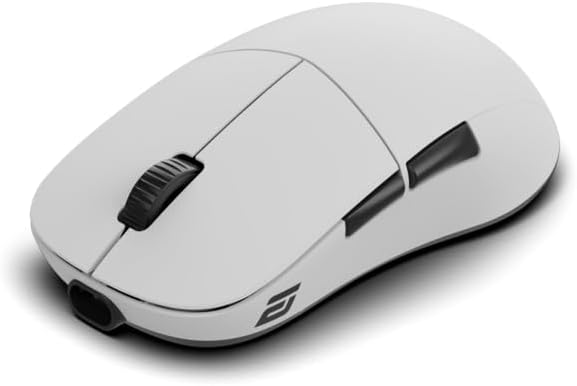
Foto: Top view of the XM2w mouse, showing main buttons and scroll wheel.
4.2 DPI/CPI Adjustment
The XM2w features a PixArt PAW3950 sensor capable of up to 30,000 CPI (Counts Per Inch). DPI/CPI settings can be adjusted through the ENDGAME GEAR software to match your preference and gaming style.
4.3 Nhazi ọnụego ntuli aka
The mouse supports multiple polling rates:
- Ikuku: 4000Hz, 2000Hz, 1000Hz, 125Hz
- Mara: 1000Hz
The polling rate can be selected via the ENDGAME GEAR software to optimize response times for your system and game.

Image: Visual representation of the mouse's low latency performance.
4.4 Lift-Off Distance (LOD)
The XM2w offers a fine-tunable Lift-Off Distance (LOD) from 0.7mm to 1.7mm, configurable through the software. This allows for precise control during high-speed movements.
4.5 GX Switches
Equipped with pre-sorted GX switches, the mouse provides crisp, tactile feedback and ultra-low latency, rated for 80 million clicks for consistent performance.
4.6 Ergonomic imewe
The symmetrical, medium-sized shape with a wide rear and gently contoured sides is optimized for a secure claw grip, facilitating fast reactions and precise control.

Foto: Akụkụ profile of the XM2w mouse, showcasing its ergonomic shape.
5. Nlekọta
5.1 Nhicha
To clean your mouse, use a soft, dry, lint-free cloth. Avoid using harsh chemicals, cleaning solvents, or abrasive materials, as these can damage the surface or internal components. Do not expose the mouse to excessive moisture.
5.2 Nlekọta batrị
To prolong battery life, avoid fully discharging the mouse frequently. Charge the mouse regularly. Store the mouse at room temperature and avoid extreme heat or cold.

Image: The bottom of the XM2w mouse with a battery indicator icon.
6. Nchọpụta nsogbu
6.1 Òké Anaghị azaghachi
- Gbaa mbọ hụ na agbanyere òké ahụ.
- Lelee ọkwa batrị wee kwụọ ụgwọ ma ọ dị mkpa.
- For wireless connection, ensure the 4K dongle is securely plugged into a working USB port. Try a different USB port.
- For wired connection, ensure the USB-C cable is securely connected to both the mouse and the computer. Try a different USB port or cable.
- Malitegharịa ekwentị gị na kọmputa.
6.2 Lag or Stuttering
- Ensure the 4K wireless dongle is positioned close to the mouse and not obstructed by metal objects.
- Wedata ndabichi sitere na ngwaọrụ ikuku ndị ọzọ (dịka ọmụmaatụ, ndị na-anya Wi-Fi, ikuku ikuku ndị ọzọ).
- Update the mouse firmware and software to the latest versions from the ENDGAME GEAR websaịtị.
- Try reducing the polling rate in the software to see if performance improves.
6.3 DPI/Polling Rate Settings Not Applying
- Ensure the ENDGAME GEAR software is running and the mouse is properly connected.
- Verify that settings are saved and applied within the software.
- Malitegharịa ngwanrọ ahụ na/ma ọ bụ kọmputa gị.
7. Nkọwapụta
| Njirimara | Nkọwa |
|---|---|
| Nlereanya | XM2w 4k v2 |
| Sensọ | Ihe mmetụta anya PixArt PAW3950 |
| Max CPI/DPI | 30,000 CPI |
| IPS kachasị elu | 750 IPS |
| Max osooso | 50G |
| Ọnụego ntuli aka (Ikuku) | 4000Hz / 2000Hz / 1000Hz / 125Hz |
| Ọnụego ntuli aka (Ejikọrọ) | 1000Hz |
| Mgbanwe | Pre-sorted GX switches (80 million clicks) |
| Njikọta | Radio Frequency (Wireless), USB (Wired) |
| Lift-Off Distance (LOD) | 0.7mm – 1.7mm (tunable) |
| Ibu | 61.5g |
| USB | 1.8m Flex Cord 7.0 |
| Akụkụ | 6.89 x 5.35 x 2.4 inch (Ngwugwu) |
| Batrị | 1 Batrị na-abụghị ọkọlọtọ (gụnyere) |

Image: The PixArt PAW3950 optical sensor, a key component of the XM2w mouse.
8. Akwụkwọ ikike Ozi
The ENDGAME GEAR XM2w 4k v2 Wireless Gaming Mouse is covered by a manufacturer's warranty. Please refer to the warranty card included with your product or visit the official ENDGAME GEAR website for detailed warranty terms and conditions. Retain your proof of purchase for warranty claims.
9. Nkwado
For further assistance, technical support, driver downloads, firmware updates, or frequently asked questions, please visit the official ENDGAME GEAR websaịtị:


