1. Okwu mmalite
Thank you for choosing the ProtoArc XKM01 Foldable Wireless Keyboard and Mouse Combo. This manual provides detailed instructions for setting up, operating, and maintaining your device. Please read this manual thoroughly before use to ensure optimal performance and longevity of your product.
2. Ihe ngwugwu
The ProtoArc XKM01 combo includes the following items:
- ProtoArc XKM01 Foldable Wireless Keyboard
- ProtoArc Wireless Mouse
- Carrying Hard Case
- Foldable Stand (for 4-11” devices)
- USB-C eriri USB
- USB Receiver (stored in mouse)
- Akwụkwọ ntuziaka onye ọrụ

Figure 1: ProtoArc XKM01 Package Contents

Figure 2: Quality Portable Hard Case for ProtoArc XKM01
3. Ngwaahịa gafereview
3.1 Atụmatụ ahụigodo
- Nhazi Nha zuru oke: 105-key design with dedicated function and number pads for comprehensive input.
- Nhazi a na-agbanwe agbanwe: Ultra-slim profile with a simple fold-and-go mechanism, featuring internal aluminum hinges tested for over 10,000 folds.
- Mpempe akwụkwọ dị jụụ: Equipped with whisper-quiet scissor switches and low-profile igodo.
- Igodo ọrụ mgbasa ozi: Dedicated keys for various multimedia controls.

Figure 3: Keyboard Durable Hinges
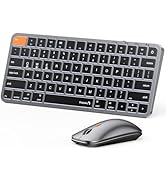
Figure 4: Keyboard Multimedia Function Keys
3.2 Atụmatụ òké
- Nhazi Ultra-Slim: Portable and compact for easy transport.
- DPI nwere ike imeghari: 3 modes (1000/1600/2400) for precision control.
- Pịa jụụ: 25dB micro-switches for silent operation.
- Njikọ ọtụtụ ngwaọrụ: Supports 2.4G wireless, Bluetooth 1, and Bluetooth 2 connections.

Figure 5: Slim and Portable Mouse

Figure 6: Mouse Component Diagram
4. Ntọala na Njikọta
4.1 Ntọala ahụigodo
- Unfold the Keyboard: Gently unfold the keyboard until it lies flat.
- Ike Na: Locate the power switch (usually on the side or back) and slide it to the 'ON' position.
- Select Connection Mode: The keyboard supports 2.4G wireless and two Bluetooth channels (BT1, BT2).
- Ikuku 2.4G: Insert the USB receiver (found in the mouse's battery compartment) into your device's USB port. The keyboard should connect automatically.
- Njikọ Bluetooth: Press and hold the 'Fn' key along with 'BT1' or 'BT2' key for 3 seconds until the indicator light flashes, indicating pairing mode. On your device, search for 'ProtoArc XKM01' in Bluetooth settings and connect.
- Ngwaọrụ na-agbanwe: To switch between connected devices, simply press 'Fn' + 'BT1', 'Fn' + 'BT2', or 'Fn' + '2.4G' (if applicable).
4.2 Ntọala òké
- Ike Na: Slide the power switch on the bottom of the mouse to the 'ON' position.
- Select Connection Mode: The mouse supports 2.4G wireless and two Bluetooth channels (BT1, BT2).
- Ikuku 2.4G: Ensure the USB receiver is plugged into your device. The mouse will connect automatically.
- Njikọ Bluetooth: Press the mode switch button on the bottom of the mouse to cycle between BT1 and BT2. Hold the desired BT button for 3 seconds until the indicator light flashes. On your device, search for 'ProtoArc Mouse' in Bluetooth settings and connect.
- Ngwaọrụ na-agbanwe: Press the mode switch button on the bottom of the mouse to switch between connected devices.

Figure 7: Multi-Device Connectivity Overview
5. Ntuziaka ọrụ
5.1 Keyboard Usage
- Igodo ọrụ: The top row of keys (F1-F12) can be used as standard function keys or multimedia keys. Press Fn + Esc to toggle between these modes.
- Ndakọrịta sistemụ arụmọrụ: The keyboard is compatible with Windows, macOS, Chrome OS, iPadOS, and Android. Specific key functions may vary slightly depending on the operating system.
5.2 Mouse Usage
- Ndozi DPI: Press the DPI switch button (usually near the scroll wheel) to cycle through 1000, 1600, and 2400 DPI settings.
- Ọrụ dị jụụ: The mouse is designed for quiet clicking, suitable for various work environments.

Figure 8: Quiet Operation of Keyboard and Mouse
6. Ịchaji
Both the keyboard and mouse are rechargeable via USB-C.
- Nchaji ọdụ ụgbọ mmiri: Connect the provided USB-C cable to the charging port on the device and to a USB power source.
- Ngosipụta chaja: The indicator light will show charging status. It typically takes 2-3 hours for a full charge.
- Ndụ batrị: A full charge provides approximately 150-200 days of standby time.

Figure 9: Type-C Charging for Keyboard and Mouse
7. Nlekọta
- Nhicha: Jiri akwa dị nro dị nro hichaa elu nke ahụigodo na òké. Maka unyi isi ike, ntakịrị damp a pụrụ iji ákwà mee ihe, na-eme ka mmiri ghara ịbanye na ngwaọrụ ahụ.
- Nchekwa: When not in use, fold the keyboard and store it along with the mouse in the provided hard case to protect it from dust and damage.
- Zere Oke Ọnọdụ: Ekpughela ngwaọrụ ndị a n'ebe okpomọkụ dị oke elu, anwụ kpọmkwem, ma ọ bụ oke iru mmiri dị elu.
8. Nchọpụta nsogbu
8.1 Okwu Njikọta
- Ngwaọrụ anaghị ejikọta: Ensure both the keyboard and mouse are powered on and in the correct pairing mode (2.4G or Bluetooth). Check your device's Bluetooth settings to confirm it's discoverable and try re-pairing.
- Njikọ na-adịte aka: Ensure there are no obstructions between the devices and your computer. Move closer to your computer. Check battery levels.
8.2 Typing/Clicking Issues
- Igodo anaghị aza: Check battery level. Ensure the keyboard is properly connected. Try restarting the keyboard and your device.
- Mouse Cursor Erratic: Clean the mouse sensor. Ensure the mouse is on a suitable surface. Adjust DPI settings if the cursor is too fast or slow.
9. Nkọwapụta
| Nọmba nlereanya | XKM01 |
| Teknụzụ Njikọta | Bluetooth, USB 2.4G |
| Ngwa dakọtara | Laptọọpụ, Kọmputa nkeonwe, Smartphone, Mbadamba ụrọ |
| Atụmatụ pụrụ iche | Lightweight, Portable, Rechargeable, Tri-Fold |
| Ibu Ibu | 1.96 pound (ihe dị ka 0.89 n'arọ) |
| Akụkụ ngwugwu | 12.99 x 6.42 x 2.13 sentimita (ihe dịka 33 x 16.3 x 5.4 cm) |

Ọgụgụ 10: Akụkụ ngwaahịa
10. Akwụkwọ ikike na nkwado
ProtoArc products come with a standard manufacturer's warranty. For detailed warranty information, product support, or technical assistance, please visit the official ProtoArc website or contact customer service using the information provided in the product packaging.
Iwu nloghachi: This product is eligible for a refund/replacement within 30 days of purchase, as per Amazon's return policy.
11. Ngwaahịa gafereview Vidiyo
Video 1: ProtoArc XKM01 Foldable Keyboard and Mouse Combo Overview. This video demonstrates the product's features, including its foldable design, multi-device connectivity, and portability.


