Okwu mmalite
The Hohem iSteady V3 Ultra is a versatile gimbal stabilizer designed for smartphones, featuring advanced AI tracking and a detachable touchscreen remote control. It integrates a built-in extension rod and tripod, offering a comprehensive solution for stable and creative video filming. This manual provides detailed instructions for setup, operation, and maintenance to ensure optimal performance.
Atụmatụ gụnyere:
- Nsochi AI: Accurately tracks people, pets, buildings, and other objects with a 2-million pixel AI tracker, effective up to 16.4 feet (5m). Features a 3-color fill light for low-light conditions.
- Touchscreen Detachable Remote Control: A 1.22-inch visual touchscreen remote allows for intuitive operation, previewing, frame selection, and parameter adjustments.
- 360° Infinite Pan Following: Utilizes iSteady 9.0 stabilization technology for anti-shake performance and offers 360° infinite pan tracking to keep subjects in frame.
- Compact & Functional Design: Foldable design with a 205mm built-in extension rod and tripod for various shooting scenarios.
- Enhanced Power & Creativity: Supports a payload of up to 400g, compatible with most iPhone and Android smartphones, and provides up to 9 hours of running time.
- Hohem Joy App Integration: Offers photo processing, film editing, customized gimbal features, and multiple shooting templates like Dolly Zoom and Timelapse.
Kedu ihe dị na Igbe ahụ
- Hohem iSteady V3 Ultra Gimbal x1
- AI Tracker with Fill Light x1
- Touchscreen Remote Controller x1
- USB-C eriri USB x1
- Igodo Hex x1
- Akpa Nchekwa x1
- Ndenye Malite Guide x1
Melite
1. Nchaji mbụ
For optimal performance, fully charge the iSteady V3 Ultra before first use. Use a 5V/2A adapter (not included) with the provided USB-C charging cable.
Video: Initial Charging of Hohem iSteady V3 Ultra Gimbal.
2. Ikpughe Gimbal
Carefully unfold the gimbal from its compact state. Pull out the built-in tripod legs and place the gimbal on a flat surface. Then, unfold the gimbal arm upwards until it locks into position.
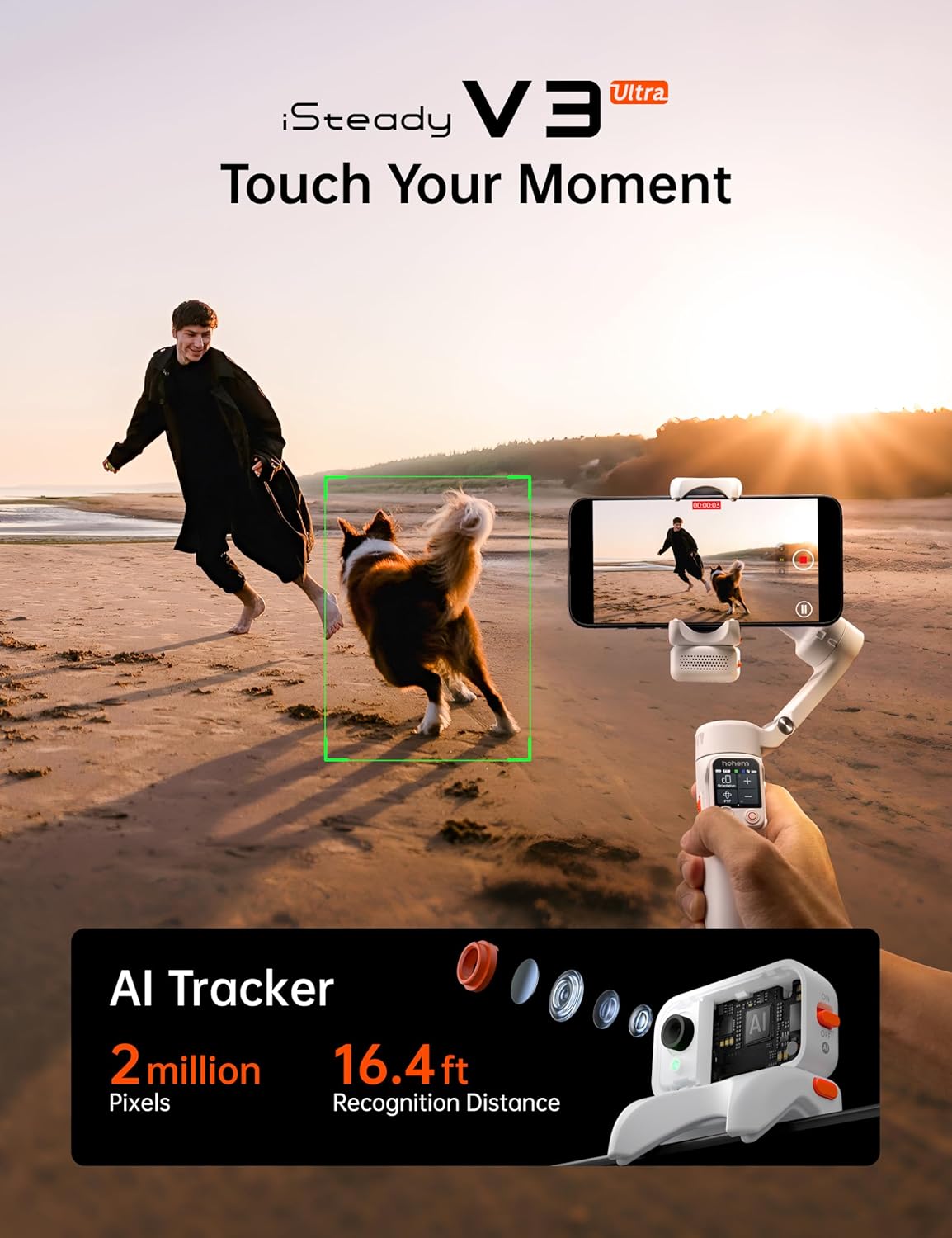
Image: Hohem iSteady V3 Ultra Gimbal in its unfolded state with a smartphone attached.
3. Ịwụnye ekwentị gị
Mount your smartphone into the phone clamp, ensuring the front camera is positioned at the top. Verify that the back of the smartphone is firmly against the phone clamp for secure attachment and proper balance.
4. Ịgbanye / gbanyụọ
To power on the gimbal, press and hold the power button (or the shutter button) for 3 seconds until it beeps and powers on. To power off, repeat the process.
5. Njikọ Bluetooth
Iji jikọọ ekwentị gị site na Bluetooth:
- Mee ka Bluetooth rụọ ọrụ na ekwentị gị.
- In the Bluetooth search list, select the device named "SV3U-XXXXXX".
- Tap to pair. Upon successful pairing, the Bluetooth icon on the touchscreen controller will turn solid blue.
Ụdị arụ ọrụ
The Hohem iSteady V3 Ultra offers various operating modes to suit different shooting needs:
- Ụdị aka: Naanị mepee gimbal maka ịgba égbè na-aga.
- Ogologo Oge: Pull out the built-in extension pole upwards and tilt the hinge area to your desired angle for flexible shooting, such as selfies or high/low angle shots.
- Ọnọdụ ime obodo: Place the gimbal on a flat surface, detach the touchscreen controller, and use it for remote shooting, live feed monitoring, and more.
- Ụdị Soro (PF): The pan axis follows the handle's left/right movements, while roll and tilt axes maintain fixed orientation. Ideal for horizontal tracking shots or orbiting around a subject.
- Pan and Tilt Follow Mode (PTF): The gimbal's pan and tilt axes follow the handle's movements, while the roll axis maintains fixed orientation. Perfect for capturing up-and-down movements or tilt shots.
- Isi nke View Ụdị (POV): The gimbal's pan, tilt, and roll axes follow the handle's movements. Commonly used for a first-person perspective or spin shots.
- All Lock Mode (LOCK): All three axes are maintained fixed, keeping the camera in a static orientation. Useful for capturing tracking shots that follow the same direction as the subject.
Video: Hohem iSteady V3 Ultra Gimbal Introduction Video, demonstrating different modes.
Nsochi AI & njikwa mmegharị ahụ
1. Installing the AI Tracker
Take out the magnetic AI tracker. Align the pogo pins with those on the phone clamp and press down until you hear a click, ensuring it's securely installed. Point the lens toward the subject to be filmed.

Image: Hohem iSteady V3 Ultra Gimbal with the AI tracker attached to the phone clamp.
2. Turning On the AI Tracker
Toggle the switch on the AI tracker to "ON". The fill light will flash twice, and then the red light will stay solid, indicating the AI tracker is active.
3. Front/Rear Tracking
To reverse the tracking direction, first press the safety locks on both sides of the phone clamp. Then, rotate the AI tracker 180° and reinstall it. The tracking direction will be reversed.
Mara: Do not force-remove the AI tracker without unlocking to avoid damage. It is normal for the pogo pins at the bottom of the AI tracker to heat up after prolonged use. Please avoid direct contact to prevent burns!
4. Gesture Control (Only for Person)
Maintain a gesture recognition distance of 1.64 to 16.40 ft (0.5 to 5m) and a tracking distance of 1.64 to 22.97 ft (0.5 to 7m) for optimal performance.
- Bido nsochi: Make the "OK" gesture. The indicator light turns solid green, and AI tracking begins.
- Stop Tracking: Make the "🖐️" gesture. The indicator light turns solid red, and AI tracking stops.
- Landscape/Portrait Switch: Make the "thumbs up" gesture with both hands to switch between landscape and portrait orientation.
- Customized Composition: Make the "peace" gesture with both hands. When the indicator light blinks green, move the subject to the desired framing position. Make the same gesture again, and after the indicator light turns solid, the composition is set.
- Njide Ntugharị: Ensure Bluetooth is connected. Make the "shaka" gesture. The indicator blinks green rapidly. After a 3-second countdown, it takes a photo or starts recording.
5. Touchscreen Control (For Any Subject)
Subject tracking supports people, pets, vehicles, buildings, and more, and can be activated via the touchscreen remote controller.
- Method 1: Double Tap: Double tap your target on the touchscreen. A green frame appears around the target, and the AI icon turns green, indicating tracking has started.
- Method 2: Drag Selection: Drag to draw a box around the target. A red frame appears on the touchscreen. Press the side button on the right to confirm. The red frame turns green, indicating tracking has started.
- Stop AI Tracking: Triple tap anywhere on the touchscreen. The green frame disappears, and AI tracking stops.
6. Live Feed Calibration
If the live feed on the touchscreen doesn't match your phone's camera view, long-press the side button to activate live feed calibration. The touchscreen border turns red. Use the joystick to adjust the remote's display. A grid will appear to help with framing. Long-press the side button again to complete calibration when the live feed aligns with your phone screen.
7. Quick Tracking
The iSteady V3 Ultra features a quick AI tracking function. Single press the trigger or side button to automatically lock onto the subject and start AI tracking. Press the trigger (or side button) again to stop AI tracking.
8. Quick Composition
During AI tracking, if you need to temporarily adjust the composition, simply use the joystick to reposition it. After adjustment, AI tracking continues with the new composition.
Video: Hohem iSteady V3 Ultra First Use Tutorial, covering AI tracking, gesture control, and more.
Ihuenyo mmetụ
The touchscreen remote provides a comprehensive interface for controlling the gimbal:
- Ogwe ọnọdụ: Displays gimbal battery level, working mode, AI tracking status, Bluetooth connection status, remote connection status, and remote battery level.
- Landscape/Portrait Switch: Tap "Orientation" to switch between landscape and portrait modes.
- Ụdị mgbanwe: Tap to switch between Pan Follow (PF), Pan and Tilt Follow (PTF), Point of View (POV), and All Lock Mode.
- Njikwa mbugharị: Requires Hohem Joy app connection. Long press to zoom in or out. Also supported on some Android native cameras with Bluetooth connected.
- Njikwa ọkụ: Adjust color temperature (Cool, Warm, Neutral) and brightness (1%-100%) for seamless dimming. Turn the fill light on or off.
- Ntọala ndị ọzọ: Access language settings, tutorials, AI settings (turn on/off gesture control and tilt tracking), motor strength (Low, Medium, High), follow speed (Slow, Medium, Fast), default orientation (Landscape, Portrait), gimbal sound, screen brightness, level calibration (Manual, Auto), device info (device name, SN), and firmware version.
- Live Feed Monitoring: Swipe right on the home screen to access the leftmost menu. You can monitor the live feed from the AI tracker.
Bọtịnụ
The gimbal features several buttons for quick control:
- Bọtịnụ akụkụ:
- Single press: Lock onto subject and start AI tracking. While tracking, single press to stop.
- Double press: Recenter the gimbal.
- Triple press: Change to backward-facing phone position for rear camera selfie. Triple press again to return to original position.
- Five-time press: Re-pair the remote.
- Seven-time press: Clear remote connection.
- Long press: Enter live feed calibration.
- Bọtịnụ mkpuchi:
- Single press: Take a photo or start/stop recording.
- Double press: Switch between photo and video mode.
- Triple press: Switch between front and rear cameras.
- Long press: Power on/off the gimbal. When the remote is detached, long press to power on/off the remote.
- Joysticks:
- Push up/down/left/right: Control the gimbal's movement.
- Ogologo pịa: Gbanyụọ/ gbanyụọ ọkụ njuju.
- Akụkụ akụkụ:
- Ogologo pịa: Gbanyụọ/ gbanyụọ ọkụ njuju.
- Double press: Switch between cool, warm, and neutral light.
- Scroll up/down: Increase/decrease the brightness.
- Five-time press: Re-pair the remote control.
- Seven-time press: Clear Bluetooth and remote connections.
- Mkpali:
- Single press: Lock onto the subject and start AI tracking. During tracking, press once to stop AI tracking.
- Double press: Recenter the gimbal.
- Triple press: Change to backward-facing phone position and enter rear camera selfie. Triple press again to return to the original position.
- Long press: Enter All Lock Mode (all three axes are maintained fixed).
- Single press and long press: Enter Sport Mode (motor becomes more responsive for fast-moving subjects or rapid transitions).
- Bọtịnụ ike:
- Long press for 3 seconds: Power on/off the gimbal.
- Double press: Enter standby mode. Double press again to exit.
- Five presses: Enter Auto Calibration. A single beep indicates the start, and a second beep signals completion (takes around 10 seconds).
- When powered off, press once: Check the battery level of the gimbal and controller.
App Features (Hohem Joy App)
Download the Hohem Joy app from the App Store or Google Play for extended gimbal features and creative shots.
1. Oke agba
In the shooting page, the left icons help you adjust shooting parameters:
- Ntọala ngosi: Defaults to Auto. Tap to switch to Manual, then adjust ISO, shutter speed, and exposure value.
- Ụdị ndekọ: Before recording, change resolution and frame rate.
- Flash: By default, the flash is off. Choose to keep it always on.
- Ntọala oke: Includes three sections: phone camera parameters, gimbal parameters, and general info.
- Phone Camera Parameters: Adjust basic camera parameters like grid and white balance, along with other advanced tools.
- Gimbal Parameters: Adjust detailed gimbal performance parameters, including motor responsiveness and switching between different working modes.
- Ozi izugbe: Quickly check hardware and software version information for your device.
2. Creative Tools
The top row offers creative tools:
- Creative Studio: If you encounter a suitable scene but don't know how to shoot it, tap the Creative Studio to find a matching example. Tap to start and follow the tutorial step-by-step to replicate a similar effect.
- Zoom/Focus Control: On iOS devices, enable "Seamless Zoom" in settings. You can long press the number to open the zoom dial, unlocking extended zoom range.
- Nhọrọ nzacha: In the filter tab, choose your preferred filter effect.
- Beauty Effects: By default, it's turned off. You can freely choose effects like Slim, Big Eyes, or Auto Beauty.
- Njikwa mmegharị ahụ: Gesture control is off by default. Once enabled, you can use simple gestures to control shooting or disable them as needed.
3. Shooting Options
Swipe on the right side to access shooting options:
- Live Stream Settings: Configure live streaming options.
- Ndebiri: Choose from Live, Panorama, Timelapse, Moment, Slow Motion, Time Warp, and other templates.
- Osisi: Tap the gallery icon to open your photo album instantly. Unfinished works will be saved in the Drafts section.
Nkọwapụta
| Njirimara | Nkọwa |
|---|---|
| Akụkụ ngwaahịa | 2.56 x 5 x 12.28 inch (5"D x 2.56"W x 12.28"H) |
| Ibu Ibu | 15.1 ounce (gram 428) |
| Nọmba Nlereanya ihe | HPG-V3U |
| Batrị | A chọrọ batrị 1 12V (gụnyere) |
| Onye nrụpụta | Hohem Technology Co., LTD. |
| Agba | Ọcha |
| Ngwa dakọtara | Ekwentị |
| Nha agbakọtara | 3.86 × 1.73 × 6.3 sentimita asatọ |
Nlekọta
To ensure the longevity and optimal performance of your Hohem iSteady V3 Ultra Gimbal, follow these maintenance guidelines:
- Nhicha: Use a soft, dry cloth to clean the gimbal. Avoid using harsh chemicals or abrasive materials that could damage the surface.
- Nchekwa: When not in use, fold the gimbal and store it in the provided storage pouch to protect it from dust and scratches. Store in a cool, dry place away from direct sunlight and extreme temperatures.
- Nlekọta batrị: Fully charge the battery before long-term storage. If storing for extended periods, charge the battery every three months to maintain its health.
- Zenarị ibu ibu: Do not exceed the maximum payload capacity of 400g to prevent damage to the motors.
- Jiri Nlekọta Aka: Avoid dropping or subjecting the gimbal to strong impacts.
Nchọpụta nsogbu
If you encounter issues with your Hohem iSteady V3 Ultra Gimbal, refer to the following common troubleshooting steps:
- Gimbal Anaghị agba ọkụ: Ensure the battery is fully charged. If the issue persists, try charging with a different compatible adapter and cable.
- Foo Na-akwụghị chịmtage/Vibrations: Ensure your smartphone is properly balanced in the clamp and firmly against the backplate. Perform a level calibration via the touchscreen interface or the Hohem Joy app. Check motor strength settings.
- Okwu njikọ Bluetooth: Ensure Bluetooth is enabled on your smartphone and the gimbal. Clear previous Bluetooth connections on both devices (seven-time press on side button/side wheel) and attempt to re-pair.
- AI Tracking Malfunction: Ensure the AI tracker is securely installed and powered on. Check the tracking distance and ensure the subject is within the recommended range. Perform live feed calibration if the view is misaligned.
- Remote Control Unresponsive: Ensure the remote is charged and properly paired. Try re-pairing the remote (five-time press on side button/side wheel).
- App Not Connecting/Functioning: Ensure the Hohem Joy app is updated to the latest version. Restart both the app and the gimbal. Check your phone's compatibility list.
- ekpo oke ọkụ: If the gimbal or AI tracker feels excessively hot, power it off and allow it to cool down. Avoid prolonged use in direct sunlight.
For further assistance, please refer to the official Hohem support channels or the detailed tutorials available through the Hohem Joy app.
Akwụkwọ ikike & Nkwado
The Hohem iSteady V3 Ultra Gimbal Stabilizer comes with a standard manufacturer's warranty. Please refer to the warranty card included in your product packaging for specific terms and conditions, including warranty period and coverage details.
For technical support, customer service, or warranty claims, please contact Hohem Technology Co., LTD. through their official websaịtị ma ọ bụ ozi kọntaktị enyere na Nduzi Mmalite Ngwa ngwa.
You can also find additional resources, FAQs, and video tutorials within the Hohem Joy App.


