1. Ozi nchekwa dị mkpa
Please read all safety instructions carefully before using your television. Keep this manual for future reference. Failure to follow these instructions may result in electric shock, fire, or damage to the product.
- Ewepụla TV na mmiri ozuzo ma ọ bụ mmiri.
- Akwụsịla oghere ikuku.
- Gbaa mbọ hụ na etinyere TV n'elu ala kwụsiri ike.
- Use only the power cord provided by the manufacturer.
- Kwụpụ TV n'oge oké ifufe ọkụ ma ọ bụ mgbe ejighi ya ogologo oge.
- Tụtụ aka n'aka ndị ọrụ ruru eru.
2. Kedu ihe dị na Igbe ahụ
Chọpụta na akụrụngwa niile dị na nkwakọ ngwaahịa:
- Haier QLED 4K UHD H50Q80FUX 50-inch Smart TV
- Njikwa Smart Smart
- Igwe ọkụ ọkụ
- Akwụkwọ ntuziaka (akwụkwọ a)
- TV Stand components (if applicable)
3. Nhazi
3.1 Nwepu
Carefully remove the television from its packaging. It is recommended to keep the original packaging for potential future transport or servicing.
3.2 Na-agbakwunye nkwụnye ahụ
If you are not wall-mounting the TV, attach the included stand according to the diagrams provided in the quick start guide. Ensure all screws are securely fastened.
3.3 Mgbidi Mgbidi
This TV is compatible with VESA 300 x 300 mm wall mounts. Use appropriate screws and consult a professional for installation if unsure. Ensure adequate ventilation around the TV.
3.4 Njikọta Peripherals
Connect your external devices (e.g., game consoles, Blu-ray players, soundbars) to the TV's ports.
- HDMI2.1: Use one of the four HDMI 2.1 ports for high-quality video and audio connections, especially for gaming consoles.
- USB: Jikọọ ngwaọrụ nchekwa USB maka ịkpọghachi mgbasa ozi.
- Ethernet: Maka njikọ ịntanetị kwụsiri ike.
- Bluetooth Bluetooth: Pair wireless headphones or other Bluetooth devices.
Image: TV Dimensions

This image illustrates the physical dimensions of the television, both with and without its included stand, to assist with placement and mounting decisions.
3.5 Ike mbido
After connecting the power cable, press the power button on the remote control or the TV. Follow the on-screen instructions to complete the initial setup, including network connection (Wi-Fi or Ethernet) and Google TV account setup.
4. Ntuziaka ọrụ
4.1 Smart Remote Control
The included smart remote control provides easy navigation and voice control. It features a solar panel for charging and can also be charged via USB-C.
4.2 Google TV Interface
Your Haier Smart TV runs on Google TV, providing access to a wide range of streaming apps, movies, and shows. Navigate using the remote control's directional pad and select content from the personalized home screen.
Image: Google TV Interface

This image displays the user-friendly Google TV home screen, where applications and content are organized for easy access.
4.3 Ntọala foto
Bulite gị viewing experience with the TV's advanced picture technologies:
- QLED 4K UHD: Delivers ultra-defined images and intense colors.
- Dolby Vision IQ & HDR 10+: Provides dynamic picture enhancement, adjusting brightness, contrast, and color scene-by-scene for optimal viewing, even adapting to ambient light.
Image: QLED 4K Quantum Dot Technology

This image visually explains the QLED 4K Quantum Dot technology, highlighting its capability to produce a wide spectrum of vibrant colors.
Image: Dolby Atmos and Dolby Vision

This image depicts the combined effect of Dolby Atmos for immersive sound and Dolby Vision for superior picture quality, enhancing the overall cinematic experience.
4.4 Ntọala ọdịyo
Nweta ụda imikpu na:
- Dolby Atmos: Delivers three-dimensional, moving audio that flows around you.
- DBX TV: Optimizes integrated TV speakers for clearer vocals, deeper bass, and enveloping sound effects.
4.5 Njirimara egwuregwu
The TV is designed for a fluid and responsive gaming experience:
- 120Hz DLG Accelerator: Enhances motion clarity and response in 2K resolution for competitive gaming.
- HDMI2.1: Provides high bandwidth for smooth, uninterrupted transmission, supporting features like VRR (Variable Refresh Rate) and ALLM (Auto Low Latency Mode).
- MEMC Technology: Motion Estimation, Motion Compensation improves image quality in fast-moving scenes, reducing blur and maintaining sharpness.
Image: Gaming 120Hz DLG Accelerator

This image illustrates the difference in motion clarity between a standard 60Hz refresh rate and the enhanced 120Hz DLG Accelerator, showcasing smoother visuals for gaming.
Image: HDMI 2.1 Connectivity

This image highlights the HDMI 2.1 port, emphasizing its role in providing a smooth and fluid experience for gaming and high-resolution content.
Image: MEMC Technology
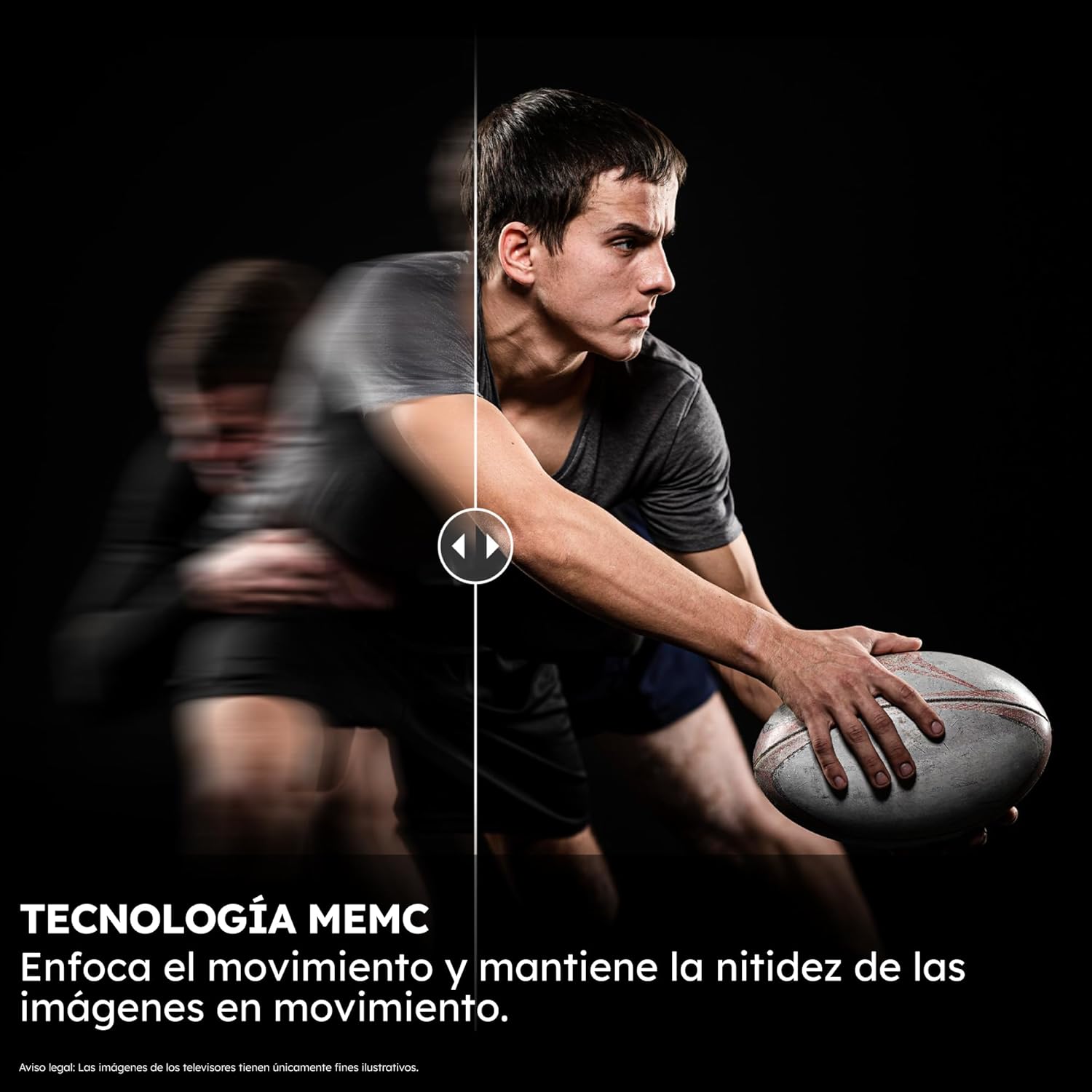
This image illustrates the effectiveness of MEMC (Motion Estimation, Motion Compensation) technology in maintaining image sharpness during fast-moving scenes.
4.6 Google nnyemaaka
Use the integrated Google Assistant for voice control. Simply press the Google Assistant button on your remote and speak commands to search for content, control smart home devices, or get information.
Image: Google Assistant

This image shows the Google Assistant in action, demonstrating how users can interact with the TV using voice commands for integrated control.
5. Nlekọta
5.1 Ihicha TV
Iji hichaa ihuenyo ahụ, jiri nwayọọ hichaa ya na akwa dị nro, kpọrọ nkụ, akwa enweghị lint. Maka akara isi ike, ntakịrị dampen the cloth with water or a screen-cleaning solution. Do not use harsh chemicals or abrasive materials. Clean the TV body with a soft, dry cloth.
5.2 Mmelite ngwanrọ
Your TV may receive automatic software updates via the internet. Ensure your TV is connected to the internet to receive the latest features and performance improvements. You can also manually check for updates in the TV's settings menu.
6. Nchọpụta nsogbu
Ọ bụrụ na ị zutere nsogbu na TV gị, rụtụ aka na usoro nchọpụta nsogbu ndị a na-emekarị:
| Nsogbu | Ngwọta enwere ike |
|---|---|
| Enweghị ike | Check if the power cable is securely connected to both the TV and the power outlet. Try a different outlet. |
| Enweghị foto, mana ụda dị ugbu a | Ensure the correct input source is selected. Check HDMI cable connections. |
| Enweghị ụda, mana Foto dị ugbu a | Check volume levels and mute settings. Ensure external audio devices are correctly connected and selected. |
| Njikwa Remote anaghị arụ ọrụ | Ensure the remote is charged (via solar or USB-C). Check for obstructions between the remote and TV. Re-pair the remote if necessary. |
| Okwu Njikọ netwọkụ | Restart your router. Check Wi-Fi password. Try a wired Ethernet connection. |
| Image Blur/Lag during Gaming | Ensure your game console is connected to an HDMI 2.1 port. Verify game settings and TV's gaming mode are enabled. |
For more detailed troubleshooting, please consult the full electronic user manual available through the TV's Google TV interface or the Haier support websaịtị.
7. Nkọwapụta
Key technical specifications for the Haier QLED 4K UHD H50Q80FUX 50-inch Smart TV:
- Nọmba nlereanya: H50Q80FUX
- Nha ihuenyo: 50 sentimita asatọ
- Ngosipụta teknụzụ: QLED 4K UHD
- Mkpebi: 3840 x 2160 pikselụ (4K)
- Ọnụego ume ọhụrụ: 60 Hz (Gaming 120Hz DLG ACCELERATOR for 2K)
- Teknụzụ ọdịyo: Dolby Atmos, DBX TV
- Platform Smart TV: Google TV with Google Assistant and Chromecast built-in
- Njikọta: 4 x HDMI 2.1, Bluetooth 5.1, Wi-Fi, Ethernet, USB
- Akụkụ (na-enweghị nkwụnye): 111.1 cm (W) x 65.2 cm (H) x 8.8 cm (D)
- Akụkụ (ya na nkwụnye): 111.1 cm (W) x 71.0 cm (H) x 27.7 cm (D)
- Arọ: 10 n'arọ
- Ndakọrịta nke Ugwu VESA: 300 x 300 mm
- Nchekwa ime: 2GB Ram + 32GB ROM
- Klas arụmọrụ ike (SDR): F
- Klas arụmọrụ ike (HDR): G
Image: Energy Label
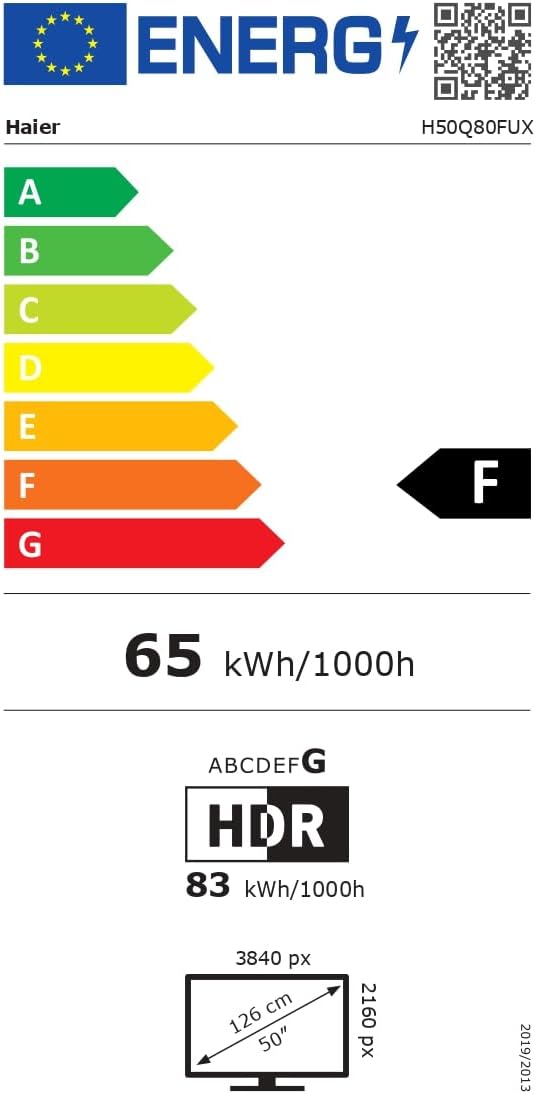
This image displays the official EU energy label, providing information on the TV's energy efficiency ratings and power consumption.
For detailed product information and the official product information sheet, please visit the EPREL database: https://eprel.ec.europa.eu/qr/2290964
8. Akwụkwọ ikike na nkwado
8.1 Ozi akwụkwọ ikike
Your Haier QLED 4K UHD H50Q80FUX Smart TV comes with a standard manufacturer's warranty. Please refer to the warranty card included in your product packaging or visit the official Haier website for specific terms and conditions applicable to your region.
8.2 Nkwado ndị ahịa
For technical assistance, troubleshooting, or service requests, please contact Haier Customer Support. You can find contact details and frequently asked questions on the official Haier websaịtị: https://www.haier-europe.com/


