1. Okwu mmalite
This manual provides detailed instructions for the Rapoo 9050S Multi-Device Keyboard and Mouse Combo. This wireless set offers versatile connectivity options (2.4GHz, Bluetooth 5.0/4.0) and supports up to four devices simultaneously, making it suitable for various operating systems including Windows, Mac, Linux, and Chrome. The keyboard features low-profile chiclet keys for a quiet typing experience, while the mouse offers adjustable DPI for precise control. Both devices are rechargeable and designed for efficient multi-tasking.

Image: The Rapoo 9050S keyboard and mouse combo displayed with a monitor, laptop, tablet, and smartphone, illustrating its multi-device and multi-OS compatibility.
2. Ihe ngwugwu
Chọpụta na ihe niile dị na ngwugwu gị:
- Rapoo 9050S Wireless Keyboard
- Rapoo 9050S Wireless Mouse
- USB Receiver (stored inside the mouse battery compartment)
- USB Charging Cable (USB-C for keyboard, Micro-USB for mouse)
- Ntuziaka mmalite ngwa ngwa (akwụkwọ a)
3. Nhazi
3.1. Nchaji mbụ
Before first use, ensure both the keyboard and mouse are fully charged. Connect the provided USB charging cable to the charging port on each device and to a USB power source (e.g., computer USB port, USB wall adapter).

Image: The Rapoo 9050S keyboard and mouse connected to a charging cable. The keyboard has a USB-C port, and the mouse has a micro-USB port. Both are shown with a charging cable plugged in.
3.2. Jikọọ ahụigodo
The keyboard supports connection via 2.4GHz wireless (USB receiver) or Bluetooth 5.0/4.0. It can connect to up to 4 devices.
3.2.1. 2.4GHz Wireless Connection (USB Receiver)
- Locate the USB receiver, typically stored in the mouse's battery compartment.
- Tinye eriri USB n'ọdụ ụgbọ mmiri dị na kọmputa gị.
- Turn on the keyboard. The keyboard should automatically connect.
3.2.2. Njikọ Bluetooth
- Gbanwuo ahụigodo.
- Press and hold one of the Bluetooth channel keys (F1, F2, F3, or F4) for 3 seconds until the indicator light blinks rapidly, indicating pairing mode.
- On your device (computer, tablet, phone), go to Bluetooth settings and search for "Rapoo 9050S Keyboard".
- Select the keyboard to pair. The indicator light will stop blinking once connected.

Image: Close-up of the Rapoo 9050S keyboard showing the F1-F4 keys with device indicators, used for switching between paired devices.
3.3. Ijikọ òké
The mouse supports connection via 2.4GHz wireless (USB receiver) or Bluetooth 5.0/4.0. It can connect to up to 2 devices.
3.3.1. 2.4GHz Wireless Connection (USB Receiver)
- Ensure the USB receiver is plugged into your computer.
- Turn on the mouse and switch it to 2.4GHz mode (indicated by a switch on the bottom). The mouse should automatically connect.
3.3.2. Njikọ Bluetooth
- Turn on the mouse and switch it to Bluetooth mode (indicated by a switch on the bottom).
- Press and hold the Bluetooth pairing button on the bottom of the mouse for 3 seconds until the indicator light blinks rapidly.
- On your device, go to Bluetooth settings and search for "Rapoo 9050S Mouse".
- Select the mouse to pair. The indicator light will stop blinking once connected.

Image: The underside of the Rapoo 9050S mouse, showing the power switch and the Bluetooth pairing button.
3.4. Multi-Device Pairing and Switching
The Rapoo 9050S combo allows seamless switching between multiple paired devices.
- Ahụigodo: Use the F1, F2, F3, F4 keys to switch between up to four paired devices. A short press will switch to the corresponding device.
- Òké: Use the switch on the bottom of the mouse to toggle between 2.4GHz (USB receiver) and Bluetooth connections.

Image: The Rapoo 9050S keyboard and mouse shown connected to a laptop and a tablet, illustrating multi-device functionality.
4. Ntuziaka ọrụ
4.1. Atụmatụ ahụigodo
- Dị ala-Profile Chiclet Keys: Emebere ya maka ide ihe dị mma ma dịkwa jụụ.
- Dual System Hotkeys: Supports Windows and Mac OS shortcuts for 12 widely used functions (e.g., play/pause, volume +/-). Use the Fn key in combination with the F-keys for these functions.
- Ọkụ egosi: The keyboard features indicator lights for device selection, capitalization (Caps Lock), and battery status.
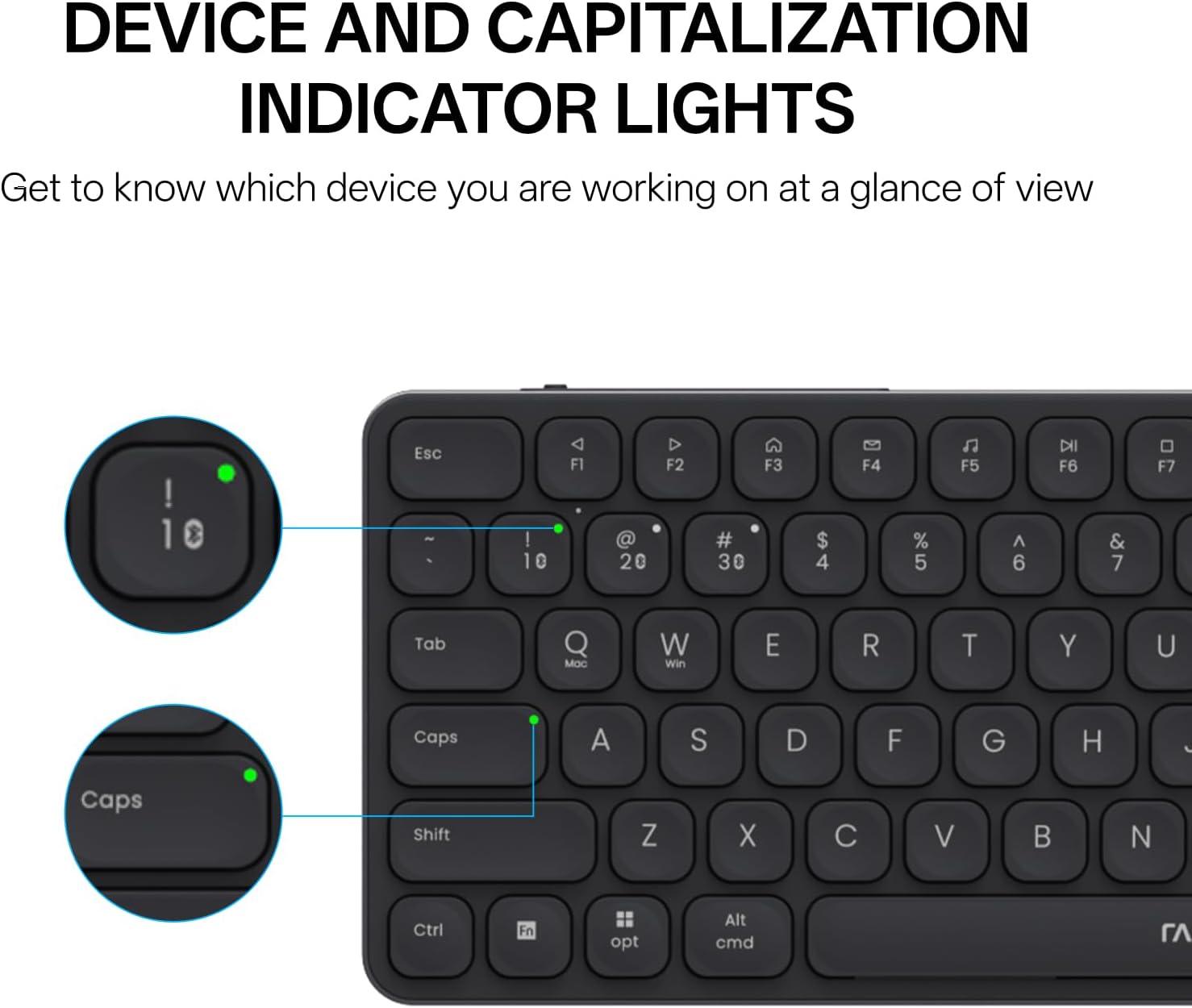
Image: Close-up of the Rapoo 9050S keyboard highlighting the device and capitalization indicator lights.

Image: The Rapoo 9050S keyboard illustrating the use of Fn key with F1-F12 for multimedia and system functions.
4.2. Atụmatụ òké
- Pịa jụụ: The mouse buttons are designed for quiet operation.
- DPI nwere ike imeghari: Cycle through 800/1000/1200/1600/2400 DPI resolutions using the DPI button, located near the scroll wheel, to adjust cursor speed and precision.

Image: A hand holding the Rapoo 9050S mouse, illustrating its ergonomic design and the location of the DPI switch button.
5. Nlekọta
- Nhicha: Use a soft, dry cloth to clean the keyboard and mouse. For stubborn dirt, a slightly damp a pụrụ iji ákwà mee ihe, na-eme ka mmiri ghara ịbanye na ngwaọrụ ahụ.
- Nlekọta batrị: To prolong battery life, avoid fully discharging the devices frequently. Charge them when the battery indicator shows low power.
- Nchekwa: When not in use for extended periods, turn off the devices to conserve battery. Store in a cool, dry place.
6. Nchọpụta nsogbu
6.1. Ngwaọrụ anaghị ejikọ
- Lelee Ike: Hụ na agbanyere ma ahụigodo na òké ma nwee ike ịnweta batrị zuru oke.
- Tinyegharịa ụzọ: For Bluetooth, try unpairing and re-pairing the device. For 2.4GHz, ensure the USB receiver is securely plugged in.
- Ụdị mgbanwe: Verify that the mouse is set to the correct connection mode (2.4GHz or Bluetooth) using the switch on its underside.
- Ntinye aka: Move closer to your device or away from potential sources of interference (e.g., other wireless devices, large metal objects).
6.2. Lag or Unresponsive Input
- Ọkwa batrị: Low battery can cause performance issues. Charge the devices.
- Ogologo: Ensure the devices are within the effective range of your computer (typically up to 10 meters for Bluetooth/2.4GHz).
- DPI Setting (Mouse): If the mouse cursor is too slow or fast, adjust the DPI setting.
7. Nkọwapụta
| Njirimara | Nkọwa |
|---|---|
| Nọmba nlereanya | 9050S |
| Njikọta | 2.4GHz Wireless, Bluetooth 5.0/4.0 |
| Nkwado ọtụtụ ngwaọrụ | Keyboard: Up to 4 devices; Mouse: Up to 2 devices |
| OS dakọtara | Windows, Mac, Linux, Chrome |
| Ụdị ahụigodo | Dị ala-profile Chiclet Scissor Keys |
| Igwe DPI | 800/1000/1200/1600/2400 adjustable |
| Batrị | Rechargeable (2 AAA batteries included) |
| Ibu Ibu | 1.32 pound |
| Akụkụ ngwugwu | 14.88 x 5.28 x 1.73 sentimita asatọ |
| Onye nrụpụta | Akụkọ ihe mere eme nke Shenzhen Rapoo Technology Co., Ltd. |
8. Akwụkwọ ikike na nkwado
Rapoo products are designed for reliability and performance. For warranty information, please refer to the warranty card included in your product packaging or visit the official Rapoo website. For technical support, troubleshooting assistance, or product inquiries, please contact Rapoo customer service through their official channels.
Ị nwere ike ịchọta ozi ndị ọzọ na nkwado na Ụlọ Ahịa Rapoo na Amazon.


