1. Ozi nchekwa
Read all safety information before using your device to ensure safe and proper use. Keep this manual for future reference.
- Do not use the device in environments with extreme temperatures.
- Avoid exposing the device to water or excessive moisture.
- Use only OPPO-approved chargers, batteries, and accessories.
- Anwala ịkwasa, rụkwaa ma ọ bụ gbanwee ngwaọrụ n'onwe gị.
- Maintain a safe distance from medical implants when using the device.
- Tụfuo ngwaọrụ na batrị ya nke ọma dịka iwu mpaghara siri dị.
2. Ihe ngwugwu
Verify that your product package contains the following items:
- OPPO Reno 14 F 5G CPH2743 Smartphone
- USB Type-C USB
- Ihe nkwụnye ọkụ
- Ngwaọrụ SIM Ejector
- Ntuziaka mmalite ngwa ngwa
- Safety Guide (this document)
- Ikpe Nchedo (nwere ike ịdị iche site na mpaghara)
3. Ngwaọrụ gafereview
Familiarize yourself with the physical features of your OPPO Reno 14 F 5G CPH2743.
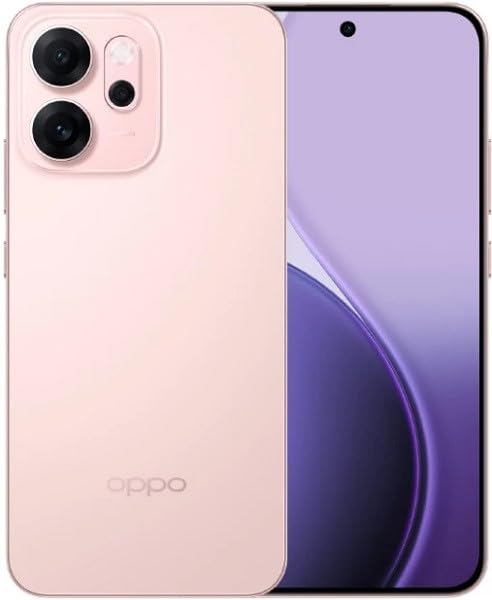
Ọgụgụ 3.1: N'ihu na azụ view of the OPPO Reno 14 F 5G CPH2743 smartphone. This image displays the device in its glossy pink finish, highlighting the screen, camera module, and side buttons.
- Igwefoto ihu: Located at the top of the display.
- Ihe nti: For calls, located above the display.
- Bọtịnụ olu: On the left side, for adjusting media and call volume.
- Bọtịnụ ike: On the right side, for turning the device on/off and locking/unlocking the screen.
- Mpempe kaadị SIM: Located on the side, requires the SIM ejector tool to open.
- Ọdụ ụgbọ mmiri Ụdị-C: N'okpuru, maka ịchaji na nnyefe data.
- Ọkà okwu: At the bottom, for audio output.
- Igwe okwu: At the bottom, for voice input.
- Modul igwefoto azụ: On the back, contains multiple lenses and flash.
4. Nhazi
4.1. Installing SIM Cards
- Chọta tray kaadị SIM n'akụkụ ngwaọrụ gị.
- Tinye ngwaọrụ SIM ejector n'ime obere oghere dị n'akụkụ tray ahụ wee pịa nke ọma ruo mgbe tray ahụ pụtara.
- Place your Nano-SIM cards into the designated slots on the tray, ensuring the gold contacts face down. This device supports Dual SIM functionality.
- Jiri nlezianya tinyegharịa traị ahụ n'ime ngwaọrụ ahụ ruo mgbe ọ pịrị na ya.
4.2. Ịgbanye / gbanyụọ
- Iji gbanye: Press and hold the Power button on the right side until the OPPO logo appears.
- Iji gbanyụọ: Press and hold the Power button, then tap "Power off" on the screen. Alternatively, swipe down from the top of the screen to open the notification panel, then tap the power icon and select "Power off".
- Ka Malitegharịa ekwentị: Press and hold the Power button, then tap "Restart" on the screen.
4.3. Nhazi mmalite
Upon first power-on, follow the on-screen prompts to set up your device:
- Họrọ asụsụ na mpaghara gị.
- Jikọọ na netwọk Wi-Fi.
- Review and accept the End User License Agreement.
- Jiri akaụntụ Google gị banye ma ọ bụ mepụta nke ọhụrụ.
- Set up screen lock (PIN, pattern, password, fingerprint, face unlock).
- Restore data from a previous device (optional).
- Configure other settings as prompted.
5. Ijikwa ngwaọrụ gị
5.1. Nsoro ụzọ
- Kpatụ: Touch the screen once to open an app, select an item, or press a button.
- Metụ ma jide: Pịa ma jide ihe iji nweta nhọrọ ndị ọzọ ma ọ bụ bugharịa ya.
- Mịpụta: Drag your finger across the screen to scroll, switch screens, or dismiss notifications.
- Tuo: Use two fingers to zoom in or out on photos, maps, or web ibe.
5.2. Ịkpọ oku
- Mepee Ekwentị ngwa.
- Kpatụ ya Ịkpọ oku akara ngosi.
- Enter the phone number or select a contact from your Ndi ana-akpo ndepụta.
- Kpatụ ya Kpọọ bọtịnụ ibido oku.
5.3. Izipu ozi
- Mepee Ozi ngwa.
- Kpatụ ya Malite nkata or Ozi ọhụrụ akara ngosi.
- Tinye nọmba ekwentị onye nnata ma ọ bụ họrọ na kọntaktị.
- Pịnye ozi gị na mpaghara ederede.
- Kpatụ ya Ziga bọtịnụ.
5.4. Njikọ Ịntanetị
- Wi-Fi: Gaa na Ntọala> Wi-Fi, turn Wi-Fi on, and select a network to connect.
- Data mkpanaka: Gaa na Settings > Mobile Network, and ensure "Mobile data" is enabled.
5.5. Ọrụ igwefoto
Mepee Igwefoto app to capture photos and videos.
- Kpatụ ya Ihe mkpuchi bọtịnụ ịse foto.
- Swipe left or right to switch between camera modes (e.g., Photo, Video, Portrait, Night).
- Kpatụ ya Gbanwee igwefoto akara ngosi iji gbanwee n'etiti igwefoto n'ihu na n'azụ.
5.6. Ngwa
- Wụnye ngwa: Jiri ihe Ụlọ ahịa Google Play to download and install new applications.
- Manage Apps: Gaa na Settings > Apps > App management ka view, uninstall, or force stop applications.
6. Nlekọta
6.1. Na-ehicha ngwaọrụ gị
- Jiri ákwà dị nro, nke na-enweghị lint hichaa ihuenyo na ahụ nke ngwaọrụ ahụ nke ọma.
- Zere iji kemịkalụ siri ike, ihe nhicha ihe na-emebi emebi, ma ọ bụ ikuku a na-eme ka ọ dị njọ.
- Ensure no liquid enters ports or openings.
6.2. Mmelite ngwanrọ
Regularly check for and install software updates to improve device performance, security, and introduce new features.
- Gaa na Ntọala > Gbasara ngwaọrụ > Emelitere (or similar path depending on ColorOS version).
- Follow the on-screen instructions to download and install any available updates. Ensure your device is sufficiently charged and connected to Wi-Fi before updating.
6.3. Nlekọta batrị
- Avoid fully discharging the battery frequently. Charge it before it drops too low.
- Do not expose the device to extreme heat or cold, as this can degrade battery life.
- Use the original charger and cable for optimal charging performance and safety.
- Ọ bụrụ na a gaghị eji ngwaọrụ ahụ ruo ogologo oge, chajie ya ruo ihe dịka 50% tupu echekwa ya.
7. Nchọpụta nsogbu
Nkebi a na-eleba anya na nsogbu ndị ị na-enwekarị na ngwaọrụ gị.
| Nsogbu | Ngwọta |
|---|---|
| Ngwaọrụ anaghị agbanwu. | Ensure the battery is charged. Connect the charger and wait a few minutes before attempting to power on. If unresponsive, perform a force restart by holding the Power button and Volume Up button simultaneously for about 10 seconds. |
| Enweghị ike ijikọ na Wi-Fi. | Check if Wi-Fi is enabled in Settings. Restart your router and the phone. Forget the network and try reconnecting. Ensure you are entering the correct password. |
| Mgbaàmà netwọk adịghị mma ma ọ bụ enweghị ọrụ. | Check if SIM cards are properly inserted. Try restarting the device. Ensure "Mobile data" is enabled in Settings. If the issue persists, contact your network provider. |
| Ngwa na-akụ ma ọ bụ na-ajụ oyi. | Clear the cache and data for the problematic app (Settings > Apps > App management > [App Name] > Storage usage). Update the app to the latest version. If the issue continues, uninstall and reinstall the app. |
| Batrị na-agbapụ ngwa ngwa. | Check battery usage in Settings to identify power-hungry apps. Reduce screen brightness, disable unnecessary features like GPS or Bluetooth when not in use. Close background apps. |
8. Nkọwapụta
Key technical specifications for the OPPO Reno 14 F 5G CPH2743.
| Njirimara | Nkọwa |
|---|---|
| Aha Nlereanya | Oppo Reno 14 F 5G CPH2743 |
| Ụdị | OPPO |
| Ike Nchekwa ebe nchekwa | 256 GB |
| Ogo etinyere ebe nchekwa RAM | 12 GB |
| Teknụzụ ekwentị | 5G |
| Teknụzụ Njikọta | 5G, 4G, 3G, 2G |
| SIM Card Slot Count | SIM abụọ |
| Ụdị Ihe | Slate |
| Agba | Pink |
9. Akwụkwọ ikike na nkwado
Your OPPO Reno 14 F 5G CPH2743 is covered by a limited warranty. The specific terms and conditions of the warranty may vary by region and retailer.
- Ozi akwụkwọ ikike: Refer to the warranty card included in your product package or visit the official OPPO websaịtị maka usoro nkwa zuru ezu.
- Nkwado ndị teknuzu: For technical assistance, troubleshooting beyond this manual, or service requests, please contact OPPO customer support. Contact details can typically be found on the official OPPO website or in the "Support" section of your device's settings.
- Akụrụngwa dị n'ịntanetị: Visit the official OPPO websaịtị (www.oppo.com) for FAQs, software downloads, and additional support resources.