1. Okwu mmalite
This manual provides essential information for using your Redmi 15 5G smartphone. Please read it carefully to ensure proper operation and to maximize the device's features. Keep this manual for future reference.

Foto: ihu na azụ view of the Redmi 15 5G smartphone.
2. Kedu ihe dị na Igbe ahụ
Chọpụta na ihe niile dị na ngwugwu ngwaahịa gị:
- Ekwentị Redmi 15 5G
- chaja
- eriri USB
- Ngwá Ọrụ Mwepu SIM
- Akwụkwọ ikike kaadị
- Ntuziaka onye ọrụ (akwụkwọ a)
- Okwu nchekwa
3. Ngwaọrụ gafereview
Familiarize yourself with the physical components of your Redmi 15 5G.
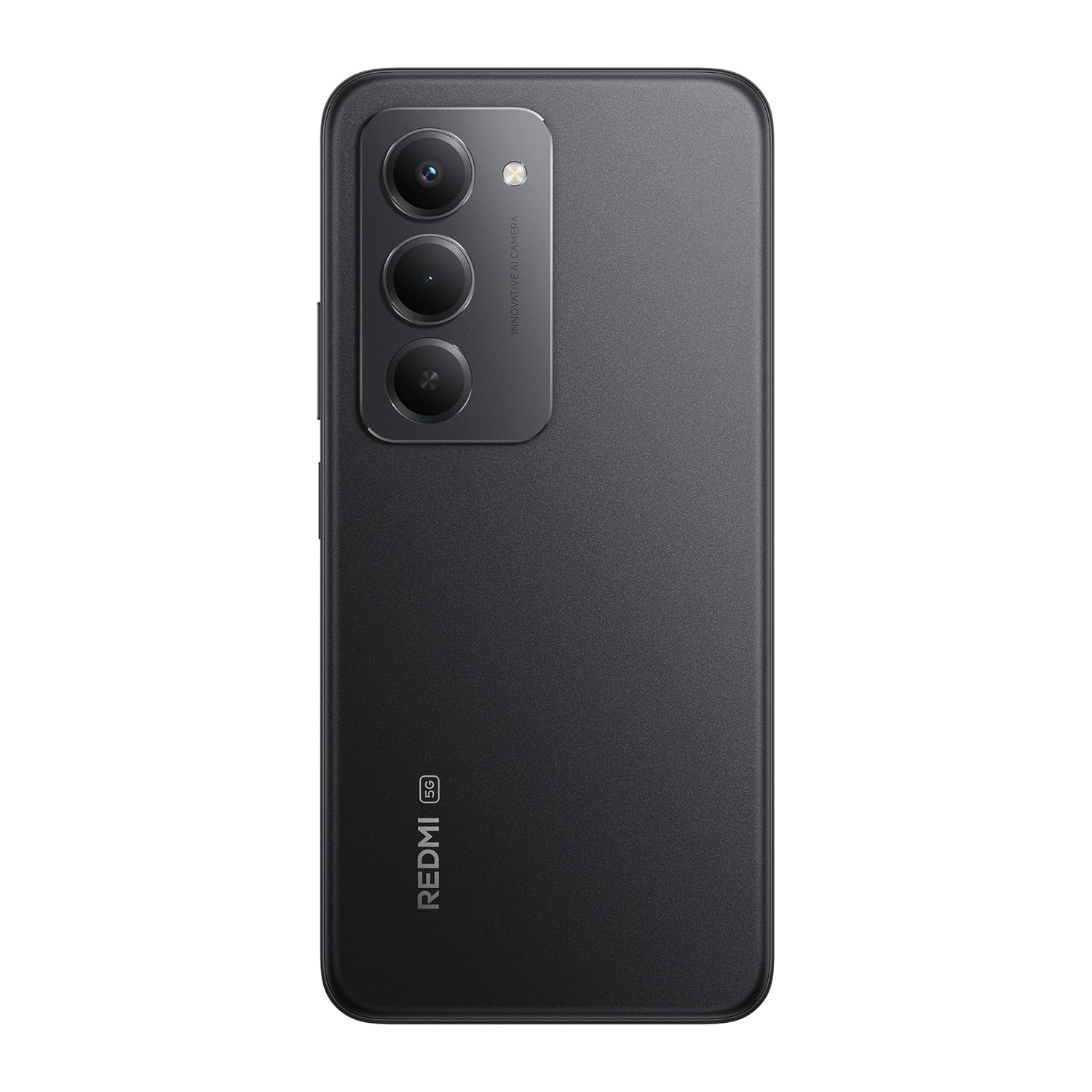
Foto: N'azụ view of the Redmi 15 5G, highlighting the camera array.

Foto: Akụkụ view of the Redmi 15 5G, illustrating button placement.
Akụkụ ndị bụ isi:
- Ngosipụta: 17.53cm (6.9") FHD+ display with up to 144Hz refresh rate.
- Ihe nhazi: Qualcomm Snapdragon 6s Gen 3.
- Igwefoto: 50MP AI Dual Camera system.
- Batrị: Massive 7000mAh battery with 33W charging and 18W reverse charging.
- Ogologo oge: IP64 uzuzu na mmiri na-eguzogide.
- Sistemụ nrụọrụ: Android 15 with Xiaomi HyperOS.
4. Nhazi
4.1. Inserting SIM/SD Card
- Chọta tray kaadị SIM n'akụkụ ngwaọrụ gị.
- Insert the SIM eject tool into the small hole next to the tray and press firmly until the tray pops out.
- Tinye kaadị Nano-SIM na/ma ọ bụ kaadị microSD gị n'ime oghere ndị ahọpụtara na tray. Gbaa mbọ hụ na kọntaktị ọla edo chere ihu ala.
- Jiri nlezianya tụgharịa traị ahụ azụ n'ime ngwaọrụ ahụ ruo mgbe ọ pịrị na ya.
4.2. Ike mbido na ịtọlite
- Press and hold the Power button (located on the side) until the Redmi logo appears.
- Soro ntuziaka na ihuenyo ka ịhọrọ asụsụ gị, mpaghara, jikọọ na Wi-Fi, wee guzobe akaụntụ Google gị.
- You will be guided through setting up security features like fingerprint unlock or facial recognition.
4.3. Ịchaji ngwaọrụ
Tupu ojiji mbụ, a na-atụ aro ka ị chajịa ngwaọrụ gị nke ọma.
- Jikọọ eriri USB na chaja.
- Tinye chaja n'ime oghere ọkụ.
- Connect the USB cable to the Type-C port at the bottom of your phone.
- Ihe ngosi nchaji ga-apụta na ihuenyo.

Image: Illustration of 18W reverse charging capability.
5. Ijikwa ngwaọrụ gị
5.1. Nsoro ụzọ
- Metụ: Kpatụ akara ka imepe ngwa ma ọ bụ họrọ otu ihe.
- Mịpụta: Mikpuo mkpịsị aka gị n'elu ihuenyo ahụ iji pịgharịa ma ọ bụ gaa n'etiti ihuenyo.
- Tuo: Jiri mkpịsị aka abụọ bugharịa ma ọ bụ pụta na foto na web ibe.
- Mmegharị ahụ: Configure navigation gestures in Settings for a full-screen experience.
5.2. Ịkpọ oku na izipu ozi
- Mepee Ekwentị ngwa iji kpọọ nọmba ma ọ bụ họrọ kọntaktị.
- Mepee Ozi ngwa iji dee ma ziga ozi ederede.
5.3. Ojiji igwefoto
The Redmi 15 5G features a 50MP AI Dual Camera.
- Mepee Igwefoto ngwa.
- Select your desired mode (Photo, Portrait, Video, etc.).
- Pịa bọtịnụ mkpọchi iji seta foto ma ọ bụ malite/kwụsị ndekọ vidiyo.
- Utilize AI features like AI Sky and AI Erase for enhanced photography.

Image: Close-up of the 50MP AI Dual Camera module.

Image: Demonstrating AI Sky and AI Erase camera capabilities.
5.4. Njikwa batrị
Your device is equipped with a 7000mAh battery.
- Iji lelee ọnọdụ batrị, gaa na Ntọala > Batrị.
- Enable Battery Saver mode to extend battery life.
- The device supports 33W fast charging and 18W reverse charging.

Image: Battery performance metrics for the 7000mAh battery.
5.5. Njikọta
- Wi-Fi: Jikọọ na netwọk ikuku site na Ntọala> Wi-Fi.
- Bluetooth: Jikọọ ya na ngwaọrụ Bluetooth ndị ọzọ site na Ntọala > Bluetooth.
- Data mkpanaka: Manage your cellular data connection via Ntọala > Netwọk mkpanaaka.
5.6. Software (Android 15 with Xiaomi HyperOS)
Your Redmi 15 5G runs on Android 15 with Xiaomi HyperOS, offering a customized user experience and regular security updates.

Image: Software update policy for Xiaomi HyperOS.
6. Nlekọta
6.1. Na-ehicha ngwaọrụ gị
- Jiri akwa dị nro na-enweghị lint hichaa ihuenyo na ahụ.
- Zere iji kemịkalụ siri ike ma ọ bụ ihe na-emebi emebi.
- Kwupu ngwaọrụ na ike tupu ihicha.
6.2. Mmelite ngwanrọ
Na-enyocha mgbe niile maka mmelite ngwanrọ iji hụ na arụmọrụ na nchekwa kacha mma.
- Gaa na Ntọala > Gbasara ekwentị > Ụdị MIUI.
- Kpatụ Lelee maka mmelite.
- Soro ntuziaka ndị dị na ihuenyo iji budata ma wụnye mmelite ọ bụla dị.
6.3. Nlekọta batrị
- Zere ikpughe ngwaọrụ na oke okpomọkụ.
- Ekwela ka batrị kpochapu kpamkpam ugboro ugboro.
- Use only the official charger and cable provided.
6.4. Dust and Water Resistance (IP64)
The Redmi 15 5G is rated IP64 for dust and water resistance. This means it is protected against dust ingress and splashing water from any direction. However, it is not designed for submersion in water. Avoid exposing the device to high-pressure water or prolonged submersion.

Image: Durability features including IP64 dust and water resistance.
7. Nchọpụta nsogbu
Ọ bụrụ na ị hụ nsogbu na ngwaọrụ gị, gbalịa ngwọta ndị a:
- Ngwaọrụ anaghị agbanwu: Gbaa mbọ hụ na agbagoro batrị. Jikọọ chaja wee chere nkeji ole na ole tupu ị nwaa ịgbanye ọzọ.
- Nsogbu ịchaji: Check if the charger and cable are properly connected. Try a different power outlet.
- Nsogbu netwọk: Ensure your SIM card is correctly inserted. Check network settings in Ntọala > Netwọk mkpanaaka. Restart the device.
- Ngwa anaghị aza: Force close the app from the recent apps screen or go to Settings > Apps > [App Name] > Force stop.
- Ịrụ ọrụ nwayọ: Clear cache, uninstall unused apps, or restart the device.
- Tọgharia Factory: Dị ka ebe ikpeazụ, ị nwere ike ịrụ nrụpụta nrụpụta (Ntọala > Gbasara ekwentị > Ntọgharị ụlọ ọrụ). Ịdọ Aka Na Ntị: Nke a ga-ehichapụ data niile dị na ngwaọrụ gị. Kwadobe data dị mkpa tupu ị gaa n'ihu.
8. Nkọwapụta
| Njirimara | Nkọwapụta |
|---|---|
| Sistemụ nrụọrụ | Android 15, Xiaomi HyperOS |
| RAM | 6 GB |
| Akụkụ ngwaahịa | 16.8 x 0.8 x 8 cm |
| Nọmba Nlereanya ihe | 25057RN09I |
| Teknụzụ Njikọta | Bluetooth, USB, Wi-Fi |
| Atụmatụ pụrụ iche | Dust resistance, Water resistance (IP64) |
| Ngosipụta mkpebi | 1080 x 2340 pikselụ |
| Jack ọdịyo | Ụdị C |
| Agba | etiti abalị Black |
| Ogo ike batrị | 7000 mAh |
| Ibu Ibu | 217 g |
| Ọsọ CPU | Ruo 2.3 GHz |
9. Akwụkwọ ikike na nkwado
9.1. Akwụkwọ ikike Ozi
Your Redmi 15 5G comes with a limited manufacturer's warranty. Please refer to the Akwụkwọ ikike kaadị included in your product package for detailed terms and conditions, including coverage period and service procedures.
9.2. Nkwado ndị ahịa
For further assistance, technical support, or service inquiries, please visit the official Redmi support website or contact their customer service. Contact details can typically be found on the warranty card or the official Redmi websaịtị.


