Okwu mmalite
Daalụ maka ịzụrụasing the Matbip Multi-Platform Wireless Gaming Controller. This controller is designed to enhance your gaming experience across various platforms, including Nintendo Switch, Android, iOS, and PC. It features advanced functions such as TURBO burst, macro programming, customizable RGB lighting, and HD vibration, providing precise control and immersive feedback. Please read this manual carefully before use to ensure proper operation and to fully utilize all features.
Ngwaahịa gafereview
Familiarize yourself with the various components and buttons of your Matbip controller.
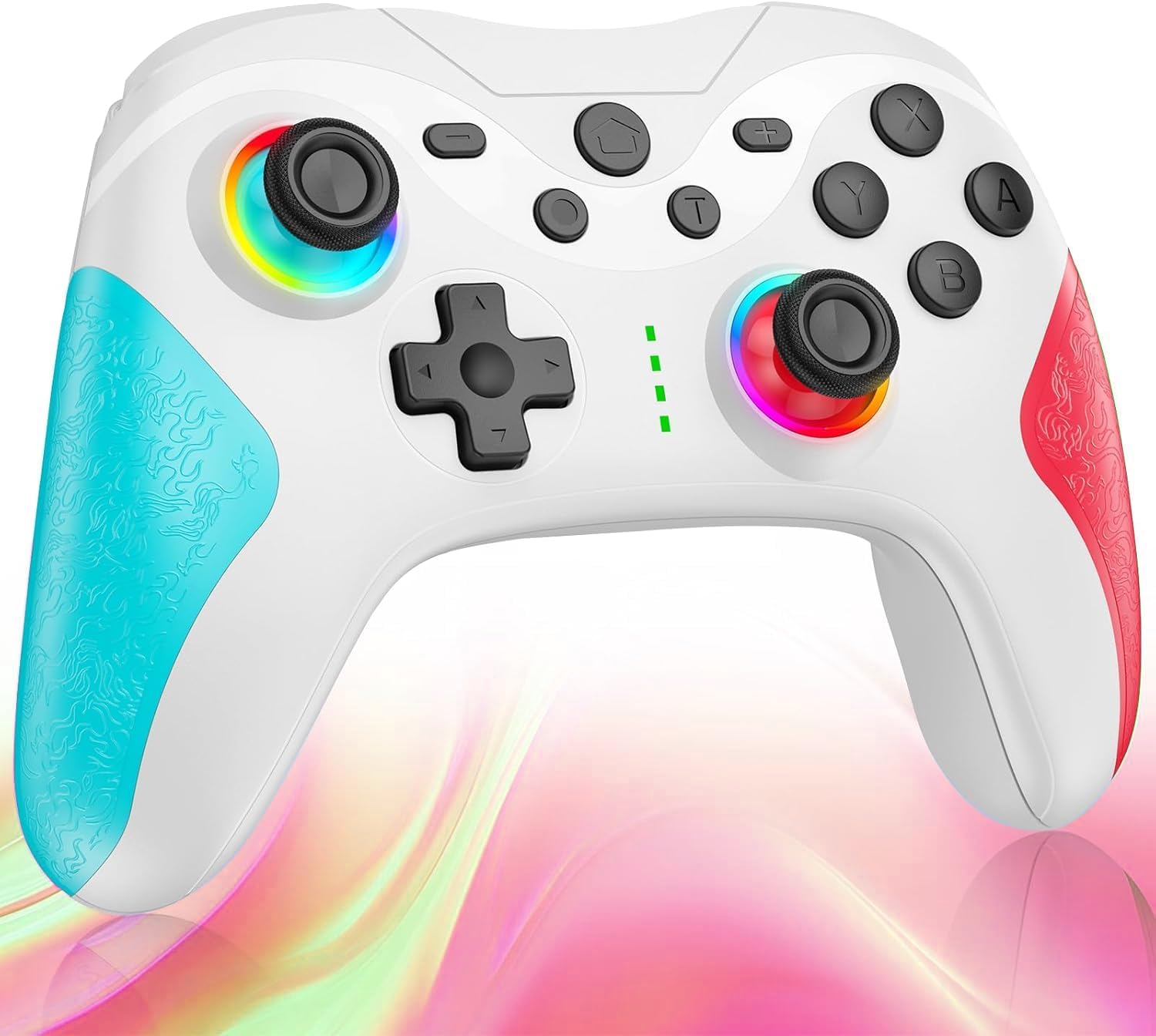
Foto: N'ihu view of the Matbip Multi-Platform Wireless Gaming Controller. It features a white body with blue textured grips on the left and red textured grips on the right. The joysticks are illuminated with a rainbow RGB light. Standard buttons (A, B, X, Y), a D-pad, and central function buttons (Home, Plus, Minus, T) are visible.
Isi ihe:
- Joysticks aka ekpe/aka nri: For directional control, with customizable RGB lighting.
- D-Pad: For precise directional input.
- Bọtịnụ ihe omume (A/B/X/Y): Standard gaming input buttons.
- Shoulder Buttons (L/R/ZL/ZR): Top-mounted trigger and bumper buttons.
- Back Buttons: Additional programmable buttons on the rear for strategic gameplay.
- Bọtịnụ ụlọ: Na-alaghachi na ihuenyo mbụ nke sistemụ ahụ.
- Bọtịnụ tinyere (+) / Mbelata (-): System-specific function buttons.
- T Button (TURBO): Activates and manages the TURBO burst function.
- Nchaji ọdụ ụgbọ mmiri: ọdụ ụgbọ USB-C maka ịchaji.
- Ọkụ egosi: Display connection status and battery level.
Melite
1. Ịchaji njikwa
Before first use, fully charge the controller. Connect the provided USB-C cable to the controller's charging port and the other end to a USB power source (e.g., console, PC, or USB wall adapter). The indicator lights will show charging status and turn off when fully charged.
2. Ijikọta na ngwaọrụ
The controller supports Bluetooth wireless connection across multiple platforms.
Maka Nintendo Switch:
- On the Switch HOME Menu, select Ndị njikwa > Gbanwee njide/usoro.
- Pịa ma jide Bọtịnụ ụlọ on the Matbip controller for 3-5 seconds until the indicator lights flash rapidly.
- Once paired, the indicator light(s) on the controller will remain solid.
For Android/iOS Devices:
- Kwado Bluetooth na ngwaọrụ gam akporo ma ọ bụ iOS gị.
- Pịa ma jide Bọtịnụ ụlọ on the Matbip controller for 3-5 seconds until the indicator lights flash rapidly.
- On your device's Bluetooth settings, select the controller (e.g., "Matbip Controller") from the list of available devices to pair.
Maka PC (Windows):
- Ensure your PC has Bluetooth enabled. Go to Ntọala > Ngwaọrụ > Bluetooth na ngwaọrụ ndị ọzọ.
- Pịa Tinye Bluetooth ma ọ bụ ngwaọrụ ọzọ > Bluetooth.
- Pịa ma jide Bọtịnụ ụlọ on the Matbip controller for 3-5 seconds until the indicator lights flash rapidly.
- Select the controller from the list of devices to pair.
Ntuziaka ọrụ
TURBO Burst Function:
The TURBO function allows for rapid, automatic button presses, ideal for combat games.
- Iji mee ka TURBO rụọ ọrụ: Pịa ma jide T bọtịnụ, then press the desired action button (e.g., A, B, X, Y, L, R, ZL, ZR). The button will now continuously activate when held down.
- Ka ịgbanwee ọsọ TURBO: Mgbe ị na-ejide T bọtịnụ, bugharịa ihe right joystick up or down to cycle through 3 different burst speeds.
- Iji gbanyụọ TURBO: Pịa ma jide T bọtịnụ, then press the same action button again.
Ọrụ Macro:
Program a sequence of button presses to a single back button for complex actions.
- Specific instructions for macro programming will be detailed in the full manual. Generally, this involves entering a programming mode, pressing the sequence, and assigning it to a back button.
Ọkụ RGB nwere ike ịhazi ya:
The joysticks feature 9-color RGB lighting to enhance your gaming atmosphere.
- To change RGB color/mode: Press a specific button combination (e.g., T + Left Joystick click) to cycle through different colors and lighting effects.
HD Vibration Adjustment:
Adjust the intensity of the HD vibration feedback to your preference (4 levels).
- To adjust vibration: Press a specific button combination (e.g., T + D-Pad Up/Down) to cycle through the 4 vibration levels.
Ihe mmetụta Gyro:
The high-precision gyro sensor enables intuitive motion control in supported games.
- The gyro sensor is automatically active when connected to a compatible device (e.g., Nintendo Switch) and used in games that support motion controls.
Sleep Wake-up Function:
The controller supports waking up your Nintendo Switch console from sleep mode.
- When the Switch is in sleep mode, simply press the Bọtịnụ ụlọ on the controller to wake it up and reconnect.
Nlekọta
Proper maintenance ensures the longevity and optimal performance of your controller.
- Nhicha: Jiri akwa dị nro, kpọrọ nkụ hichaa njikwa. Maka unyi isi ike, ntakịrị dampen akwa na mmiri. Ejila kemịkalụ siri ike ma ọ bụ ihe mkpocha abrasive.
- Nchekwa: Debe ihe njikwa ahụ n'ebe dị jụụ ma kpọọ nkụ, ebe anwụ na-anaghị apụta kpọmkwem, oke okpomọkụ, na iru mmiri.
- Nlekọta batrị: Avoid fully discharging the battery frequently. If storing for a long period, charge the controller to about 50% every few months.
- Zere mbelata: Chebe onye njikwa ka ọ ghara ịdaba na mmetụta, nke nwere ike imebi ihe ndị dị n'ime.
Nchọpụta nsogbu
If you encounter issues with your controller, please refer to the following common solutions:
| Nsogbu | Ngwọta enwere ike |
|---|---|
| Onye njikwa anaghị agbanwu. | Hụ na e nwere chajị na njikwa ahụ. Jiri eriri USB-C jikọọ ya na isi iyi ike. |
| Controller does not pair. | Ensure Bluetooth is enabled on your device. Make sure the controller is in pairing mode (flashing lights). Try restarting both the controller and the device. |
| Mbelata ma ọ bụ nkwụsị ntinye. | Ensure there are no strong wireless interferences nearby. Move closer to the device. Re-pair the controller. |
| Bọtịnụ ma ọ bụ joystick anaghị anabata. | Try resetting the controller (refer to the full manual for reset instructions, usually a small pinhole button). Ensure no debris is obstructing the buttons. |
| Vibration not working. | Check if vibration is enabled in the game or system settings. Adjust the vibration intensity on the controller. |
Nkọwapụta
| Njirimara | Nkọwa |
|---|---|
| Akụkụ ngwaahịa | 10 x 15 x 6.5 cm |
| Ibu | 300 g |
| Njikọta | Ikuku Bluetooth |
| Ndakọrịta | Nintendo Switch, Android, iOS, PC (Windows) |
| Atụmatụ pụrụ iche | TURBO Burst, Macro Function, 9-Color RGB Lighting, 4-Level HD Vibration, Gyro Sensor, Back Buttons, Sleep Wake-up |
| ASIN | B0FHWRK7CQ |
| Ụbọchị mwepụta | Julaị 16, 2025 |
Akwụkwọ ikike na nkwado
Matbip is committed to providing high-quality products and customer satisfaction. This product comes with a standard manufacturer's warranty. For detailed warranty information, please refer to the documentation included with your purchase or contact Matbip customer support.
If you require further assistance, have questions, or encounter issues not covered in this manual, please contact our customer support team. A Japanese instruction manual is included with the product to ensure ease of use for first-time users.
Ozi mkpọtụrụ: Please refer to the packaging or the official Matbip websaịtị maka nkọwa kọntaktị kachasị ọhụrụ maka nkwado ndị ahịa.


