1. Okwu mmalite
This manual provides detailed instructions for setting up and operating your TP-Link BE3200 Wi-Fi 7 Range Extender (Model RE223BE). This device is designed to extend your existing Wi-Fi network, eliminating dead zones and providing enhanced wireless coverage throughout your home.
2. Ihe ngwugwu
- 1 x RE223BE Wi-Fi 7 Range Extender
- 1 x Ntuziaka nwụnye ngwa ngwa
3. Atụmatụ igodo
- Next-Gen Wi-Fi 7 Performance: Supports Multi-Link Operation (MLO), Multi-RUs, 160 MHz bandwidth, and 4K-QAM when paired with a compatible Wi-Fi 7 router.
- Dual-Band Wi-Fi 7 Speeds: Offers up to 2594 Mbps on the 5 GHz band and up to 688 Mbps on the 2.4 GHz band for a total bandwidth of 3.2 Gbps.
- Mkpuchi kachasị: Four antennas with Beamforming technology extend Wi-Fi coverage up to 2400 sq.ft, supporting up to 64 devices.
- Ndakọrịta EasyMesh: Seamlessly integrates with EasyMesh-compatible routers for a unified whole-home mesh network.
- Gigabit Ethernet Port: Provides a 1 Gbps wired connection for devices like smart TVs, PCs, and gaming consoles.
- Ịgbagharị Smart Adaptive: Automatically connects devices to the strongest signal for uninterrupted coverage.
- Nhazi na njikwa dị mfe: Configure and manage your network using the TP-Link Tether app, including a smart signal indicator for optimal placement.
- Nchekwa: Features WPA3, two-factor authentication (2FA), and IP/MAC address filtering.
- Note: This model operates on 2.4 GHz and 5 GHz bands and does not support the 6 GHz band. Wireless extenders improve coverage, not necessarily raw speed, though signal reliability can enhance throughput.
4. Ntuziaka Nhazi
Follow these steps to set up your TP-Link RE223BE Range Extender.
Nzọụkwụ 1: Gbanyụọ
Plug the extender into a power outlet near your main router. Wait approximately one minute for the device to boot up. The power LED will turn solid blue when ready.
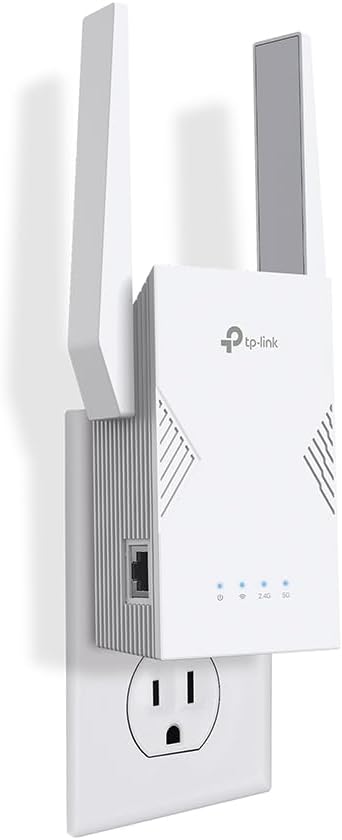
The TP-Link RE223BE Wi-Fi 7 Range Extender, a white rectangular device with two adjustable antennas, plugged into a standard wall outlet.
Step 2: Download the Tether App
Download the free TP-Link Tether app from your device's app store (available on Google Play and Apple App Store). If you do not have a TP-Link account, you can create one within the app.
Nzọụkwụ 3: Tinye Ngwaọrụ
Open the Tether app. Tap "Add Device" and select "Add a Range Extender". Follow the on-screen prompts.
The app will guide you to connect your phone to the extender's temporary Wi-Fi network (e.g., "TP-Link_Extender").
Step 4: Select Network to Extend
Choose the 5 GHz and/or 2.4 GHz wireless network(s) from your main router that you wish to extend. Enter the Wi-Fi password for your main network.
Step 5: Apply Settings
The app will apply your settings. This process may take a minute or two.
Step 6: Confirm Location (Relocation)
Once setup is complete, you can relocate the extender to an optimal position. Plug the extender into an outlet about halfway between your router and the Wi-Fi dead zone. The location must be within the range of your router. Wait about 2 minutes until the Signal LED matches the picture in the app for a strong signal. If the signal is weak, move the extender closer to the router.
This video demonstrates the setup process for a TP-Link Wi-Fi 7 Range Extender, including initial power-on, using the Tether app, and connecting to your existing Wi-Fi network. It also covers enabling EasyMesh if your router supports it.
5. Ụdị arụ ọrụ
Ọnọdụ Extender Range
In Range Extender Mode, the RE223BE wirelessly connects to your existing router and extends its Wi-Fi signal. You can also plug devices like PCs, smart TVs, or game consoles into the 1 Gbps Ethernet port for a stable wired connection.
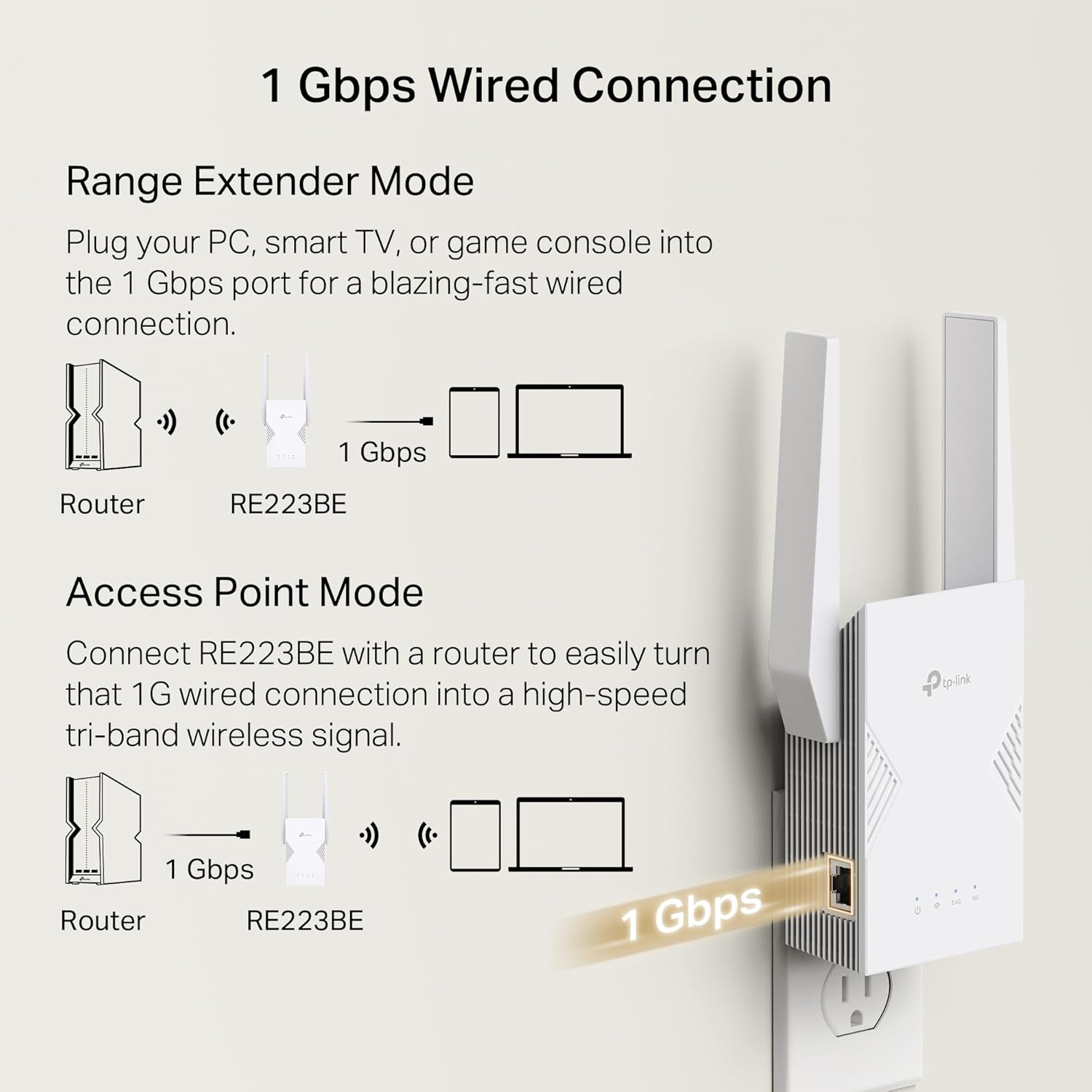
Diagram illustrating the RE223BE in Range Extender Mode, wirelessly extending the router's signal and providing a wired connection via its Ethernet port.
Ọnọdụ Access Point
The RE223BE can also function as an Access Point. Connect the RE223BE to your router via an Ethernet cable to transform your wired connection into a high-speed wireless signal.

Diagram illustrating the RE223BE configured as an Access Point, connected directly to the router via an Ethernet cable to create a new wireless network.
6. EasyMesh Integration
The RE223BE supports EasyMesh, allowing it to seamlessly integrate with any EasyMesh-compatible router to create a unified mesh Wi-Fi network. This eliminates the need for separate Wi-Fi network names and ensures your devices automatically connect to the strongest signal as you move around your home.
Enabling EasyMesh
To enable EasyMesh, navigate to the "More" section in the Tether app and select "EasyMesh". Toggle the EasyMesh option to "On" and follow the prompts to "Join Mesh Network". You may need to press the WPS button on both the extender and your main router within two minutes.
Note: EasyMesh functionality requires your main router to be EasyMesh-compatible. If your router does not support EasyMesh, this feature may not work or may require a firmware update for your router.
7. Arụmọrụ agwụlaview
The TP-Link BE3200 Wi-Fi 7 Range Extender is designed to deliver robust performance. When connected, users can expect significant improvements in Wi-Fi coverage and signal strength. Actual speeds will depend on your internet service provider, network conditions, and client device capabilities.
A demonstration of the TP-Link Wi-Fi 7 Range Extender's performance, showing download and upload speeds achieved through the extended network.
8. Nka na ụzụ nkọwa
| Njirimara | Nkọwapụta |
|---|---|
| Ụdị ikuku | 802.11.be, 802.11a/b/g/n/ac, 802.11ax |
| Ụdị | TP-njikọ |
| Ibu Ibu | 9.9 ounces |
| Akụkụ ngwugwu | 7.95 x 5.08 x 3.9 sentimita asatọ |
| Agba | Ọcha |
| Onye nrụpụta | TP-njikọ |
| ASIN | B0FH4MBRTK |
| Ụbọchị mbụ dị | Julaị 25, 2025 |
| Ahịa Reviews | 4.3 n'ime kpakpando ise (5 gosiri) |
| Ndị na-ere ahịa kacha mma | #14 in Repeaters |
| Ikuku Communication Standard | 802.11.be, 802.11a/b/g/n/ac, 802.11ax |
| Ọnụego mbufe data | 3200 Megabits kwa nkeji |
| Klaasị ugboro ugboro | Abụọ-Band |
| Njirimara Pụrụ Iche | Access Point Mode, Guest Mode, LED Indicator, MU-MIMO (Download/ Upload) |
9. Nchọpụta nsogbu
No Device Found in Tether App
- Ensure the extender is plugged in and the power LED is solid blue.
- Make sure your phone is connected to the extender's temporary Wi-Fi network (e.g., "TP-Link_Extender").
- Turn off data traffic and VPN services on your phone/tablet, then try again.
- Malitegharịa ngwaọrụ ahụ wee nwaa ọzọ.
EasyMesh Connection Issues
- Verify that your main router supports EasyMesh and has EasyMesh enabled.
- Ensure you press the WPS button on both the extender and the main router within the specified timeframe (usually 2 minutes).
- Plug the extender closer to the main router (preferably within 10 feet/3 meters) during the EasyMesh setup process.
- Check for firmware updates for both your router and the extender, as EasyMesh compatibility may be added or improved with updates.
10. Ozi dị mkpa
Nkwụghachi n'iwu
The maximum wireless signal rates are the physical rates derived from IEEE Standard 802.11 specifications. Higher capacity is based on laboratory test data, which analyzed the connections of different devices on the 5 GHz and 2.4 GHz bands simultaneously. These devices simulated a typical home scenario by running simultaneous applications in the same room that included 4K video, 1080p video, 720p video, file nbudata, web browsing, IP cameras, and other IoT devices. Actual wireless data throughput, wireless coverage, and connected devices are not guaranteed and will vary as a result of internet service provider factors, network conditions, client limitations, and environmental factors, including building materials, obstacles, volume and density of traffic, and client location. The product may not be compatible with routers or gateways with firmware that has been altered, is based on open source programs, or is non-standard or outdated. Uninterrupted Streaming is designed for devices that support the 802.11k/v standard. Use of Wi-Fi 7 (802.11be), Wi-Fi 6 (802.11ax), and features including Multi-Link Operation (MLO), 320 MHz Bandwidth, 4K-QAM, Multi-RU, OFDMA, and MU-MIMO requires clients to also support the corresponding features. The 320 MHz bandwidth is only available on the 6 GHz band. Simultaneously, the 320 MHz bandwidth on the 6 GHz band and 160 MHz bandwidth on the 5 GHz band may be unavailable in some regions/countries due to regulatory restrictions. Double channel width and speed refer to 320 MHz compared to 160 MHz for Wi-Fi 6 range extenders. TP-Link EasyMesh-compatible products can network with other devices that use EasyMesh. Failed connections may be due to firmware conflicts of different vendors. The EasyMesh-compatible function is still being developed on some models and will be supported in subsequent software updates. This product is compatible with standardized EasyMesh technology but has not obtained the Wi-Fi EasyMeshTM certification. Saving clients' battery power requires clients to also support the 802.11ax Wi-Fi standard. Actual power reduction may vary as a result of network conditions, client limitations, and environmental factors. Wi-Fi generations represent the wireless standard IEEE 802.11 a/b/g/n/ac/ax/be. All devices need to support 802.11 Wi-Fi protocols. Actual network speed may be limited by the rate of the product's Ethernet WAN or LAN port, the rate supported by the network cable, Internet service provider factors and other environmental conditions.


