1. Okwu mmalite
This manual provides comprehensive instructions for the Nokia G310 5G TA-1573 smartphone. It covers essential information for setup, operation, maintenance, and troubleshooting to ensure optimal use of your device. The Nokia G310 5G TA-1573 features a 6.6-inch HD+ 90 Hz IPS LCD display, a Snapdragon 480+ octa-core processor, 4 GB of RAM, and 5G connectivity, running on Android 13.
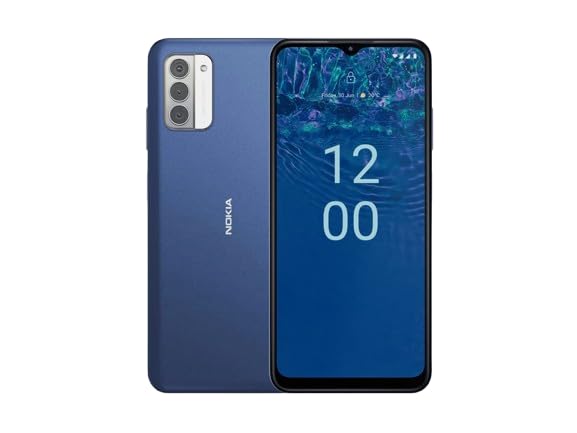
Foto 1.1: Nokia G310 5G TA-1573 Smartphone. This image displays the front view of the Nokia G310 5G smartphone, highlighting its display and general form factor.
2. Kedu ihe dị na Igbe ahụ
Upon unboxing your Nokia G310 5G TA-1573, please verify that all the following items are included:
- Nokia G310 5G TA-1573 Smartphone
- USB-C USB
- Ngwaọrụ SIM Ejector
3. Nhazi
3.1. Ịchaji ngwaọrụ
Before initial use, fully charge your Nokia G310 5G. Connect the provided USB-C cable to the phone's USB-C port and the other end to a compatible power adapter (sold separately) or a computer's USB port. The battery indicator on the screen will show charging progress.
3.2. Ịtinye kaadị SIM
- Chọta tray kaadị SIM n'akụkụ ekwentị gị.
- Tinye ngwaọrụ SIM ejector n'ime obere oghere dị na tray ahụ iji mepee ya.
- Place your Nano-SIM card into the tray with the gold contacts facing down, ensuring it fits securely.
- Jiri nlezianya tụgharịa traị ahụ azụ n'ime ekwentị ruo mgbe ọ batara n'ime ya.
3.3. Na-agbanye ọkụ na nhazi mbụ
- Press and hold the Power button (usually on the right side) until the Nokia logo appears.
- Soro mkpali na ihuenyo ka ịhọrọ asụsụ gị, jikọọ na netwọk Wi-Fi, wee guzobe akaụntụ Google gị.
- Mezue ọkachamara ntọala iji hazie ntọala ngwaọrụ gị.
4. Ijikwa ngwaọrụ gị
4.1. Nsoro ụzọ
- Mmegharị ihuenyo mmetụ: Pịa ka ịhọrọ, pia ka ịpịgharịa, tuo ka mbugharị.
- Ihuenyo ụlọ: Nweta ngwa, wijetị, na ọkwa.
- Ogwe igodo: Jiri bọtịnụ azụ, ụlọ na ngwa ọhụrụ dị na ala ihuenyo ahụ.
4.2. Ịkpọ oku na izipu ozi
- Mepee Ekwentị ngwa iji kpọọ nọmba ma ọ bụ họrọ kọntaktị.
- Mepee Ozi ngwa iji dee ma ziga ozi ederede.
4.3. Ijikọ na Netwọk
- Wi-Fi: Gaa na Ntọala> Netwọk & ịntanetị> Ịntanetị iji jikọọ na netwọk Wi-Fi dị.
- Bluetooth: Gaa na Ntọala > Ngwaọrụ ejikọrọ > Mmasị njikọ > Bluetooth ijikọ na ngwaọrụ Bluetooth.
- Data mkpanaka: Hụ na enyere data mkpanaka aka na Ntọala> Netwọk & ịntanetị> SIM for internet access via your cellular network.
4.4. Iji igwefoto
Mepee Igwefoto app to capture photos and videos. Tap the shutter button to take a picture or hold it to record a video. Explore different modes and settings within the app.
5. Nlekọta
5.1. Na-ehicha ngwaọrụ gị
Use a soft, lint-free cloth to clean the screen and body of your phone. Avoid using harsh chemicals or abrasive materials, which can damage the device's finish or screen coating.
5.2. Nlekọta batrị
- Zere ikpughe ekwentị na oke okpomọkụ.
- Do not let the battery drain completely regularly.
- Jiri naanị chaja na eriri akwadoro.
5.3. Mmelite ngwanrọ
Lelee ma wụnye mmelite ngwanrọ mgbe niile iji hụ na ngwaọrụ gị nwere njirimara kachasị ọhụrụ, patches nche na nkwalite arụmọrụ. Gaa na Ntọala> Sistemu> Mmelite sistemụ.
5.4. Njikwa nchekwa
To optimize performance, regularly clear unnecessary files, wepụ ngwa ndị a na-ejighị, ma bugharịa nnukwu mgbasa ozi files to cloud storage or an external device. Check storage usage in Ntọala > Nchekwa.
6. Nchọpụta nsogbu
6.1. Ngwaọrụ anaghị agbanye
Ensure the battery is charged. Connect the phone to a charger and wait a few minutes before attempting to power it on again. If it still doesn't turn on, try holding the Power button for 10-15 seconds.
6.2. Okwu Njikọta netwọkụ
- Enweghị akara: Check if your SIM card is properly inserted. Try restarting the phone.
- Wi-Fi anaghị ejikọta: Ensure the Wi-Fi password is correct. Restart your router and phone.
- Okwu njikọta Bluetooth: Hụ na ngwaọrụ abụọ ahụ nọ n'ọnọdụ njikọta na n'ime oke.
6.3. Ngwa na-emebi ma ọ bụ na-ajụ oyi
Try force-closing the app (Settings > Apps > See all apps > [App Name] > Force stop). Clear the app's cache and data (Settings > Apps > See all apps > [App Name] > Storage & cache > Clear cache / Clear storage). If the issue persists, uninstall and reinstall the app.
6.4. Ntọgharị ụlọ nrụpụta
As a last resort, if software issues persist, you may perform a factory reset. Warning: This will erase all data on your phone. Kwado data dị mkpa tupu ịga n'ihu. Gaa na Ntọala> Sistemu> Nhọrọ Tọgharia> Hichapụ data niile (ntọgharị ụlọ ọrụ).
7. Nkọwapụta
| Njirimara | Nkọwa |
|---|---|
| Aha Nlereanya | Nokia G310 5G TA-1573 |
| Sistemụ nrụọrụ | Android 13.0 |
| Ngosipụta nha | 6.6 sentimita asatọ |
| Mkpebi | 720 x 1560 pikselụ |
| Ọnụego ume ọhụrụ | 90 Hz |
| Ụdị CPU | Qualcomm Snapdragon MSM8260A (Snapdragon 480+ equivalent) |
| Ọsọ CPU | 2 GHz |
| Ogo etinyere ebe nchekwa RAM | 4 GB |
| Ike Nchekwa ebe nchekwa | 128GB (N'ime) |
| Teknụzụ Njikọta | 5G |
| Ogo ike batrị | 3600 ndeamp Awa (Lithium Ion) |
| Jack ọdịyo | USB-C |
| Ibu Ibu | 6.9 ounces |
| Agba | Acha anụnụ anụnụ |
8. Akwụkwọ ikike na nkwado
8.1. Akwụkwọ ikike Ozi
For specific warranty details regarding your Nokia G310 5G TA-1573, please refer to the documentation provided by the seller at the time of purchase. As this is a renewed product, warranty terms may differ from new devices. It is recommended to contact the seller directly for precise warranty coverage and duration.
8.2. Nkwado nka na ụzụ
If you encounter issues that cannot be resolved using the troubleshooting steps in this manual, please contact:
- The seller from whom you purchased the device.
- Nokia's official support channels for general product inquiries.
Please have your device model number (TA-1573) and proof of purchase ready when contacting support.


