1. Okwu mmalite
Daalụ maka ịzụrụasing the EasySMX D10 Wireless PC Controller. This manual provides detailed instructions on how to set up, operate, and maintain your controller. Please read this manual carefully before use to ensure optimal performance and a seamless gaming experience across various platforms including PC, Nintendo Switch, Android, and iOS devices.
2. Ihe ngwugwu
Biko lelee ọdịnaya nke ngwugwu ahụ ka ị hụ na ihe niile dị:
- EasySMX D10 Game Controller
- Nchaji Dock
- 2.4GHz Wireless Receiver (Dongle)
- USB Type-C Nchaji USB
- Akwụkwọ ntuziaka onye ọrụ
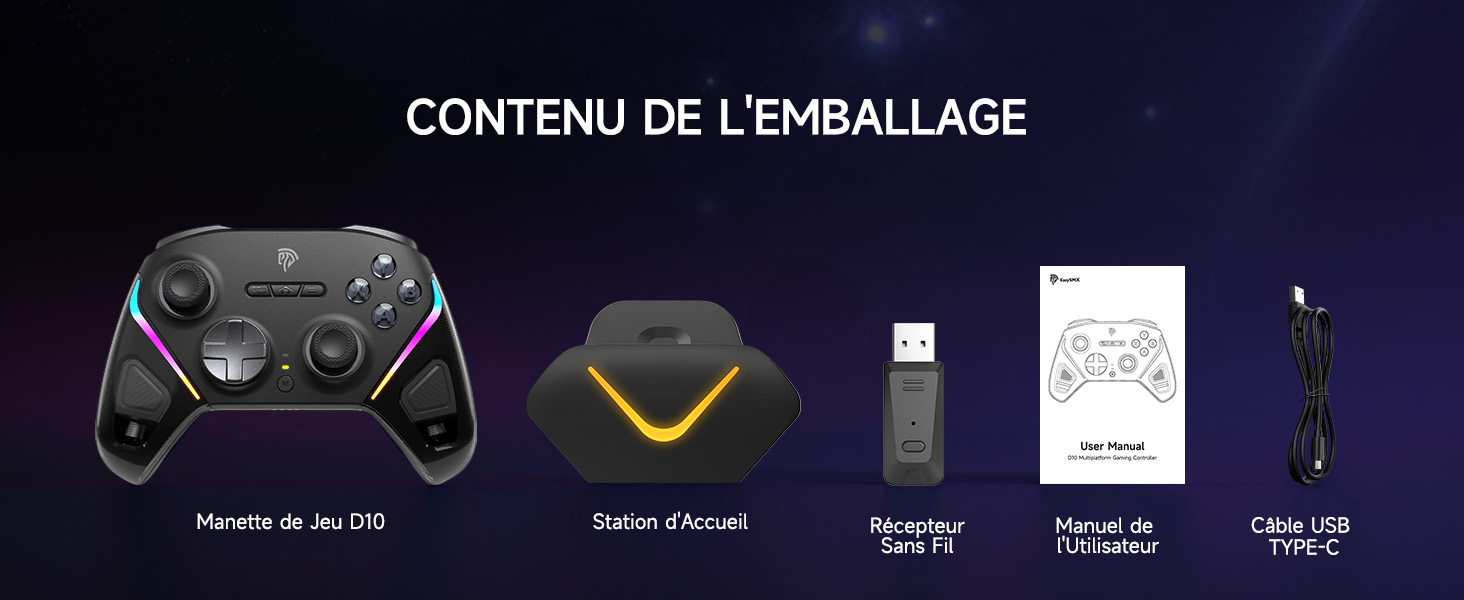
Image: The EasySMX D10 controller, charging dock, 2.4GHz receiver, USB-C cable, and user manual laid out on a white surface.
3. Controller Layout and Features
The EasySMX D10 controller is designed for ergonomic comfort and high performance. It features advanced TMR joysticks, customizable RGB lighting, and programmable buttons.
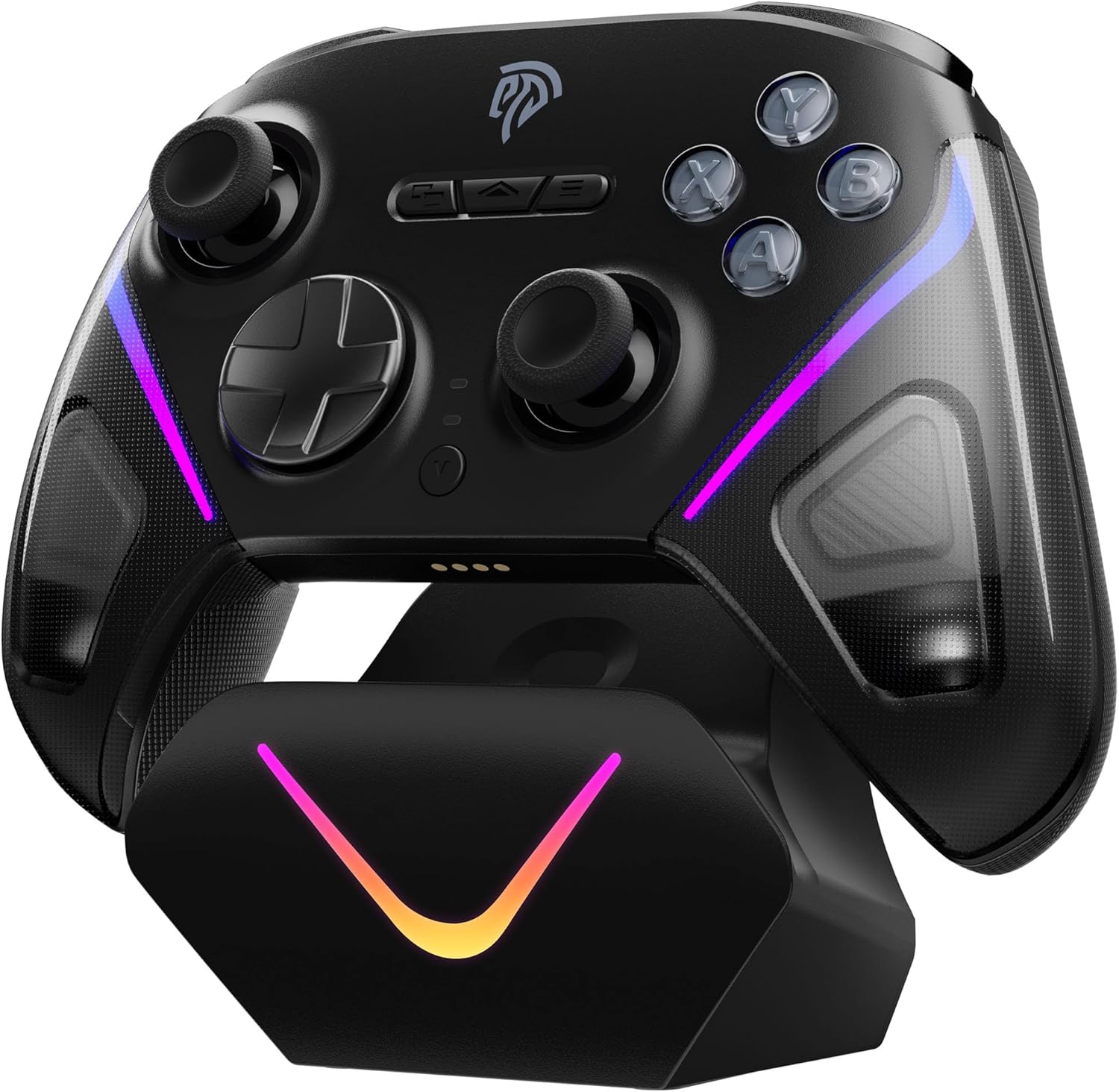
Foto: N'ihu view of the EasySMX D10 controller resting on its charging dock, with vibrant RGB lighting active.
Akụkụ ndị bụ isi:
- Next-Gen TMR Joysticks: Enhanced sensitivity, precision, and durability for superior control.
- Elite 2-Way Trigger Lock: Switch between Hall Effect Mode (longer travel distance for pedal-like control) and Microswitch Mode (shorter travel for immediate actuation).
- Exclusive EasyPos™ D-pad: Offers lightning-fast actuation (less than 1ms) and ultra-precise 8-way movement.
- Full Mecha Buttons: Provide clicky tactile feedback and ultra-responsive performance.
- Ọkụ RGB nwere ike ịhazi ya: Personalize your gaming experience with various lighting effects on joysticks and grips.
- Intelligent Charging Dock: Conveniently charge and store your controller. It automatically powers on when removed and off when docked.
- Ndakọrịta ọtụtụ Platform: Supports PC (Windows), Nintendo Switch, Android, iOS, and Steam.
- Batrị nwere ikike dị elu 1000mAh: Provides approximately 20 hours of playtime on a 2.5-hour charge.
- Programmable Back Buttons (M1/M2): Customize for complex commands or frequently used actions.
- Vibration nwere ike imezi: Tailor the intensity of haptic feedback to your preference.
- Gyroscope Function: Available for enhanced motion control on Nintendo Switch.
4. Ịchaji njikwa
The EasySMX D10 controller comes with an intelligent charging dock for convenient power management.
Charging via Dock:
- Connect the USB Type-C cable to the charging dock and a power source (e.g., PC USB port, USB wall adapter).
- Place the D10 controller onto the charging dock. The controller's RGB lights will indicate charging status.
- The controller will automatically power off when placed on the dock and power on when removed.
Nchaji ozugbo:
You can also charge the controller directly by connecting the USB Type-C cable from the controller to a power source.
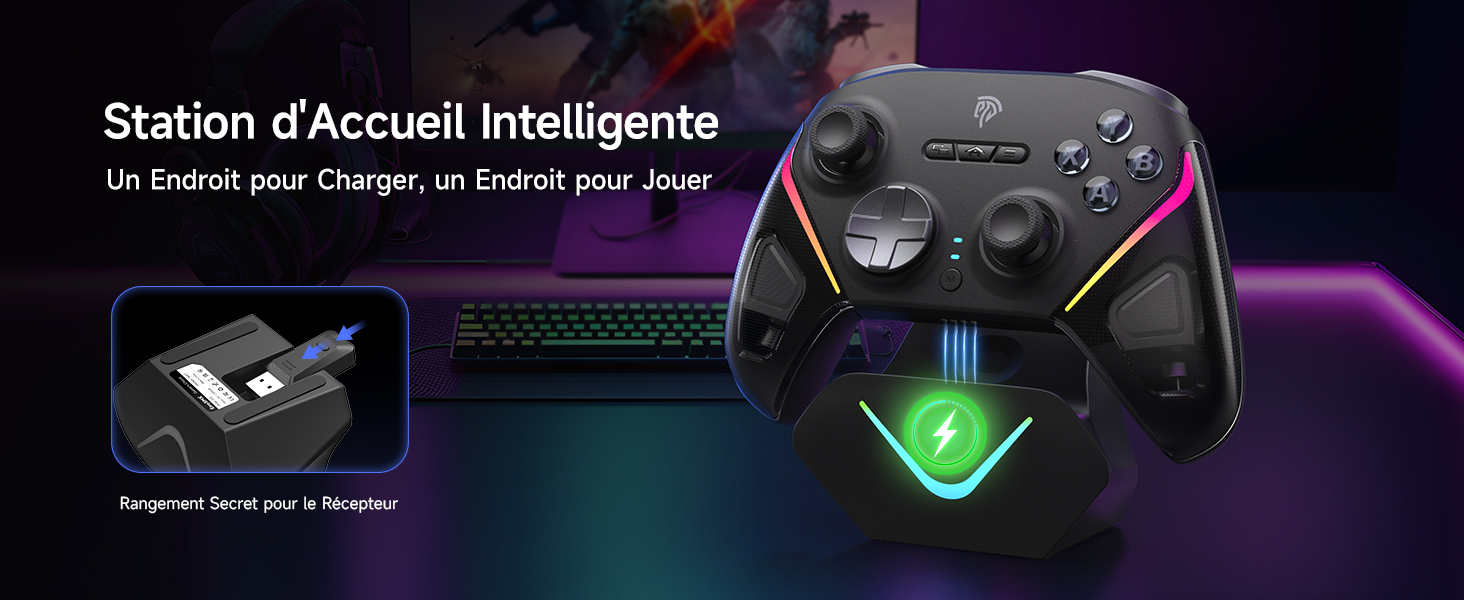
Image: The EasySMX D10 controller on its charging dock, highlighting the convenient storage for the 2.4GHz wireless receiver within the dock.
5. Ụdị njikọ
The EasySMX D10 controller offers multiple connection options for broad compatibility.
5.1. Njikọ eriri
- Ensure the mode switch on the back of the controller is set to the 2.4GHz (A) ọnọdụ.
- Connect the USB Type-C cable to the controller and then to your PC.
- The controller will automatically be recognized by your PC.
5.2. 2.4GHz Wireless Connection (PC)
This mode uses the included USB dongle for a stable wireless connection to your PC.
- Slide the mode switch on the back of the controller to the 2.4GHz (A) ọnọdụ.
- Insert the 2.4GHz wireless dongle into a USB port on your PC.
- Pịa Ụlọ button on the controller to power it on. The controller's LED will flash, indicating pairing mode.
- Once the LED becomes stable and you feel a short vibration, the controller is successfully paired.
Forced Pairing (if automatic reconnection fails):
- Fanye dongle ikuku n'ọdụ ụgbọ mmiri USB na PC gị.
- Press and hold the button on the dongle for 3 seconds until its LED flashes rapidly.
- Ka agbanyụrụ njikwa ahụ, pịa ma jide Ụlọ bọtịnụ maka 3 sekọnd iji gbanye ya.
- The controller's LED will flash rapidly, then become stable with a short vibration to confirm pairing.
Video: Demonstrates how to connect the EasySMX D10 controller via wired and 2.4GHz wireless dongle modes to a PC, including initial pairing and forced pairing steps.
5.3. Bluetooth Connection (Android/iOS/PC)
Connect your controller wirelessly via Bluetooth to compatible devices.
- Slide the mode switch on the back of the controller to the Bluetooth (BT) ọnọdụ.
- Pịa ma jide Ụlọ button for 3 seconds to power on the controller. The LED will flash.
- On your device (phone, tablet, PC), activate Bluetooth and search for "Xbox Wireless Controller".
- Select it to pair. Once the LED becomes stable and you feel a short vibration, the controller is successfully paired.
Njikọta:
Keep the mode switch on Bluetooth (BT) wee pịa nkenke Ụlọ button to reconnect to your previously paired device.
5.4. Nintendo Switch Connection
Connect your D10 controller to your Nintendo Switch console for an enhanced gaming experience.
- Slide the mode switch on the back of the controller to the Switch (NS) ọnọdụ.
- Pịa ma jide Ụlọ button for 3 seconds to power on the controller. The LED will flash.
- On your Nintendo Switch, navigate to Ndị njikwa > Gbanwee njide/Iwu ka ịbanye mode mmakọ.
- Once the LED becomes stable and you feel a short vibration, the controller is successfully paired.
Njikọta:
Keep the mode switch on Switch (NS) wee pịa nkenke Ụlọ button to reconnect to your Nintendo Switch.
Video: Illustrates the process of connecting the EasySMX D10 controller via Bluetooth to a mobile phone and to a Nintendo Switch console, including initial pairing and reconnection steps.
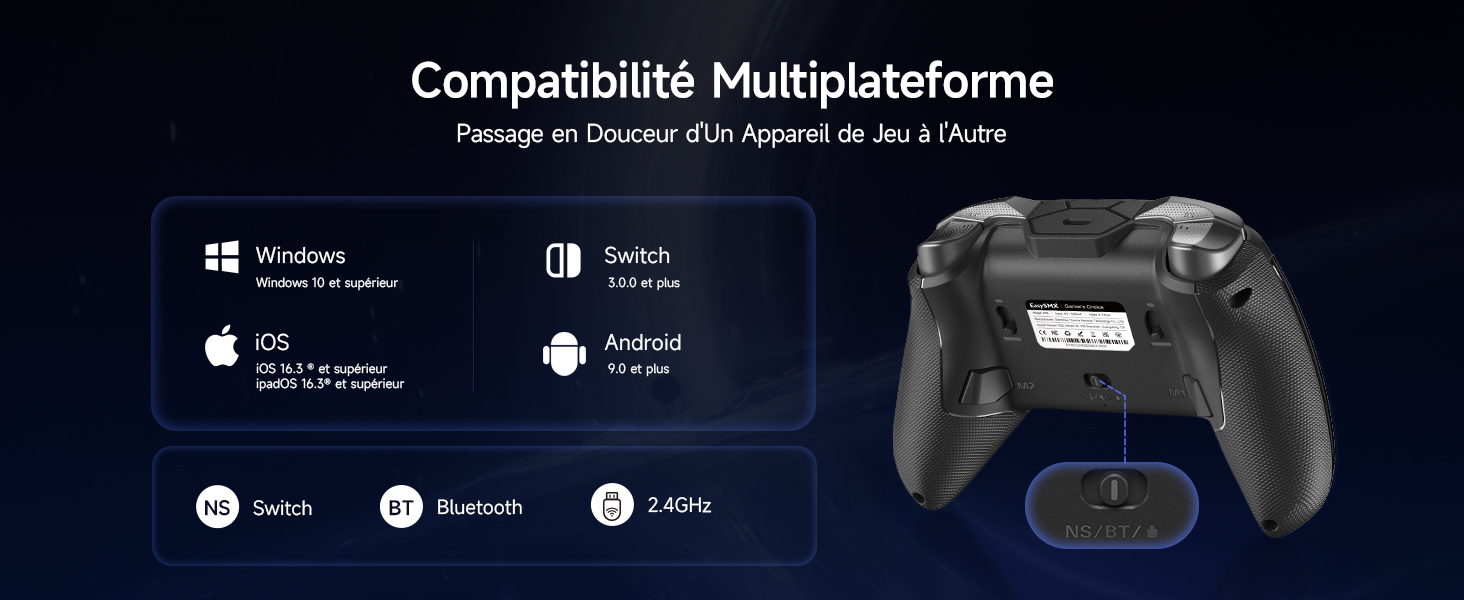
Image: The back of the EasySMX D10 controller, highlighting the multi-platform mode switch for seamless transitions between Nintendo Switch, Bluetooth, and 2.4GHz wireless connections.
6. Operating Instructions and Advanced Features
6.1. TMR Joysticks
The D10 features advanced TMR (Tunnel Magnetoresistance) joysticks, offering enhanced precision and durability compared to traditional potentiometers. This results in smoother, more accurate control and a longer lifespan.

Image: An internal diagram illustrating the advanced TMR joystick technology of the EasySMX D10, emphasizing optimized precision and durability.
6.2. Elite 2-Way Trigger Lock
Customize your trigger response for different game genres:
- Hall Effect Mode: Provides a longer travel distance, ideal for racing games or actions requiring nuanced input.
- Microswitch Mode: Offers a shorter travel distance for immediate actuation, perfect for competitive shooters.
Refer to the controller's physical switches or the user manual for specific instructions on how to toggle between these modes.

Foto: nkọwa zuru ezu view of the Elite 2-way trigger lock on the EasySMX D10, illustrating the difference between Hall Effect Mode for longer travel and Microswitch Mode for immediate actuation.
6.3. EasyPos™ D-pad
The exclusive EasyPos™ D-pad is engineered for rapid and precise inputs, crucial for fighting games and platformers. Its design ensures quick response times and accurate 8-way movement.

Image: An exploded diagram of the EasySMX D10's EasyPos™ D-pad, detailing its circular keycap, rotatable plate, silicone stem, and microswitch for ultra-precise 8-way movement.
6.4. Full Mecha Buttons
Experience satisfying tactile feedback and rapid response with the controller's full mecha buttons. These buttons are designed for durability and consistent performance.

Image: A close-up internal view of the EasySMX D10's full mecha buttons, illustrating the silicone stem and microswitch that provide clicky tactile feedback and ultra-responsive performance.
6.5. Nhazi nke ọkụ RGB
The D10 controller features dynamic RGB lighting on its joysticks and grips. You can customize these effects to match your style or mood. Refer to the detailed settings in the user manual for specific button combinations to change lighting modes and colors.

Image: Three EasySMX D10 controllers in black, white, and purple, demonstrating the customizable RGB lighting with different color combinations and modes.
6.6. Programmable Back Buttons (M1/M2)
The controller includes two programmable back buttons (M1 and M2) that allow you to map complex button combinations or single actions for quick access during gameplay. Consult the full user manual for detailed instructions on how to program these buttons.
6.7. Vibration Adjustment
The D10 controller features adjustable vibration feedback. You can typically cycle through different vibration intensities using a dedicated button combination (refer to the full user manual for specifics) to find your preferred level of immersion.
6.8. Ọrụ Turbo
The Turbo function allows a button to repeatedly register input as long as it is held down, which can be advantageous in certain games. Instructions for activating and deactivating Turbo mode for specific buttons are provided in the comprehensive user manual.
6.9. Gyroscope Function (Nintendo Switch)
The EasySMX D10 controller supports gyroscope functionality when connected to a Nintendo Switch, enabling motion controls in compatible games.
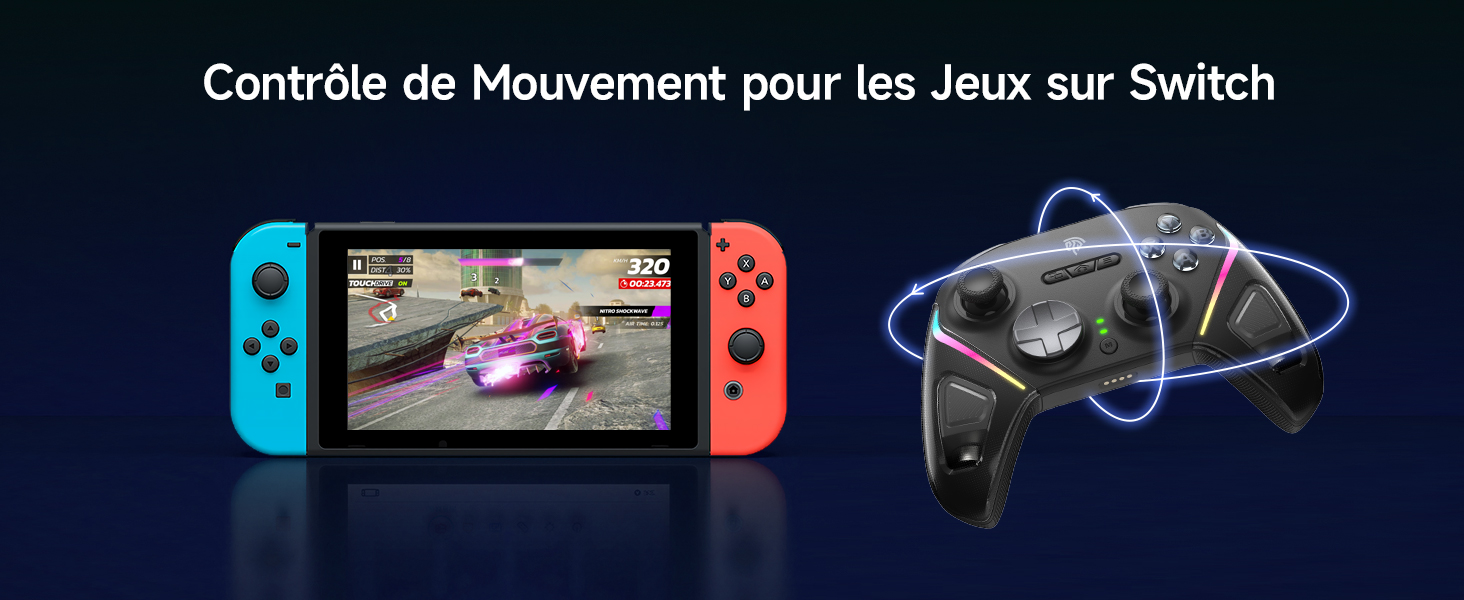
Image: The EasySMX D10 controller positioned beside a Nintendo Switch console, demonstrating its motion control functionality for Switch games.
7. Nkọwapụta
| Njirimara | Nkọwa |
|---|---|
| Ụdị | EasySMX |
| Aha Nlereanya | D10 |
| Agba | Nwa |
| Ụdị njikwa | Gamepad |
| Teknụzụ Njikọta | 2.4G Wireless, Bluetooth, Type C |
| Ngwa dakọtara | Android, iOS, PC (Windows), Switch 2, Nintendo Switch |
| Ọnụọgụ bọtịnụ | 16 |
| Ụdị batrị | Lithium-ion |
| Ike batrị | 1000mAh |
| Batrị enwere ike ịchaji | Ee |
| Atụmatụ pụrụ iche | High Capacity 1000mAh Battery, Bluetooth, 2.4GHz Wireless and Wired 3-in-1 Mode, Macro Function; Turbo Function; Adjustable Vibrations, Works with PC Windows, Switch, Android, iOS, Tablet and Tesla, Convenient Charging Dock; RGBTMR Lighting; Trigger Joystick |
8. Nlekọta na nlekọta
To ensure the longevity and optimal performance of your EasySMX D10 controller, follow these maintenance guidelines:
- Nhicha: Jiri akwa dị nro, kpọrọ nkụ hichaa njikwa. Maka unyi isi ike, ntakịrị dampen akwa na mmiri ma ọ bụ a nwayọọ ihicha ngwọta. Zere kemịkalụ siri ike ma ọ bụ ihe na-emebi emebi.
- Nchekwa: Store the controller in a cool, dry place away from direct sunlight, extreme temperatures, and high humidity. When not in use, placing it on its charging dock can help keep it organized and charged.
- Nlekọta batrị: Avoid fully discharging the battery frequently. Charge the controller regularly, even if not in constant use, to maintain battery health.
- Zere mbelata: Chebe onye njikwa ka ọ ghara ịdaba na mmetụta, nke nwere ike imebi ihe ndị dị n'ime.
9. Nchọpụta nsogbu
If you encounter any issues with your EasySMX D10 controller, please refer to the following common solutions:
- Njikwa Anaghị ejikọta:
- Ensure the mode switch on the back of the controller is set to the correct position (2.4GHz, Bluetooth, or Switch) for your device.
- For 2.4GHz, ensure the dongle is properly inserted into your PC's USB port. Try a different USB port.
- For Bluetooth, ensure Bluetooth is enabled on your device and the controller is in pairing mode. Forget the device and try pairing again.
- Gbaa mbọ hụ na akwụchara onye njikwa ya nke ọma.
- Buttons or Joysticks Unresponsive:
- Restart the controller and your device.
- Ensure no debris is obstructing the buttons or joysticks.
- Try connecting the controller via a different mode (e.g., wired) to see if the issue persists.
- Vibration Not Working/Too Weak/Too Strong:
- Check the vibration intensity settings (refer to the full user manual for specific button combinations).
- Ensure the game you are playing supports vibration feedback.
- Okwu ịchaji:
- Ensure the USB Type-C cable is securely connected to both the controller/dock and the power source.
- Gbalịa ọdụ ụgbọ USB ma ọ bụ ihe nkwụnye ọkụ dị iche.
- Clean the charging contacts on the controller and dock.
If the problem persists after trying these steps, please contact EasySMX customer support for further assistance.
10. Akwụkwọ ikike na nkwado
The EasySMX D10 Wireless PC Controller comes with a Akwụkwọ ikike nke onye nrụpụta afọ 2. Akwụkwọ ikike a na-ekpuchi ntụpọ dị na ngwa na arụ ọrụ n'okpuru ojiji nkịtị.
For warranty claims, technical support, or any questions regarding your product, please contact EasySMX customer service through their official website or the retailer where you purchased the product. Please have your proof of purchase ready when contacting support.


