Okwu mmalite
This manual provides comprehensive instructions for the ORICO EB05 256GB Dual USB 3.0 Flash Drive. This device is designed for convenient data transfer and storage across a wide range of devices, including smartphones, tablets, and computers. Its dual USB-C and USB-A connectors, combined with a durable metal housing and swivel design, offer versatile and reliable performance.
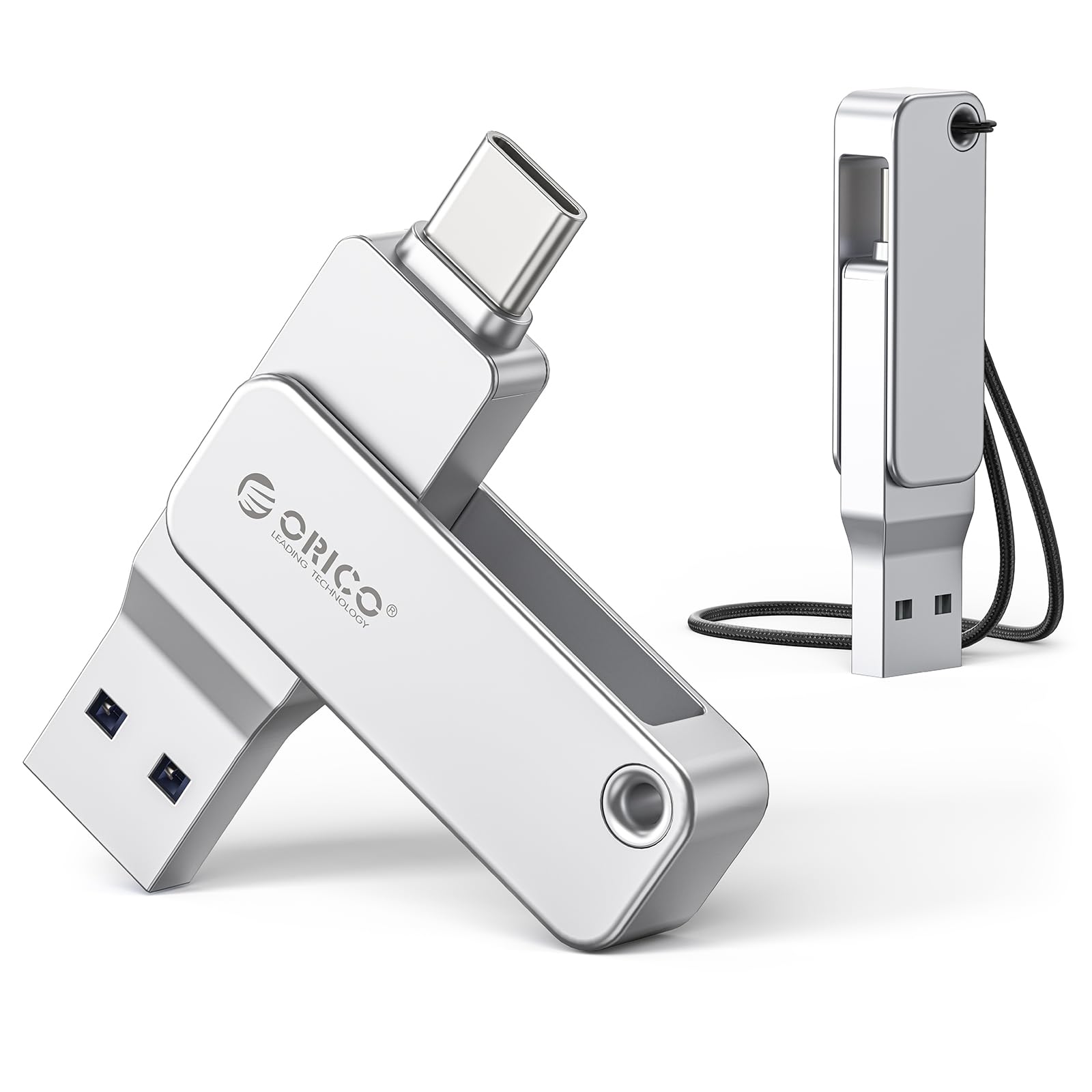
Image: The ORICO EB05 Dual USB Flash Drive, showcasing its compact design and dual connectors.
Kedu ihe dị na Igbe ahụ
The ORICO EB05 Dual USB 3.0 Flash Drive package includes the following items:
- ORICO EB05 Dual USB 3.0 Flash Drive (256GB)
- Lanyard
- Akwụkwọ ntuziaka (akwụkwọ a)

Image: The ORICO EB05 Flash Drive shown with its retail packaging and included lanyard.
Atụmatụ igodo
- 256GB Storage Capacity: Na-enye ample space for thousands of photos, videos, music, and documents.
- Dual USB-C & USB-A Connectors: Offers broad compatibility with modern and traditional devices, including smartphones (iPhone 15+, Android), tablets, laptops, and computers.
- Nyefee data Ọsọ Ọsọ: Features USB 3.0 performance with read speeds up to 150MB/s, enabling quick transfer of large files.
- Ụlọ igwe na-adịgide adịgide: Constructed from zinc alloy for enhanced durability and protection of your data.
- 360° Swivel imewe: Allows for easy switching between USB-C and USB-A connectors without the risk of losing a cap.
- Ọrụ nkwụnye na-egwu: No software installation required; simply connect to your device to begin use.
- Kọmpat na ibugharị: Slim design fits easily in pockets, wallets, or attached to a keychain.

Image: Close-up of the ORICO EB05 Flash Drive highlighting its dual USB-A and USB-C interfaces and 360-degree swivel mechanism.
Melite
The ORICO EB05 Flash Drive is designed for plug-and-play operation, requiring no special drivers or software installation.
- Identify Connector: Determine whether your device requires a USB-A or USB-C connection. The flash drive features a 360° swivel design to switch between these two interfaces.
- Jikọọ na ngwaọrụ: Insert the appropriate connector (USB-A or USB-C) into the corresponding port on your smartphone, tablet, or computer.
- Access Storage: Your device should automatically recognize the flash drive as external storage. You can then access it through your device's file onye njikwa ma ọ bụ onye na-eme nchọpụta.
Video: Demonstrates the plug-and-play functionality and dual USB-A and USB-C connectors of the ORICO EB05 Flash Drive, showing it being connected to various devices.
Ntuziaka ọrụ
Na-ebufe files with the ORICO EB05 is straightforward:
- Mepee File Onye njikwa: Na kọmputa gị, mepee File Explorer (Windows) or Finder (Mac). On a smartphone or tablet, open your device's file ngwa njikwa.
- Locate Flash Drive: The ORICO EB05 will appear as a removable drive (e.g., "ORICO" or "USB Drive").
- Nyefee Files:
- Iṅomi files ka draịvụ flash: Dọrọ ma dobe files from your device's internal storage to the flash drive's folder.
- Iṅomi files si draịvụ flash: Dọrọ ma dobe files from the flash drive's folder to your device's internal storage.
- Wepụ nke ọma: Before removing the flash drive, always safely eject it from your operating system to prevent data corruption.
- Windows: Right-click the drive icon in File Explorer and select "Eject."
- Mac: Drag the drive icon to the Trash or click the Eject button next to the drive name in Finder.
- Android/iOS: Follow your device's specific instructions for safely unmounting external storage.

Image: A person using the ORICO flash drive to transfer photos directly from a smartphone, illustrating its mobile compatibility.
Video: Demonstrates seamless file transfer between an iPhone and an Android phone using the ORICO EB05 Dual USB Flash Drive.
Ndakọrịta
The ORICO EB05 is designed for broad compatibility with various operating systems and devices:
- Sistemu eji arụ ọrụ: Mac OS, Windows, Linux.
- Ekwentị mkpanaaka: Android phones with USB-C, iPhone 15 series and newer with USB-C.
- Mbadamba ụrọ: iPads with USB-C, Android tablets with USB-C.
- Laptops/Computers: Devices with USB-A or USB-C ports (e.g., MacBook, Windows laptops, desktop PCs).
- Ngwa ndị ọzọ: Smart TVs, car audio systems, projectors, and other devices supporting USB storage.
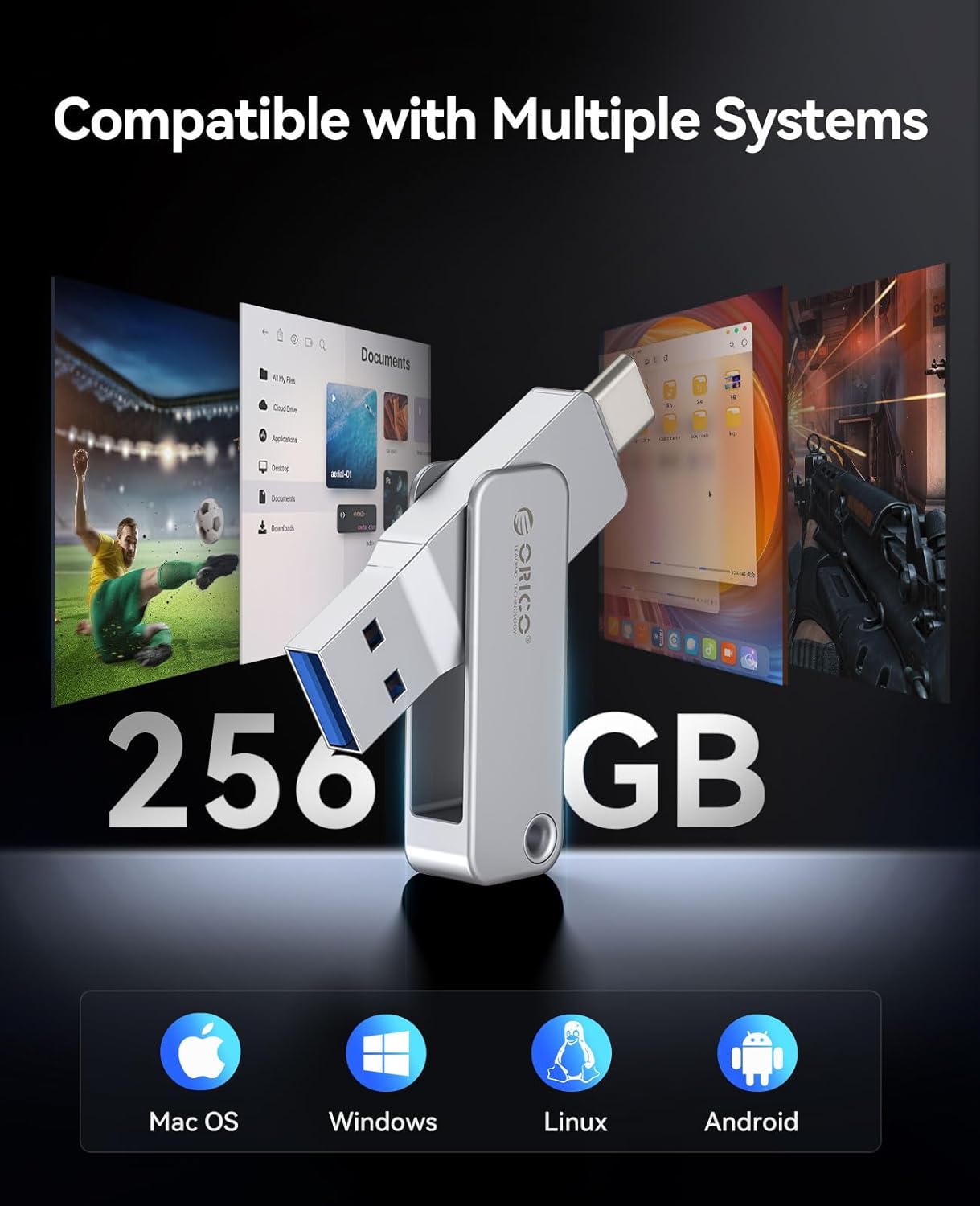
Image: Visual representation of the ORICO EB05 Flash Drive's compatibility with multiple operating systems including Mac OS, Windows, Linux, and Android.
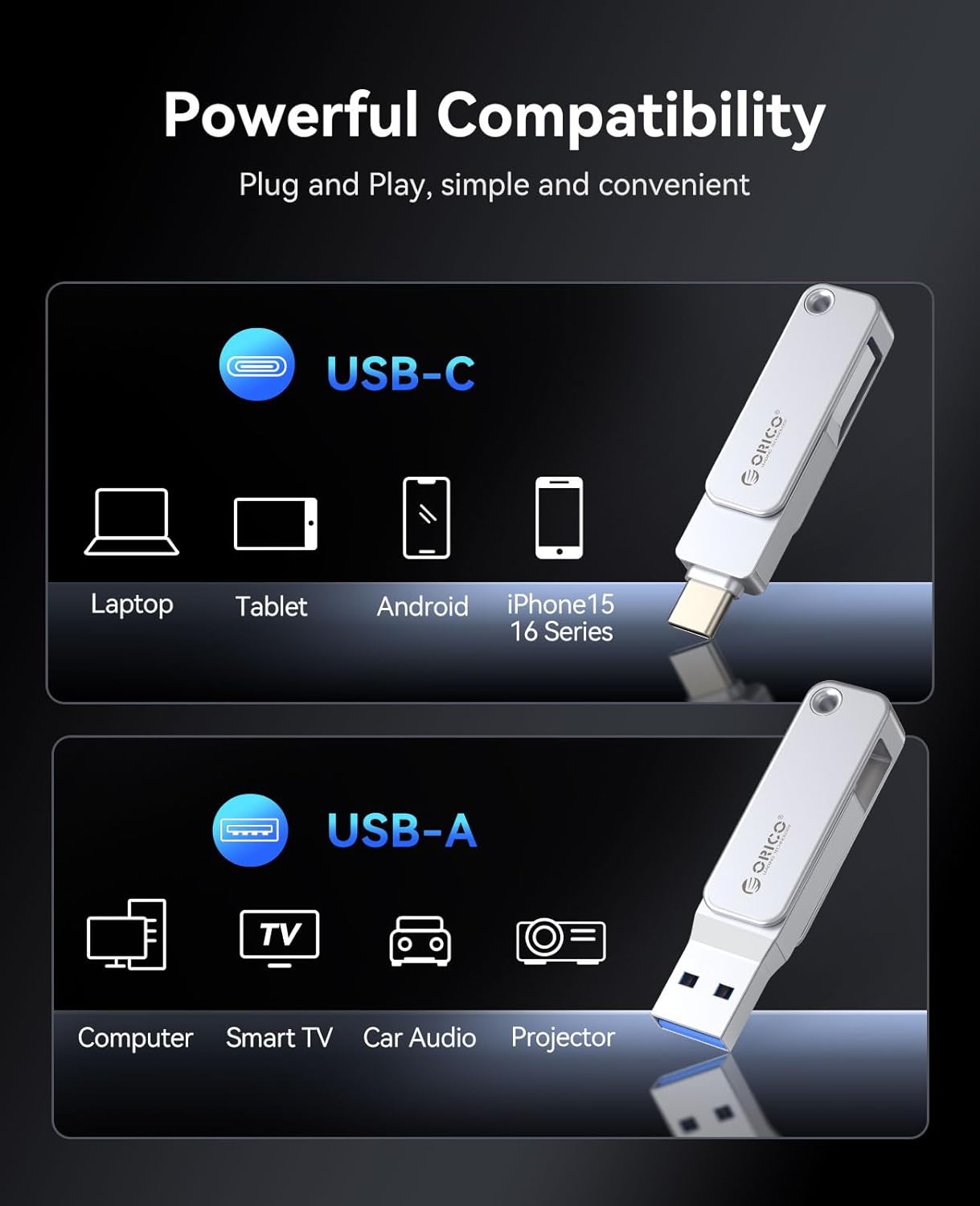
Image: The ORICO EB05 Flash Drive demonstrating its powerful compatibility by connecting to a laptop, tablet, and smartphone via USB-C and USB-A.
Nkọwapụta
| Njirimara | Nkọwa |
|---|---|
| Aha Nlereanya | EB05 |
| Ike Nchekwa ebe nchekwa | 256 GB |
| Gụọ Ọsọ | Ruo 150 MB / s |
| Dee ọsọ ọsọ | 80 GB/s (Note: Actual write speeds may vary based on device and file ụdị) |
| Teknụzụ Njikọta | USB 3.0 |
| Ngwaọrụ Akụrụngwa | USB Ụdị A, USB Ụdị C |
| Ihe onwunwe | Zinc Alloy Metal Housing |
| Atụmatụ pụrụ iche | Dual USB Connector, Dust Proof, Lightweight, 360° Swivel Design |
| Agba | Ọlaọcha |
| Ibu Ibu | 2.11 ounces |
| Akụkụ ngwugwu | 5.2 x 3.43 x 0.75 sentimita asatọ |
Nlekọta
To ensure the longevity and optimal performance of your ORICO EB05 Flash Drive, follow these maintenance guidelines:
- Mgbapụ adịghị mma: Always safely eject the flash drive from your device before physically removing it to prevent data corruption.
- Nchedo anụ ahụ: The metal housing provides durability, but avoid excessive force, dropping, or exposing the drive to extreme temperatures or liquids.
- Nhicha: Use a soft, dry cloth to clean the exterior of the flash drive. Do not use harsh chemicals or abrasive materials.
- Nchekwa: When not in use, store the flash drive in a cool, dry place, ideally in a protective pouch or attached to the included lanyard to prevent loss.
Nchọpụta nsogbu
If you encounter issues with your ORICO EB05 Flash Drive, consider the following:
- Amataghị mbanye:
- Ensure the flash drive is fully inserted into the correct USB-A or USB-C port.
- Nwaa ijikọ na ọdụ USB dị iche na ngwaọrụ gị.
- Malitegharịa ekwentị gị ma ọ bụ ngwaọrụ.
- Check your device's operating system for any driver updates or external storage settings.
- Ọsọ mbufe nwayọ:
- Ensure you are using a USB 3.0 compatible port on your device for optimal speeds. USB 2.0 ports will result in slower transfers.
- Ọnụọgụ dị ukwuu nke obere files can transfer slower than a single large file nke otu mkpokọta nha.
- Other background processes on your computer might be affecting transfer speeds.
- Enweghị ike ide ihe Files:
- Lelee ma draịvụ ahụ ejuola. Hichapụ ihe na-adịghị mkpa files ịtọhapụ oghere.
- Ensure the drive is not set to read-only mode (though this model typically does not have a physical write-protect switch).
- Nyochaa file system compatibility. The drive is typically formatted as ExFAT for broad compatibility. If you are having issues, you may need to reformat the drive (this will erase all data).
Akwụkwọ ikike na nkwado
The ORICO EB05 Dual USB 3.0 Flash Drive comes with a Akwụkwọ ikike dị afọ 3. For warranty claims, technical support, or further assistance, please contact ORICO customer service through their official websaịtị ma ọ bụ onye na-ere ahịa ebe a zụrụ ngwaahịa ahụ.
Biko dowe ihe akaebe nke ịzụrụ ihe maka nkwado akwụkwọ ikike.


