Okwu mmalite
Daalụ maka ịzụrụasing the Dierya DK68 Wireless Mechanical Gaming Keyboard. This manual provides detailed instructions on how to set up, operate, and maintain your keyboard. Please read this manual thoroughly before use to ensure optimal performance and longevity of your device.

Image: The Dierya DK68 wireless mechanical gaming keyboard, showcasinnhazi ya dị obere nke 60% yana ọkụ azụ RGB.
Atụmatụ igodo
- Nhazi kọmpat 60%: 68-key design for space efficiency, with all functions accessible via FN key combinations. Ideal for portability and maximizing desk space.
- Tri-Mode Seamless Connectivity: Supports USB-C wired, Bluetooth, and 2.4GHz wireless receiver connections. Easily switch between up to 3 devices (PC, Mac, smartphone/tablet).
- Customizable 16.8 Million Color RGB Backlight: Features 21 dynamic lighting effects. Adjust effects and colors using FN key combinations.
- Long-Lasting Battery & Standby: Equipped with a 3000mAh battery, providing approximately 8 hours of continuous use with backlight on, or up to 90 hours with backlight off. Standby time up to 360 hours (approx. 15 days).
- Mgbanwe Mechanical Na-adịgide Adịgide: Utilizes Dierya's proprietary mechanical switches with a 60 million keystroke lifespan. Red switches (linear, silent) are suitable for gaming and office work.
- N-Key Rollover (NKRO): Ensures all key presses are registered accurately, even during simultaneous inputs, for competitive gaming.
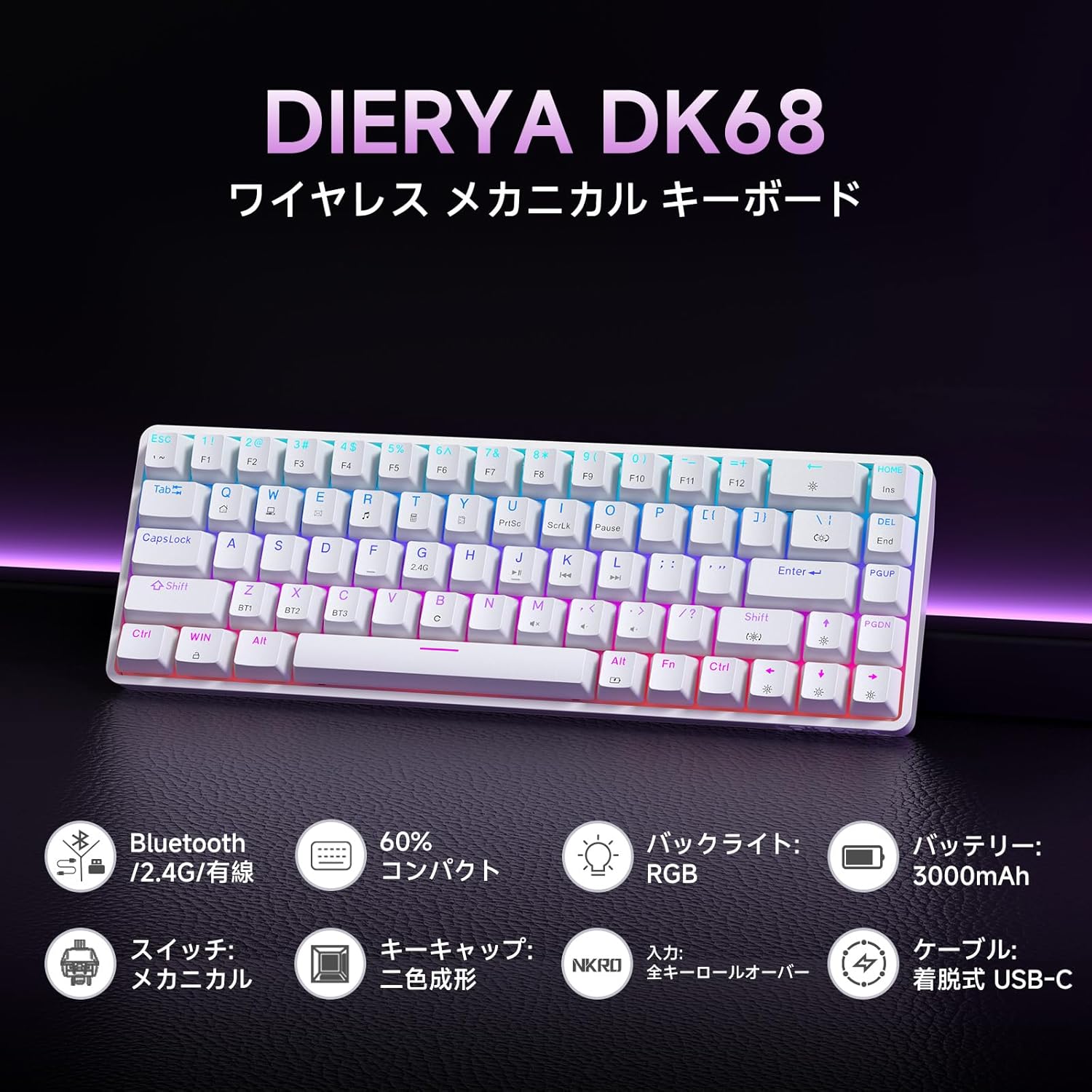
Foto: Ofeview of the Dierya DK68 keyboard's main features, including Bluetooth/2.4G/Wired connectivity, 60% compact design, RGB backlight, 3000mAh battery, mechanical switches, double-shot keycaps, N-Key Rollover, and a detachable USB-C cable.
Melite
1. Ịchaji ahụigodo
Before first use, fully charge the keyboard using the provided USB-C cable. Connect the cable to the keyboard's USB-C port and to a power source (e.g., computer USB port, USB wall adapter).
- The charging indicator light will show charging status.
- A full charge typically takes a few hours.
2. Jikọọ ahụigodo
The DK68 supports three connection modes: USB-C wired, 2.4GHz wireless, and Bluetooth.
Njikọ eriri USB-C
- Jikọọ eriri USB-C enyere na ọdụ ụgbọ USB-C nke ahụigodo.
- Jikọọ nsọtụ nke ọzọ nke eriri na ọdụ USB dị na kọmputa gị.
- A ga-amata ahụigodo na-akpaghị aka ma dịrị njikere maka ojiji.
Njikọ ikuku 2.4GHz
- Chọta ihe nnata USB nke 2.4GHz (a na-echekwakarị ya n'ime otu ebe dị na ahụigodo ma ọ bụ ihe mkpuchi).
- Tinye eriri USB n'ọdụ ụgbọ mmiri dị na kọmputa gị.
- Gbanye ahụigodo ahụ. Ahụigodo ahụ kwesịrị ijikọ na onye nnata na akpaghị aka.
- If connection is not established, press FN + R to switch to 2.4GHz mode.
Njikọ Bluetooth
The keyboard can store up to three Bluetooth device pairings.
- Gbanwuo ahụigodo.
- Pịa ma jide FN + Z, FN + X, ma ọ bụ FN + C for 3-5 seconds to enter pairing mode for BT1, BT2, or BT3 respectively. The indicator light will flash rapidly.
- On your device (PC, Mac, smartphone, tablet), enable Bluetooth and search for new devices.
- Select "Dierya DK68" from the list of available devices.
- Ozugbo ejikọtara ọnụ, ọkụ egosi ga-akwụsị ịcha ọkụ wee nọgide na-esi ike.
- Ka ịgbanwee n'etiti ngwaọrụ Bluetooth ejikọtara, pịa FN + Z, FN + X, ma ọ bụ FN + C nkenke.

Image: Diagram illustrating the three connection modes: USB-C wired, Bluetooth, and 2.4GHz wireless, along with compatibility icons for Windows, Mac, iOS, Android, Xbox, PC, Laptop, and Tablet.
Ntuziaka ọrụ
1. FN Key Ngwakọta
Due to the compact 60% layout, many functions are accessed using the FN igodo jikọtara ya na igodo ndị ọzọ.
| Ngwakọta | Ọrụ |
|---|---|
| FN + 1-0 (top row) | F1-F10 |
| FN + - = | F11, F12 |
| FN + Backspace | Gbanye/Gbanyụọ ọkụ azụ |
| FN + Shift | Gbanwee agba ọkụ azụ |
| FN + | | Gbanwee ọnọdụ ọkụ azụ |
| FN + akụ elu | Welie ọkụ azụ |
| FN + akụ ala | Wedata ihie ọkụ azụ |
| FN + Left Arrow | Wedata ọsọ ọkụ azụ |
| FN + Right Arrow | Mụbaa ọsọ ọkụ azụ |
| FN + Z/X/C | Switch Bluetooth Device (BT1/BT2/BT3) |
| FN + R | Switch to 2.4GHz Wireless Mode |
| FN + T | Switch to USB-C Wired Mode |
| FN + Mmeri | Mkpọchi/Mepee igodo Windows |

Image: A visual guide to customizing the RGB backlight on the Dierya DK68 keyboard using FN key combinations for turning the light on/off, changing colors, modes, brightness, and speed.
2. RGB backlight customization
The keyboard features over 20 dynamic RGB lighting effects. Use the FN key combinations listed above to personalize your lighting experience.
- Pịa FN + Backspace to toggle the backlight on or off.
- Pịa FN + Shift to cycle through different backlight colors.
- Pịa FN + | to switch between various lighting effects.
- Jiri FN + akụ elu/ala to adjust brightness and FN + Ụka akaekpe/aka nri to adjust effect speed.
3. Ọnọdụ nchekwa ike
To conserve battery life, the keyboard will automatically enter sleep mode after approximately 3 minutes of inactivity. Press any key to wake it up.
Nlekọta
- Nhicha: Use a soft, dry cloth to wipe the keyboard surface. For deeper cleaning, you may use a can of compressed air to remove dust and debris from between the keycaps. Avoid using harsh chemicals or abrasive materials.
- Nchekwa: Chekwaa ahụigodo ahụ n'ebe dị jụụ, kpọrọ nkụ pụọ na ìhè anyanwụ kpọmkwem na oke okpomọkụ.
- Nlekọta batrị: To prolong battery life, avoid fully discharging the battery frequently. Charge the keyboard regularly, especially if it will be stored for an extended period.
- Mwepụ isi igodo: If you need to remove keycaps for cleaning or switch replacement, use a keycap puller to avoid damage. Pull straight up with gentle force.
Nchọpụta nsogbu
- Ahụigodo anaghị aza:
- Gbaa mbọ hụ na agbanyere ahụigodo.
- Lelee ọkwa batrị wee kwụọ ụgwọ ma ọ dị mkpa.
- Verify the correct connection mode (USB-C, 2.4GHz, or Bluetooth) is selected.
- For 2.4GHz, ensure the receiver is properly plugged in.
- For Bluetooth, re-pair the device if connection is lost.
- Try connecting via USB-C cable to rule out wireless issues.
- Igodo anaghị edebanye aha ma ọ bụ pịnye ugboro abụọ:
- Clean under the keycaps to remove any debris.
- Ensure the switches are properly seated.
- RGB backlight not working:
- Ensure the backlight is turned on (FN + Backspace).
- Check battery level; low battery might disable backlighting.
- Njikọ Bluetooth adịghị akwụsi ike:
- Ensure the keyboard is within range of the device.
- Wedata ndabichi sitere na ngwaọrụ ikuku ndị ọzọ.
- Gbalịa iji ngwaọrụ gị jikọọ ahụigodo ahụ ọzọ.
Nkọwapụta
| Njirimara | Nkọwa |
|---|---|
| Ụdị | DIERYA |
| Nọmba nlereanya | DK68 |
| Nhazi | 60% (Igodo 68) |
| Njikọta | 2.4GHz Wireless, Bluetooth, USB-C Wired |
| Ngbanwe Ụdị | Mechanical Red Switches (Linear, Silent) |
| Ike mmeghari | 45gf (±15gf) |
| Actuation Travel | 2.0mm (± 0.6mm) |
| Keystroke Lifespan | Ihe ruru. nde 60 |
| Ìhè azụ | RGB (16.8 million colors, 21+ effects) |
| Ike batrị | 3000mAh batrị lithium |
| Battery Life (Backlight ON) | Ihe ruru. awa 8 |
| Battery Life (Backlight OFF) | Ihe ruru. awa 90 |
| Oge Njikere | Ihe ruru. awa 360 (ụbọchị 15) |
| Ndakọrịta | Windows, Mac, iOS, Android, Xbox, PC, Laptop, Tablet |
| Akụkụ (L x W x H) | 372 x 115 x 51 mm |
| Ibu | 830 g |
| Isi okwu | Double-shot (OFS height) |
| Mgbochi mmụọ | Full N-Key Rollover (NKRO) |

Image: A diagram showing the compact 60% layout of the Dierya DK68 keyboard with its dimensions: 372mm length, 115mm width, and 51mm height, highlighting its 68-key configuration.

Foto: nso nso view of the Dierya DK68's mechanical red switches, detailing their linear and silent operation, 45gf actuation force, 2.0mm travel, and pre-lubricated design for smooth keystrokes.

Image: An exploded diagram of the Dierya DK68 keyboard, showing its internal layers including ABS keycaps, mechanical switches, positioning plate, EVA mat, PCB, high-density sound-absorbing foam, and bottom case, highlighting its robust construction.
Akwụkwọ ikike na nkwado
DIERYA products are designed for durability and performance. For warranty information or technical support, please refer to the official DIERYA websaịtị ma ọ bụ kpọtụrụ ndị ahịa ha ozugbo. Debe nnata nzụta gị dị ka ihe akaebe nke ịzụrụ maka nkwupụta ikike.


