1. N'eluview
The Razer BlackShark V3 Wireless Gaming Headset for Xbox is designed for high-performance gaming across multiple platforms. It features advanced wireless technology, high-fidelity audio drivers, and a clear microphone for effective communication.
- Razer HyperSpeed Wireless Gen-2: Provides ultra-low latency wireless audio, with speeds as low as 10 ms.
- Razer TriForce Titanium 50mm Drivers Gen-2: Engineered for precise and powerful sound reproduction, enhancing positional awareness.
- Detachable Razer HyperClear Super Wideband 9.9mm Mic: Captures voice with high-definition clarity across a wide frequency range.
- 3 Modes of Connectivity: Supports simultaneous 2.4 GHz and Bluetooth connections, plus USB-C for versatile use.
- Ụda gbara gburugburu Gen: Compatible with Windows Sonic on Xbox and THX Spatial Audio on PC for immersive audio.
- Pro-Tuned FPS Profiles and Customizable EQ: Offers game-specific EQ profiles and custom equalization settings via Razer Synapse 4.

Image: Razer BlackShark V3 Wireless Gaming Headset on a stand.
2. Kedu ihe dị na Igbe ahụ
Ngwungwu ngwaahịa gụnyere ihe ndị a:
- Razer BlackShark V3 Wireless Gaming Headset
- Detachable Razer HyperClear Super Wideband 9.9mm Mic
- Razer HyperSpeed Wireless Gen-2 Dongle
- USB Ụdị A ruo Ụdị C eriri
- Akwụkwọ ntuziaka (akwụkwọ a)
Vidiyo: Onye ọrụ gọọmentị gafereview of the Razer BlackShark V3 headset line, highlighting key features and design.
3. Nhazi
3.1 Nchaji izizi
Before first use, fully charge the headset using the provided USB Type A to Type C cable. Connect the USB-C end to the headset and the USB-A end to a powered USB port (e.g., computer, wall adapter).
3.2 Ijikọ igwe okwu
Insert the detachable HyperClear Super Wideband Mic into the microphone port located on the left earcup until it clicks into place.

Image: The detachable HyperClear Super Wideband Microphone.
4. Ntuziaka ọrụ
4.1 Gbanyụọ ma ọ bụ gbanyụọ
- Iji gbanye ọkụ: Pịa ma jide bọtịnụ ike ruo mgbe ihe ngosi LED ahụ na-enwu.
- Ka ịgbanyụ: Pịa ma jide bọtịnụ ọkụ ruo mgbe ihe ngosi LED gbanyụrụ.
4.2 Njikwa olu
Adjust the volume using the volume wheel located on the earcup.
4.3 Igwe okwu anaghị agba ogbi
Toggle the microphone mute switch to enable or disable the microphone.
5. Njikọta
The Razer BlackShark V3 offers three primary modes of connectivity:
- 2.4 GHz Wireless (Razer HyperSpeed Wireless Gen-2): For ultra-low latency connection to PC, Mac, PlayStation, Nintendo Switch, and Xbox. Use the included USB-C dongle.
- Bluetooth: For wireless connection to smartphones and other Bluetooth-enabled devices.
- eriri USB-C: For a direct wired connection and charging.
The headset supports simultaneous 2.4 GHz and Bluetooth audio, allowing you to mix audio from two devices concurrently.

Image: The Razer HyperSpeed Wireless Gen-2 USB-C dongle.

Image: Visual representation of the three connectivity modes.
6. Audio Atụmatụ
6.1 Razer TriForce Titanium 50mm Drivers Gen-2
These drivers provide clear highs, rich mids, and powerful bass, optimized for competitive gaming to deliver precise audio cues.
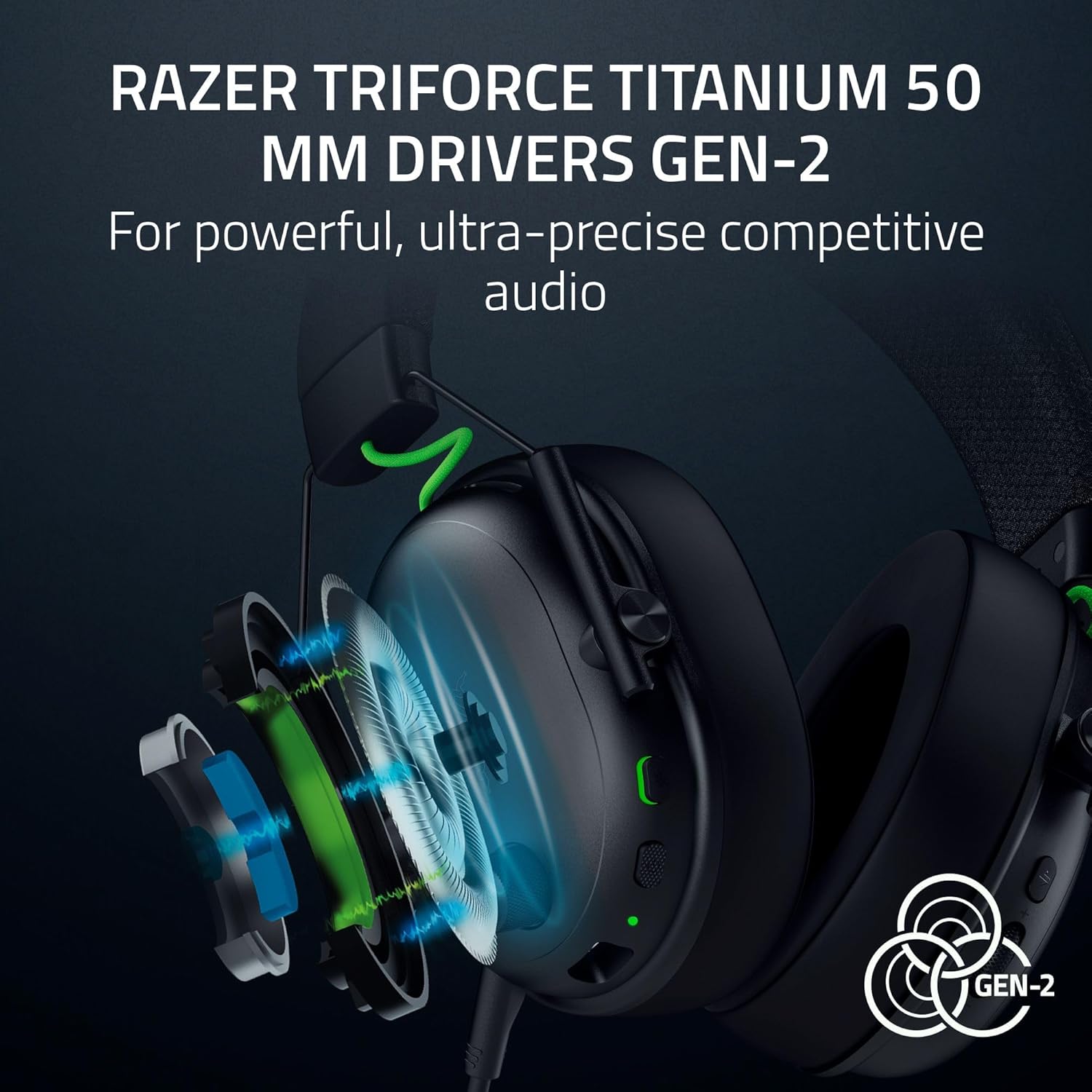
Foto: gbawara view of the TriForce Titanium 50mm Drivers.
6.2 Gburugburu ụda
Experience enhanced positional audio with Windows Sonic on Xbox and THX Spatial Audio on PC. This feature provides an expanded soundstage for improved in-game awareness.

Image: Visual representation of surround sound technology.
6.3 Customizable EQ Profiles
Utilize Razer Synapse 4 (on PC) to access pro-tuned FPS profiles and create custom equalization settings to optimize your audio experience for different games or media. These settings can be saved directly to the headset.

Image: Razer Synapse 4 interface for customizing EQ settings.
7. Igwe okwu
The detachable Razer HyperClear Super Wideband 9.9mm Mic is designed for high-definition voice capture. Its wide frequency response ensures clear and natural communication. The microphone can be removed when not in use.
8. Nkọwapụta
| Njirimara | Nkọwapụta |
|---|---|
| Aha Nlereanya | BlackShark V3 |
| Teknụzụ Njikọta | Bluetooth, USB, Wireless (2.4 GHz) |
| Teknụzụ nzikọrịta ozi ikuku | 2.4 GHz, Bluetooth |
| Jack ekweisi | USB-C |
| Ụdị ọkwọ ụgbọ ala ọdịyo | Ọkwọ ụgbọala dị ike |
| Nha ọkwọ ụgbọ ala ọdịyo | 50 millimeters |
| Nzaghachi ugboro ugboro | 28 kHz |
| Mmetụta | 106 dB |
| Njikwa mkpọtụ | Sound Isolation (Passive Noise Control) |
| Ngwa dakọtara | Mac, Nintendo Switch, PC, PlayStation, Xbox, Smartphones |
| Ihe onwunwe | Ọla |
| Ibu Ibu | 1.7 pound |
| Batrị | 1 batrị lithium ion achọrọ (gụnyere) |
9. Nlekọta
9.1 Nhicha
Wipe the headset with a soft, dry cloth. Avoid using harsh chemicals or abrasive materials. For earcups, gently wipe with a damp akwa ma kwe ka ikuku kpoo kpamkpam tupu ejiri ya.
9.2 Nlekọta batrị
To prolong battery life, avoid fully discharging the headset frequently. Charge the headset regularly, even if not in constant use. Store in a cool, dry place.
10. Nchọpụta nsogbu
10.1 No Audio/Intermittent Audio
- Gbaa mbọ hụ na agbanyere ekweisi wee chajịa nke ọma.
- Verify the correct audio output device is selected in your system settings (PC/Mac/Console).
- For 2.4 GHz wireless, ensure the USB-C dongle is securely connected to your device and within range.
- For Bluetooth, ensure the headset is paired and connected to your device. Try re-pairing if issues persist.
- Lelee ọkwa olu na ma ekweisi yana ngwaọrụ ejikọrọ.
10.2 Igwe okwu anaghị arụ ọrụ
- Hụ na e tinyere igwe okwu ahụ n'ime ekweisi ahụ nke ọma.
- Check that the microphone mute switch on the headset is not engaged.
- Verify the correct microphone input device is selected in your system's audio settings.
- Adjust microphone volume/gain settings in your system or communication software.
10.3 Okwu Njikọta
- If experiencing 2.4 GHz interference, try moving closer to the dongle or ensuring no other devices are causing interference.
- For Bluetooth, ensure the headset is not simultaneously connected to another device that might be interfering.
- Malitegharịa ma ekweisi na ngwaọrụ ejikọrọ.
11. Akwụkwọ ikike na nkwado
This Razer product is covered by a limited manufacturer's warranty. For detailed warranty information, please refer to the official Razer websaịtị ma ọ bụ kaadị ikike etinyere na nkwakọ ngwaahịa gị.
For technical support, driver downloads, and further assistance, visit the official Razer support page:
Optional protection plans may be available for purchase separately:
- Atụmatụ Nchekwa afọ 2
- Atụmatụ Nchekwa afọ 3
- Nchedo zuru oke (atụmatụ kwa ọnwa)


