1. Okwu mmalite
This manual provides detailed instructions for the setup, operation, and maintenance of your Dierya M1 Wireless Gaming Mouse. Please read this manual thoroughly before using the product to ensure proper functionality and to maximize your user experience.

Figure 1: Dierya M1 Wireless Gaming Mouse and 2.4G USB Receiver.
2. Akụrụngwa Ngwaahịa
- 24,000 DPI Optical Sensor: Adjustable DPI range from 200 to 24,000, with 6 preset levels (400-6400 DPI). Features a 125-1000 Hz polling rate, 300 IPS tracking speed, and 35G acceleration.
- Njikọta ụdị atọ: Supports ultra-fast 2.4 GHz wireless (1000 Hz polling rate), energy-efficient Bluetooth 5.2 (125 Hz polling rate), and stable USB-C wired connection (1000 Hz polling rate).
- Ndụ batrị agbatịkwuru: Equipped with a 1000 mAh battery, providing up to 180 hours of use in ECO mode or 48 hours with RGB lighting enabled. Fully recharges in approximately 1 hour via USB-C. Includes an automatic power-saving mode after 1-5 minutes of inactivity.
- Ụdị dị fechaa na ergonomic: Weighs 90g with a breathable honeycomb shell. Symmetrical design (125x63x41 mm) suitable for various grip styles.
- Ngwa na-adịgide adịgide: Features Huano switches rated for 20 million clicks and 100% PTFE feet for smooth gliding.
- Bọtịnụ enwere ike ime: Six customizable buttons for macros and reassignments.
- Ọkụ RGB dị ike: 13 integrated dynamic RGB lighting effects with 16.8 million customizable colors.
- Ndakọrịta sistemụ: Compatible with Windows, macOS, Linux, and Chrome OS.
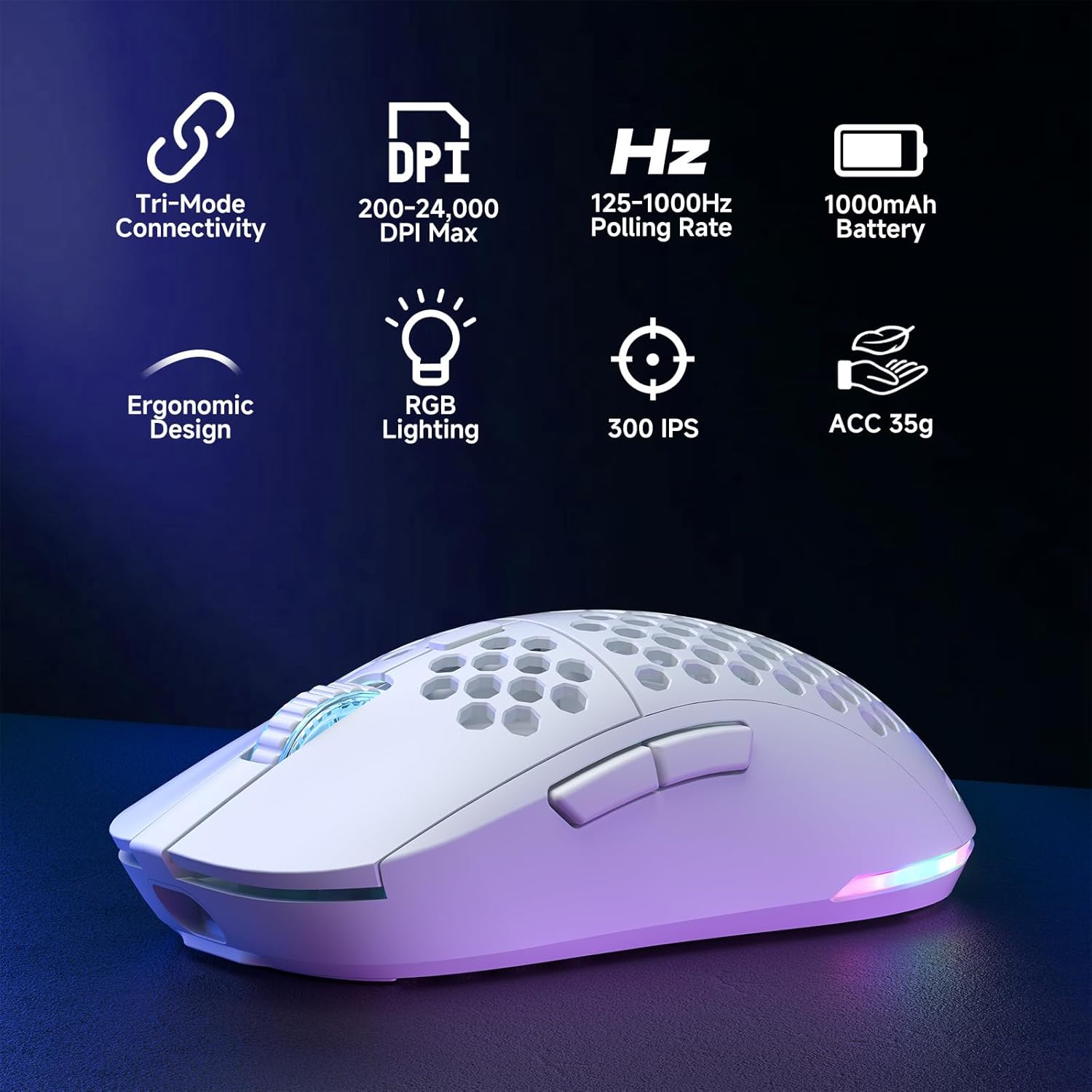
Figure 2: Key features of the Dierya M1 Wireless Gaming Mouse.
3. Ihe osise na ihe mejupụtara ya
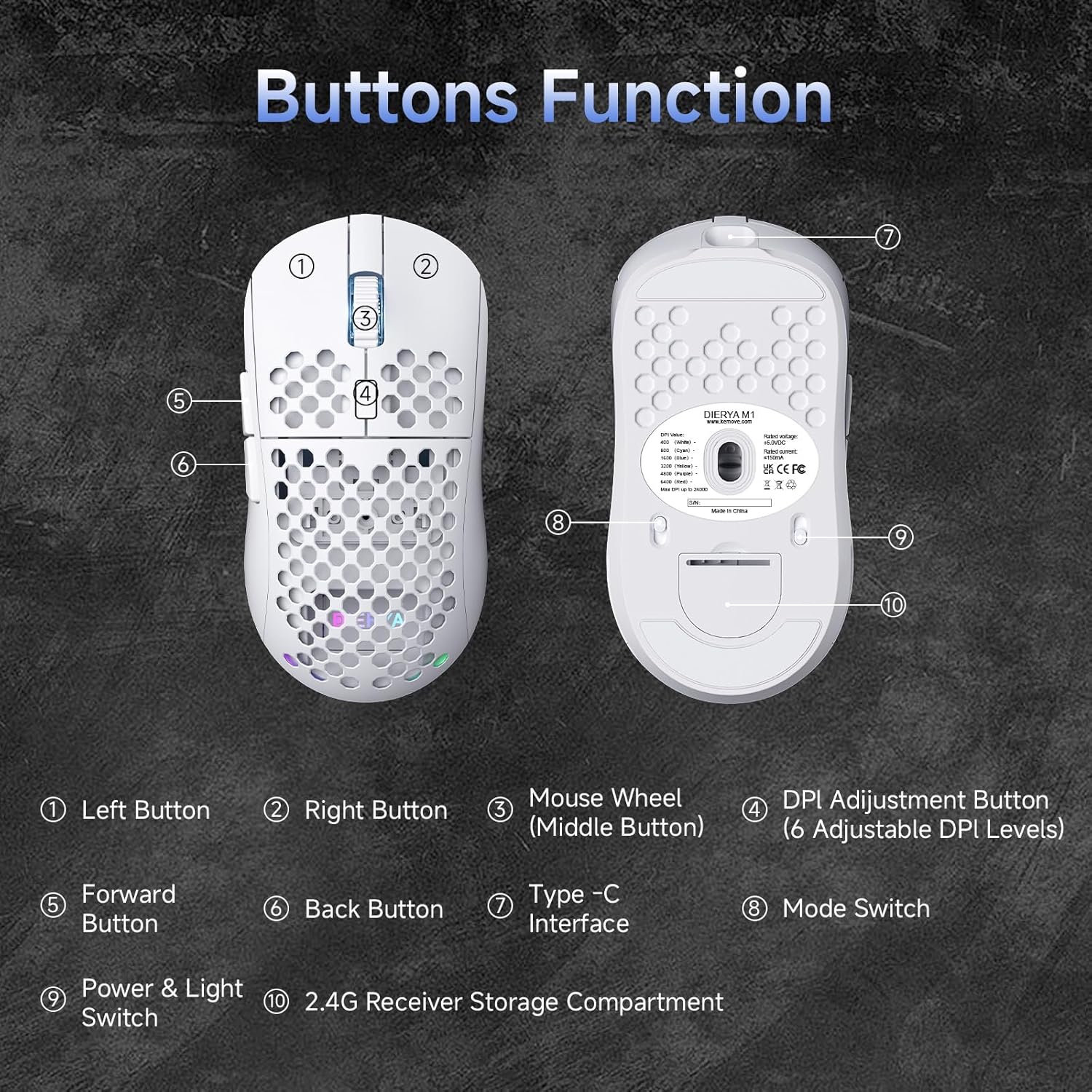
Ọgụgụ 3: N'elu na ala view of the Dierya M1 mouse with labeled components.
- Bọtịnụ aka ekpe
- Bọtịnụ aka nri
- Mouse Wheel (Middle Button)
- DPI Adjustment Button (6 Adjustable DPI Levels)
- Bọtịnụ n'ihu
- bọtịnụ azụ
- Ụdị Ụdị-C
- Mode Switch (2.4G / Bluetooth / Wired)
- Power & Light Switch
- 2.4G Receiver Storage Compartment
4. Ntọala na Njikọ
The Dierya M1 mouse offers three connection modes: 2.4 GHz Wireless, Bluetooth 5.2, and USB-C Wired.

Nyocha 4: N'eluview of the three connection modes.
4.1. 2.4 GHz Njikọ ikuku
- Locate the 2.4G USB receiver in the storage compartment on the bottom of the mouse.
- Tinye eriri USB n'ọdụ ụgbọ mmiri dị na kọmputa gị.
- Set the mode switch on the bottom of the mouse to the '2.4G' position.
- Òké ahụ kwesịrị ijikọ na akpaghị aka.
4.2. Njikọ Bluetooth 5.2
- Set the mode switch on the bottom of the mouse to the 'Bluetooth' position.
- Na kọmputa ma ọ bụ ngwaọrụ gị, mepee ntọala Bluetooth.
- Chọọ maka new devices and select 'Dierya M1' from the list.
- Soro mkpali na ihuenyo ọ bụla iji mezue usoro njikọta.
4.3. Njikọ Waya USB-C
- Connect the provided USB-C cable to the Type-C interface on the front of the mouse.
- Jikọọ nsọtụ nke ọzọ nke eriri USB-C na ọdụ USB dị na kọmputa gị.
- Set the mode switch on the bottom of the mouse to the 'Wired' position.
- Òké ahụ ga-arụ ọrụ dị ka òké wired wee kwụọ ụgwọ n'otu oge.
5. Ntuziaka ọrụ
5.1. DPI mmezi
The DPI Adjustment Button (4) on the top of the mouse allows you to cycle through preset DPI levels. Each DPI level is indicated by a specific color on the scroll wheel LED for a few seconds after adjustment.
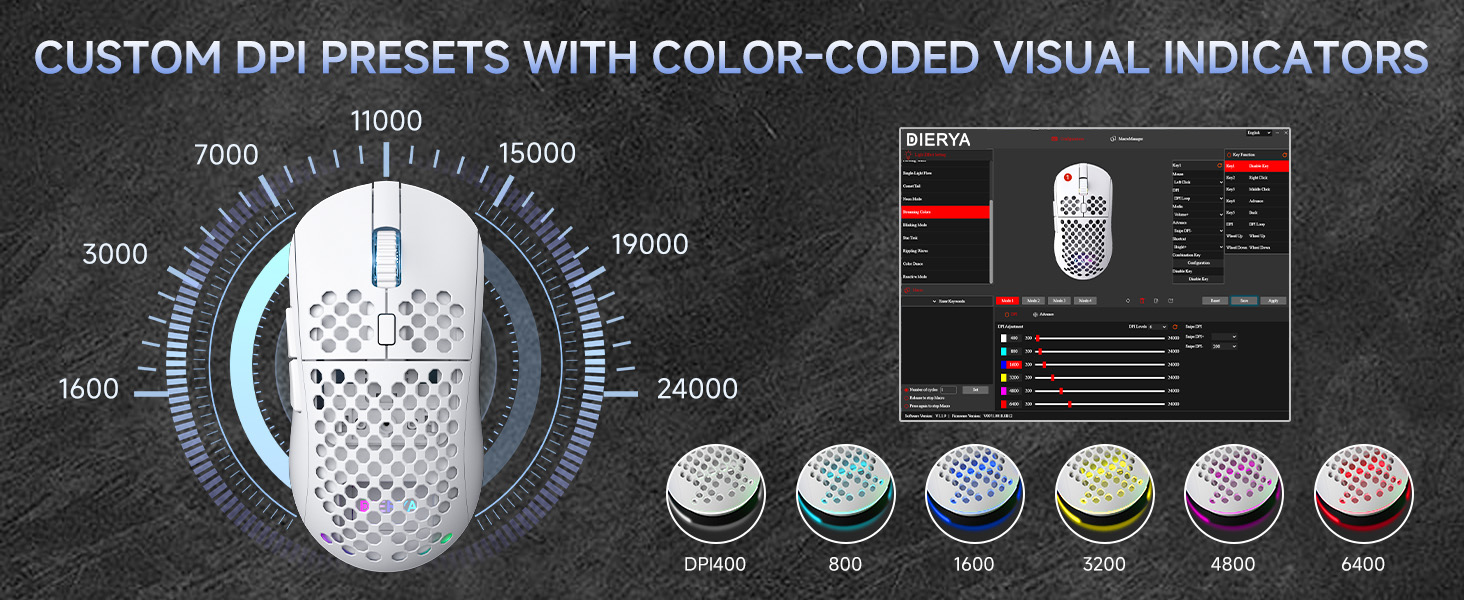
Figure 5: DPI levels and their corresponding scroll wheel LED colors.
- Press the DPI button to switch between 6 preset DPI levels.
- Default presets: 400 DPI (Red), 800 DPI (Green), 1600 DPI (Blue), 3200 DPI (Yellow), 4800 DPI (Purple), 6400 DPI (Cyan).
- For custom DPI settings and a wider range (200-24,000 DPI), use the M1 Driver Software (Windows only).
5.2. Njikwa ọkụ RGB
The mouse features 13 dynamic RGB lighting effects. You can control the lighting directly on the mouse or customize it further with the software.
- To cycle through RGB effects: Press and hold the DPI Adjustment Button (4) for 3 seconds.
- To turn RGB lighting On/Off: Use the Power & Light Switch (9) on the bottom of the mouse.
- For advanced customization of colors and effects, use the M1 Driver Software (Windows only).
5.3. bọtịnụ mmemme
The Dierya M1 has 6 programmable buttons (Left, Right, Middle, DPI, Forward, Back). These buttons can be customized for various functions, macros, or key reassignments using the M1 Driver Software.
6. Charging and Battery Management
The Dierya M1 mouse is equipped with a 1000 mAh rechargeable battery.

Figure 6: Charging the Dierya M1 mouse and battery life indicators.
- Ịchaji: Connect the mouse to your computer using the provided USB-C cable. The mouse will charge while in wired mode or when connected to a power source. A full charge takes approximately 1 hour.
- Ndụ batrị: Expect up to 180 hours of use in ECO mode (RGB off) and up to 48 hours with RGB lighting enabled.
- Ịchekwa ike: The mouse automatically enters a power-saving sleep mode after 1-5 minutes of inactivity. This duration can be adjusted via the M1 Driver Software.
- Ihe ngosi batrị dị ala: The RGB lighting or a specific LED will indicate when the battery is low. Charge the mouse promptly to avoid interruption.
7. M1 Driver Software (Windows Only)
The M1 Driver Software allows for advanced customization of your mouse settings. This software is currently available for Windows operating systems only.

Figure 7: M1 Driver Software interface.
7.1. Njirimara ngwanrọ
- Isi ihe omume: Customize the function of all 6 buttons.
- Editọ Macro: Create and assign complex macros.
- Ndozi DPI: Fine-tune DPI settings from 200 to 24,000 in increments.
- Ọnụego ntuli aka: Adjust the polling rate (125-1000 Hz).
- Nhazi RGB: Personalize lighting effects, colors, and brightness.
- Oge ụra: Configure the automatic power-saving sleep mode duration.
- Profile Njikwa: Chekwaa ma buo pro dị iche ichefiles maka ngwa dị iche iche ma ọ bụ egwuregwu.
7.2. Nwụnye
Download the latest M1 Driver Software from the official Dierya website. Follow the on-screen instructions to install the software on your Windows computer.
8. Nlekọta
- Nhicha: Jiri akwa dị nro dị nro hichaa òké. Maka unyi isi ike, ntakịrị damp enwere ike iji akwa mee ihe, na-ahụ na ọ dịghị mmiri mmiri na-abanye na òké.
- Nchekwa: Chekwaa òké ahụ n'ebe dị jụụ, kpọrọ nkụ pụọ na ìhè anyanwụ kpọmkwem na oke okpomọkụ.
- Nlekọta batrị: Avoid fully discharging the battery frequently. For long-term storage, charge the mouse to about 50% and store it in a cool, dry place.
9. Nchọpụta nsogbu
- Òké anaghị aza:
- Gbaa mbọ hụ na agbanyere òké ahụ.
- Check the connection mode switch (2.4G, Bluetooth, Wired) is set correctly.
- For 2.4G, ensure the USB receiver is securely plugged in.
- For Bluetooth, re-pair the device.
- Try connecting via USB-C cable to check if it works in wired mode.
- Charge the mouse; the battery might be depleted.
- Njikọ nkwụsịtụ ma ọ bụ nke na-adịghị arụ ọrụ:
- Ensure the mouse is within range of the receiver/device (for wireless connections).
- Belata ndabichi sitere na ngwaọrụ ikuku ndị ọzọ.
- Gbaa mbọ hụ na chajịrị batrị nke ọma.
- Update mouse drivers if available (Windows only).
- RGB ọkụ anaghị arụ ọrụ:
- Check the Power & Light Switch (9) on the bottom of the mouse.
- Ensure the mouse is not in ECO mode or a low-power state.
- If using the software, verify RGB settings.
- DPI adjustment not working:
- Ensure you are pressing the correct DPI Adjustment Button (4).
- If using custom settings, check the M1 Driver Software.
10. Nkọwapụta
| Njirimara | Nkọwapụta |
|---|---|
| Ụdị | Dierya |
| Aha Nlereanya | M1 |
| Agba | Ọcha |
| Teknụzụ Njikọta | Ikuku 2.4GHz, Bluetooth 5.2, eriri USB-C |
| Ihe Nchịkwa Ihe Nchịkwa | Ngwa anya |
| Ọnụ ego DPI | 200-24,000 DPI |
| Ọnụego ntuli aka | 125-1000 Hz |
| Ọsọ nsochi | 300 IPS |
| Osooso | 35G |
| Ọnụọgụ bọtịnụ | 6 (nwere ike ime mmemme) |
| Mgbanwe | Huano (20 Million Clicks) |
| Ihe eji eme ụkwụ | 100% PTFE |
| Ike batrị | 1000mAh (Lithium-ion) |
| Battery Life (ECO Mode) | Ruo awa iri abụọ |
| Battery Life (RGB Mode) | Ruo awa iri abụọ |
| Oge Nchaji | Ihe ruru. 1 elekere |
| Ibu | 90 grams |
| Akụkụ | 125 x 63 x 41 mm |
| Ndakọrịta sistemụ arụmọrụ | Windows, macOS, Linux, Chrome OS |
11. Akwụkwọ ikike na nkwado
The Dierya M1 Wireless Gaming Mouse comes with a 1-afọ emeputa akwụkwọ ikike. Akwụkwọ ikike a na-ekpuchi ntụpọ dị na ngwa na arụ ọrụ n'okpuru ojiji nkịtị.
For warranty claims, technical support, or further inquiries, please contact Dierya customer service through the official website or your point of purchase. Please have your product model number (M1) and proof of purchase ready when contacting support.


