1. Okwu mmalite
The TACTACAM Reveal Ultra Cellular Trail Camera is designed for remote monitoring and surveillance, capturing high-quality photos and videos. This manual provides essential instructions for setting up, operating, and maintaining your camera to ensure optimal performance.
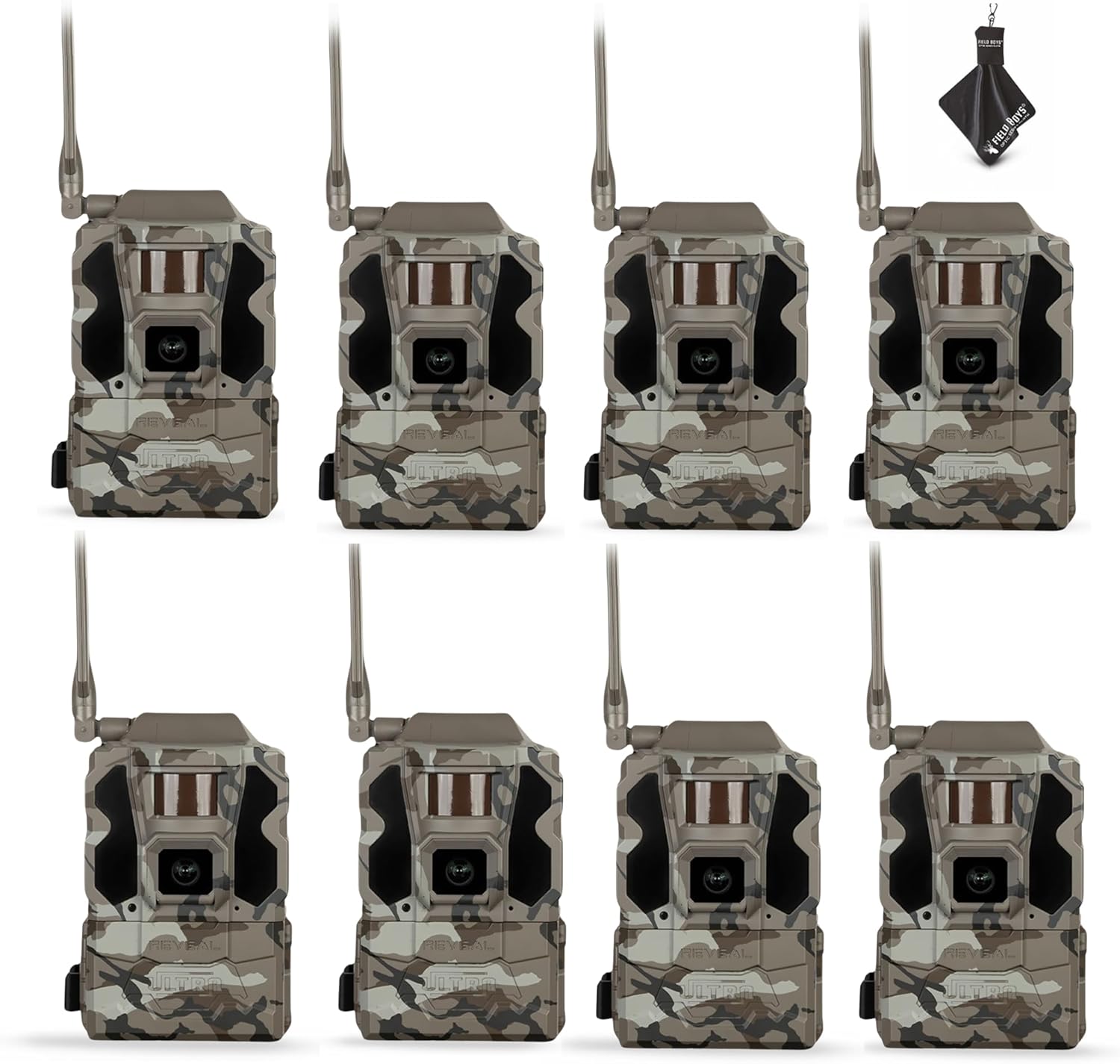
Figure 1: TACTACAM Reveal Ultra Cellular Trail Cameras.
2. Nhazi
2.1. Unboxing na mbido nyocha
Carefully remove all components from the packaging. Verify that all items are present: TACTACAM Reveal Ultra camera, and any included accessories such as SD cards and a cleaning cloth.
2.2. Ntinye batrị
The Reveal Ultra camera is powered by batteries. Open the battery compartment, typically located on the side or bottom of the unit. Insert the required number of batteries, ensuring correct polarity (+/-). For extended operation, consider using external power sources like solar panels (sold separately).
2.3. Ntinye kaadi SD
Locate the SD card slot. Insert a compatible SD card (up to 32GB recommended) into the slot until it clicks into place. Ensure the card is formatted correctly before first use (refer to the camera's on-screen menu for formatting options).

Figure 2: Camera with side panel open, showing LCD and card slot.
2.4. Cellular Network Activation
The Reveal Ultra utilizes LTE connectivity. Download the TACTACAM Reveal app on your smartphone. Follow the in-app instructions to activate your camera and select a cellular plan. This process typically involves scanning a QR code on the camera or entering its serial number.
2.5. Ịtinye igwefoto
The camera is designed for tree mounting. Use the included strap or a compatible mounting accessory to secure the camera to a tree or post. Position the camera to achieve the desired field of view, ensuring it is stable and level.

Figure 3: Camera mounted on a tree with a solar panel.

Figure 4: Camera mounted on a tree with an external battery pack.
3. Ọrụ
3.1. Ịgbanye / gbanyụọ
To power on the camera, locate the power button (often labeled 'ON/OFF' or 'POWER') and press it. The 2-inch LCD screen will illuminate. To power off, press and hold the power button until the screen shuts down.
3.2. Navigating the LCD Screen
The 2-inch LCD screen allows for on-site viewing and configuration. Use the navigation buttons (up, down, left, right, OK/Enter) to browse menus, adjust settings, and review captured media.
3.3. Na-ese foto na vidiyo
The camera supports Ultra-HD 4K photos and 1080P video recording. Settings for resolution, burst mode, video length, and trigger delay can be adjusted through the camera's menu or the TACTACAM Reveal app.
3.4. Live Video Streaming
With an active subscription, the Reveal Ultra supports live video streaming directly to your smartphone via the TACTACAM Reveal app. This feature allows real-time monitoring of the camera's surroundings.
3.5. Active GPS Tracking
The integrated GPS tracking feature provides the camera's exact location, even when powered off. This can be accessed and monitored through the TACTACAM Reveal app.
3.6. Infrared Flash Settings
The camera features a switchable Low-Glow / No-Glow infrared flash. Select 'Low-Glow' for extended flash range with minimal visible light, or 'No-Glow' for complete stealth, ideal for sensitive wildlife or security applications. This setting can be adjusted in the camera's menu.
4. Nlekọta
4.1. Nhicha
Regularly clean the camera lens and housing using the provided microfiber cleaning cloth. Avoid abrasive materials or harsh chemicals. Ensure the camera is dry before closing any compartments.
4.2. Njikwa batrị
Monitor battery levels through the camera's LCD screen or the TACTACAM Reveal app. Replace or recharge batteries as needed to prevent interruption of service. For optimal performance in cold weather, use high-quality lithium batteries.
4.3. Njikwa kaadị SD
Periodically check the SD card capacity. Transfer important files to a computer and format the SD card regularly to maintain performance and prevent data corruption. Always power off the camera before inserting or removing the SD card.
5. Nchọpụta nsogbu
5.1. Igwefoto anaghị agbanwu
- Check battery installation and ensure batteries are fully charged or new.
- Lelee polarity batrị.
- If using an external power source, ensure it is properly connected and functional.
5.2. No Photos/Videos Captured
- Ensure an SD card is properly inserted and has sufficient free space.
- Check motion sensor settings and sensitivity.
- Verify that the camera is in an active capture mode.
5.3. Cellular Connectivity Issues
- Confirm an active cellular plan through the TACTACAM Reveal app.
- Check cellular signal strength in the camera's location.
- Ensure the camera's antenna is securely attached.
- Restart the camera and check the app for status updates.
5.4. Poor Image/Video Quality
- Jiri akwa microfiber hichaa oghere igwefoto.
- Adjust resolution settings in the camera menu or app.
- Ensure the camera is stable and not subject to vibrations.
6. Nkọwapụta
| Njirimara | Nkọwa |
|---|---|
| Aha Nlereanya | Reveal Ultra |
| Nọmba Nlereanya ihe | RV-TC-ULTRA3 |
| Ụdị | TACTACAM |
| Ojiji ime ime/n'èzí | N'èzí |
| Isi Iyi Ike | Akwanyere batrị |
| Protocol Njikọta | Cellular |
| Teknụzụ Njikọta | Ikuku |
| Ụdị njikwa | Pịa bọtịnụ |
| Ụdị nkwụnye | Ugwu Osisi |
| Mkpebi ịse vidiyo | 1080p |
| Usoro Nseta vidiyo | MPEG-4 |
| Atụmatụ pụrụ iche | 2” LCD screen, Easy to Install, Portable, Switchable low-glow/no-glow flash, Live video streaming |
| Akụkụ ngwaahịa (L x W x H) | 3.75 x 4.1 x 11.9 sentimita asatọ |
| Ngwa gụnyere | Kaadị SD |
7. Akwụkwọ ikike & Nkwado
7.1. Akwụkwọ ikike Ozi
The TACTACAM Reveal Ultra comes with a one-year comprehensive warranty. This warranty covers manufacturing defects and ensures your investment is protected. Please retain your proof of purchase for warranty claims.
7.2. Ọrụ ndị ahịa
For technical assistance, troubleshooting, or warranty inquiries, please contact TACTACAM customer service. Visit the official TACTACAM website for contact details and support resources: www.tactacam.com/support


