Okwu mmalite
This manual provides essential information for the setup, operation, and maintenance of your ENDGAME GEAR OP1w 4K v2 Wireless Gaming Mouse. Please read these instructions carefully to ensure optimal performance and longevity of your device.

Image: The ENDGAME GEAR OP1w 4K v2 Wireless Gaming Mouse in white, showcasinnhazi ergonomic ya.
Melite
1. Ihe ngwugwu
Chọpụta na akụrụngwa niile dị:
- ENDGAME GEAR OP1w 4K v2 Wireless Gaming Mouse
- USB-C to USB-A Flex Cord 7.0 (6 ft)
- Wireless Receiver (Dongle)
- Ntuziaka mmalite ngwa ngwa (akwụkwọ a)

Image: The ENDGAME GEAR OP1w 4K v2 mouse, its USB-C charging/data cable, and the wireless receiver.
2. Ijikọ òké
The OP1w 4K v2 mouse supports both wireless and wired connectivity.
Njikọ ikuku:
- Insert the wireless receiver into an available USB-A port on your computer.
- Turn on the mouse using the switch located on the underside.
- Òké ahụ kwesịrị ijikọ na onye nnata ahụ na akpaghị aka. Ọ bụrụ na ọ bụghị, lee ngalaba nsogbu.

Image: The ENDGAME GEAR OP1w 4K v2 mouse positioned next to its wireless receiver, illustrating wireless operation.
Njikọ waya:
Connect the USB-C end of the Flex Cord 7.0 to the mouse and the USB-A end to your computer. The mouse will function as a wired device and charge simultaneously.
3. Nwụnye ngwanrọ
For advanced customization and firmware updates, download the official ENDGAME GEAR software from the manufacturer's website. This software allows adjustment of polling rate, CPI, button assignments, and other settings.
Na-arụ ọrụ òké
1. Mgbanwe ọnụego ntuli aka
The OP1w 4K v2 supports multiple polling rates:
- Ikuku: 4000Hz, 2000Hz, 1000Hz
- Mara: 1000Hz
Adjust the polling rate using the ENDGAME GEAR software to suit your preferences and system capabilities. A higher polling rate provides faster response times.

Foto: A nso nso view of the mouse highlighting its capability for an ultra-fast 4000 Hz wireless polling rate.
2. CPI/DPI Settings
The PixArt PAW3950 optical sensor offers up to 30,000 CPI (Counts Per Inch). CPI settings can be adjusted via the software to fine-tune cursor sensitivity for precision and speed.

Image: The underside of the mouse, revealing the custom optical sensor and other regulatory markings.
3. Kailh GX Switches
The mouse features pre-sorted Kailh GX switches for the main buttons, providing crisp feedback and low latency. These switches are designed for durability with an 80-million click lifespan.

Image: The mouse connected to its receiver, emphasizing the Kailh GX switches for instant clicks.
4. Claw-Grip Design
The OP1w 4K v2 is engineered with a right-handed, claw-grip optimized shape, featuring flatter sides, extended ledges, and a dry grip coating for enhanced control. Its lightweight design (~58.5g) contributes to agile and precise movements.
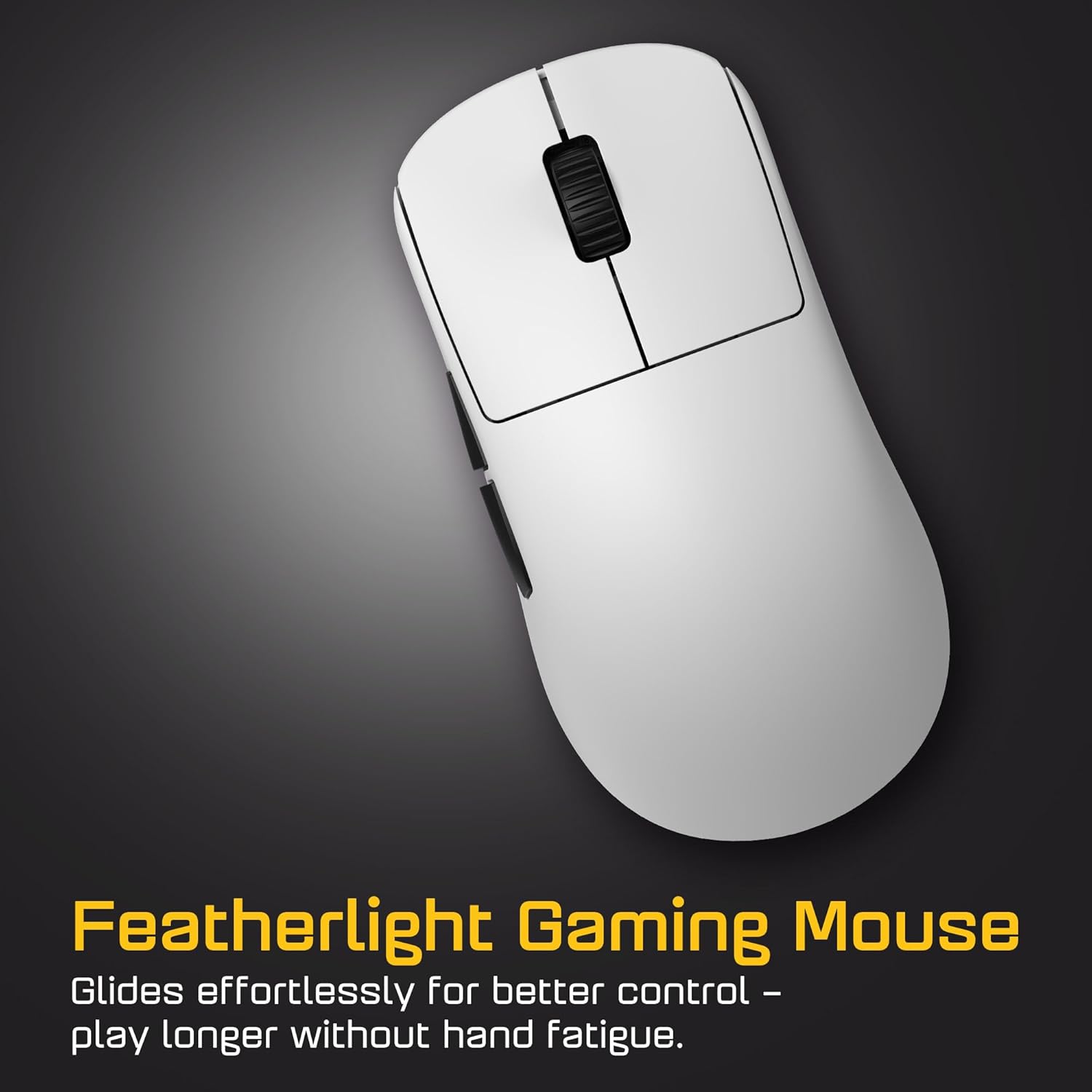
Foto: Otu n'elu view of the mouse, illustrating its lightweight and ergonomic form factor.
Nlekọta
1. Nhicha
To maintain performance and hygiene, regularly clean your mouse. Use a soft, dry cloth to wipe the surface. For sensor cleaning, use a cotton swab lightly dampZere kemịkalụ siri ike ma ọ bụ ihe ndị na-emebi ihe.
2. Mgbanwe Ndị A Na-agbanwe n'Ọkụ
The OP1w 4K v2 features a modding-friendly design with hot-swappable main button switches. This allows users to replace switches without soldering. Refer to the manufacturer's website or support resources for detailed instructions on switch replacement.
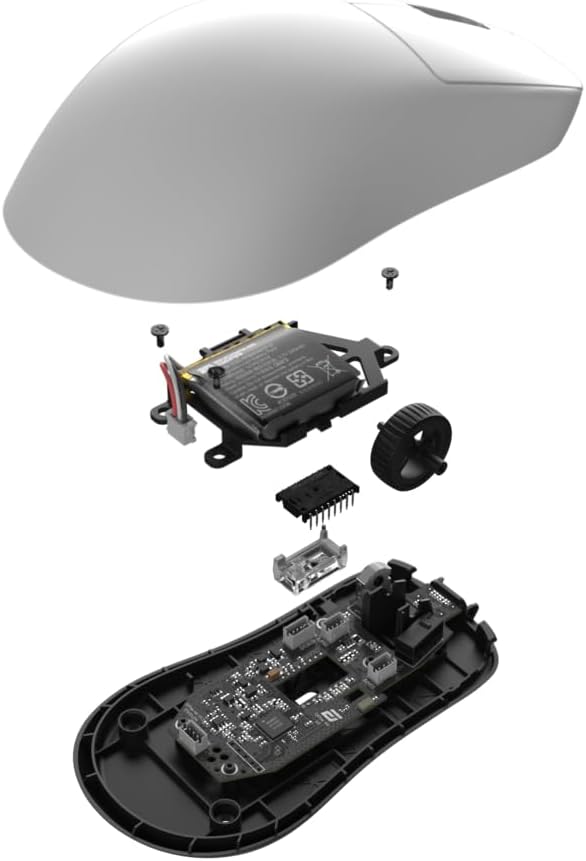
Image: An exploded diagram showing the internal components of the mouse, including the PCB, battery, and switches, illustrating its modular design.
3. Skate Replacement
The mouse feet (skates) are designed to be replaceable. Worn skates can affect glide performance. Replacement skates can be purchased separately. Follow manufacturer guidelines for proper removal and installation.
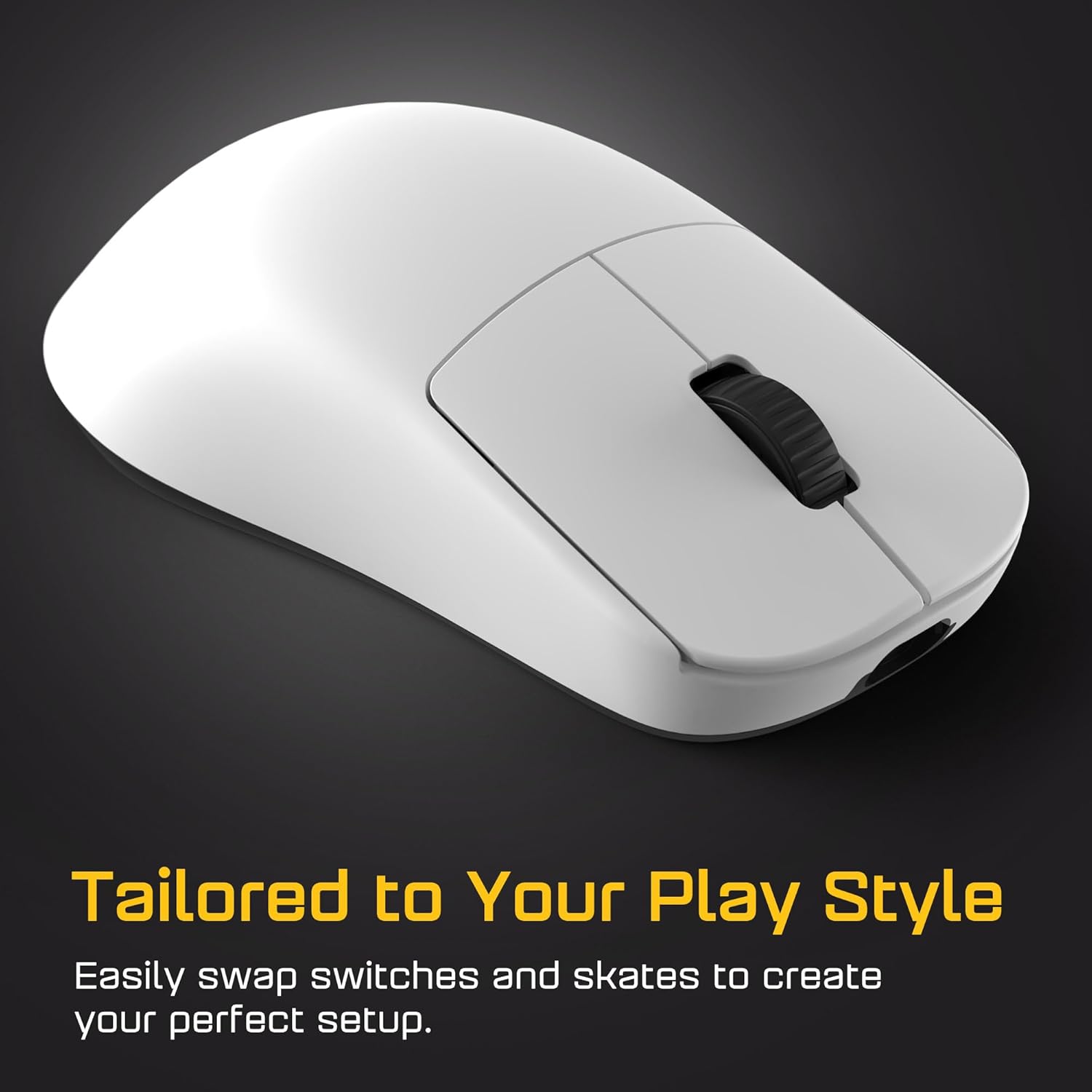
Image: A close-up of the mouse's main buttons, suggesting its adaptability to different play styles through customization options like switch and skate replacement.
Nchọpụta nsogbu
- Òké anaghị aza: Ensure the mouse is charged and powered on. For wireless connection, verify the receiver is properly inserted and the mouse is within range. For wired connection, check the USB cable connection.
- Njikọ na-adịte aka: Move the wireless receiver closer to the mouse. Avoid placing the receiver near sources of interference (e.g., other wireless devices, large metal objects).
- Cursor erratic or not tracking: Clean the optical sensor on the underside of the mouse. Ensure the mouse is used on a suitable surface (e.g., a mouse pad). Update mouse firmware via the ENDGAME GEAR software.
- Buttons not registering: Check button assignments in the ENDGAME GEAR software. If using custom switches, ensure they are correctly installed.
- Nsogbu ngwanrọ: Reinstall the ENDGAME GEAR software. Ensure your operating system is up to date.
For further assistance, consult the ENDGAME GEAR support websaịtị ma ọ bụ kpọtụrụ ndị ahịa.
Nkọwapụta
| Nọmba nlereanya | EGG-OP1W-4K-V2-WHT |
| Njikọta | Wireless (Radio Frequency), USB (Wired) |
| Sensọ | Ihe mmetụta anya PixArt PAW3950 |
| Max CPI | 30,000 CPI |
| Ọnụego ntuli aka kachasị elu | 4000Hz (Wireless), 1000Hz (Wired) |
| Mgbanwe | Kailh GX (Hot-Swappable) |
| Ibu | ~58.5g (2.1 ounces) |
| Akụkụ | 3.94 x 3.94 x 3.94 sentimita asatọ |
| USB | 6 ft Flex Cord 7.0 (USB-C to USB-A) |
| Batrị | 1 Nonstandard Battery |
Akwụkwọ ikike na nkwado
Ozi akwụkwọ ikike
ENDGAME GEAR products are covered by a limited manufacturer's warranty. Please refer to the warranty card included with your product or visit the official ENDGAME GEAR websaịtị maka nkọwa zuru ezu usoro na ọnọdụ gbasara mkpuchi mkpuchi, ogologo oge na usoro nkwupụta.
Nkwado ndị ahịa
For technical support, product inquiries, or warranty claims, please visit the ENDGAME GEAR support portal on their official website. You can typically find FAQs, driver downloads, and contact information for their customer service team there.
Websaịtị: www.endgamegear.com/support (Ọpụample link, please verify actual support URL)


