1. Okwu mmalite
Welcome to the SteelSeries Arctis GameBuds ANC Wireless Gaming Earbuds. This manual provides essential information for setting up, operating, maintaining, and troubleshooting your new gaming earbuds. Please read these instructions carefully before use to ensure optimal performance and longevity of your device.
2. Ngwaahịa gafereview
The SteelSeries Arctis GameBuds ANC are designed for a versatile gaming experience across multiple platforms, offering active noise cancellation, dual wireless connectivity, and a comfortable fit.
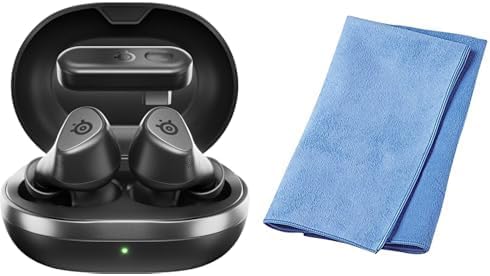
Image: The SteelSeries Arctis GameBuds ANC Wireless Gaming Earbuds are shown inside their open charging case, with a green indicator light visible. A folded blue cleaning cloth is positioned next to the case.
Ọdịnaya ngwugwu:
- SteelSeries Arctis GameBuds ANC Wireless Gaming Earbuds
- Nchaji case
- USB-C eriri USB
- Dongle ikuku (USB-C)
- Sanwa Cleaning Cloth
- Ntuziaka mmalite ngwa ngwa
3. Nhazi
3.1 Nchaji izizi
- Tinye ntị ntị n'ime akpa nchaji.
- Connect the charging case to a power source using the provided USB-C cable, or place it on a Qi-compatible wireless charging pad.
- The LED indicator on the case will show charging status. A full charge provides up to 40 hours of battery life (including case charges). Rapid charging is supported.
3.2 Connecting via 2.4GHz Wireless (Low Latency)
- Insert the USB-C wireless dongle into your PC, PlayStation (PS5/PS4), or Nintendo Switch.
- Ensure the earbuds are charged and removed from the case. They should automatically connect to the dongle.
- Confirm the connection through your device's audio settings.
3.3 Ijikọ site na Bluetooth 5.3
- Wepu earbuds na akpa chaja.
- Activate Bluetooth pairing mode on the earbuds (refer to the Quick Start Guide for specific button presses).
- On your smartphone or other Bluetooth-enabled device, search for "Arctis GameBuds" in the Bluetooth settings and select to pair.
3.4 Software Installation (SteelSeries GG)
For advanced customization, including EQ settings and firmware updates, download and install the SteelSeries GG software on your PC. This software allows access to over 100 EQ presets and personalized audio profiles.
4. Ntuziaka ọrụ
4.1 Gbanyụọ ma ọ bụ gbanyụọ
- Ike Na: Remove the earbuds from the charging case. They will automatically power on.
- Gbanyụọ: Place the earbuds back into the charging case. They will automatically power off and begin charging.
4.2 Nkagbu mkpọtụ mkpọtụ (ANC)
The earbuds feature Active Noise Cancellation to minimize ambient distractions. Control ANC through the touch controls on the earbuds or via the SteelSeries GG software.
4.3 Njikwa ọdịyo
The earbuds are equipped with intuitive touch controls for managing audio playback and calls:
- Gwuo/kwụsịtụ: Otu mgbata na ntị ntị.
- Track na-esote: Pịa bọtịnụ ntị aka nri ugboro abụọ.
- Gara aga Track: Pịa ugboro atọ na ekwe ntị aka ekpe.
- Elu elu/ala: Specific gestures or button presses may be customizable via SteelSeries GG.
4.4 Igwe okwu
The integrated microphones allow for clear communication during gaming or calls. Ensure the earbuds are properly seated for optimal microphone performance.
5. Nlekọta
5.1 Nhicha
Regularly clean your earbuds and charging case to maintain hygiene and performance. Use the provided Sanwa cleaning cloth or a soft, dry, lint-free cloth. Avoid using abrasive materials or harsh chemicals.
5.2 Nchekwa
When not in use, store the earbuds in their charging case to protect them from dust and damage, and to ensure they remain charged.
5.3 Mgbochi mmiri na uzuzu
The earbuds are rated IP55 for dust and water resistance, meaning they are protected against limited dust ingress and low-pressure water jets from any direction. This rating does not imply full waterproofing; avoid submerging the earbuds in water.
6. Nchọpụta nsogbu
6.1 Okwu njikọ
- No Connection (2.4GHz): Ensure the wireless dongle is securely plugged into your device. For optimal performance, place the dongle in a USB port close to your line of sight, potentially using a USB-C extension cable if interference occurs.
- Mmebi Njikọ Bluetooth: Ensure the earbuds are in pairing mode and your device's Bluetooth is enabled. Try unpairing and re-pairing the earbuds.
- Mwepu na-adịte aka: Check for potential interference from other wireless devices. Ensure the earbuds are fully charged.
6.2 Nsogbu Ogo Ọdịyo
- Low Volume/Poor Sound: Adjust EQ settings via the SteelSeries GG software. Ensure the earbuds are properly seated in your ears.
- ANC White Noise: Some users may experience a subtle white noise with ANC enabled. This is often normal for ANC technology. If it is excessive, ensure a proper earbud fit.
6.3 Batrị na Nchaji
- Earbuds anaghị akwụ ụgwọ: Ensure the charging contacts on both the earbuds and the case are clean and free of debris. Verify the charging cable is functional and the power source is active.
- Ụdị ụra akpaka: If earbuds enter sleep mode unexpectedly during low volume playback, adjust the auto-sleep settings in the SteelSeries GG software.
6.4 Software Update Issues
- Mmelite Firmware Emeghị nke ọma: Ensure a stable internet connection and that the earbuds are connected to your PC via the dongle or Bluetooth during the update process. Note that some operating systems, such as certain versions of macOS, may have compatibility issues with the SteelSeries GG update utility.
7. Nkọwapụta
| Ụdị | Usoro igwe |
| Nlereanya | Arctis GameBuds ANC (61680) |
| Njikọta | 2.4GHz Wireless (via USB-C dongle), Bluetooth 5.3 |
| Ndakọrịta | PC, PlayStation 5, PlayStation 4, Nintendo Switch, Smartphones |
| Ndụ batrị | Ruo awa 40 (ya na akpa chaja) |
| Ịchaji | USB-C, Qi Wireless Charging, Rapid Charging |
| Ịdị ogologo | IP55 Uzuzu na Mmiri Nguzogide |
| Njirimara ọdịyo | Active Noise Cancellation (ANC), Hi-Fi Audio, 100+ EQ Settings via SteelSeries GG |
| Agba | Nwa |
8. Akwụkwọ ikike Ozi
SteelSeries products are covered by a manufacturer's warranty. For detailed information regarding warranty terms, conditions, and duration, please refer to the warranty card included with your product or visit the official SteelSeries websaịtị. Debe ihe akaebe nke ịzụrụ maka akwụkwọ ikike.
9. Nkwado
For further assistance, technical support, or to access the latest drivers and firmware updates, please visit the official SteelSeries support websaịtị:
I nwekwara ike ịchọta Ajụjụ Ndị A Na-ajụkarị na ogbako obodo na ibe nkwado.


