Okwu mmalite
This manual provides comprehensive instructions for the setup, operation, and maintenance of your memzuoix WM125B Wireless Mouse. Designed for comfort and precision, this 2.4GHz wireless mouse offers adjustable DPI settings and broad compatibility for various computing needs.
Akụkụ ndị bụ isi:
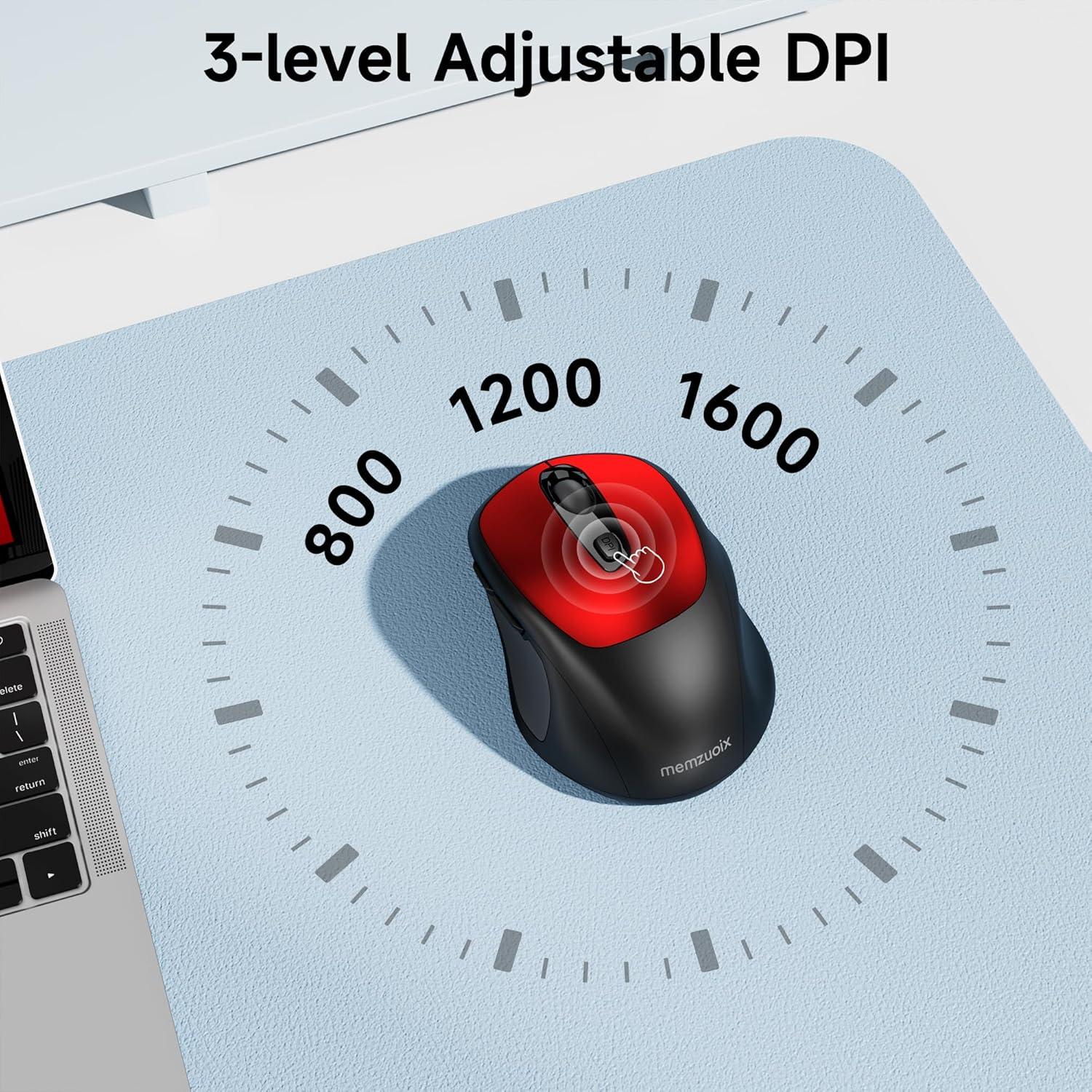
- Ọkwa DPI 3 a na-agbanwe agbanwe: Easily switch between 800, 1200, and 1600 DPI for optimal control.
- Ergonomic & Ambidextrous Design: Contoured shape with rubberized side grips for comfortable use by both left and right-handed users.
- Plug & Play 2.4GHz Nano Receiver: Instant connectivity without software installation, offering a reliable 33ft range.
- Nrụpụta na-adịgide adịgide: Buttons and scroll wheel tested for 10 million clicks, ensuring long-term reliability.
- Ndakọrịta Universal: Works seamlessly with Windows, macOS, Linux, and ChromeOS devices.
- Enwere ike ibugharị: Lightweight and compact, ideal for travel and on-the-go use.
Ntuziaka nhazi
1. Wụnye batrị
- Chọta mkpuchi nke ebe batrị ahụ n'okpuru òké ahụ.
- Jiri nwayọọ slide ma ọ bụ welie ihe mkpuchi ahụ ka imeghe akụkụ ahụ.
- Fanye batrị AAA abụọ, na-ahụ polarity ziri ezi (+/-).
- Dochie mkpuchi nke batrị batrị ruo mgbe ọ pịrị na ebe nchekwa.

2. Connect USB Receiver
- Locate the nano USB receiver, typically stored within the battery compartment of the mouse.
- Plug the USB receiver into an available USB port on your computer (PC, Mac, laptop, etc.).
- The computer should automatically detect and install the necessary drivers. No additional software installation is required.

Ntuziaka ọrụ
1. Gbanyụọ / gbanyụọ
Locate the ON/OFF switch on the underside of the mouse. Slide the switch to the 'ON' position to activate the mouse. Slide it to 'OFF' when not in use to conserve battery life.
2. Ọrụ bọtịnụ
- Bọtịnụ aka ekpe: Ọrụ ịpị nke mbụ.
- Bọtịnụ aka nri: Ọrụ pịa nke abụọ (nchịkọta ọnọdụ).
- Mpempe akwụkwọ mpịakọta: Pịgharịa gaa na elu/ala akwụkwọ na web pages. Can also be clicked for middle-button functionality.
- Bọtịnụ DPI: Cycles through DPI settings (800/1200/1600).
- Bọtịnụ mbugharị: Na-aga n'ihu web ihe nchọgharị ma ọ bụ file ndị na-eme nchọpụta.
- Bọtịnụ azụ: Na-agagharị azụ n'ime web ihe nchọgharị ma ọ bụ file ndị na-eme nchọpụta.
3. Adjusting DPI Sensitivity
Pịa DPI bọtịnụ located below the scroll wheel to cycle through the available sensitivity settings: 800 DPI (for precise control), 1200 DPI (standard use), and 1600 DPI (for faster cursor movement). The mouse will indicate the change, often with a brief LED flash.
Nlekọta
1. Nhicha
To maintain optimal performance, regularly clean your mouse. Use a soft, lint-free cloth slightly dampejiri mmiri ma ọ bụ ihe nhicha dị nro mee ya. Zere kemịkalụ siri ike ma ọ bụ ihe ndị na-emebi ihe. Hụ na mmiri ọ bụla abanyeghị n'ime ihe dị n'ime òké ahụ.
2. Ngbanwe batrị
When the mouse's performance degrades or it stops responding, it may be time to replace the batteries. Follow the steps in the 'Install Batteries' section of this manual to replace the two AAA batteries. Dispose of old batteries responsibly according to local regulations.
Nchọpụta nsogbu
- Òké anaghị aza:
- Ensure the mouse is switched 'ON' using the power switch on the underside.
- Lelee ma arụnyere batrị nke ọma ma nwee ụgwọ zuru oke. Dochie ma ọ dị mkpa.
- Hụ na e tinyere ihe nnata USB ahụ n'ime ọdụ USB na-arụ ọrụ na kọmputa gị nke ọma. Nwaa ọdụ USB ọzọ.
- Malitegharịa ekwentị gị na kọmputa.
- Cursor movement is erratic or inaccurate:
- Ensure the mouse is used on a clean, non-reflective surface. Avoid glass or highly reflective surfaces.
- Clean the optical sensor on the underside of the mouse with a soft cloth.
- Try adjusting the DPI setting using the DPI button.
- Connection issues or frequent disconnections:
- Ensure the mouse is within the effective operating range (approximately 33 feet) of the USB receiver.
- Avoid using the mouse near strong electromagnetic interference sources (e.g., other wireless devices, large metal objects).
- Re-pair the mouse with the receiver if possible (refer to manufacturer's website for specific pairing instructions if needed, as this model is typically plug-and-play).
Nkọwapụta
| Njirimara | Nkọwa |
|---|---|
| Ụdị | memzuoix |
| Nọmba nlereanya | WM125B |
| Teknụzụ Njikọta | Igwe anaghị agba nchara 2.4GHz (USB Nano Receiver) |
| Ọkwa DPI | 800 / 1200 / 1600 |
| Ọnụọgụ bọtịnụ | 6 (Aka ekpe, aka nri, wiil pịgharịa, DPI, Gaa n'ihu, Laa azụ) |
| Teknụzụ nchọpụta ngagharị | Ngwa anya |
| Isi Iyi Ike | Batrị 2 x AAA (anaghị etinye ya) |
| Ibu Ibu | 3.2 ounces |
| Akụkụ ngwugwu | 4.8 x 3.23 x 1.85 sentimita asatọ |
| Agba | Uhie |
| Ndakọrịta | PC, Mac, Laptop (Windows, macOS, Linux, ChromeOS) |
Akwụkwọ ikike na nkwado
The memzuoix WM125B Wireless Mouse comes with a standard manufacturer's warranty. For specific warranty details, return policies, or technical support, please refer to the product packaging or contact memzuoix customer service directly through their official websaịtị ma ọ bụ onye na-ere ahịa ebe a zụrụ ngwaahịa ahụ.
Maka enyemaka ọzọ, biko gaa na memzuoix Store on Amazon.
