1. Okwu mmalite
This manual provides detailed instructions for the TECURS Bluetooth Keyboard, designed for use with Microsoft Surface Pro 11, 10, 9, 8, and X (13-inch models). Please read this manual carefully before using the product to ensure proper operation and to maximize its features.
2. Ndakọrịta
Mkpa: Before use, verify your device model. This Bluetooth keyboard is exclusively compatible with Microsoft Surface Pro 11, Surface Pro 10, Surface Pro 9, Surface Pro 8, and Surface Pro X (13-inch models). It is not compatible with other Surface models.
To check your device model, navigate to Settings > System > About on your Surface Pro device.
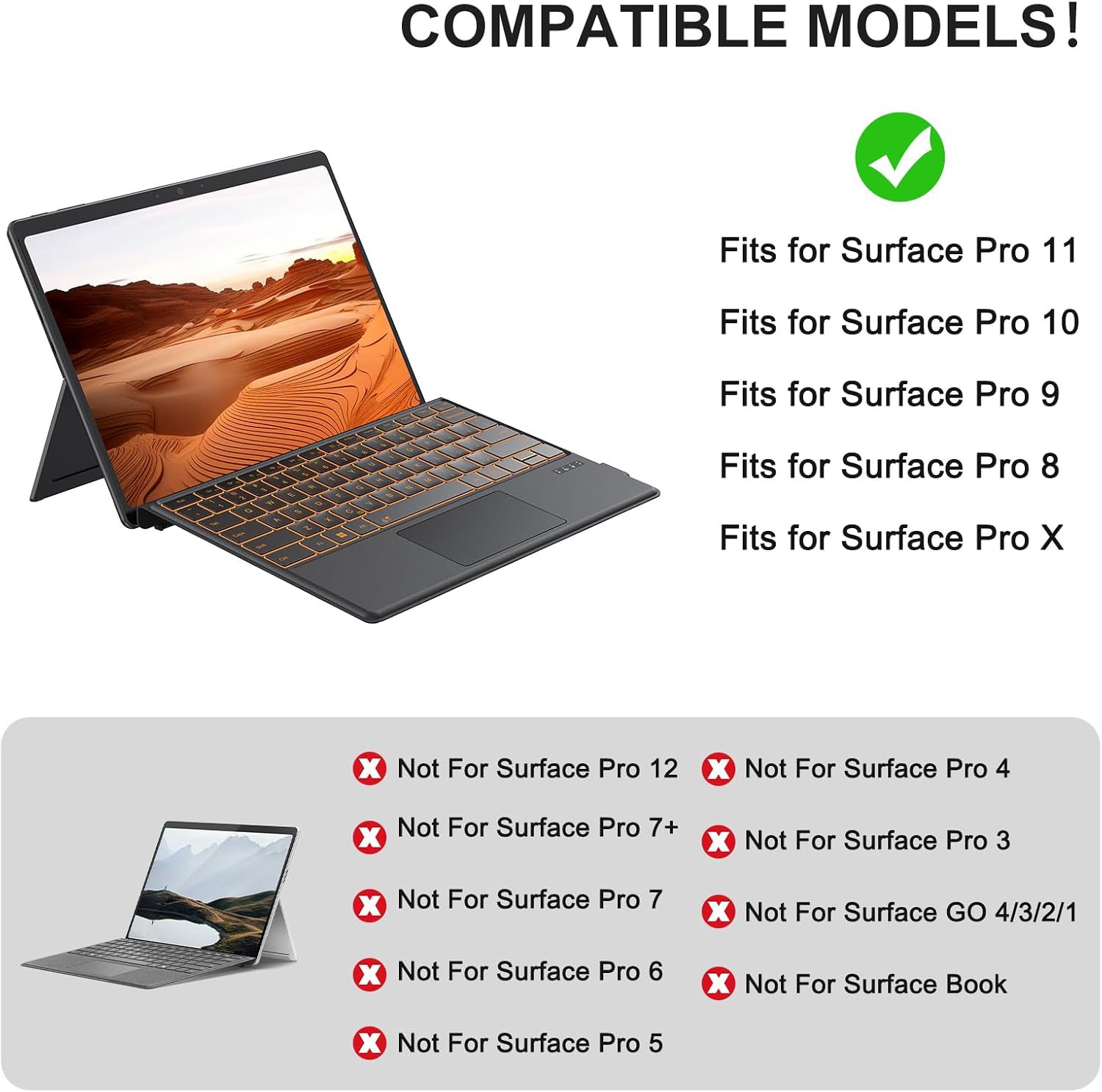
Figure 2.1: Compatible Surface Pro Models. This image illustrates which Surface Pro models are compatible (Surface Pro 11, 10, 9, 8, X) and which are not (e.g., Surface Pro 12, 7+, 7, 6, 5, 4, 3, Go, Book).

Figure 2.2: Steps to check your Surface Pro model. This image displays the steps: 1. Settings, 2. System, 3. About, to confirm your device model.
3. Ihe ngwugwu
Ngwungwu ahụ gụnyere ihe ndị a:
- 1 x TECURS Bluetooth Keyboard
- 1 x Ụdị-C eriri USB
- 1 x Akwụkwọ ntuziaka onye ọrụ
4. Ntọala & Njikọ
4.1 Physical Attachment
The keyboard attaches to your Surface Pro via a magnetic strip. This strip is designed to securely fix the keyboard to the tablet and allows for two different typing angles:
- Fold Magnetic Stripe: Fold the magnetic stripe to elevate the keyboard for a more ergonomic typing position.
- Attach Directly: Attach the keyboard directly to the Surface Pro for a flat typing surface.
Mara: The magnetic strip is for physical attachment only and does not provide charging or data connection to the tablet.

Figure 4.1: Two typing angles. This image demonstrates how to position the keyboard for an elevated angle by folding the magnetic strip, or for a flat angle by attaching it directly.
4.2 Njikọ Bluetooth
This keyboard supports Bluetooth manual pairing only. Magnetic automatic connection is not supported.
- Gbanwuo ọkụ ọkụ: Locate the power switch on the keyboard and slide it to the ON position.
- Activate Keyboard Bluetooth: Pịa FN + C keys simultaneously on the keyboard to activate its Bluetooth pairing mode. The Bluetooth indicator light will flash.
- Mee ka Bluetooth rụọ ọrụ na ngwaọrụ gị: On your Microsoft Surface Pro, go to Ntọala > Bluetooth & ngwaọrụ and ensure Bluetooth is turned ON.
- Select Keyboard for Pairing: In the list of available Bluetooth devices on your Surface Pro, select "Bluetooth Keyboard" to initiate pairing.
- Kwenye njikọ: Once paired, the Bluetooth indicator light on the keyboard will stop flashing and remain solid, and your device will show the keyboard as connected.
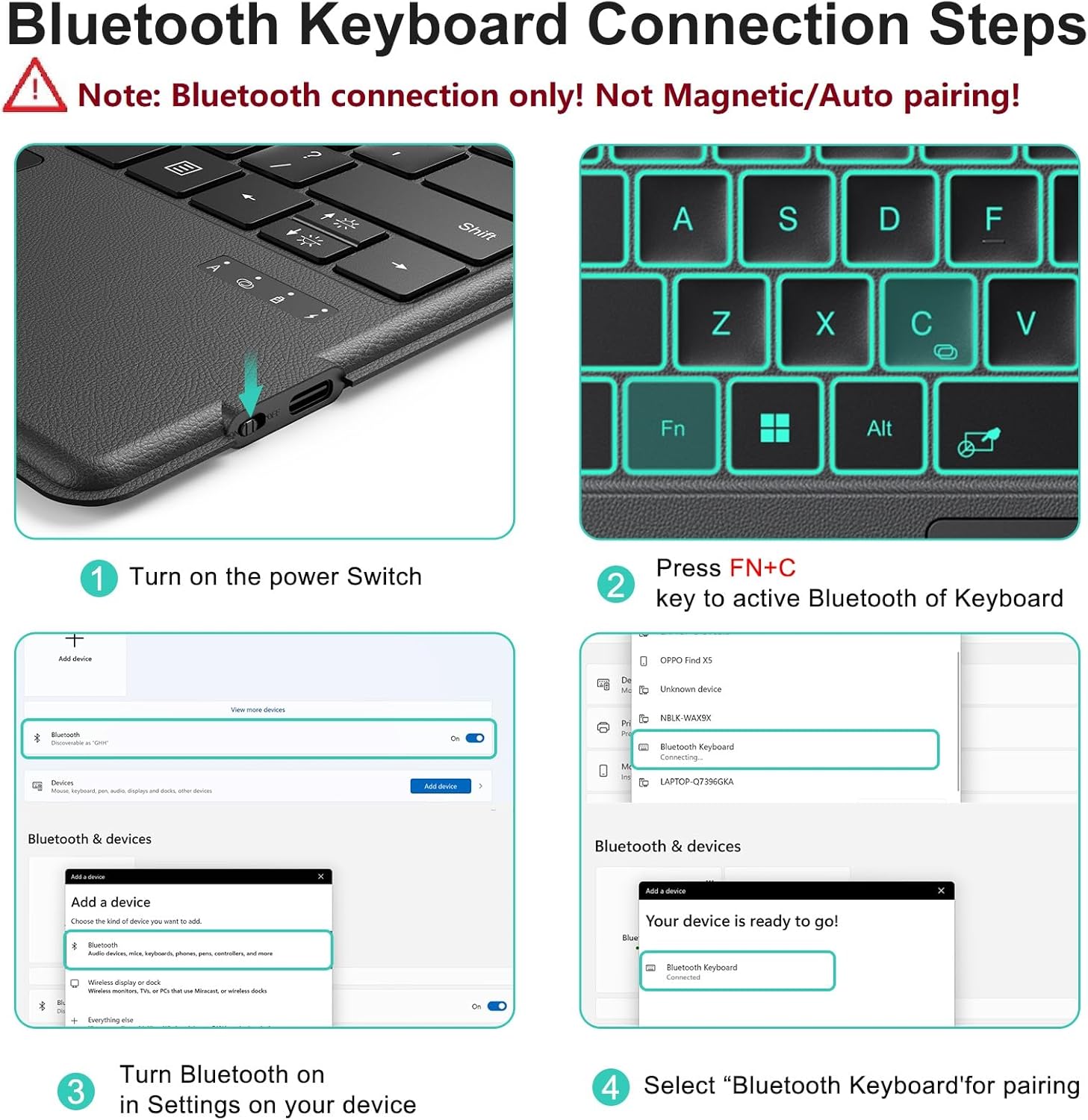
Figure 4.2: Bluetooth Keyboard Connection Steps. This image visually guides through turning on the keyboard, pressing FN+C, enabling Bluetooth on the device, and selecting "Bluetooth Keyboard" for pairing.
5. Ịchaji
The keyboard is equipped with a rechargeable battery. Use the included Type-C charging cable to charge the device.
- Connect the Type-C cable to the charging port on the keyboard and the other end to a USB power source.
- Ụgwọ zuru ezu na-ewekarị awa 2-3.
- The keyboard provides approximately 50 hours of continuous operation on a full charge.
Mara: The keyboard cannot be charged via the magnetic strip; it must be charged using the provided Type-C cable.

Figure 5.1: Keyboard dimensions and charging port. This image highlights the Type-C charging port and indicates the charging time (2 hours) and working time (50 hours).
6. Ntuziaka ọrụ
6.1 Adjustable Backlight
The keyboard features a 7-color adjustable backlight with 3 brightness levels for comfortable typing in various lighting conditions.
- To change backlight colors, press FN + 💡 (light bulb icon key).
- To adjust brightness levels, press FN + ⬆️💡 (up arrow with light bulb) or FN + ⬇️💡 (down arrow with light bulb).

Figure 6.1: Backlight adjustment. This image displays the keyboard with different backlight colors and illustrates the three brightness levels.
6.2 Precision Touchpad & Media Shortcuts
The responsive touchpad supports multi-touch gestures for effortless navigation. Cursor sensitivity can be adjusted in your device's settings (Settings > Bluetooth & devices > Touchpad > Cursor speed).
Customizable hotkeys allow you to adjust volume, media playback, and screen brightness without interrupting your workflow.

Figure 6.2: Touchpad and Pen Holder. This image highlights the touchpad area, indicating left and right click zones, and the integrated pen holder (non-charging).
6.3 igodo ọrụ
The top row of keys provides various function shortcuts. Press the FN key in combination with the desired function key (F1-F12) to activate its secondary function.
- FN + F1: Decreases or increases keyboard backlight, including off.
- FN + F2: Mechie ọdịyo.
- FN + F3: Na-ebelata olu.
- FN + F4: Na-abawanye olu.
- FN + F5: Kpọọ/kwụsịtụ mgbasa ozi.
- FN + F6: Dims the screen.
- FN + F7: Brightens the screen.
- FN + F8: Ihuenyo mbipụta.
- FN + F9: Ụlọ.
- FN + F10: End of the Line.
- FN + F11: Ibe elu.
- FN + F12: Ibe ala.
- Del: Hichapụ.
Ihe ncheta enyi na enyi: The first key on the bottom left of the keyboard is the FN key, not the Ctrl key. When using Ctrl + C for copying, ensure you press the correct combination to avoid accidentally triggering FN + C, which initiates Bluetooth reconnection and can cause the keyboard to disconnect.
7. Nlekọta
To ensure the longevity and optimal performance of your TECURS Bluetooth Keyboard, follow these maintenance guidelines:
- Nhicha: Jiri akwa dị nro, kpọrọ nkụ, akwa enweghị akwa iji hichaa elu ahụigodo. Maka unyi isi ike, ntakịrị dampen akwa na mmiri ma ọ bụ a nwayọọ ihicha ngwọta. Zere kemịkalụ siri ike ma ọ bụ ihe na-emebi emebi.
- Nchekwa: When not in use, store the keyboard in a clean, dry environment away from extreme temperatures, direct sunlight, and excessive moisture.
- Zenarị Mwụfu: Debe mmiri mmiri na ahụigodo ka igbochi mmebi nke ihe ndị dị n'ime.
- Jiri Nlekọta Aka: Zere idobe ahụigodo ma ọ bụ idobe ya na mmetụta siri ike.
8. Nchọpụta nsogbu
If you encounter issues with your keyboard, refer to the following troubleshooting steps:
- Ahụigodo Anaghị ejikọta:
- Gbaa mbọ hụ na agbanyere ahụigodo.
- Confirm Bluetooth is enabled on your Surface Pro.
- Re-initiate pairing mode on the keyboard by pressing FN + C.
- Remove any previously paired
Akwụkwọ ndị emetụtara - Bluetooth Keyboard for Surface Pro 11/10/9/8/X

TECURS Keyboard Case for iPad User Manual and Guide
Comprehensive user manual for the TECURS KC004 Keyboard Case for iPad Air and iPad Pro, detailing setup, features, trackpad gestures, technical specifications, and important safety precautions.
TECURS MK205 Mechanical Gaming Keyboard User Manual - Features, Specs, and Safety
Comprehensive user manual for the TECURS MK205 mechanical gaming keyboard. Learn about its features, specifications, key functions, macro definition, and important safety precautions. Includes LED modes, multimedia controls, and compatibility information.
Akwụkwọ ntuziaka onye ọrụ TECURS WK007 Ikuku Ịgba Cha Cha - Backlit, Silent, Multimedia Igodo
Akwụkwọ ntuziaka onye ọrụ zuru oke maka ahụigodo egwuregwu ikuku TECURS WK007. Mụta maka ntọlite , atụmatụ, ọrụ, nchọpụta nsogbu na nchekwa nchekwa maka ahụigodo backlit, nke dị jụụ, ultra-slim nwere igodo mgbasa ozi maka Mac na Windows.
GM003 Wired Gaming Mouse Macro Configuration Guide
Step-by-step instructions for configuring macros on the GM003 Wired Gaming Mouse using its software, including recording keystrokes and assigning them to mouse buttons for enhanced gaming performance.
Akwụkwọ ntuziaka onye ọrụ TECURS MK206 Mechanical Multi-Device Mechanical
Akwụkwọ ntuziaka onye ọrụ zuru oke maka keyboard TECURS MK206 Multi-Device Mechanical, na-akọwapụta parampat ngwaahịa, ọdịnaya ngwugwu, sistemu dakọtara, ụzọ njikọ (ikuku ikuku 2.4G na Bluetooth), igodo ụzọ mkpirisi, ọrụ yana kpachara anya nchekwa dị mkpa. Mụta ka esi edozi na iji ahụigodo gị maka ịrụ ọrụ kacha mma.
TECURS MK203 Mechanical Keyboard User Guide
User guide for the TECURS MK203 mechanical keyboard, detailing its functions, backlighting controls, and safety precautions. Includes specifications and system compatibility.