1. Ngwaahịa gafereview
The TECURS Wireless Keyboard is designed to enhance the functionality of your Microsoft Surface Pro tablet, offering a comfortable typing experience and a responsive trackpad. This ultra-thin, rechargeable keyboard features a 7-color LED backlight, making it suitable for various lighting conditions.
Akụkụ ndị bụ isi:
- Bluetooth Connection for seamless pairing.
- Magnetic attachment for easy setup and portability.
- 7-Color LED Backlight with 3 levels of brightness adjustment.
- Responsive Trackpad supporting scrolling, zooming, and multi-touch gestures.
- Ultra-slim and lightweight design for enhanced portability.

Figure 1: TECURS Wireless Keyboard with 7-color backlight and integrated trackpad.
2. Ntuziaka Nhazi
2.1. Nyochaa ndakọrịta
This keyboard is specifically designed for Microsoft Surface Pro 7, Pro 7+, Pro 6, Pro 5, Pro 4, and Pro 3 (12.3-inch models). It is Ọ BỤGHỊ compatible with Surface Pro 11/10/9/8/X (13-inch) or other models.
To confirm your Surface Pro model:
- Gaa na Ntọala on your Surface Pro.
- Họrọ Sistemu.
- Pịa na Ihe gbasara ka view your model name.
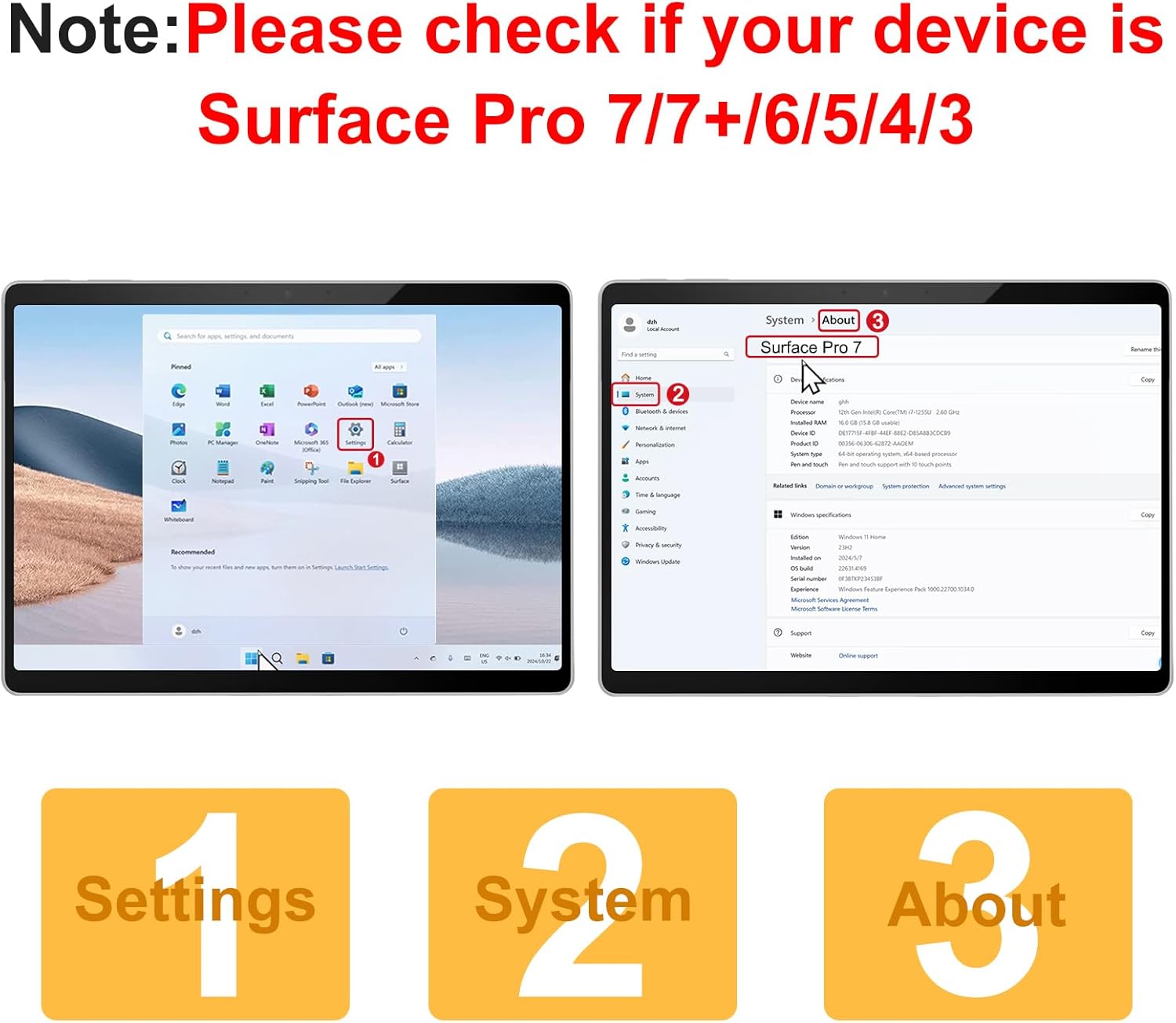
Figure 2: Steps to verify your Microsoft Surface Pro model for compatibility.

Figure 3: Visual guide to compatible and incompatible Surface Pro models.
2.2. Physical Attachment
The keyboard attaches magnetically to your Surface Pro tablet. Simply align the magnetic strip at the top of the keyboard with the bottom edge of your tablet until it snaps into place. The magnetic strip is for physical attachment only and does not provide charging or data connection.

Figure 4: Magnetic attachment of the keyboard to the Surface Pro, offering two typing angles.
2.3. Ịchaji ahụigodo
The keyboard has a built-in rechargeable battery and is charged via a Type-C charging cable (included). Connect the Type-C cable to the charging port on the keyboard and a suitable USB power source. A full charge takes approximately 2 hours and provides up to 50 hours of working time.

Figure 5: Charging the TECURS Wireless Keyboard via its Type-C port.
2.4. Nzọụkwụ Njikọ Bluetooth
Follow these steps to pair your keyboard with your Surface Pro:
- Turn on the power switch located on the side of the keyboard.
- Pịa "Fn" + "C" keys simultaneously to activate the keyboard's Bluetooth pairing mode. The Bluetooth indicator light will blink.
- On your Surface Pro, go to Ntọala > Bluetooth & ngwaọrụ and ensure Bluetooth is turned ON.
- Pịa "Add a device" ma họrọ "Bluetooth Keyboard" from the list to complete the pairing process.
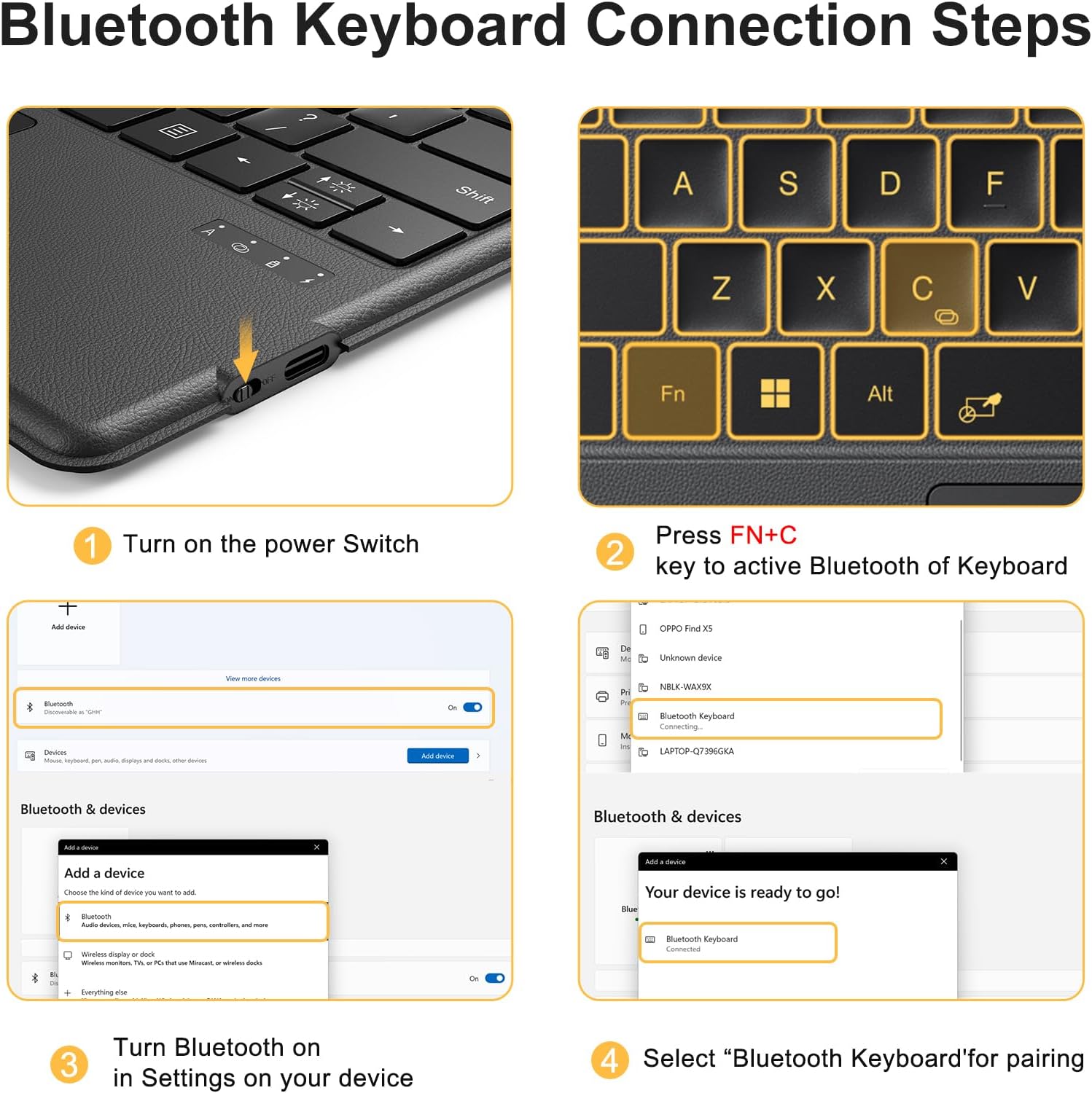
Figure 6: Detailed steps for establishing a Bluetooth connection between the keyboard and your Surface Pro.
3. Ntuziaka ọrụ
3.1. Keyboard and Typing
The keyboard features a standard QWERTY layout with 78 keys, providing a comfortable and responsive typing experience. The keys are designed for silent and comfortable typing, similar to a laptop keyboard.
3.2. Njikwa ọkụ azụ
The keyboard is equipped with a 7-color LED backlight. You can adjust the color and brightness to suit your preference and environment.
- Iji dozie backlight color: Pịa "Fn" + (light bulb icon). Cycle through the 7 available colors.
- Iji dozie nchapụta azụ azụ: Pịa "Fn" + (sun icon). There are 3 levels of brightness adjustment, including off.

Figure 7: Controls for adjusting keyboard backlight colors and brightness levels.
3.3. Trackpad Functionality
The built-in responsive trackpad supports precise cursor control and multi-touch gestures, similar to a mouse.
- Iji tụgharịa trackpad ON/OFF: Pịa "Fn" + Spacebar.
- One finger slide: Move cursor.
- Two fingers tapping: Pịa aka nri.
- Two fingers up/down: Scroll vertically.
- Two fingers pinch: Bubata/ pụta.
- Three fingers tap: Chọọ.
- Three fingers up: Open all task windows.
- Three fingers down: Back to desktop.
- Four fingers tap: Open the activity center.
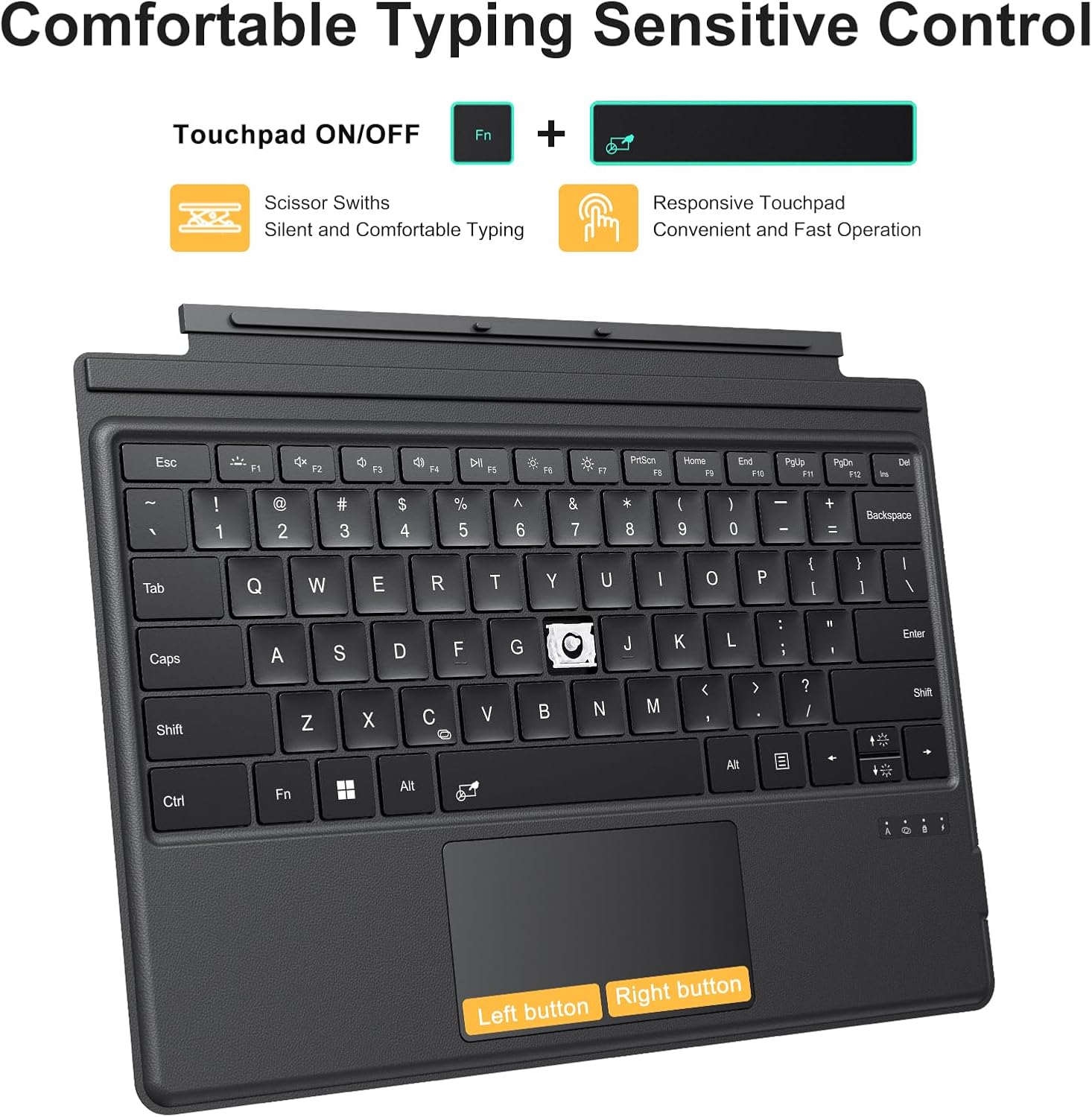
Figure 8: Trackpad features and multi-finger gestures for enhanced control.
3.4. Function Keys and Shortcuts
The top row of keys provides various function and shortcut controls:
- Esc: Mgbapụ
- F1: Ogbi
- F2: Wedata olu
- F3: Welie olu
- F4: Gwuo/kwụsịtụ
- F5: Egwu gara aga
- F6: Track na-esote
- F7: Ihuenyo dim
- F8: Ihuenyo na-egbuke egbuke
- F9: Ihuenyo mbipụta
- F10: Home (Start of Line)
- F11: End (End of Line)
- F12: Ibe elu
- Del: Hichapụ

Nyocha 9: N'eluview of keyboard function keys and their shortcuts.
4. Nlekọta
Proper maintenance ensures the longevity and optimal performance of your TECURS Wireless Keyboard.
- Nhicha: Jiri akwa dị nro na-enweghị ntụpọ dampened with water or a mild cleaning solution to wipe the surface of the keyboard and trackpad. Avoid excessive moisture. Do not use harsh chemicals or abrasive materials.
- Nchekwa: When not in use, keep the keyboard attached to your Surface Pro to protect the screen and keys. Store in a cool, dry place away from direct sunlight and extreme temperatures.
- Nlekọta batrị: To preserve battery life, avoid fully discharging the keyboard frequently. Charge it regularly, even if not in constant use.
5. Nchọpụta nsogbu
If you encounter issues with your TECURS Wireless Keyboard, refer to the following common problems and solutions:
- Ahụigodo anaghị ejikọ site na Bluetooth:
- Ensure the keyboard's power switch is ON.
- Press "Fn" + "C" to put the keyboard into pairing mode.
- Check that Bluetooth is enabled on your Surface Pro.
- Forget the "Bluetooth Keyboard" device in your Surface Pro's Bluetooth settings and attempt to re-pair.
- Gbaa mbọ hụ na agbagoro ahụigodo.
- Ọkụ azụ anaghị arụ ọrụ ma ọ bụ na-adịghị mma:
- Press "Fn" + (sun icon) to increase brightness levels.
- Gbaa mbọ hụ na ahụigodo nwere ụgwọ batrị zuru oke.
- Trackpad unresponsive:
- Press "Fn" + Spacebar to toggle the trackpad ON/OFF.
- Gbaa mbọ hụ na ejikọrọ ahụigodo nke ọma site na Bluetooth.
- Clean the trackpad surface to remove any debris.
- Igodo anaghị aza:
- Lelee njikọ Bluetooth.
- Tinyegharịa ahụigodo.
- Restart your Surface Pro.
6. Nkọwapụta
| Njirimara | Nkọwa |
|---|---|
| Ụdị | TECURS |
| Ngwa dakọtara | Microsoft Surface Pro 7/Pro 7+ /Pro 6 /Pro 5 /Pro 4 /Pro 3 (12.3 inch) |
| Teknụzụ Njikọta | Bluetooth |
| Nkọwa ahụigodo | Batrị enwere ike ịchaji |
| Atụmatụ pụrụ iche | Backlit, Ergonomic, Portable |
| Agba | Nwa |
| Ọnụọgụ igodo | 78 |
| Nkwado agba azụ azụ kiiboodu | RGB (7 Colors) |
| Ngwa gụnyere | 1 x Keyboard, 1 x Type-C Charging Cable, 1 x User Manual |
| Nhazi ahụigodo | QWERTY |
| Ibu Ibu | 1.21 pound |
| Akụkụ ngwugwu | 13.43 x 9.92 x 0.59 sentimita asatọ |
| Oge Nchaji | Ihe ruru. awa 2 |
| Oge ọrụ | Ihe ruru. awa 50 |
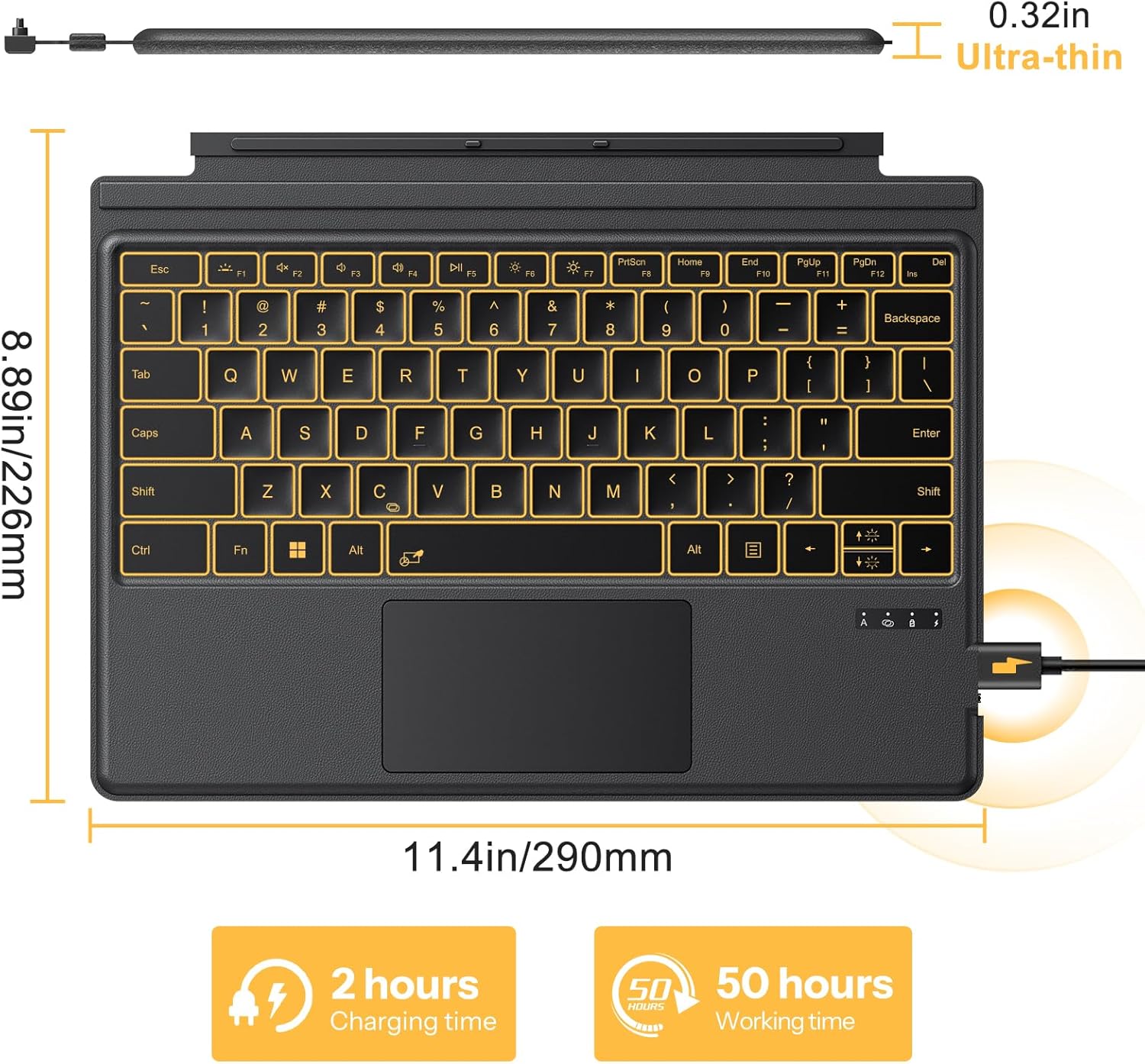
Figure 10: Physical dimensions and battery performance of the keyboard.
7. Akwụkwọ ikike na nkwado
TECURS products are designed for reliability and performance. For any product-related inquiries, technical support, or warranty claims, please refer to the contact information provided with your purchase or visit the official TECURS websaịtị.
Additional protection plans may be available for purchase separately to extend coverage beyond the standard warranty. Please check with your retailer for details.


