1. Okwu mmalite
This manual provides comprehensive instructions for the setup, operation, maintenance, and troubleshooting of your TECURS 75% Mechanical Keyboard. Please read this manual thoroughly before using the product to ensure optimal performance and longevity.
The TECURS 75% Mechanical Keyboard is designed for both gaming and office use, featuring a compact 81-key layout, Gasket Mount construction for enhanced typing feel, hot-swappable switches, and versatile tri-mode connectivity (2.4G wireless, Bluetooth 5.0, and wired USB-C).
2. Ihe ngwugwu
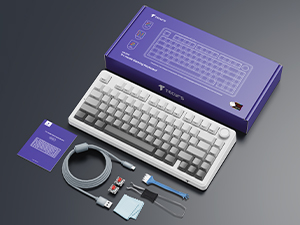
Chọpụta na ihe niile dị na ngwugwu:
- TECURS 75% Mechanical Keyboard
- USB-C USB
- 2.4GHz ihe nnabata ikuku
- Gbanwee Puller
- Onye na-adọkpụ igodo
- Extra Switches (2 units)
- Akwụkwọ ntuziaka onye ọrụ
3. Ngwaahịa gafereview
3.1 Atụmatụ
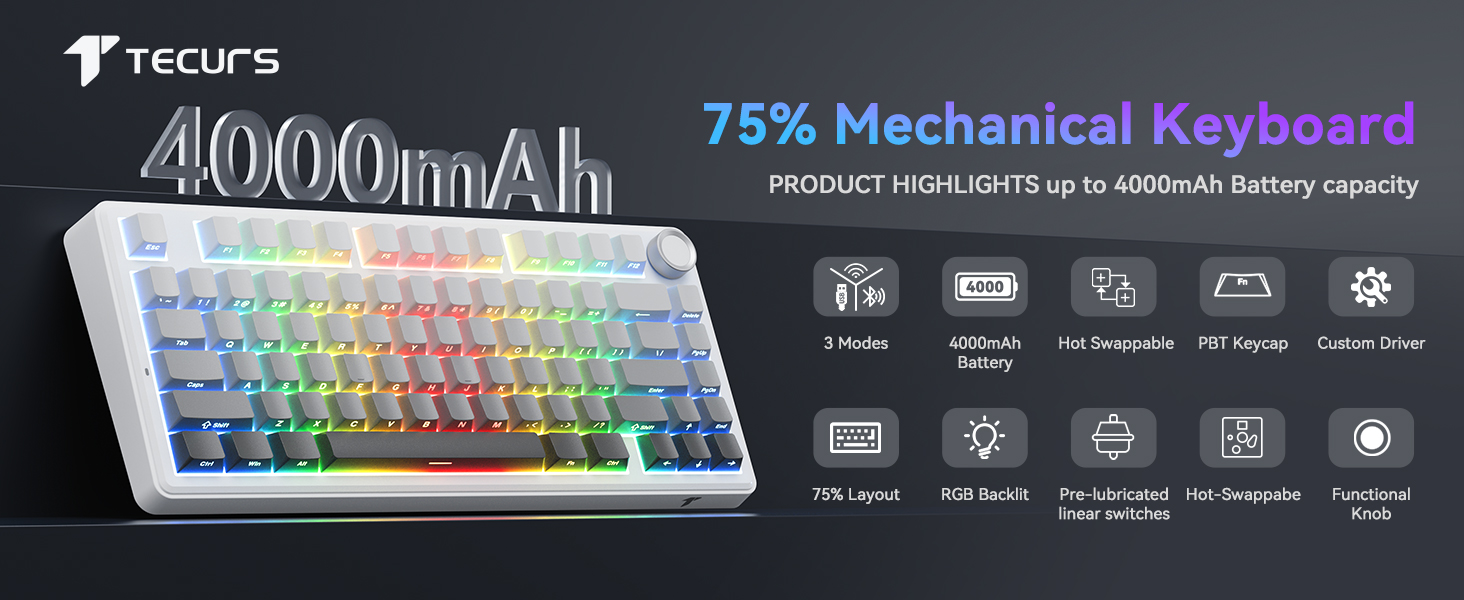
- Gasket Mount Design: Incorporates 5-layer dampening for reduced noise and a consistent typing feel.
- PCB a na-agbanwe ọkụ: Compatible with 3-pin and 5-pin mechanical switches, allowing for easy switch customization without soldering.
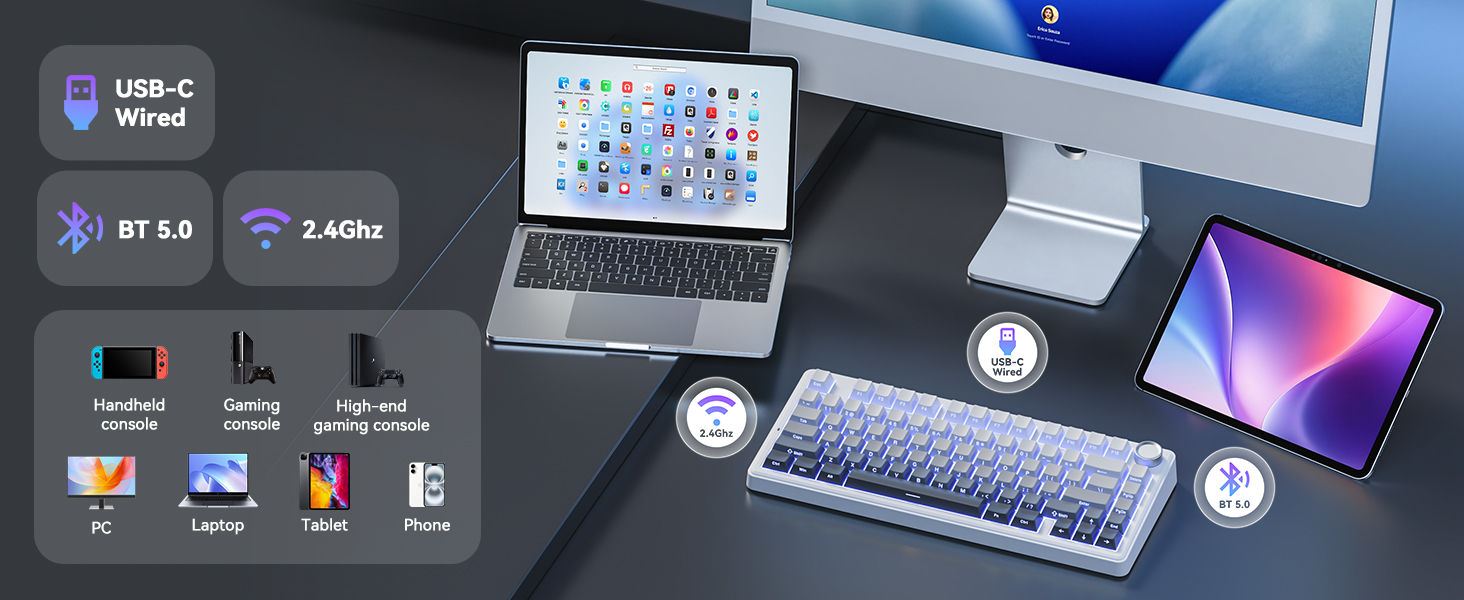
- Njikọta ụdị atọ: Supports 2.4GHz wireless, Bluetooth 5.0, and wired USB-C connections for broad compatibility.
- RGB ọkụ azụ: Customizable RGB lighting with various effects and brightness levels.
- Mkpọchi ọtụtụ ọrụ: Controls volume in office mode and RGB brightness/effects in gaming mode.
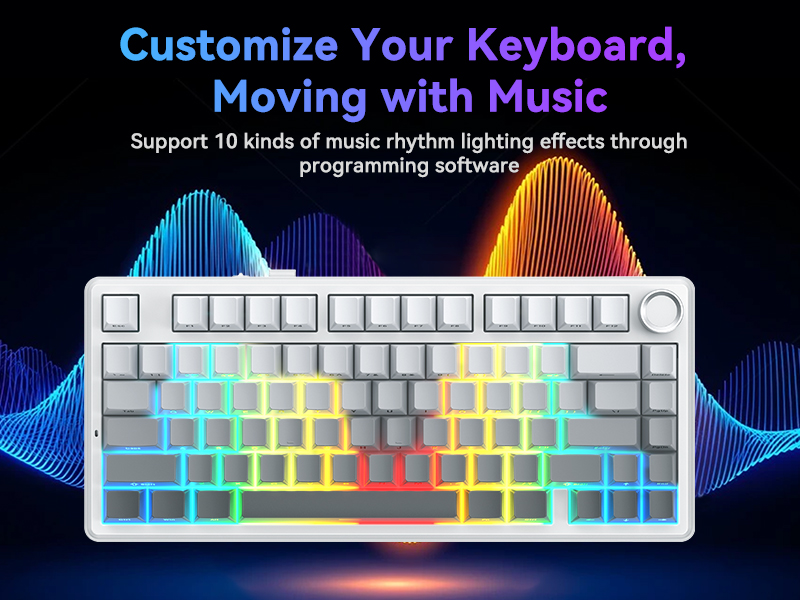
- Igodo mmemme: Macro recording and key remapping available via software (Windows only, wired mode).
- Batrị 4000mAh: Provides extended wireless usage.
- Mgbochi Ghosting: Ensures accurate registration of multiple simultaneous key presses.
- Side-Printed PBT Keycaps: Durable keycaps with legends printed on the side for longevity and shine-through visibility.

3.2 Keyboard Layout and Indicators
- 2.4G Mode Indicator: Lights up when in 2.4GHz wireless mode.
- Android Mode Indicator: Lights up when connected to an Android device.
- Windows Mode Indicator: Lights up when connected to a Windows device.
- MacOS Mode Indicator: Lights up when connected to a macOS device.
- Ihe ngosi mkpọchi mkpuchi: Indicates Caps Lock status.
- Ihe ngosi mkpọchi mmeri: Indicates Windows key lock status.
- Ngosipụta ọkwa nchaji: Shows battery charging status.
4. Nhazi
4.1 Ịchaji ahụigodo
Before first use, fully charge the keyboard. Connect the provided USB-C cable to the keyboard's USB-C port and the other end to a USB power source (e.g., computer, wall adapter). The charging indicator will show the charging status.
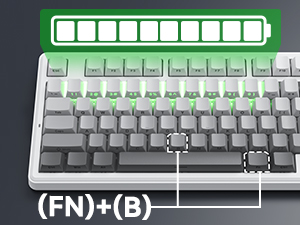
To check the battery level, press Fn+B. The corresponding number row keys will light up to indicate the battery percentage (e.g., keys 1-0 for 10%-100%).
4.2 Jikọọ ahụigodo
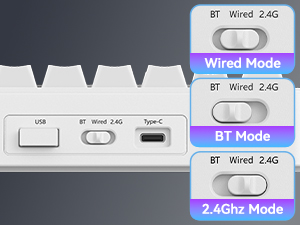
The keyboard supports three connection modes: 2.4GHz Wireless, Bluetooth 5.0, and Wired USB-C. Use the switch located on the back of the keyboard to select your desired mode.
4.2.1 Wired Mode (USB-C)
- Set the mode switch to "Wired".
- Connect the USB-C cable to the keyboard and your computer's USB port.
- Sistemụ gị ga-amata ahụigodo ahụ na akpaghị aka.
Ọnọdụ Ikuku 4.2.2 2.4GHz
- Set the mode switch to "2.4G".
- Insert the 2.4GHz USB receiver into an available USB port on your device.
- The keyboard will automatically connect. The 2.4G indicator light on the keyboard will illuminate.
4.2.3 Ọnọdụ Bluetooth
- Set the mode switch to "BT".
- Pịa ma jide fn+1, fn+2, ma ọ bụ fn+3 for 3-5 seconds to enter pairing mode. The corresponding key (1, 2, or 3) will flash rapidly.
- Na ngwaọrụ gị (PC, laptọọpụ, mbadamba, ama ama), mee ka Bluetooth rụọ ọrụ ma chọọ ngwaọrụ ọhụrụ.
- Select "TECURS Keyboard" from the list of available devices.
- Once paired, the indicator light for the selected Bluetooth channel will stop flashing and remain solid.
- Ka ịgbanwee n'etiti ngwaọrụ Bluetooth ejikọtara, pịa fn+1, fn+2, ma ọ bụ fn+3.

4.3 System Compatibility Switching
The keyboard supports Windows, macOS, and Android operating systems. To switch between system layouts:
- Pịa Fn + W for Windows mode.
- Pịa fn + A for Android mode.
- Pịa Fn + S. for macOS mode.
The corresponding indicator light (Windows, Android, or MacOS) will illuminate.
5. Ntuziaka ọrụ
5.1 RGB njikwa ọkụ azụ
Igodo ahụ nwere ọkụ azụ RGB nke enwere ike ịhazi. Jiri njikọta igodo ndị a iji gbanwee mmetụta ọkụ:
- Fn + \ |: Toggle Light Mode (cycle through various lighting effects).
- Fn + Tab: Toggle Light Color (change static backlight color).
- Fn + ↑: Increase Lighting Brightness.
- Fn + ↓: Decrease Lighting Brightness.
- Fn + ←: Decrease Lighting Speed.
- Fn + →: Increase Lighting Speed.

5.2 Multi-arụ ọrụ Knob
The knob on the top right of the keyboard has dual functionality, depending on the active mode:
| Ụdị | Omume | Ọrụ |
|---|---|---|
| Ụdị ụlọ ọrụ | Tụgharịa n'aka elekere | Elu elu |
| Tụgharịa atụgharị na elekere | Mpịakọta ọnụ | |
| Pịa | Mechie/Mepee ụda olu | |
| Ụdị egwuregwu | Tụgharịa n'aka elekere | Increase RGB Brightness (CAPS blinks at max) |
| Tụgharịa atụgharị na elekere | Decrease RGB Brightness (CAPS blinks at min) | |
| Pịa | Cycle 17 Lighting Effects |

5.3 Programmable Keys and Custom Software
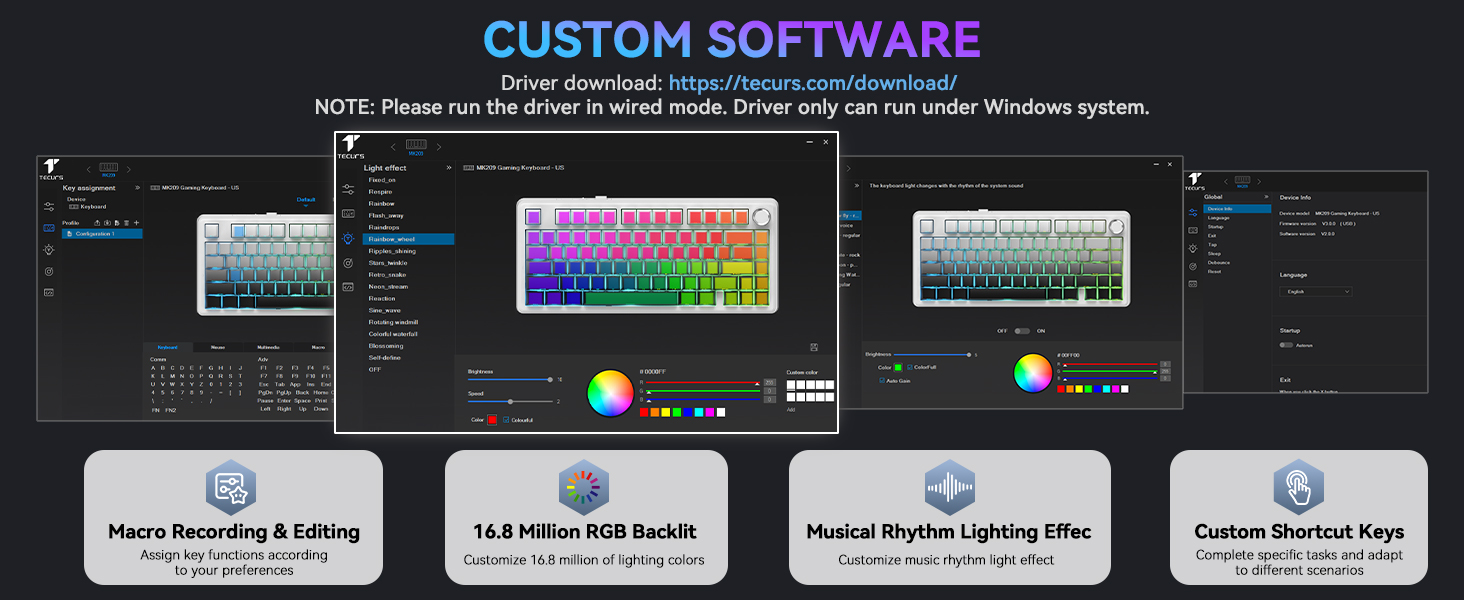
The keyboard supports macro recording and key remapping through dedicated software. This functionality is available only when the keyboard is in wired mode and connected to a Windows operating system.
Download the custom software from the official TECURS websaịtị: https://www.tecurs.com/download/
The software allows you to:
- Assign key functions.
- Customize RGB backlighting with 16.8 million colors.
- Set musical rhythm lighting effects.
- Create custom shortcut keys.
6. Nlekọta
6.1 Nhicha
- Disconnect the keyboard from all power sources and devices before cleaning.
- Jiri akwa dị nro na-enweghị ntụpọ dampejiri mmiri tinye ma ọ bụ ihe ngwọta dị nro iji hichaa elu nke ahụigodo.
- For cleaning between keycaps, use a can of compressed air to remove dust and debris.
- Avoid using harsh chemicals, abrasive cleaners, or solvents, as these can damage the keyboard's finish and keycap legends.
6.2 Mgbanwe Mgbanwe Na-ekpo Ọkụ
The keyboard features a hot-swappable PCB, allowing you to change switches without soldering. Use the provided switch puller for this process.
- Gently use the switch puller to grip the top and bottom clips of the switch you wish to remove.
- Pull the switch straight up with even pressure until it detaches from the PCB.
- Dozie ntụtụ nke mgba ọkụ ọhụrụ ahụ na oghere dị na PCB. Gbaa mbọ hụ na ntụtụ ahụ kwụ ọtọ.
- Press the new switch firmly into place until it clicks. Do not force it if there is resistance; check pin alignment.
Igodo ahụ na-akwado ma mgbanwe igwe nke nwere pin atọ na pin ise.


7. Nchọpụta nsogbu
| Nsogbu | Ihe nwere ike ime | Ngwọta |
|---|---|---|
| Ahụigodo anaghị aza ozi na ọnọdụ ikuku. | Low battery, incorrect mode selected, receiver not connected, pairing issue. |
|
| Igodo anaghị edebanye aha ma ọ bụ na-ede ihe ugboro abụọ. | Uzuzu/nsị n'okpuru okpu/switch, mgba ọkụ nwere nsogbu. |
|
| RGB ọkụ anaghị arụ ọrụ ma ọ bụ rapaara. | Software glitch, incorrect settings. |
|
| Custom software not detecting keyboard. | Not in wired mode, not on Windows OS. |
|
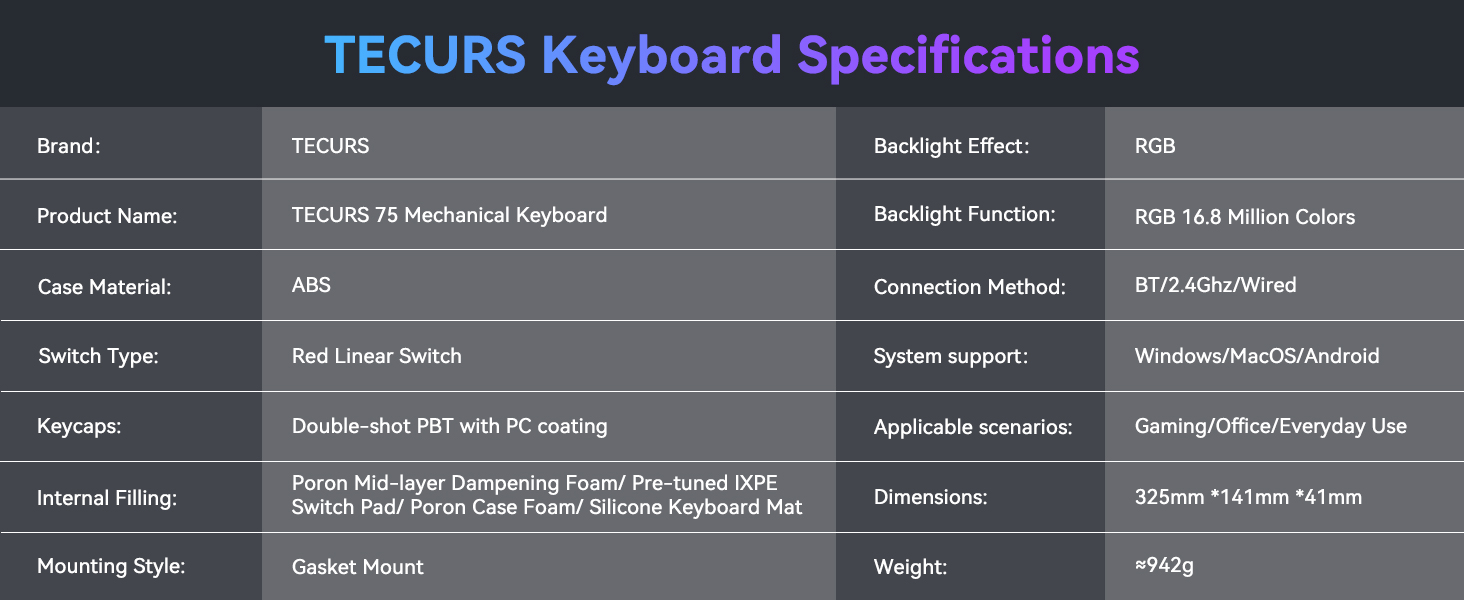
8. Nkọwapụta
| Njirimara | Nkọwa |
|---|---|
| Ụdị | TECURS |
| Aha ngwaahịa | TECURS 75 Mechanical Keyboard |
| Nlereanya | B0FC62VJRB |
| Ihe gbasara ikpe | ABS |
| Ngbanwe Ụdị | Red Linear Switch (Pre-lubed) |
| Isi okwu | Double-shot PBT with PC coating (Side-printed) |
| Internal Filling | Poron Mid-layer Dampening Foam, Pre-tuned IXPE Switch Pad, Poron Case Foam, Silicone Keyboard Mat |
| Ịrị elu Style | Ugwu Gasket |
| Mmetụta ọkụ azụ | RGB |
| Ọrụ Backlight | Agba 16.8 nde RGB |
| Usoro njikọ | Bluetooth 5.0, 2.4GHz Ikuku, USB-C Waya |
| Nkwado Sistemu | Windows, MacOS, Android |
| Ngwa dakọtara | Laptop, PC, Gaming Console, Tablet, Smartphone |
| Eji akwadoro | Egwuregwu, Office |
| Atụmatụ pụrụ iche | Backlit, Hot-Swappable, Mechanical, Programmable Keys |
| Agba | Gradient isi awọ |
| Akụkụ ngwaahịa | 12.8"L x 5.55"W x 1.6"H (325mm x 141mm x 41mm) |
| Ibu Ibu | 2.77 pounds (~942g) |
| Batrị | 1 Lithium Ion battery (included), 4000mAh capacity |
9. Akwụkwọ ikike na nkwado
For warranty information and technical support, please refer to the official TECURS website or contact their customer service directly. Details regarding product registration, warranty claims, and support resources can typically be found on the manufacturer's websaịtị.
Manufacturer: TECURS
Maka enyemaka ọzọ, gaa na TECURS Store on Amazon.


