1. Okwu mmalite
This manual provides essential instructions for the setup, operation, and maintenance of your Samsung QN83S95FAEXZA 83-inch OLED HDR Pro 4K Smart TV, Walts TILT-MOUNT-43-90 Large/XL Tilt Mount, and Amber Protection 3-Outlet Surge Protector. Please read this manual thoroughly before using your products to ensure safe and optimal performance.
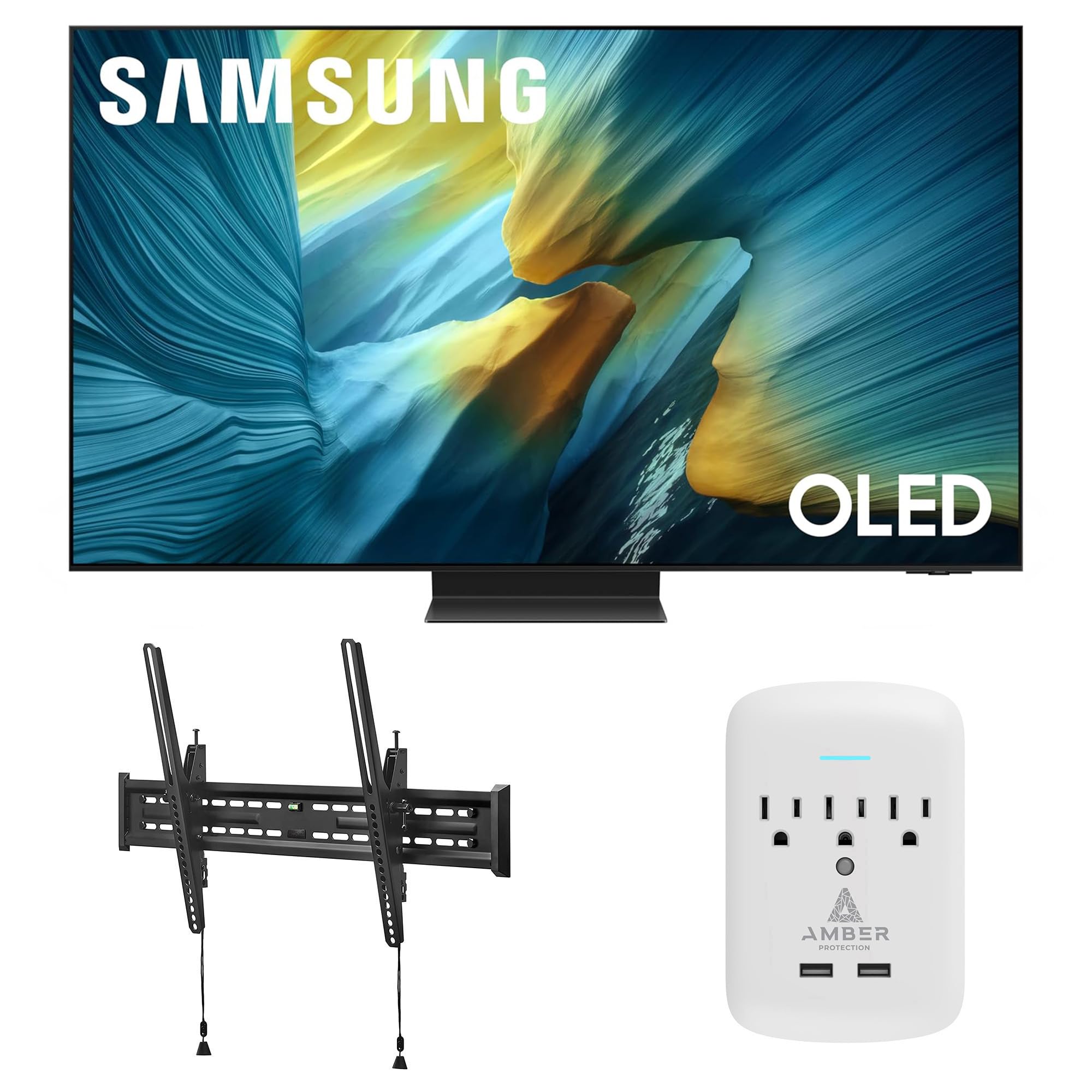
Image 1.1: Samsung QN83S95FAEXZA 83-inch OLED HDR Pro 4K Smart TV. This image shows the front view of the Samsung OLED TV with a vibrant display.

Image 1.2: The complete product bundle, including the Samsung 83-inch OLED TV, Walts Tilt Mount, and Amber Protection 3-Outlet Surge Protector.
2. Nhazi
2.1 Samsung QN83S95FAEXZA 83-inch OLED TV
- Iwepu: Carefully remove the TV from its packaging. It is recommended to have at least two people for this process due to the size and weight of the 83-inch TV.
- Nwụnye guzoro (Nhọrọ): If not wall-mounting, attach the TV stand according to the separate stand instructions provided with your TV. Ensure all screws are securely fastened.
- Njikọ: Connect all necessary cables (power, HDMI, antenna, etc.) to the appropriate ports on the TV. Refer to the diagram below for port locations.

Foto 2.1: N'azụ view of the Samsung QN83S95FAEXZA TV, displaying connection ports including LAN, Optical, Antenna, USB, and HDMI inputs.
- Ike Na: Plug the TV into the Amber Protection Surge Protector. Press the power button on the remote control or TV.
- Ntọala izizi: Follow the on-screen prompts to complete the initial setup, including language selection, network connection (Wi-Fi or Ethernet), and channel scanning.
2.2 Walts TILT-MOUNT-43-90 Large/XL Tilt Mount Installation
The Walts TILT-MOUNT-43-90 is designed for 43"-98" TVs and supports VESA patterns up to 700mm x 400mm. Always ensure your wall structure can support the combined weight of the TV and mount.
- Chọpụta ebe mgbago: Choose a suitable wall location, ensuring it has adequate structural support (e.g., wood studs, concrete).
- Tinye brackets na TV: Secure the vertical mounting brackets to the back of your Samsung TV using the appropriate screws and spacers. Ensure the brackets are level and centered.

Image 2.2: Close-up of the Walts TILT-MOUNT-43-90 mounting brackets attached to the rear of a television, showing the secure screw points.
- Wụnye Plate Wall: Mark and drill pilot holes for the wall plate. Secure the wall plate to the wall using the provided lag bolts. Use a level to ensure the wall plate is perfectly horizontal.

Image 2.3: The Walts TILT-MOUNT-43-90 wall plate, featuring multiple mounting holes and an integrated bubble level for accurate installation.
- Ugwu TV: Carefully lift the TV and hook the vertical brackets onto the wall plate. Ensure the TV is securely seated.
- TV echedoro: Engage the safety locks on the bottom of the vertical brackets to prevent the TV from accidentally disengaging from the wall plate.
- Hazie Tilt: The mount allows for tilting. Adjust the tilt angle to your preferred viewing position and tighten any locking mechanisms.

Foto 2.4: Akụkụ profile of the Walts TILT-MOUNT-43-90 mount, illustrating its low-profile design and the mechanism for adjusting the TV's tilt angle.
2.3 Amber Protection 3-Outlet Surge Protector
- Tinye: Insert the surge protector directly into a standard wall outlet.
- Jikọọ Ngwaọrụ: Plug your TV and other sensitive electronics into the surge protector's outlets.
- Ihe ngosi LED: The LED indicator on the surge protector will glow blue when it is working correctly and providing protection.
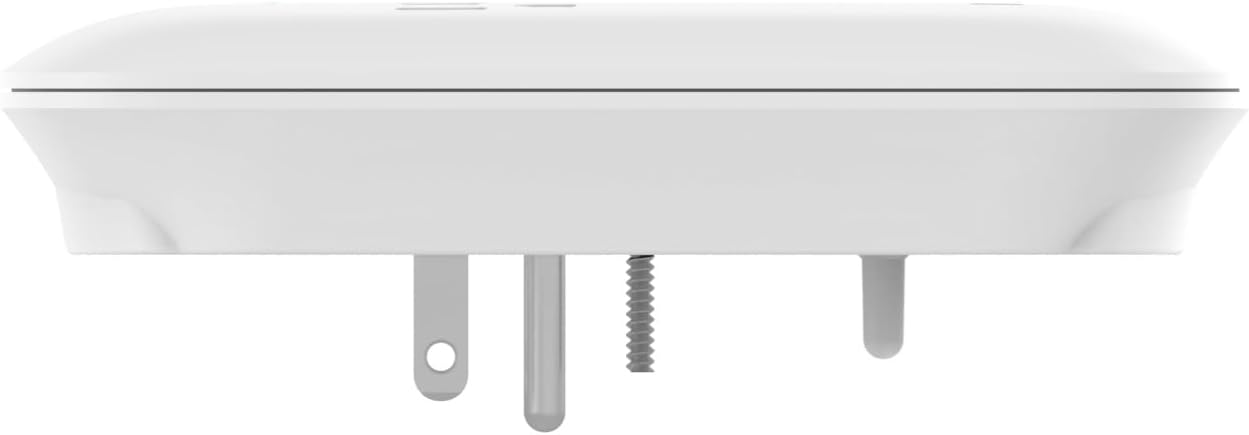
Image 2.5: The Amber Protection 3-Outlet Surge Protector, showing its compact design and three power outlets.
3. Operating Your Samsung OLED TV
3.1 Atụmatụ
- NQ4 AI Gen3 processor: This advanced processor utilizes 128 neural networks to enhance picture and sound, delivering an exceptional 4K experience for all content.

Image 3.1: A visual representation of the NQ4 AI Gen3 Processor chip, highlighting its advanced technology for picture and sound enhancement.
- Glare Free Display: Enjoy content without distracting reflections, even in brightly lit rooms. The innovative screen redirects light to minimize glare.
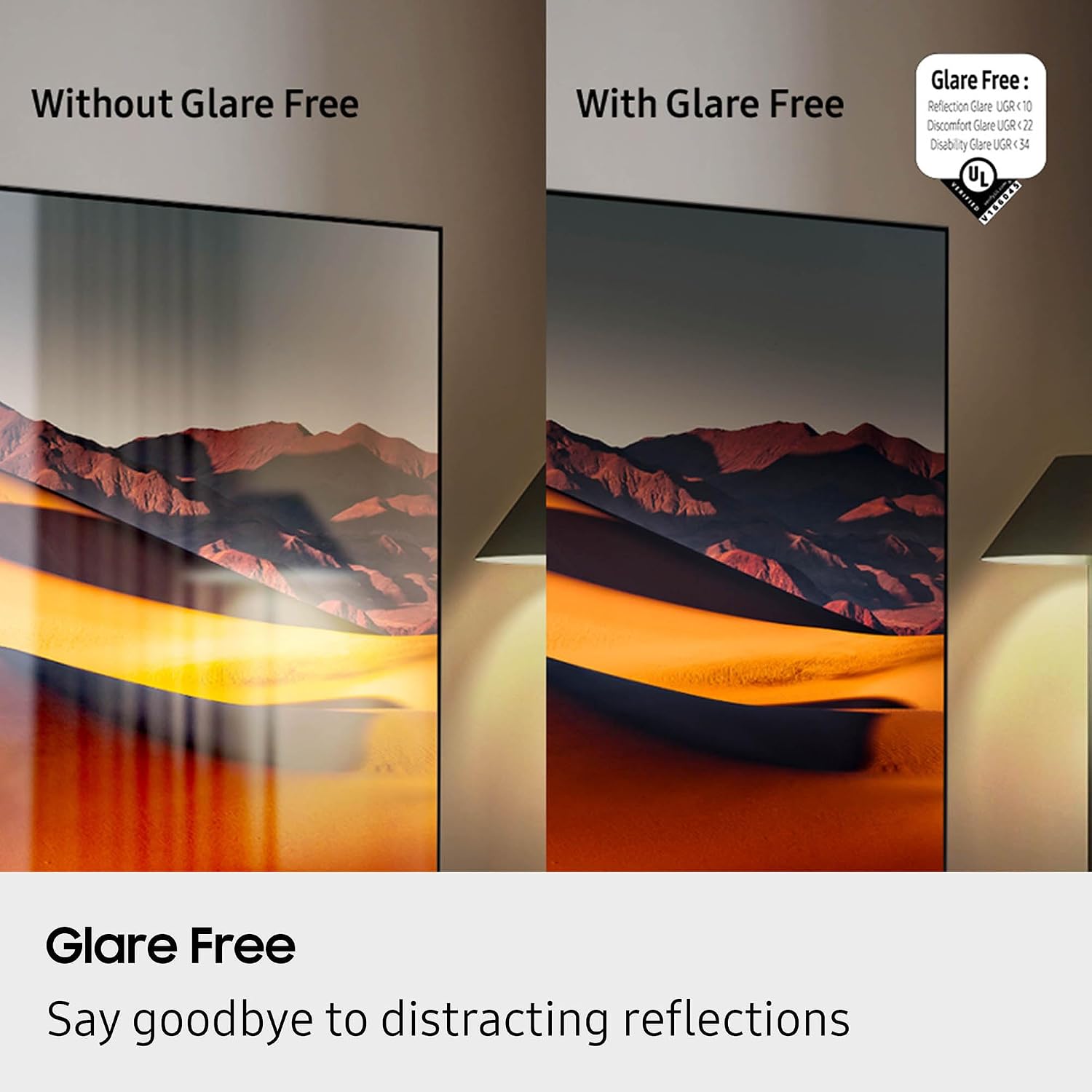
Image 3.2: A side-by-side comparison demonstrating the effectiveness of Glare Free technology, showing a clear image on the right and a reflective image on the left.
- OLED HDR Pro: Experience more powerful brightness and richer contrast compared to standard dynamic range, thanks to 8.3 million self-lit pixels.

Image 3.3: A visual comparison illustrating the enhanced colors and contrast provided by OLED HDR Pro compared to SDR (Standard Dynamic Range).
- Motion Xcelerator Turbo Ultra: Delivers a picture with virtually no lag or blur at high refresh rates (up to 165Hz), ideal for gaming and fast-paced sports.
3.2 Smart TV Functions
- Pịa ka ịchọọ: Use your remote to quickly find more information about shows, actors, or other content displayed on your screen.
- Ntụgharị Asụsụ Live: For supported content, enable Live Translate to view subtitles in your preferred language.
3.3 Official Ngwaahịa Video
Video 3.1: Samsung S95F Series TV Product ReviewVidiyo a na-enye nkọwa zuru ezuview of the key features and benefits of the Samsung S95F OLED TV series, including its Glare Free display, OLED HDR Pro, and AI processor.
4. Nlekọta
4.1 Samsung OLED TV
- Nchacha ihuenyo: Jiri nwayọ hichaa ihuenyo ahụ na ákwà microfiber dị nro ma kpọrọ nkụ. Maka akara siri ike, jiri obere ihe hichaa ya.ampen the cloth with distilled water. Avoid harsh chemicals or abrasive materials.
- Nchara Regularly dust the TV's frame and back panel with a soft, dry cloth.
- Mmelite ngwanrọ: Ensure your TV's software is up to date for optimal performance and security. Check for updates via the TV's settings menu.
4.2 Walts Tilt Mount
- Nyocha oge: Periodically check all mounting screws and bolts to ensure they remain tight and secure.
- Nhicha: Wipe the mount with a dry cloth to remove dust. Do not use liquid cleaners directly on the mount.
4.3 Amber Protection Surge Protector
- Lelee ihe ngosi: Regularly verify that the blue LED indicator is illuminated, confirming active surge protection.
- Ibu ibu: If the surge protector trips (power cuts off), reduce the number of connected devices and reset it.
5. Nchọpụta nsogbu
5.1 Samsung OLED TV
- Enweghị ike: Ensure the power cable is securely connected to both the TV and the surge protector/wall outlet. Check if the surge protector's LED is on. Try a different outlet.
- Enweghị foto/ụda: Verify the correct input source is selected. Check all HDMI or other video/audio cables for secure connections.
- Remote anaghị arụ ọrụ: Replace the remote control batteries. Ensure there are no obstructions between the remote and the TV's IR receiver.
- Okwu njikọ netwọkụ: Restart your router and modem. Re-enter your Wi-Fi password in the TV's network settings.
5.2 Walts Tilt Mount
- Ọ bụghị ọkwa TV: Re-check the wall plate installation with a level. Minor adjustments can sometimes be made by slightly loosening and re-tightening the TV brackets.
- Difficulty Tilting: Ensure no cables are obstructing the tilt mechanism. Loosen the tilt adjustment knobs slightly before attempting to adjust.
5.3 Amber Protection Surge Protector
- Enweghị ike na ngwaọrụ: Check if the surge protector's LED indicator is off. If so, it may have absorbed a surge and needs replacement, or it may be overloaded. Unplug devices and press the reset button if available.
6. Nkọwapụta
6.1 Samsung QN83S95FAEXZA 83-inch OLED TV
| Njirimara | Nkọwapụta |
|---|---|
| Ụdị | Samsung |
| Aha Nlereanya | QN83S95FAEXZA |
| Nha ihuenyo | 83 sentimita asatọ |
| Ngosipụta teknụzụ | OLED |
| Mkpebi | 4K |
| Ọnụego ume ọhụrụ | 120 Hz (Up to 165Hz) |
| Nhazi | NQ4 AI Gen3 processor |
| Atụmatụ pụrụ iche | Glare Free, OLED HDR Pro, Motion Xcelerator 165Hz, Tizen Smart TV |
| Njikọta | Wi-Fi 5, HDMI 4, 3 x USB-A, 1 x USB-C |
| Akụkụ ngwaahịa | 12"D x 72.6"W x 44.2"H |
| Ibu Ibu | 114.4 pound |
6.2 Walts TILT-MOUNT-43-90 Large/XL Tilt Mount
| Njirimara | Nkọwapụta |
|---|---|
| Ụdị | Walts TV |
| Nlereanya | TILT-MOUNT-43-90 |
| Nha TV dakọtara | 43"-98" |
| Ndakọrịta VESA | Up to 700mm x 400mm |
| Ụdị ugwu | Tilt Ugwu |
6.3 Amber Protection 3-Outlet Surge Protector
| Njirimara | Nkọwapụta |
|---|---|
| Ụdị | Amber Protection |
| Ụlọ ahịa | 3 |
| Joules Protection | 1225 Joules |
| Ihe ngosi | LED (Blue when working) |
7. Akwụkwọ ikike & Nkwado
7.1 Ozi akwụkwọ ikike
For specific warranty details regarding your Samsung QN83S95FAEXZA TV, Walts TILT-MOUNT-43-90, and Amber Protection 3-Outlet Surge Protector, please refer to the warranty cards included with each product or visit the respective manufacturer's official websites. Warranty periods and coverage may vary by product.
7.2 Nkwado ndị ahịa
If you require further assistance or have questions not covered in this manual, please contact the manufacturer's customer support:
- Nkwado Samsung: Gaa na Samsung gọọmentị websaịtị maka akụrụngwa nkwado, FAQs, na ozi kọntaktị.
- Walts TV Support: For assistance with the tilt mount, refer to the Walts TV documentation or their customer service channels.
- Amber Protection Support: Contact Amber Protection for inquiries regarding the surge protector.
Ị nwekwara ike ịtụle ịzụtaasing an extended protection plan for additional coverage, such as the Atụmatụ Nchekwa afọ 4 available for this product bundle.


