Okwu mmalite
This manual provides comprehensive instructions for the setup, operation, and maintenance of your TMC 8-Inch Digital Clock. Designed with a clear, large display and user-friendly features, this clock is ideal for displaying time, date, and reminders. Please read this manual thoroughly before using the device to ensure proper functionality and longevity.
Ozi nchekwa
- Hụ na ihe nkwụnye ọkụ eletrik ahụ dakọtara na ọkụ eletrik mpaghara gị.
- Ewepụla ngwaọrụ ahụ na oke okpomọkụ, ìhè anyanwụ kpọmkwem, ma ọ bụ oke iru mmiri.
- Avoid dropping or subjecting the clock to strong impacts.
- Anwala ịkwasa ma ọ bụ rụkwaa ngwaọrụ n'onwe gị. Kpọtụrụ nkwado ndị ahịa maka enyemaka.
- Debe ebe ụmụaka na anụ ụlọ na-apụghị iru.
Ihe ngwugwu
Chọpụta na ihe niile dị na ngwugwu:
- TMC 8-Inch Digital Clock
- Ihe nkwụnye ọkụ
- Akwụkwọ ntuziaka (akwụkwọ a)
- Ntọala Desktọpụ
- Remote Control (if included with your model)
Ngwaahịa gafereview
The TMC 8-Inch Digital Clock features a clear, high-contrast display designed for easy readability. It includes multiple display styles, automatic brightness adjustment, and up to 12 customizable alarm reminders.
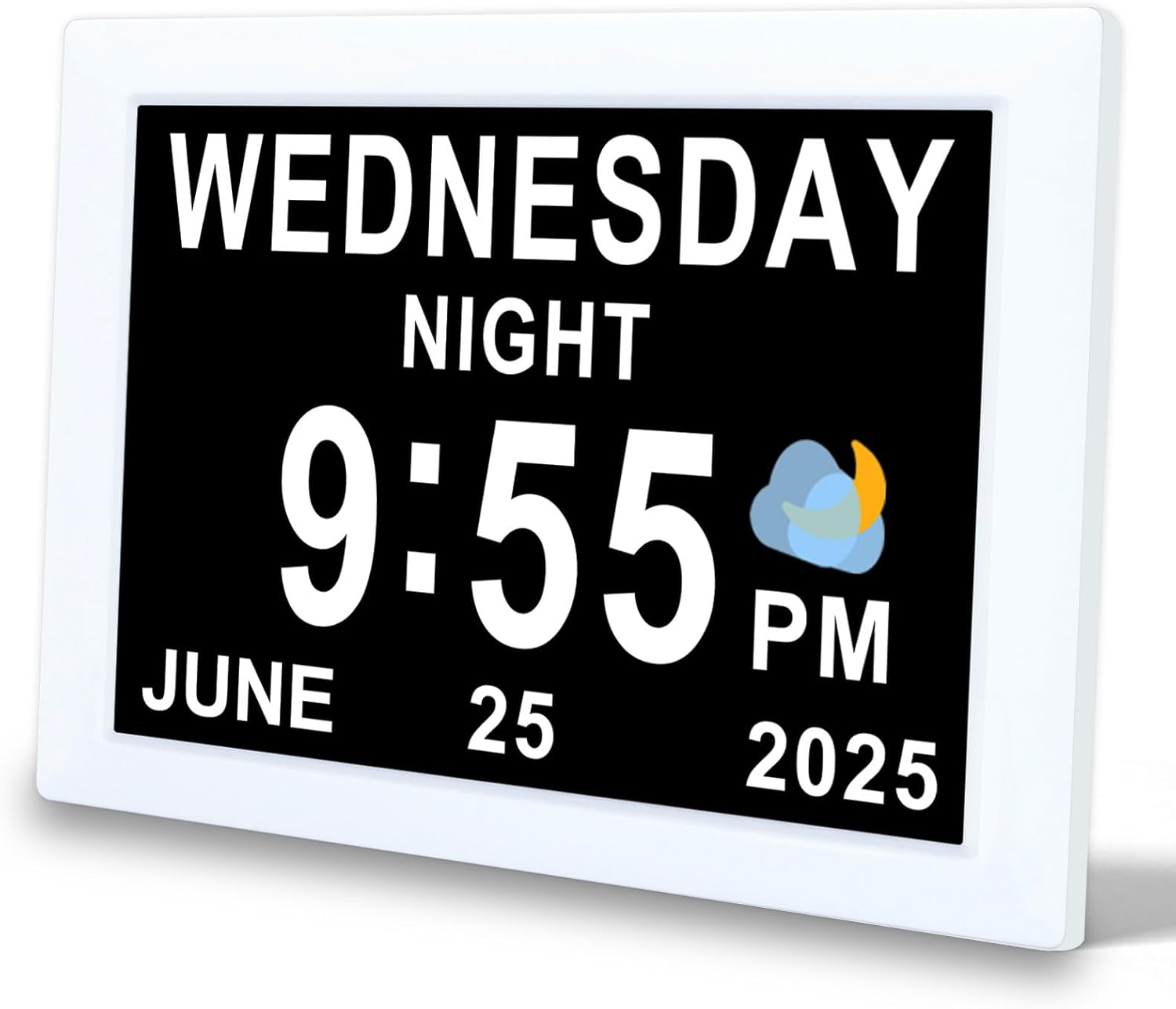
Foto 1: N'ihu view of the TMC 8-Inch Digital Clock, showing a clear display of the day, time, and date.

Foto 2: The clock features an ultra-narrow bezel design, enhancing the display area and providing a modern aesthetic for both wall-mounted and desktop use.

Foto 3: The clock's design provides a 20% larger visible screen area compared to typical models, along with an anti-glare finish for improved readability.

Foto 4: N'azụ view and dimensions of the clock, highlighting the DC power input, SD card slot, and wall-mounted hole. The remote control is also shown with its buttons: Power, Up, Down, Left, Right, Play/Pause, Menu.
Akụkụ ndị bụ isi:
- 8-inch high-resolution display with narrow bezel.
- Na-akwado asụsụ 10.
- 12 customizable alarm reminders with 9 icon options.
- Automatic brightness adjustment (5 levels) or manual control.
- Multiple display interfaces (digital, analog, icon modes).
- 12/24-hour time format.
- Wall-mountable or desktop stand options.
- Built-in backup battery for power loss protection.
- Adjustable volume (levels 1-10).
- SD card support for photo and video playback (optional).
Melite
- Mepee ngwaọrụ ahụ: Carefully remove the clock and all accessories from the packaging.
- Nkwanye:
- For desktop use, attach the provided stand to the back of the clock.
- For wall mounting, use the wall-mounted hole on the back of the clock (mounting hardware not included).
- Njikọ Ike: Plug the power adapter into the DC Power port on the back of the clock, then plug the adapter into a standard electrical outlet. The clock will power on automatically.
- Ntọala mbụ: Upon first power-on, you may be prompted to set the language, time, and date. Use the remote control or buttons on the back of the clock to navigate and confirm selections.
Ntuziaka ọrụ
1. Basic Navigation and Settings
Use the remote control or the buttons on the back of the clock to access and adjust settings. The 'MENU' button typically opens the main settings menu, and arrow buttons navigate options. 'OK' or 'Play/Pause' confirms selections.
2. Ịtọ oge na ụbọchị
- Press the 'MENU' button to enter the main settings.
- Navigate to 'Time Settings' or 'Date Settings'.
- Use the arrow buttons to adjust hours, minutes, year, month, and day.
- Select 12-hour or 24-hour format as desired.
- Confirm your selections to save.
3. Isetịpụ Mkpu
The clock supports up to 12 customizable alarms. Each alarm can be set with a specific time and an associated icon.

Foto 5: The clock displaying a 'Medication Time' alarm, with a visual representation of various daily reminder icons available for customization.
- Press 'MENU' and navigate to 'Alarm Settings'.
- Select an alarm slot (e.g., Alarm 1, Alarm 2).
- Tọọ oge ịchọrọ maka mkpu.
- Choose an alarm icon from the available options (e.g., Medication Time, Meal Time, Wake Up).
- Enable or disable the alarm.
- Adjust the alarm volume (see section 5).
- Confirm to save the alarm.

Foto 6: Zuru ezu view of the alarm setting interface, illustrating the selection of various alarm types and their corresponding icons.
4. Na-edozi ihie
The clock features automatic brightness adjustment based on the time of day. You can also manually set the brightness.

Foto 7: Illustration of the automatic brightness feature, showing the display adjusting for daytime and nighttime conditions.
- From the 'MENU', navigate to 'Display Settings' or 'Brightness'.
- Select 'Auto' for automatic adjustment (5 levels) or 'Manual' to set a fixed brightness level.
- If 'Manual' is selected, use arrow buttons to choose your preferred brightness level.
- Confirm to save.
5. Na-agbanwe olu
The alarm and notification volume can be adjusted from level 1 to 10.

Foto 8: The clock's volume adjustment feature, suitable for various preferences, including deep sleepers.
- From the 'MENU', navigate to 'Sound Settings' or 'Volume'.
- Use the arrow buttons to select a volume level from 1 to 10.
- Confirm to save.
6. Display Modes and UI Styles
The clock offers multiple display styles and user interface (UI) layouts to suit your preference.

Foto 9: Various selectable UI styles, including digital, calendar, and analog formats.
- From the 'MENU', navigate to 'Display Settings' or 'UI Style'.
- Use the arrow buttons to cycle through available UI layouts (e.g., digital, analog, icon modes).
- Some styles may offer font color options.
- Kwado nhọrọ gị.

Foto 10: Examples of the unique time-based display, showing how the clock indicates different parts of the day (e.g., Morning, Afternoon, Night).
7. SD Card Photo and Video Playback (Optional)
If your model supports it, you can insert an SD card to display photos or play videos.
- Insert a compatible SD card into the SD card slot on the back of the clock.
- Navigate to 'Media Playback' or 'Photo/Video' in the main menu.
- Select the desired media type (photos or videos) and browse your files.
- Use the 'Play/Pause' button to start or stop playback.
Nlekọta
- Nhicha: Use a soft, dry cloth to gently wipe the screen and body of the clock. Do not use liquid cleaners or abrasive materials.
- Nchekwa: If storing the clock for an extended period, disconnect it from power and store it in a cool, dry place.
- Batrị ndabere: The built-in backup battery maintains time and date settings during power outages. It is not user-replaceable.
Nchọpụta nsogbu
| Nsogbu | Ihe nwere ike ime | Ngwọta |
|---|---|---|
| Clock does not power on. | Ejikọtaghị ihe nkwụnye ọkụ ma ọ bụ mejọrọ. | Ensure the power adapter is securely plugged into the clock and a working electrical outlet. Try a different outlet. |
| Display is too dim or too bright. | Brightness settings are incorrect. | Adjust brightness settings in the 'Display Settings' menu (see Operating Instructions, section 4). Ensure 'Auto' brightness is enabled if desired. |
| Alarm does not sound or is too quiet. | Alarm is disabled or volume is too low. | Check 'Alarm Settings' to ensure the alarm is enabled. Adjust the volume in 'Sound Settings' (see Operating Instructions, section 5). |
| Incorrect time or date displayed. | Time/date settings are incorrect. | Access 'Time Settings' and 'Date Settings' in the menu to correct the values (see Operating Instructions, section 2). |
| SD card media not playing. | SD card not inserted correctly or incompatible file usoro. | Ensure the SD card is fully inserted. Check the manual for supported file formats. Try a different SD card. |
Nkọwapụta
| Ụdị | TMC |
| Nlereanya | 8-Inch Digital Clock |
| Ụdị ngosi | Dijitalụ |
| Nha ihuenyo | 8 sentimita asatọ |
| Akụkụ ngwaahịa | 15.5 x 3.81 x 19.5 cm |
| Ibu Ibu | 470 g |
| Ihe onwunwe | Plastic |
| Atụmatụ pụrụ iche | Adjustable Brightness, Adjustable Volume, 12 Alarms, Calendar Display, Multi-Style Interfaces, SD Card Playback (optional) |
| Asụsụ akwadoro | 10 Asụsụ |

Foto 11: A summary of the clock's features and capabilities.
Akwụkwọ ikike na nkwado
For warranty information or technical support, please refer to the contact details provided with your purchase documentation or visit the official TMC websaịtị. Debe nnata nzụta gị ka ihe akaebe nke ịzụrụ.


