1. Okwu mmalite
This manual provides instructions for the INEAUTO AX1800 Outdoor WiFi 6 Extender. This device is designed to extend your existing Wi-Fi signal outdoors, offering dual-band connectivity (5GHz/1200Mbps and 2.4GHz/574Mbps) and utilizing WiFi 6 technology for strong signal penetration and fast speeds. It features an IP67 weatherproof rating, making it suitable for various outdoor environments, and supports Passive PoE for flexible installation.
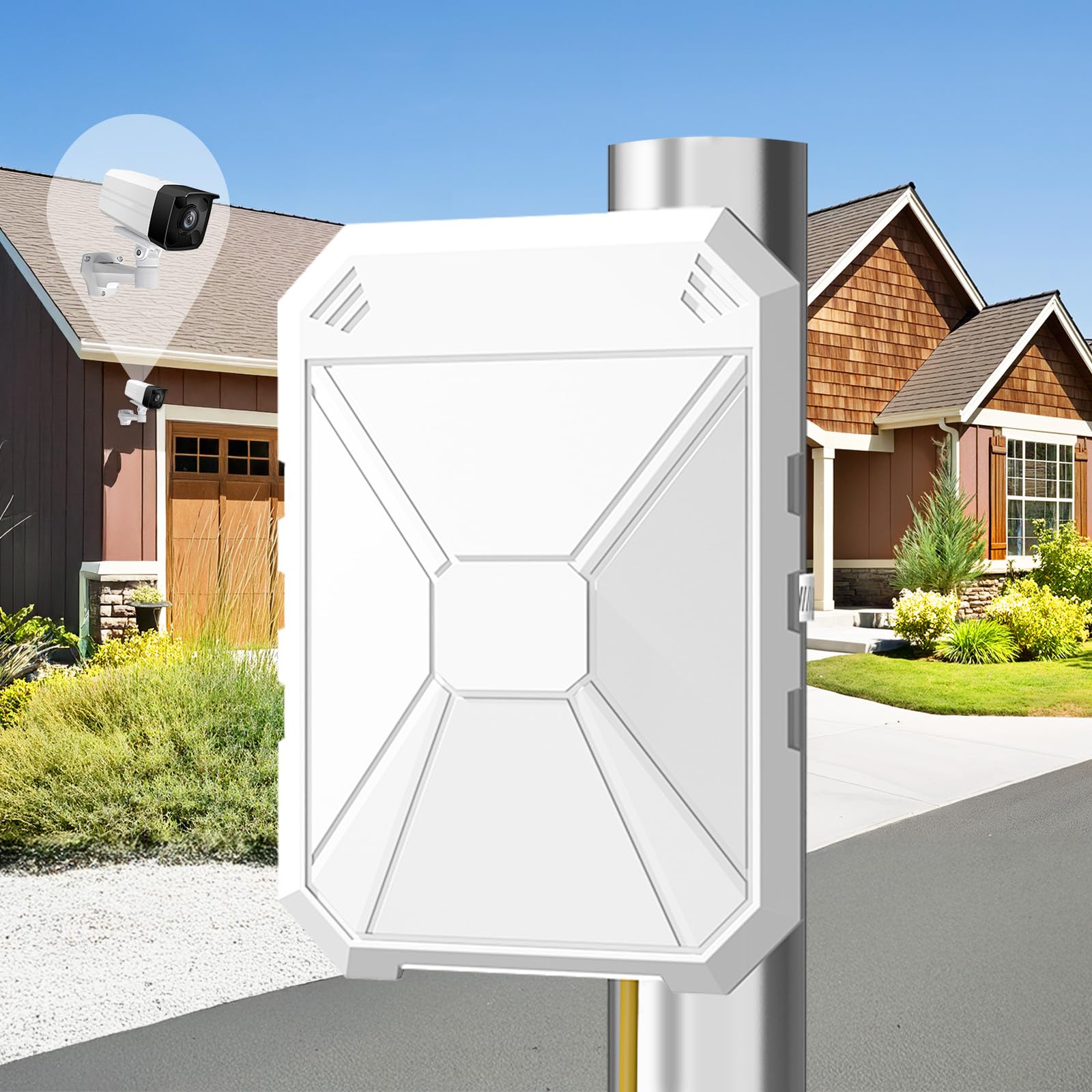
Image: The AX1800 Outdoor WiFi 6 Extender mounted on a pole near a house and swimming pool, illustrating its outdoor application.

Image: The extender is compatible with various devices including game consoles, cameras, computers, smartphones, smart TVs, and smart locks.
2. Kedu ihe dị na Igbe ahụ
Chọpụta na ihe niile dị na ngwugwu gị:
- AX1800 WiFi 6 Extender
- Ihe nkwụnye na-agafe agafe
- eriri Ethernet
- Arịọnụ Kit
- Ntuziaka nwụnye ngwa ngwa
3. Ihe karịrị anụ ahụview
The extender features multiple antennas for enhanced signal coverage and ports for power and network connections. Proper antenna positioning is crucial for optimal performance.

Image: The extender with its 4 built-in 8dBi antennas and dual signal amplifiers, highlighting its wide coverage capabilities.
Ndokwa Antenna:
For visual guidance on antenna positioning, refer to the video in the Setup section, specifically from timestamp 2: 24 ruo 3: 16.
- Place the device on a flat surface. Lift the two side antennas upward by 45 degrees.
- Rotate each of the four center antennas 180 degrees clockwise or counter-clockwise as needed.
- Pull all antennas straight upward and snap them into the slots securely.
4. Nhazi ntuziaka
Follow these steps to set up your INEAUTO AX1800 Outdoor WiFi 6 Extender. A comprehensive setup video is provided below:
Video: This video provides a step-by-step guide on how to set up the INEAUTO AX1800 Outdoor WiFi 6 Extender (0:00-1:40), how to reset it (1:40-2:24), and how to locate its antennas (2:24-3:16).
- Ike Na Extender: Plug the WiFi extender into a power outlet near your router using the Passive PoE adapter. Ensure the Ethernet cable is connected to the PoE port on the extender. Wait until the LED indicator turns solid.
- Connect to Repeater WiFi: On your smartphone or computer, connect to the Wi-Fi network named "Repeater_XXX". If you cannot find the SSID, turn on Airplane Mode, then turn it off to refresh available networks.
- Nweta ibe ntọala: Once connected, your device should automatically redirect to the extender's login page. If not, open a web browser and enter the default IP address (refer to the Quick Installation Guide for the specific IP).
- Choose Setup Mode: Select your preferred connection mode (Repeater Mode, AP Mode, or Router Mode) and tap "NEXT" to proceed.
- Connect to Your Router: Select your router's 5GHz or 2.4GHz Wi-Fi network from the list. Enter the correct password for your router's network, then tap "NEXT". Note: Under repeater mode, the password of the extender remains the same as your router's.
- Nhazi zuru oke: Click the "FINISH" button to complete the settings. The setup is complete. Reconnect to the network after approximately 30 seconds. Check the signal indicator status of the extender when using it.
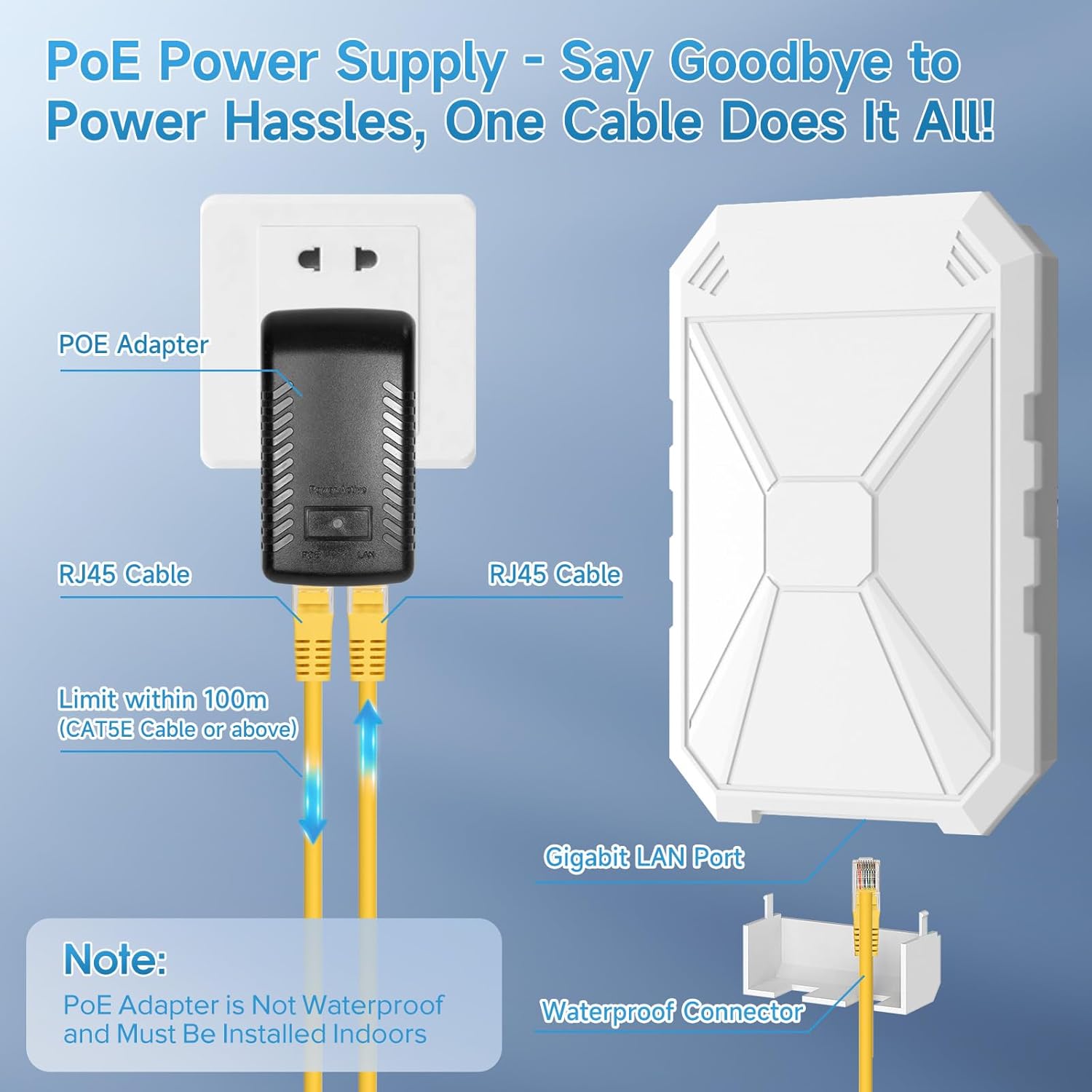
Image: Passive PoE connection setup for the extender. The PoE adapter is for indoor use only.
5. Ụdị arụ ọrụ
The INEAUTO AX1800 Outdoor WiFi 6 Extender supports multiple operating modes to suit various networking needs:
- Ụkpụrụ ugboro ugboro: Extends the coverage of an existing Wi-Fi network. Ideal for eliminating Wi-Fi dead zones.
- AP (Access Point) Mode: Converts a wired network connection into a wireless access point. Suitable for creating a new Wi-Fi hotspot.
- Rawụta Mode: Functions as a primary router, providing internet access to connected devices.
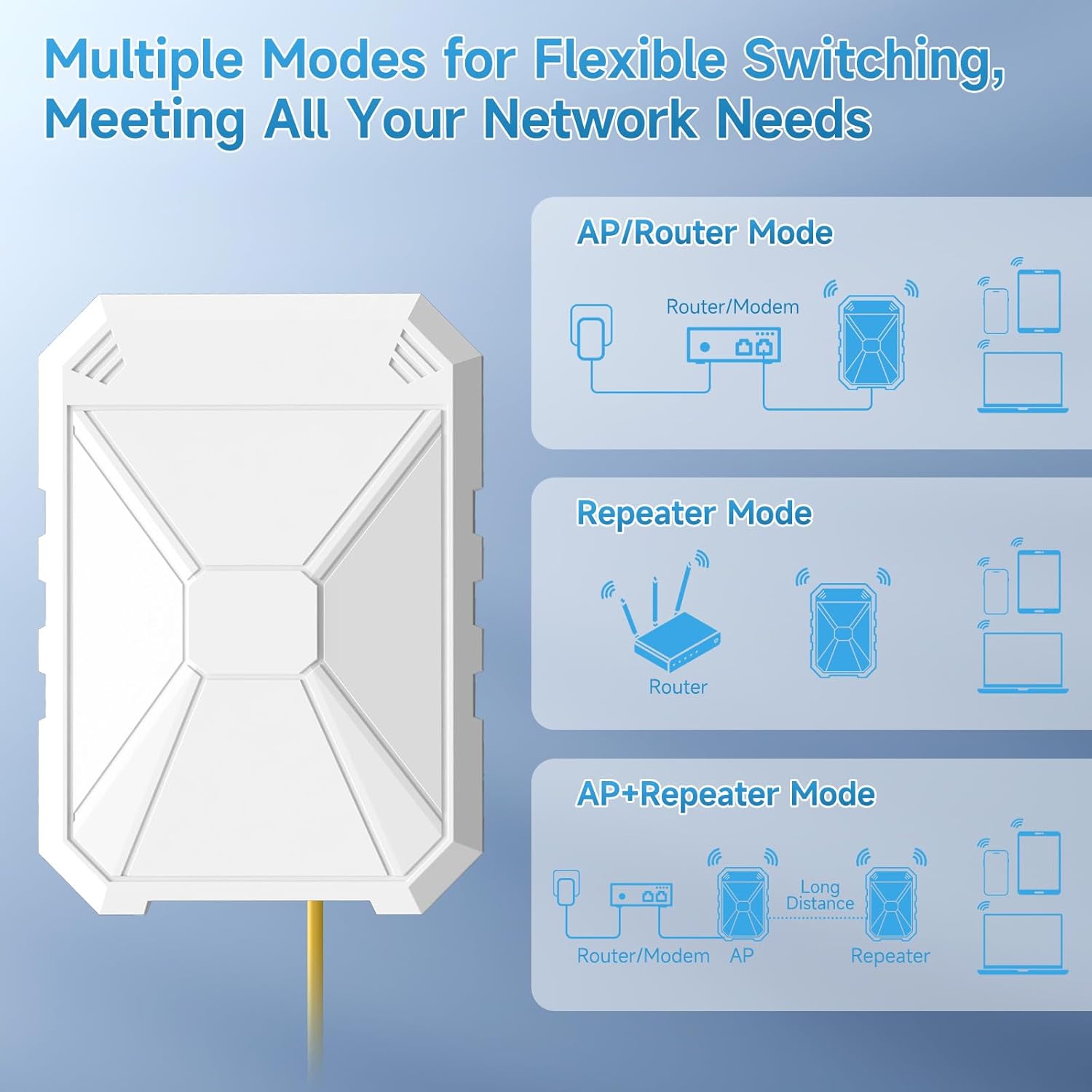
Image: Visual representation of the different operating modes and their network configurations.
6. Nlekọta
To ensure optimal performance and longevity of your outdoor Wi-Fi extender, consider the following maintenance tips:
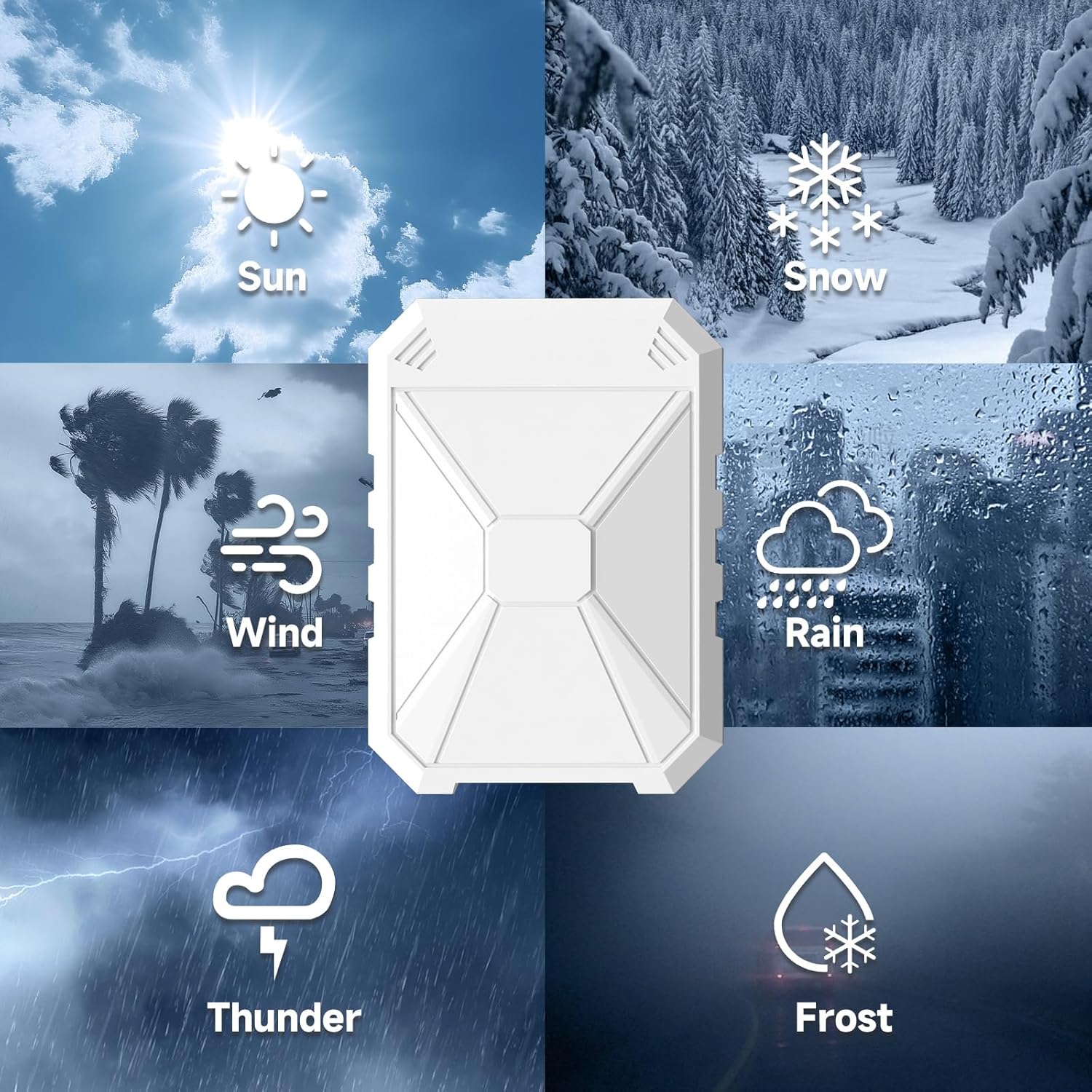
Image: The extender's design for various weather conditions, including sun, snow, wind, rain, thunder, and frost.
- Nhicha mgbe niile: Periodically clean the exterior of the device to remove dust, dirt, or debris that may accumulate, especially in outdoor environments. Use a soft, dry cloth.
- Lelee njikọ: Ensure all cable connections (Ethernet, power) are secure and free from damage.
- Mmelite femụwe: Lelee onye nrụpụta website for any available firmware updates. Keeping the firmware updated can improve performance, security, and stability.
- Ihe gbasara gburugburu: While the device is IP67 weatherproof, avoid placing it in locations prone to extreme physical impact or prolonged submersion. Ensure the PoE adapter is installed indoors as it is not waterproof.
7. Nchọpụta nsogbu
If you encounter issues with your extender, refer to the following common solutions:
- Enweghị njikọ ịntanetị:
- Nyochaa na isi rawụta gị nwere njikọ ịntanetị na-arụ ọrụ.
- Ensure the extender is properly powered on and connected to the PoE adapter.
- Check the Ethernet cable connection between the PoE adapter and the extender.
- Confirm that the extender is successfully connected to your main router's Wi-Fi network (check setup steps).
- Gbalịa ịmalitegharịa ma isi ihe ntanetị gị yana ihe ndọtị ahụ.
- Cannot Find Repeater Wi-Fi SSID:
- Ensure the extender is powered on.
- On your mobile device, toggle Airplane Mode on and off to refresh the Wi-Fi network list.
- Move closer to the extender to ensure you are within range.
- Ọsọ njikọ dị nwayọ:
- Ensure the extender is placed in an optimal location, ideally halfway between your router and the desired coverage area, with a clear line of sight.
- Wedata ndabichi sitere na ngwaọrụ eletrọnịkị ndị ọzọ.
- Lelee ọsọ ịntanetị nke isi rawụta gị.
How to Reset Your Extender:
For visual guidance on resetting the extender, refer to the video in the Setup section, specifically from timestamp 1: 40 ruo 2: 24.
- Plug the extender into a power outlet and wait for about 30 seconds until it fully boots.
- Using a pointed object (like a paperclip or pen tip), press and hold the Reset Button for 10 seconds. The LED indicators will typically flash or change color to confirm the reset.
- Release the button. The extender will restart with factory default settings. You will need to reconfigure it following the setup instructions.
8. Nkọwapụta
| Njirimara | Nkọwa |
|---|---|
| Nọmba nlereanya | 1800 |
| Ụdị | INEAUTO |
| Ikuku Communication Standard | 2.4 GHz Radio Frequency, 5 GHz Radio Frequency, 802.11a/b/g/n/ac, 802.11ax (WiFi 6) |
| Ọnụego mbufe data | 1800 Megabits kwa nkeji (AX1800) |
| Klaasị ugboro ugboro | Abụọ-Band |
| Atụmatụ pụrụ iche | Access Point Mode, Directional Antenna, MU-MIMO, Power Over Internet (PoE), Weatherproof (IP67) |
| Ibu Ibu | 2.07 pound |
| Akụkụ ngwugwu | 14.21 x 8.86 x 3.58 sentimita asatọ |
9. Akwụkwọ ikike na nkwado
For detailed warranty information, please refer to the warranty card included with your product or visit the official INEAUTO website. For technical support, troubleshooting assistance, or to inquire about replacement parts, please contact INEAUTO customer service through their official channels.
You can typically find contact information on the manufacturer's websaịtị ma ọ bụ na nkwakọ ngwaahịa.


