1. Okwu mmalite
This manual provides essential information for the proper use and maintenance of your Picun F5 Active Noise Cancelling Headphones. Please read it thoroughly before operating the device.
2. Ihe ngwugwu
Chọpụta na ihe niile dị na ngwugwu gị:
- 1 x Picun F5 Headphone
- 1 x 3.5mm USB USB
- 1 x eriri USB
- 1 x Akwụkwọ ntuziaka onye ọrụ

3. Akụrụngwa Ngwaahịa
- Ịkagbu mkpọtụ mkpọtụ (ANC): Advanced technology to reduce ambient noise for an immersive audio experience.
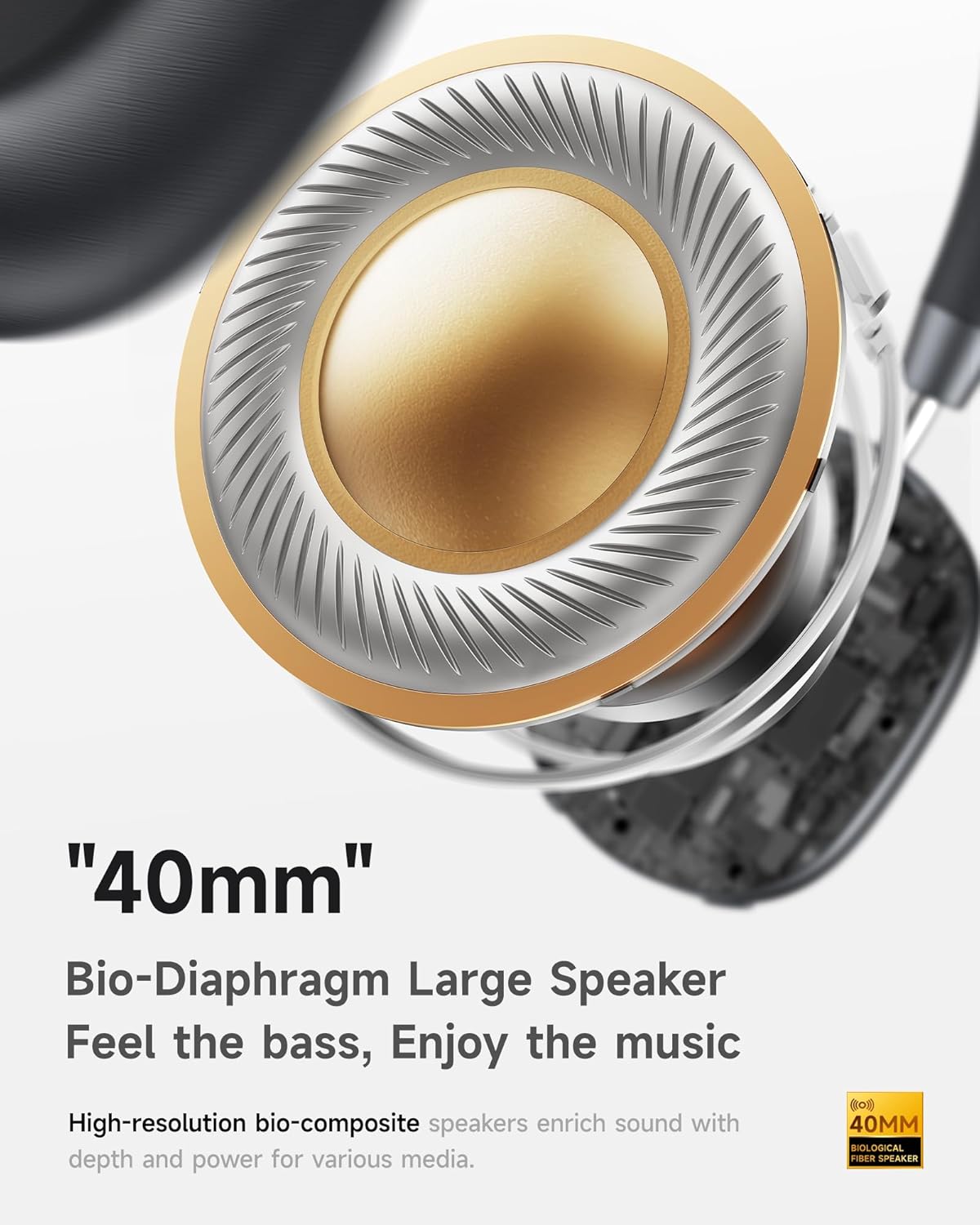
- Hi-Fi Audio with Deep Bass: Delivers clear sound with enhanced bass.
- App-Controlled EQ: Customize audio settings via a dedicated companion application.
- Igwe okwu arụnyere n'ime ya: Ensures clear voice calls.
- Njikọ Multi-point: Allows seamless switching between two connected Bluetooth devices.
- Nhazi Ergonomic: Lightweight build with soft memory-foam earcups for extended comfort.
- Long Playtime & Fast Charging: Up to 30 hours of playback on a single charge, with quick recharge capabilities.



4. Nhazi
4.1 Ịchaji ekweisi
Before first use, fully charge your Picun F5 headphones. Connect the provided USB charging cable to the headphone's charging port and a compatible USB power source. The charging indicator light will show the charging status.
4.2 Njikọ Bluetooth
- Gbaa mbọ hụ na agbanyụrụ ekweisi.
- Press and hold the Power button until the indicator light flashes, indicating pairing mode.
- Na ngwaọrụ gị (smartphone, tabletị, kọmpụta), mee ka Bluetooth nwee ike wee chọọ ngwaọrụ dị.
- Select "Picun F5" from the list of devices to connect.
- Once connected, the indicator light will change to a steady blue or turn off, depending on the model.
4.3 Multi-Point Njikọ
The Picun F5 supports connecting to two Bluetooth devices simultaneously. After pairing with the first device, disable Bluetooth on that device. Pair the headphones with the second device. Then, re-enable Bluetooth on the first device. The headphones should now be connected to both devices, allowing seamless audio switching.

5. Ọrụ
5.1 Njikwa ntọala
The headphones feature intuitive controls for managing audio and calls:
- Gbanyụọ/ Gbanyụọ: Pịa ma jide bọtịnụ Ike.
- Ndozi olu: Use the dedicated volume knob/buttons on the earcup.
- Gwuo/kwụsịtụ: Otu pịa bọtịnụ Multi-function.
- Track na-esote: Pịa bọtịnụ Multi-function ugboro abụọ.
- Gara aga Track: Pịa bọtịnụ Multi-function.
- Azịza/Kwụsị Oku: Naanị pịa bọtịnụ ọrụ ọtụtụ mgbe oku mbata na-aga.
- Jụ oku: Pịa ma jide bọtịnụ ọtụtụ ọrụ n'oge oku mbata.
5.2 Active Noise Cancelling (ANC) Modes
The ANC feature can be toggled or adjusted using a dedicated button on the headphones. Refer to the specific button layout on your device for exact functionality. Some models may offer different ANC levels or transparency modes.
5.3 App Control and Custom EQ
Download the companion app for your Picun F5 headphones to unlock personalized features. The app allows you to:
- Customize Equalizer (EQ) settings to match your audio preferences.
- Adjust ANC levels or switch between different noise control modes.
- Access additional smart features and settings.


6. Nlekọta
To ensure the longevity and optimal performance of your Picun F5 headphones, follow these maintenance guidelines:
- Nhicha: Jiri ákwà dị nro ma kpọọ nkụ hichaa ihe mkpuchi ntị na ihe mkpuchi isi. Zere iji kemịkalụ siri ike ma ọ bụ ihe ndị na-emebi ihe.
- Nchekwa: Store the headphones in a cool, dry place, away from direct sunlight and extreme temperatures. When not in use, consider storing them in a protective case.
- Zere mmiri mmiri: Ekwela ka mmiri ma ọ bụ oke mmiri kpuo isi ekwe ntị.
- Jiri Nlekọta Aka: Zere idobe ma ọ bụ idobe ekweisi na mmetụta siri ike.

7. Nchọpụta nsogbu
If you encounter issues with your Picun F5 headphones, refer to the following common solutions:
- Enweghị ike: Ensure the headphones are fully charged. Connect them to a power source and check the charging indicator.
- Enweghị ike ijikọ: Make sure the headphones are in pairing mode (indicator flashing). Disable and re-enable Bluetooth on your device, then try pairing again. Ensure the headphones are not already connected to another device.
- Enweghị ụda: Check the volume levels on both the headphones and your connected device. Ensure the headphones are properly paired. If using a wired connection, ensure the 3.5mm audio cable is securely plugged in.
- Ogo ụda adịghị mma: Move closer to your connected device to avoid interference. Check for any obstructions between the headphones and the device. Ensure the audio source is of good quality.
- ANC anaghị arụ ọrụ: Ensure the ANC feature is activated. Check for any physical obstructions around the microphones.
If the issue persists, try resetting the headphones (refer to the full user manual for specific reset instructions) or contact customer support.
8. Nkọwapụta
| Ụdị | Picun |
| Aha Nlereanya | F5 |
| Teknụzụ Njikọta | Ikuku (Bluetooth 4.0) |
| Njikwa mkpọtụ | Sound Isolation (Active Noise Cancelling) |
| Nzaghachi ugboro ugboro | 20 kHz |
| Mmetụta | 42 dB |
| Jack ekweisi | 3.5mm ọkpụrụkpụ |
| Ndụ batrị | Awa 30 |
| Ụdị ọkwọ ụgbọ ala ọdịyo | Ọkwọ ụgbọala dị ike |
| Ụdị ntị | Gburugburu |
| Mgbochi | 32 Ohm |
| Ibu Ibu | 14 ounces (0.4 Kilogram) |
| Ihe onwunwe | Acrylonitrile Butadiene Styrene (ABS) |
9. Akwụkwọ ikike na nkwado
Picun products are designed for reliability and performance. For warranty information, product support, or technical assistance, please refer to the warranty card included in your package or visit the official Picun websaịtị. Debe akwụkwọ nnata ịzụrụ maka akwụkwọ ikike.


