1. Okwu mmalite
This manual provides essential information for setting up, operating, maintaining, and troubleshooting your Roku Smart TV 2025 – 24-Inch Select Series 720p HD TV. Please read these instructions carefully before using your television.
The Roku Select Series HD TV offers a streamlined entertainment experience. It features bright HD picture quality, auto speech clarity, and a night mode. Access free live television directly from the home screen and utilize the voice remote for content discovery across various applications. This television is suitable for various rooms including bedrooms, living rooms, kitchens, or children's rooms.
2. Kedu ihe dị na Igbe ahụ
Chọpụta na akụrụngwa niile dị na nkwakọ ngwaahịa:
- Roku Select Series 24" HD TV
- Stands and screws
- Roku Voice Remote with batteries
- Ntuziaka mmalite ngwa ngwa
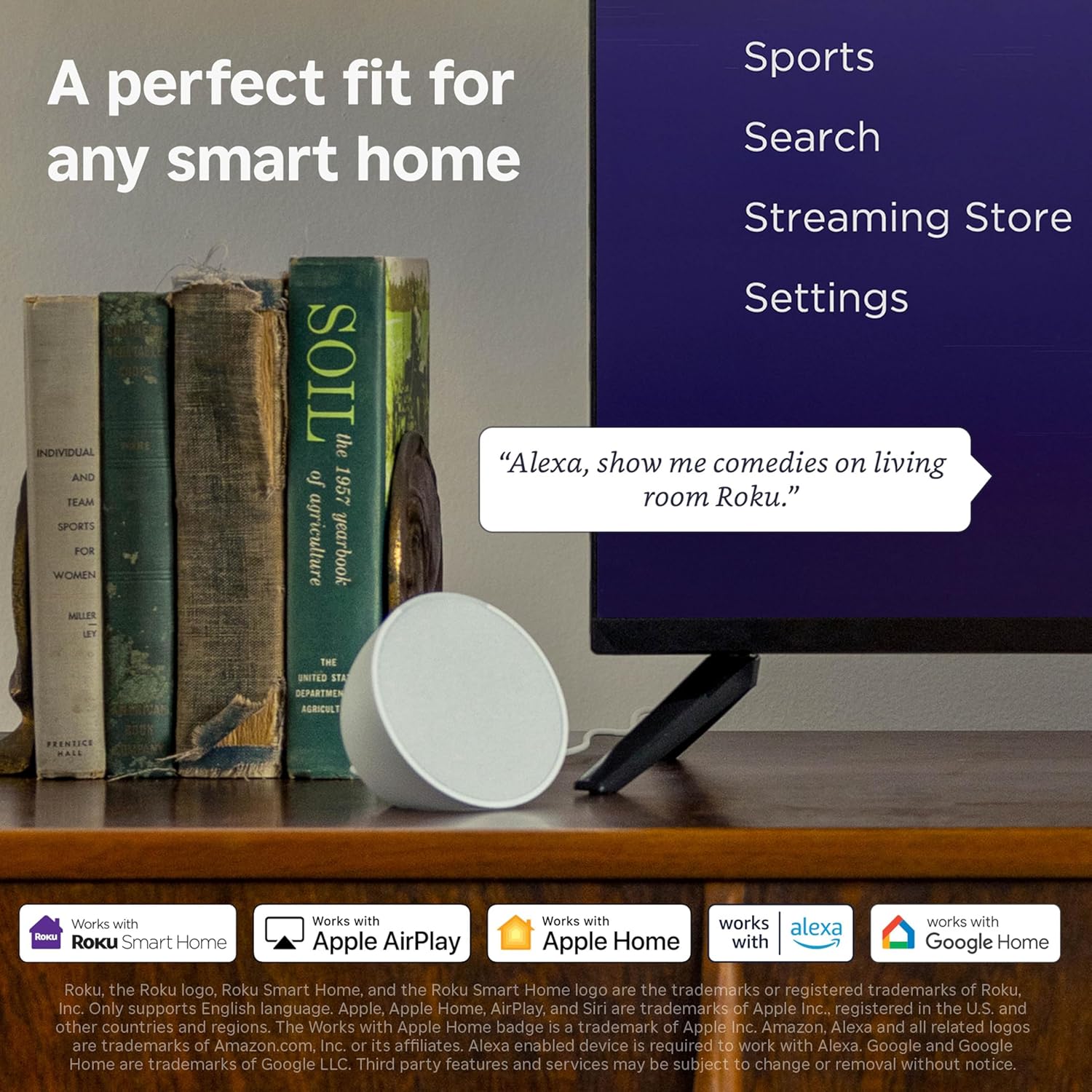
Image: The Roku Select Series TV box contents, showing the television, remote, and stand components.
3. Nhazi
3.1 Ịgbakwunye ihe nkwụnye TV
- Jiri nlezianya dobe ihuenyo TV n'elu ala dị nro ma dị ọcha iji gbochie ncha.
- Dozie ihe nkwụnye nke ọ bụla na oghere mkpọsa kwekọrọ na ala TV.
- Chekwaa ihe nkwụnye ahụ site na iji skru ndị enyere. Gbaa mbọ hụ na agbachiela ha nke ọma.
3.2 Njikọta Peripherals
Your Roku TV includes multiple ports for connecting external devices:
- ọdụ ụgbọ mmiri HDMI: Connect devices such as cable boxes, gaming consoles, or Blu-ray players. The HDMI 1 (ARC) port supports Audio Return Channel for simplified audio connections.
- Ọdụ ụgbọ mmiri USB: For media playback from a USB drive or powering compatible devices.
- Ntinye Antenna/Cable: Jikọọ antenna maka mgbasa ozi n'ikuku ma ọ bụ njikọ TV USB.
- Mmepụta ọdịyo anya: Maka ijikọ na ụda ụda ma ọ bụ nnata ọdịyo.
- Ntinye AV: Maka ijikọ ngwaọrụ ndị ochie na-eji vidiyo composite na stereo audio cable.

Image: Close-up of the back of the Roku TV, highlighting the HDMI, USB, optical, and AV input ports.
3.3 Ike-mmalite na njikọ netwọkụ
- Tinye eriri ike ahụ n'ime TV wee tinye ya n'ime oghere dị n'ime mgbidi.
- Insert the included AAA batteries into the voice remote.
- Pịa bọtịnụ ike dị na remote iji gbanye TV.
- Follow the on-screen instructions to select your language, connect to your Wi-Fi network, and activate your Roku account.
4. Na-arụ ọrụ na Roku TV gị
4.1 Using the Voice Remote
The Roku Voice Remote simplifies navigation and content search. It features dedicated buttons for popular streaming services and voice control capabilities.
- Bọtịnụ olu: Press and hold to speak commands for searching content, launching apps, or controlling playback.
- Mpempe igodo ụzọ: Use the directional arrows and OK button to move through menus and select items.
- Ụzọ mkpirisi ngwa: Dedicated buttons provide quick access to services like Netflix, Disney+, and Prime Video.
- Njikwa olu: Adjust TV volume directly from the remote.
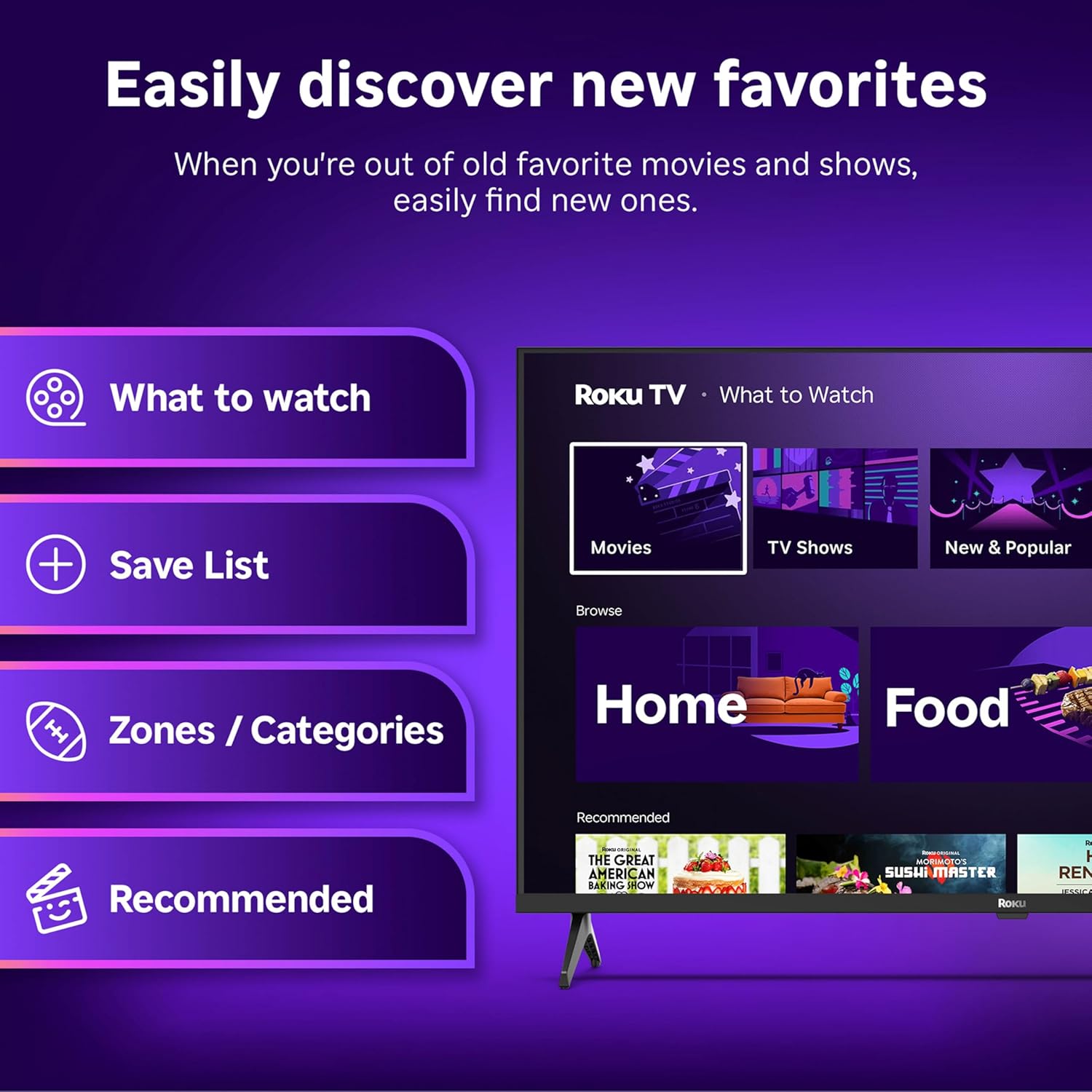
Image: The Roku Voice Remote, showing its layout and key functions.
4.2 Streaming and App Navigation
The Roku TV home screen provides quick access to all your streaming channels and inputs. You can customize the order of your apps for personalized access.
- Ihuenyo ụlọ: Displays your installed apps, recommended content, and TV inputs.
- Streaming Store: Browse and add new streaming channels.
- TV dị ndụ: Access free live television channels directly from the home screen.
- Chọọ: Use the search function or voice remote to find movies, shows, actors, or directors across various services.

Image: The Roku TV user interface, showing the home screen with app tiles and menu options.
4.3 Ntọala foto na ụda
Your Roku TV features Smart Picture technology to optimize viewing and offers enhanced audio features.
- Smart Picture: Automatically adjusts picture settings based on the content being viewed (e.g., movie, sports, vivid, standard).
- Audio Clarity: Designed for clear speech and louder sound.
- Ụdị Ekweisi Bluetooth: Connect your wireless headphones for private listening.

Image: A vibrant nature scene displayed on the Roku TV, demonstrating the clear picture quality.
4.4 Ngwakọta ụlọ Smart
The Roku TV integrates with various smart home ecosystems for convenient voice control and content sharing.
- Njikwa olu: Compatible with Roku Voice, Siri, Alexa, and Google Assistant for hands-free operation.
- Apple AirPlay: Effortlessly share videos, photos, and music from your Apple devices to your TV.

Image: A Roku TV screen with a smart speaker nearby, illustrating voice control integration with smart home systems.
5. Nlekọta
5.1 Na-ehicha TV gị
- Kwupuo TV mgbe niile tupu ihicha ya.
- Jiri akwa dị nro, nke na-enweghị lint, jiri nwayọ hichaa ihuenyo na kabinet.
- Maka akara ndị isi ike, dị obere dampen akwa na mmiri ma ọ bụ dị nwayọọ, na-adịghị abrasive ihuenyo Cleaner. Efela ihe nhicha ozugbo na ihuenyo.
- Zere iji kemịkalụ siri ike, mpe mpe akwa, ma ọ bụ ihe mgbaze.
5.2 Mmelite ngwanrọ
Your Roku TV receives automatic software updates to provide new features and improve performance. Ensure your TV is connected to the internet to receive these updates.
6. Nchọpụta nsogbu
If you encounter issues with your Roku TV, try the following basic troubleshooting steps:
- Enweghị ike: Gbaa mbọ hụ na etinyere eriri ọkụ na nke ọma na TV yana oghere eletrik na-arụ ọrụ. Gbalịa ụzọ ọpụpụ dị iche.
- Enweghị foto/ụda: Verify that the correct input source is selected. Check all cable connections (HDMI, AV, etc.) are secure.
- Remote anaghị aza: Dochie batrị ndị dị na ime ime. Gbaa mbọ hụ na enweghị ihe mgbochi n'etiti igwe anya na TV.
- Okwu njikọ netwọkụ: Restart your Wi-Fi router. Go to the TV's network settings to reconnect to your Wi-Fi.
- Ngwa anaghị ebugo: Try restarting the app. If the issue persists, remove the app and reinstall it from the Streaming Store.
- Tọgharia Factory: As a last resort, a factory reset can resolve many software issues. This will erase all personal settings and installed apps. Access this option through the TV's Settings menu.
7. Nkọwapụta
| Njirimara | Nkọwapụta |
|---|---|
| Ụdị | Roku |
| Nọmba nlereanya | 24R2D5 |
| Nha ihuenyo | 24 sentimita asatọ |
| Ngosipụta teknụzụ | Ikanam |
| Mkpebi | 720p |
| Ọnụego ume ọhụrụ | 60 Hz |
| Akụkụ akụkụ | 16:9 |
| Teknụzụ Njikọta | Bluetooth, WiFi |
| Atụmatụ pụrụ iche | Bluetooth Headphone Mode, Dolby Audio, Voice Remote |
| Ibu Ibu | 5.7 pound |
| Akụkụ ngwaahịa | 7 x 21.1 x 14.3 sentimita asatọ |
| Batrị achọrọ | 2 batrị AAA (maka ime ime) |
8. Akwụkwọ ikike na nkwado
For warranty information and technical support, please refer to the documentation included with your product or visit the official Roku support websaịtị. Debe akwụkwọ nnata ịzụrụ maka akwụkwọ ikike.
Roku offers various support resources, including online FAQs, troubleshooting guides, and customer service contact options.


