1. Okwu mmalite
This manual provides essential information for the installation, operation, and maintenance of your ZOTAC Gaming GeForce RTX 5060 Twin Edge OC graphics card. Designed for high-performance gaming, this card features the NVIDIA Blackwell architecture, DLSS 4, 8GB GDDR7 memory, and PCIE 5.0 support, all within a compact, SFF-ready design. Please read this manual thoroughly before installation and use to ensure optimal performance and longevity of your product.
2. Kedu ihe dị na Igbe ahụ
Chọpụta na ihe niile dị na ngwugwu:
- ZOTAC GAMING GeForce RTX 5060 Twin Edge OC graphics card
- Akwụkwọ ntuziaka (akwụkwọ a)
- Ntuziaka mmalite ngwa ngwa
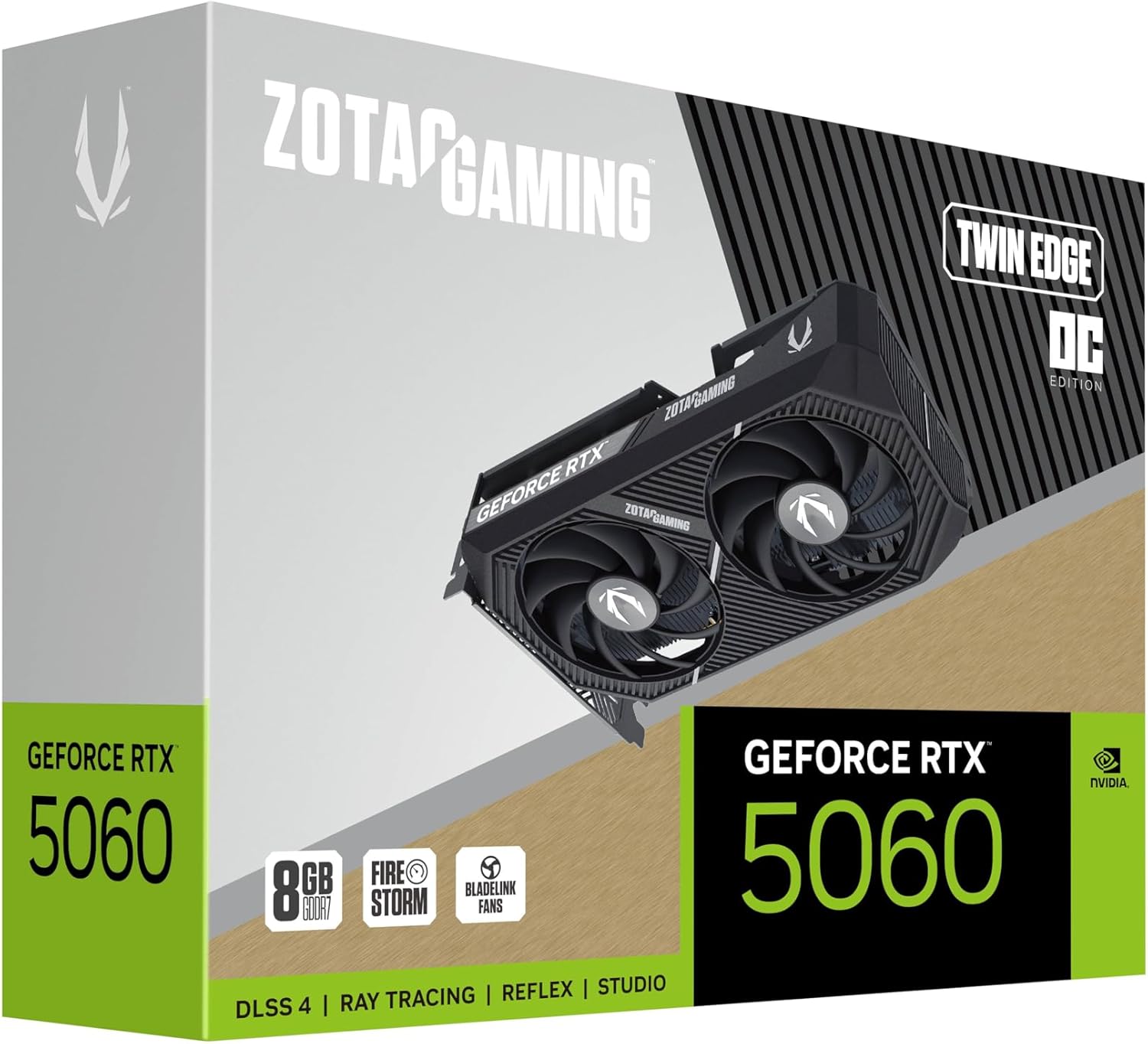
Image: The retail packaging for the ZOTAC Gaming GeForce RTX 5060 Twin Edge OC graphics card.
3. Ngwaahịa gafereview
Familiarize yourself with the physical components of your graphics card.

Foto: N'ihu view nke kaadị eserese, ihe ngosiasing the dual 90mm BladeLink fans and ZOTAC GAMING branding.

Foto: N'azụ view of the graphics card, showing the 3 DisplayPort 2.1b and 1 HDMI 2.1b output ports.

Foto: Akụkụ view of the graphics card, highlighting its compact two-slot design.
4. Nkọwapụta
Key technical specifications of the ZOTAC Gaming GeForce RTX 5060 Twin Edge OC graphics card:
| Njirimara | Nkọwapụta |
|---|---|
| Ihe eserese eserese | GeForce RTX 5060 |
| Chipset ika | NVIDIA |
| Ebe nchekwa vidiyo | 8GB GDDR7 |
| Ọnụnọ ebe nchekwa | 128-bit |
| Ọsọ ebe nchekwa | 28 Gbps |
| PCIe interface | PCIE 5.0 |
| Ngosipụta arụpụta | 3 x DisplayPort 2.1b, 1 x HDMI 2.1b |
| Mkpebi Max | 7680x4320 (8K Ready) |
| Nkwado Ngosipụta Ọtụtụ | 4 Ngosipụta |
| Sistemụ jụrụ oyi | Dual 90mm BladeLink fans, Composite Heatpipes, Pass-thru Airflow Design |
| Njikọ ọkụ | 8-pin PCIe |
| Akụkụ (LxWxH) | 8.7 x 1.6 x 0.1 sentimita (220.5 x 41.6 x 120.25 mm) |
| Ibu | 1.57 pound |
5. Ntọala na nwụnye
5.1 Ndepụta nbanye tupu etinyere
- Gbaa mbọ hụ na ngalaba ọkọnọ ike gị (PSU) zutere wat akwadorotage for your system, including the new graphics card.
- Gbanyụọ kọmputa gị ma kwụpụ eriri ọkụ eletrik na oghere mgbidi.
- Ground yourself to discharge any static electricity before handling components.
5.2 Ntinye ngwaike
- Mepee akpa kọmputa gị.
- Locate an available PCI Express 5.0 x16 slot on your motherboard.
- Remove any expansion slot covers that correspond to the graphics card's two-slot width.
- Carefully align the graphics card with the PCIe slot and press down firmly until it is securely seated. Ensure the retention clip on the PCIe slot locks into place.
- Jiri skru kechie kaadị eserese ahụ na akpa ahụ.
- Connect the 8-pin PCIe power connector from your PSU to the graphics card. Ensure a firm connection.
- Mechie akpa kọmputa gị.
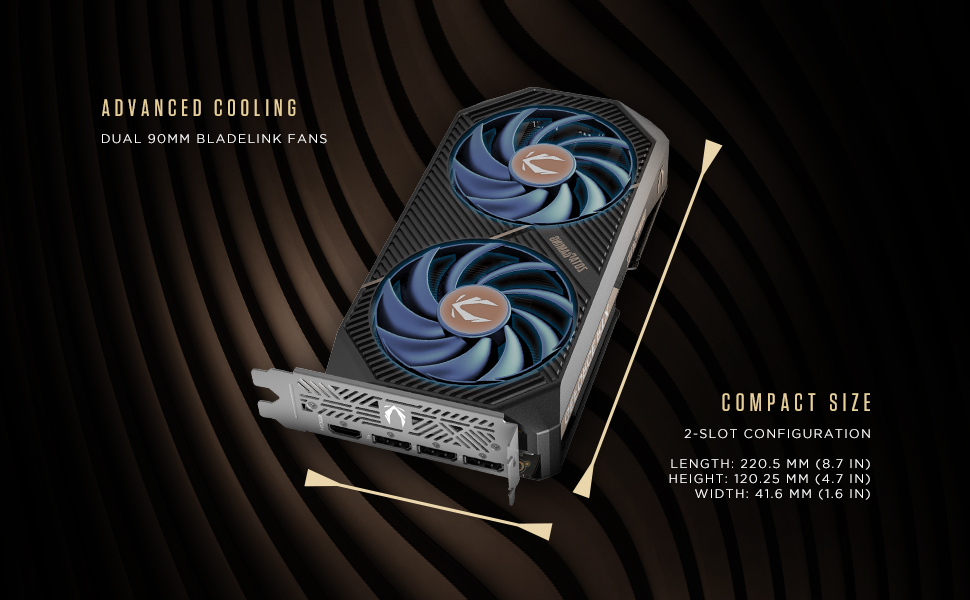
Image: Illustration of the graphics card's compact dimensions and dual fan cooling system, aiding in installation planning.
5.3 Nwụnye ọkwọ ụgbọala
- Jikọta eriri ike ahụ ọzọ wee gbanye kọmputa gị.
- Connect your display cable (HDMI or DisplayPort) from the graphics card to your monitor.
- Once the operating system loads, download the latest NVIDIA drivers for your GeForce RTX 5060 from the official NVIDIA websaịtị (www.nvidia.com/drivers).
- Soro ntuziaka dị na ihuenyo iji mezue nrụnye draịva ahụ. Enwere ike ịchọ ịmalitegharịa sistemụ ahụ.
6. Operating Your Graphics Card
6.1 Mmelite ọkwọ ụgbọala
Regularly update your graphics drivers to ensure optimal performance, stability, and access to the latest features and game optimizations. NVIDIA releases new drivers frequently, which can be downloaded from their official website or through the GeForce Experience application.
6.2 ZOTAC GAMING Utilities
ZOTAC provides utility software, such as FireStorm, which allows you to monitor your graphics card's performance, adjust fan speeds, and customize lighting (if applicable). Refer to the ZOTAC websaịtị maka ozi ndị ọzọ na nbudata.
6.3 Nhazi nhazi
Utilize the NVIDIA Control Panel to configure display settings, including resolution, refresh rate, and multi-monitor setups. This software is installed with the graphics drivers.
7. Nlekọta
7.1 Nhicha
- Periodically clean the fans and heatsink of your graphics card to prevent dust buildup, which can impede cooling performance.
- Use compressed air to gently blow dust out of the heatsink fins and fan blades. Hold the fan blades in place to prevent them from spinning excessively during cleaning.
- Ensure your computer is powered off and unplugged before performing any cleaning.
7.2 Ikuku
Maintain good airflow within your PC case. Ensure that case fans are properly configured to draw cool air in and expel hot air out. Avoid obstructing the graphics card's fans or exhaust vents.

Image: Visual representation of the card's pass-through airflow design for faster heat release and the metal backplate for enhanced rigidity.
8. Nchọpụta nsogbu
This section addresses common issues you might encounter with your graphics card.
| Nsogbu | Ihe nwere ike ime | Ngwọta |
|---|---|---|
| Enweghị mmepụta ngosi | Incorrect cable connection, unseated card, no power, driver issue | Ensure display cables are securely connected. Reseat the graphics card. Verify the 8-pin PCIe power connector is fully inserted. Install or update drivers. |
| System instability or crashes | Outdated drivers, overheating, insufficient PSU power | Update graphics drivers. Monitor temperatures using ZOTAC FireStorm or other tools. Ensure PSU meets requirements. |
| Fans not spinning or excessive noise | Dust buildup, fan control settings, faulty fan | Clean fans and heatsink. Check fan speed settings in ZOTAC FireStorm. Contact support if a fan is faulty. |
| Low performance in games | Outdated drivers, incorrect game settings, CPU bottleneck | Ensure latest drivers are installed. Adjust in-game graphics settings. Verify other system components are not limiting performance. |
9. Akwụkwọ ikike na nkwado
ZOTAC provides dedicated customer support and warranty coverage for its products.
9.1 Akwụkwọ ikike mkpuchi
Your ZOTAC Gaming GeForce RTX 5060 Twin Edge OC graphics card typically comes with a 3-year coverage. Please register your product on the official ZOTAC website to activate and verify your warranty terms and conditions, as they may vary by region.
9.2 Nkwado ndị ahịa
For technical assistance, troubleshooting, or warranty claims, please utilize ZOTAC's support resources:
- Nkata N'Onlinentanet: Access 24/7 online chat support via the ZOTAC websaịtị.
- RMA Program: For hardware issues requiring repair or replacement, refer to the Return Merchandise Authorization (RMA) program details on the ZOTAC support page.
- Online Communities: Engage with other users and find solutions on ZOTAC's official forums and social media channels.
Visit the official ZOTAC websaịtị maka ozi nkwado kachasị ọhụrụ: www.zotac.com/support

Foto: Ofeview of ZOTAC's online communities and dedicated customer support services, including warranty coverage and RMA program.


